
Overview
These notes are for a technical team member who needs to setup the Courses module.
The Web Engine Courses module provides the user with the ability to develop an online course website. The Courses module has been used to develop online Bible courses as well as digital training for various partners in the church.
These notes assume that there has been a website created for the online course system. The following notes should provide the needed details to setup and configure a website to be used for the Web Engine Courses module.
Realize that this is just a basic configuration of the Courses module. Your team should work with a web designer to develop the pages of the website to fit your branding. These notes simply build the website structure, you will need to provide the content (images, text, videos, etc.) for the website and courses.
Note: The Courses module is currently only available on the Hope design.
How to
Courses Module: Provider
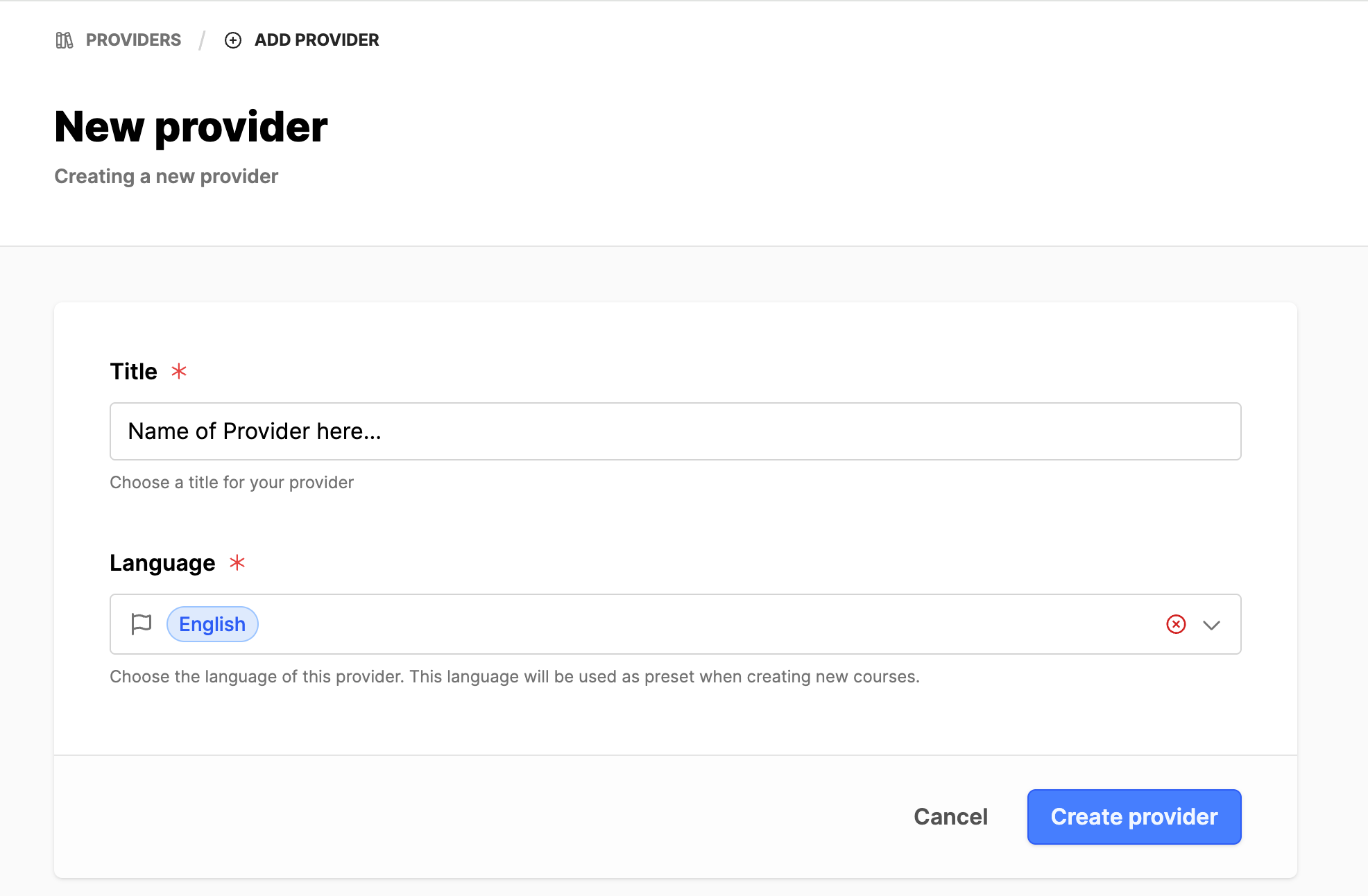
Create a provider in the Courses Module:
- Expand the Courses module on the left side menu.
- Click on the Manage providers submodule.
- Click on the Add provider button.
- Title: Enter the name of the provider.
- Language: Add the language for the provider. (If not there, add under entity.)
- Click on the Create provider button.
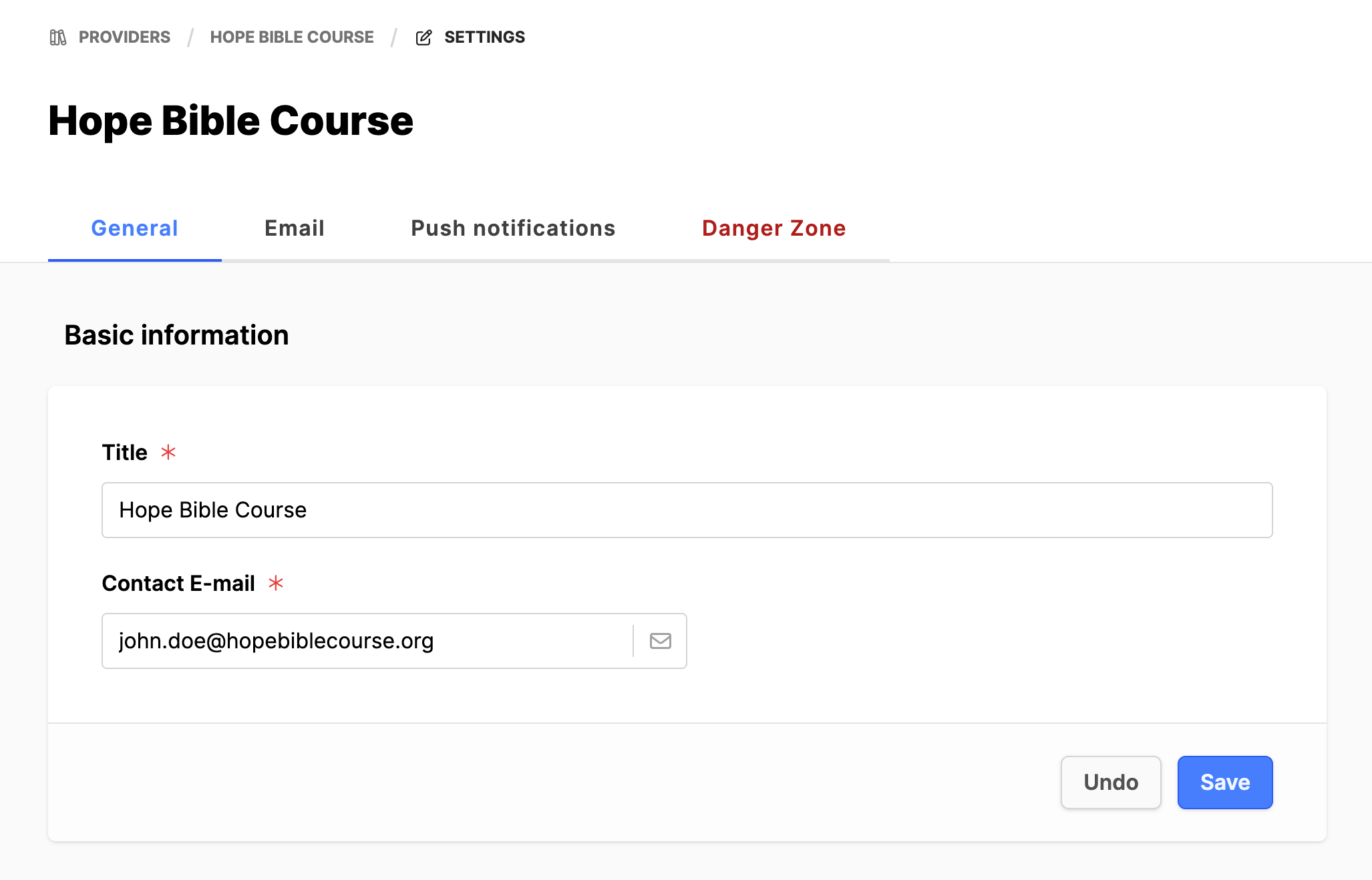
- Click on the Edit provider button.
- Under the Basic information section, add the provider Contact E-mail.
- Click the Save button.
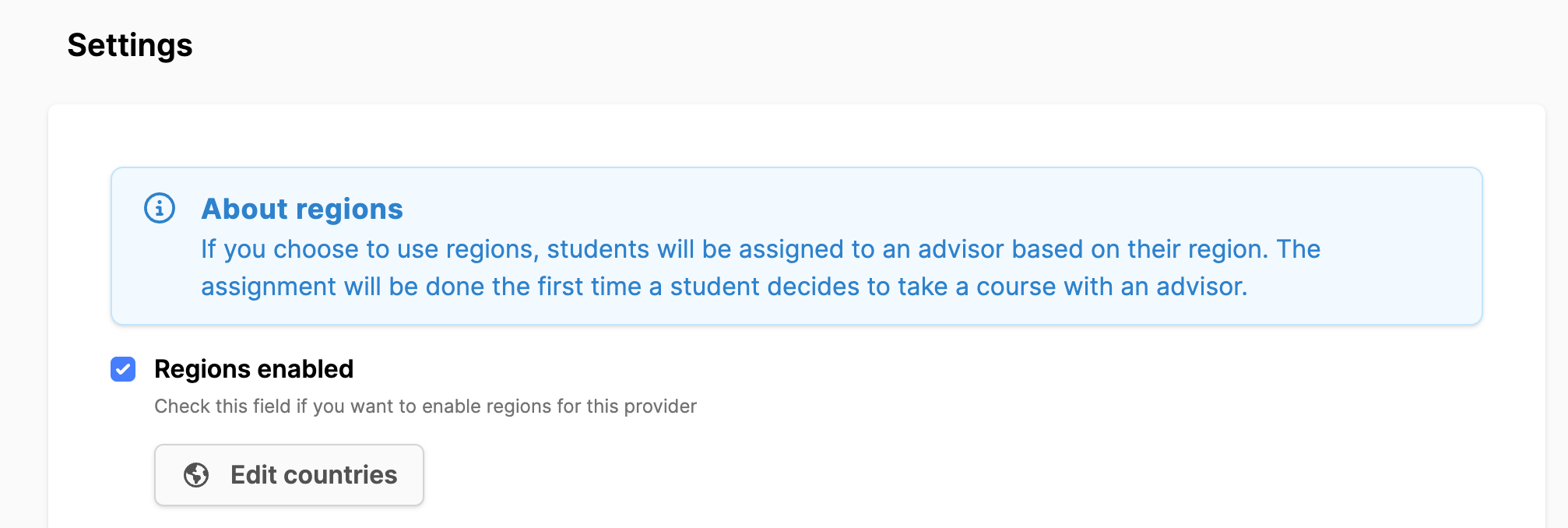
- Scroll down to Settings and see that Regions enabled is checked. If changes are made, click the Save button.
Admin Area: Authentication
Create a user collection for the website frontend users.
- Expand the Admin Area.
- Expand the Authentication submodule.
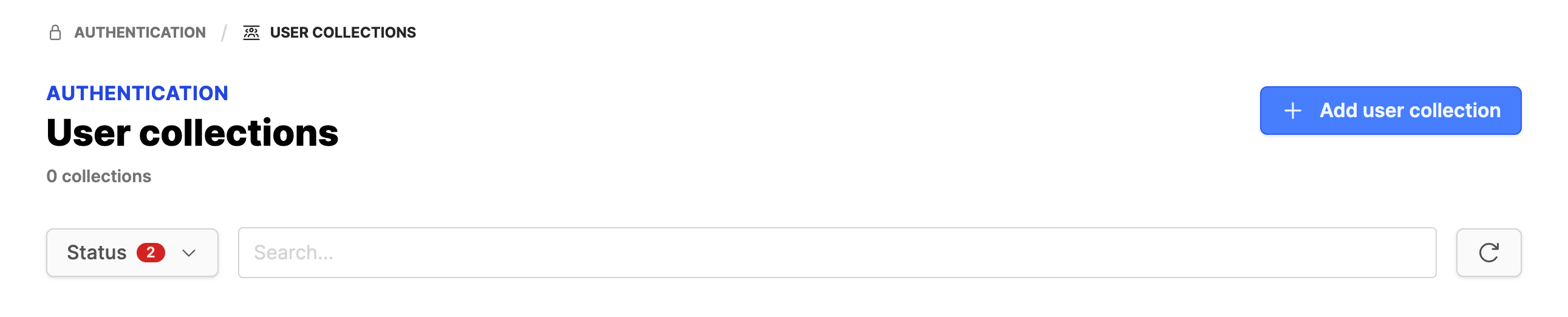
- Click on User Collections.
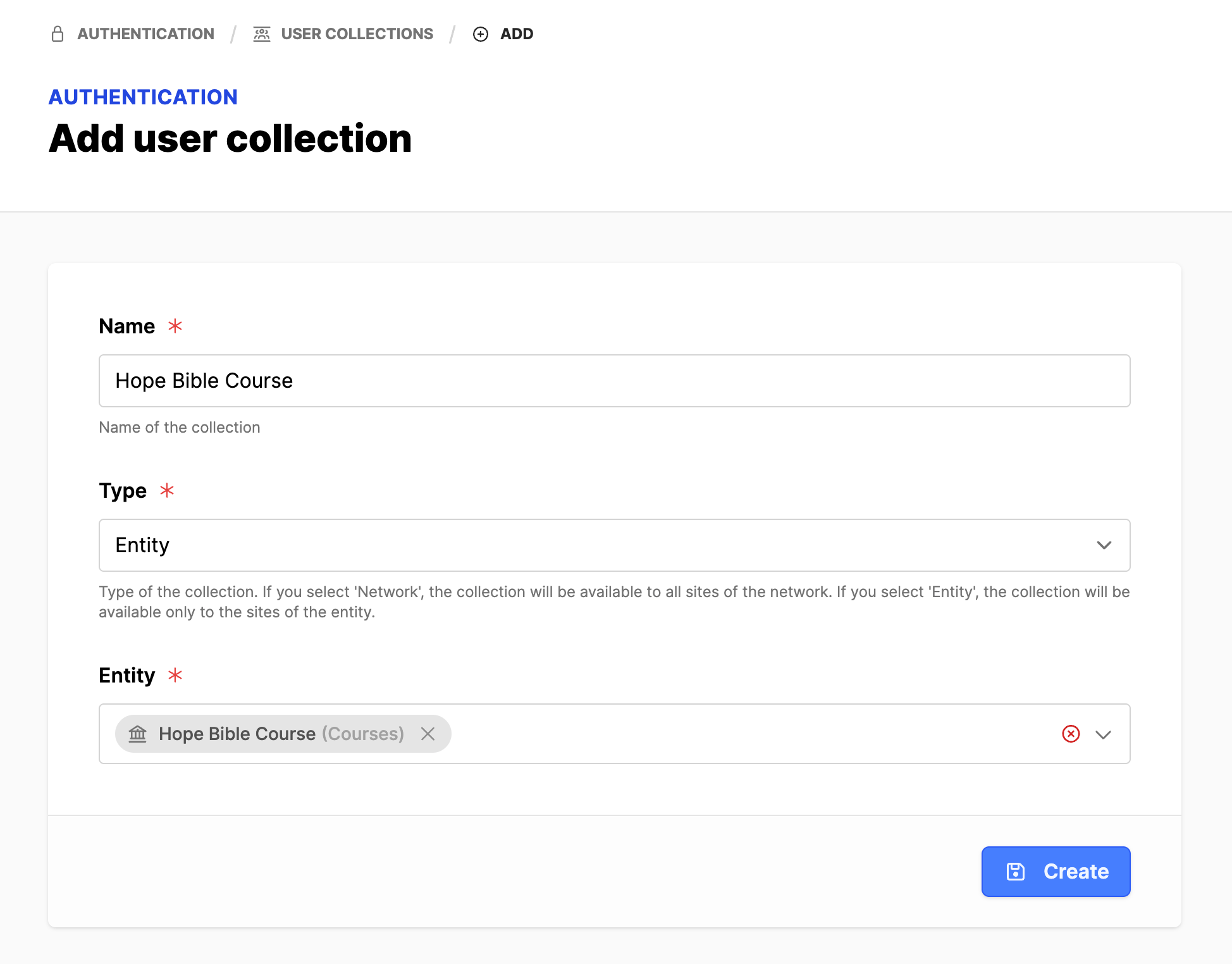
- Click the Add user collection button.
- Name: Provide a meaningful Name for the collection.
- Type: Entity (usual case).
- Entity: Usually the current entity.
- Click on the Create button. This opens the collection interface for editing.
Configure the User collection
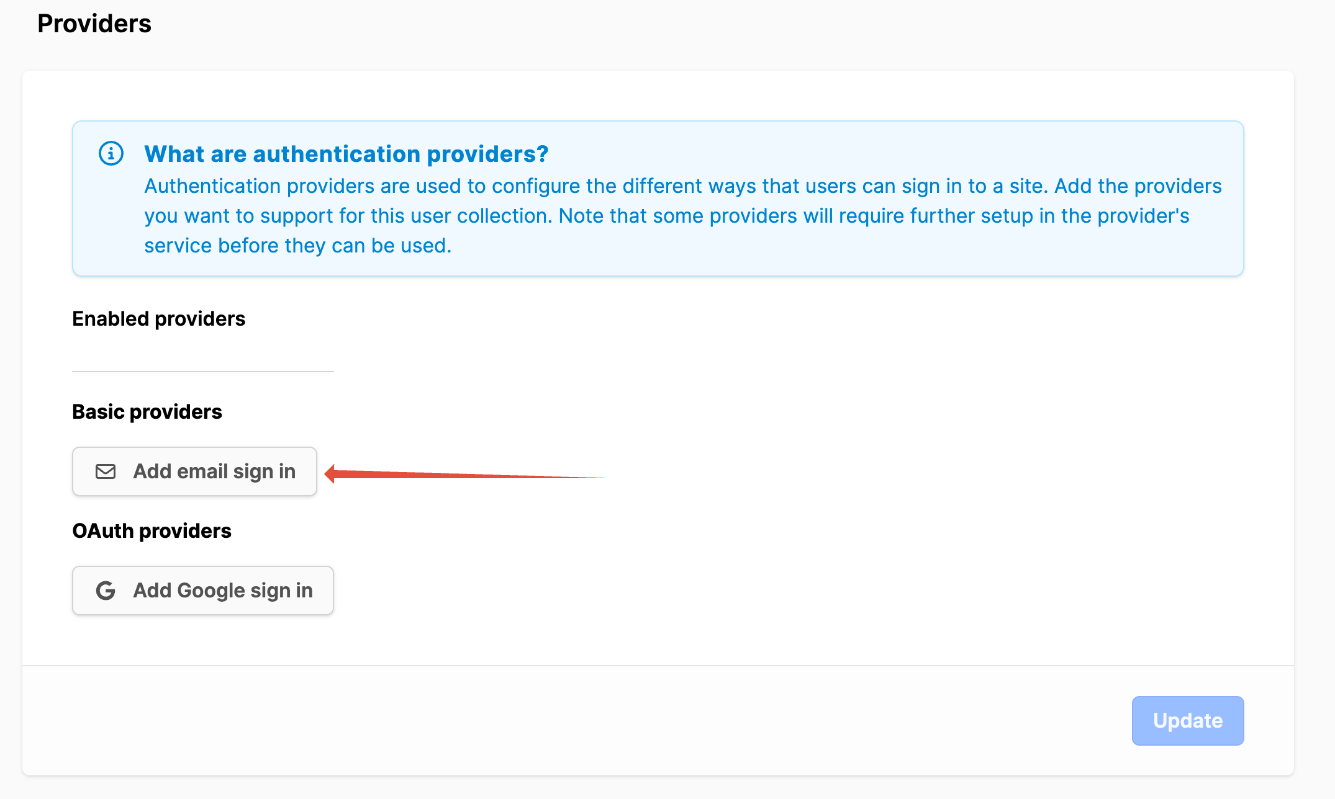
- Scroll down to Providers.
- Click on the Add email sign in button.
- Scroll down and click on the Update button.
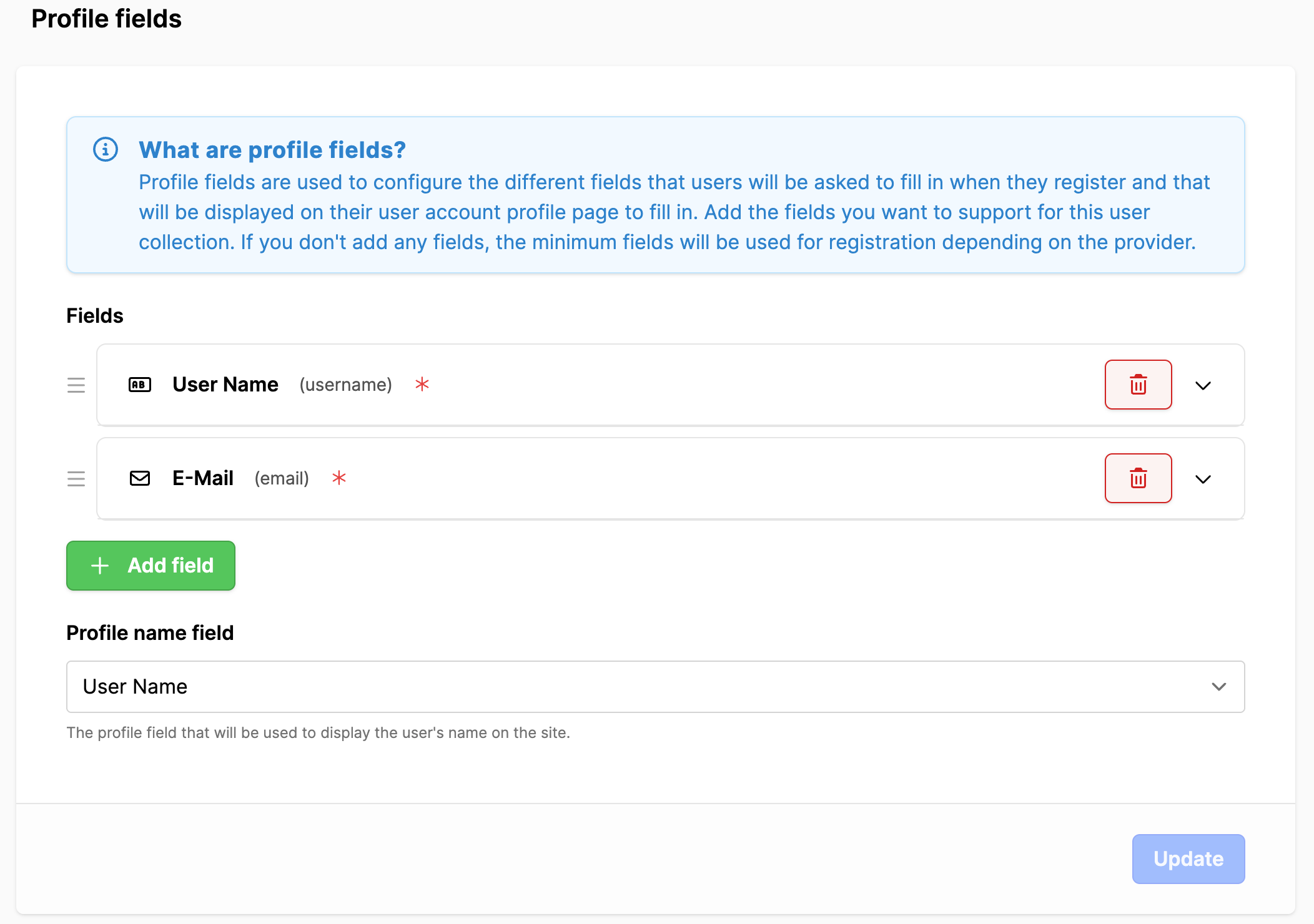
- Scroll down to the Profile fields.
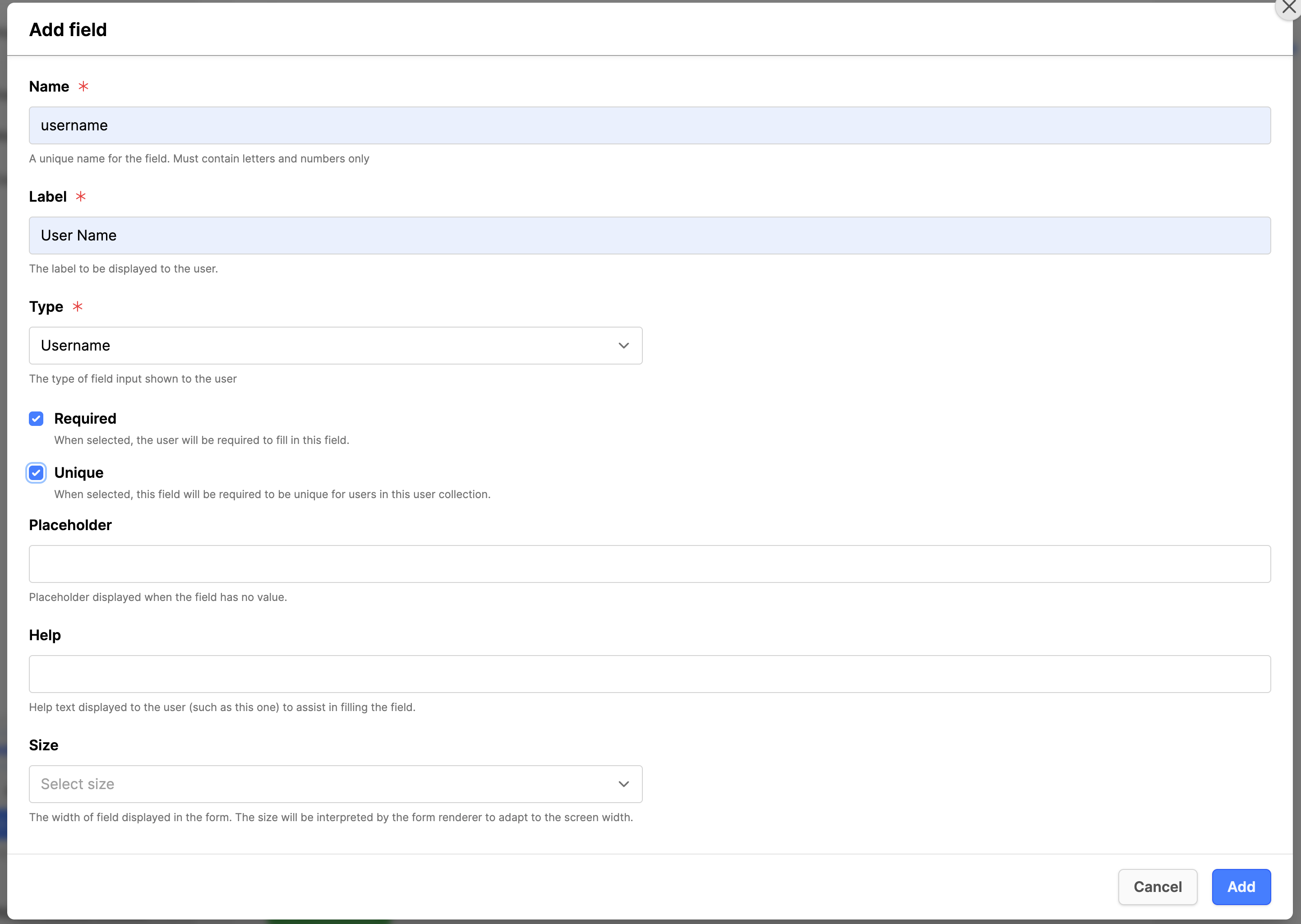
- Click on the Add field button.
- Name: username (lower case).
- Label: User Name.
- Type: Select Username.
- Click the checkmark for: Required.
- Click the Add button.
- Click on Add field button.
- Name: email (lower case).
- Label: E-mail.
- Type: Select Email.
- Click the checkmark for: Required.
- Click the Add button.
- ! important ! - if the course provider wants to have the students name on the certificate, there will need to be fields added for the student to enter this information.
- Add a field for First Name:
- Name: firstName (case sensitive)
- Label: First Name
- Add a field for Last Name:
- Name: lastName (case sensitive)
- Label: Last Name
- Set the Profile name field: User Name.
- Click the Update button.
Web: Pages
- Create the webpages listed below under the created website and create the website structure.
- Then set the page dynamic content (per required page).
- Dynamic content is configured with the following steps:
- Click on the page menu (three vertical dots by page title), and then select Page settings.
- Click on the Advanced tab.
- Scroll down to the Dynamic content section.
- Resource will be set as indicated below.
- Note: When selecting Page Presets, watch the language code; set the correct code for your website.
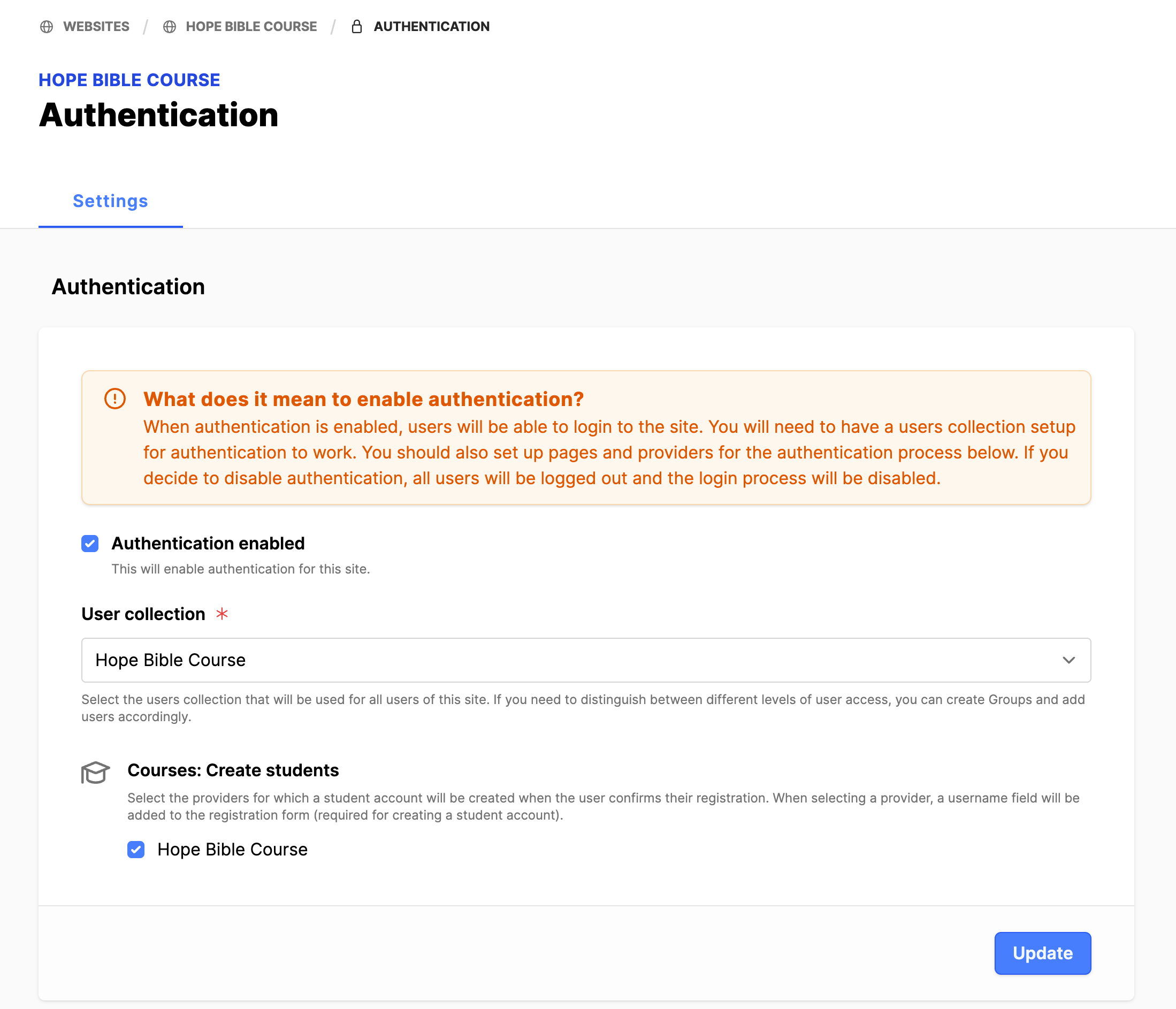
- Verify under the website that the authentication is activated:
- Expand the website.
- Click on the Authentication submodule.
- Authentication enabled: Set a checkmark.
- Set the User collection to the created collection.
- Set the checkmark under Courses: Create students for the provider.
- Click the Update button.
- Finish the remaining Authentication configuration later, as pages need to be created first. You may notice warning messages on the blocks, note the block, then complete all the steps below. Once all the configuration below is completed, review any blocks with an error message and verify the error message is cleared.
Website Pages:
- Home:
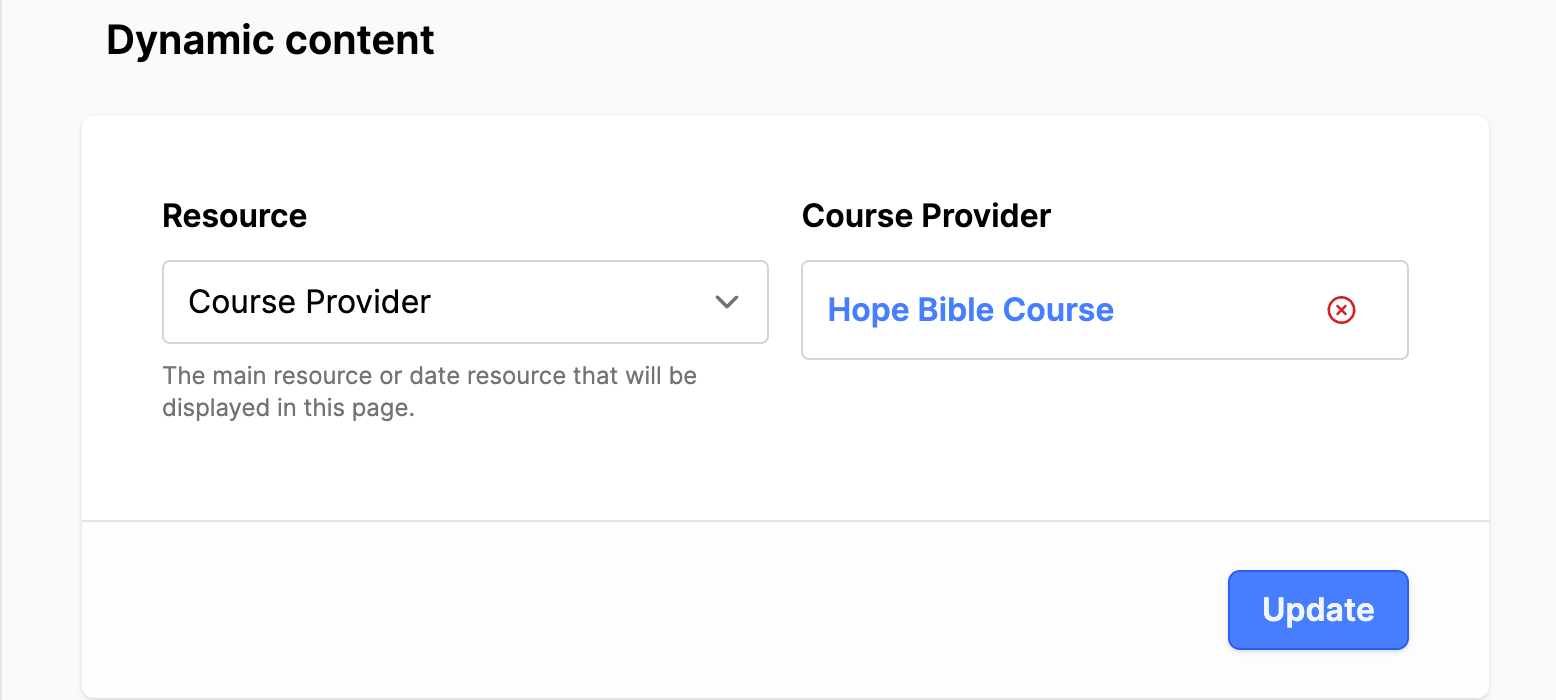
- Select a Preset: Basic. Add content later. Configure the Dynamic Content as mentioned above in the Page settings.
- Has a dynamic URL: DO NOT set the checkmark.
- Resource: Course Provider
- Select your Course Provider.
- Click Update button.
- Cache Control: no-cache, no-store: Set the checkmarks. (You may need an administrator.)
- Click the Update button.
- Courses:
- Select a Preset: Basic. Add content later. Configure the Dynamic Content as mentioned above in the Page settings.
- Has a dynamic URL: DO NOT set the checkmark.
- Resource: Course Provider. Select your course provider.
- Click the Update button.
- Cache Control: no-cache, no-store: Set the checkmarks. (You may need an administrator.)
- Click the Update button.
- Course detail:
- On the Courses page, click on the page menu (three vertical dots by page title), and then select Add subpage.
- Title: Course detail.
- Click the Create button.
- Select a Preset: Scroll down and click on Courses: Course detail. (Watch the language code! ex: en = English.)
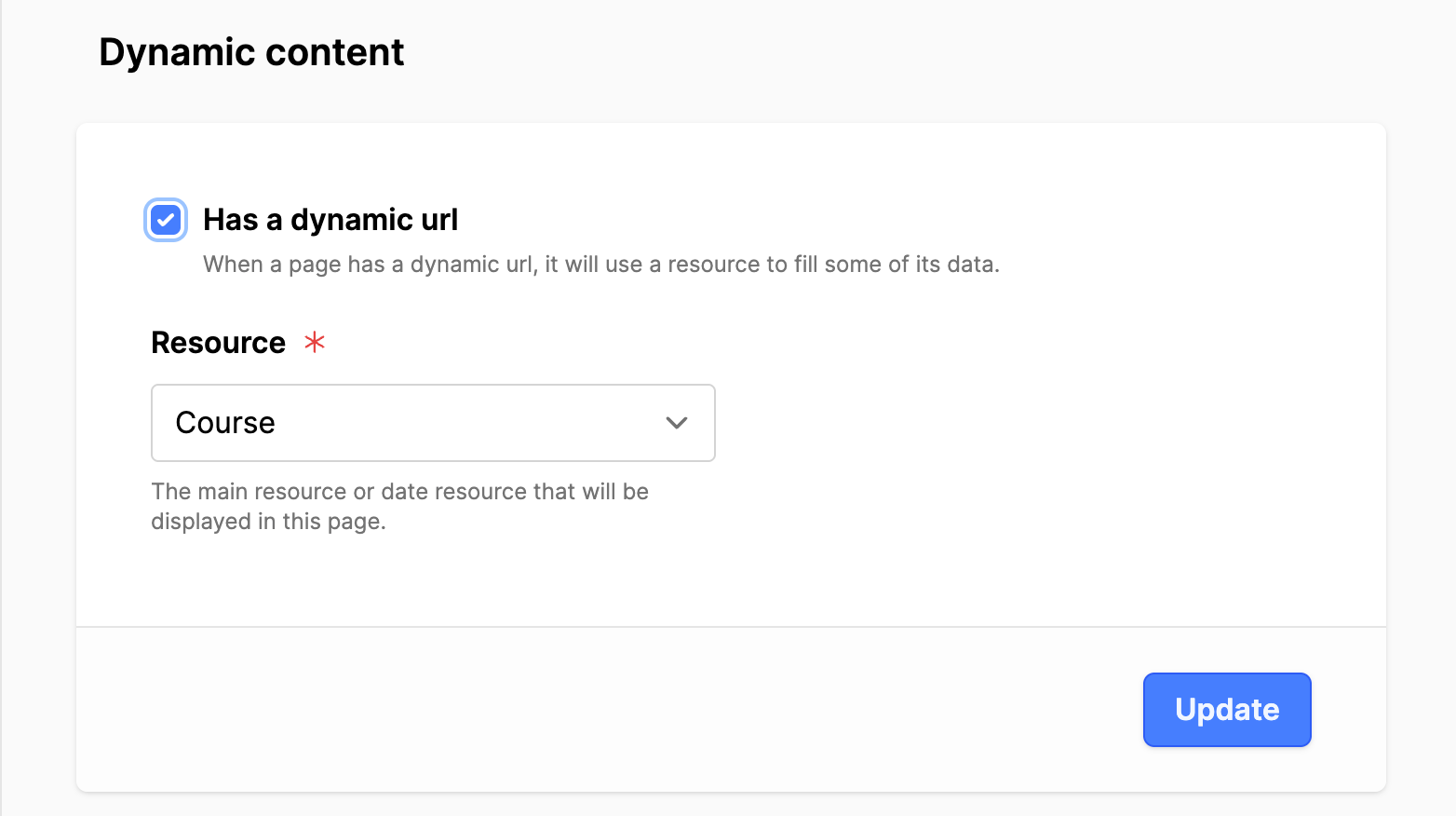
- Configure the Dynamic Content as mentioned above in the Page settings.
- Has a dynamic URL: Set the checkmark.
- Resource: Course.
- Click the Update button.
- Cache Control: no-cache, no-store: Set the checkmarks. (You may need an administrator.)
- Click the Update button.
- Course content:
- On the Course detail page, click on the page menu (three vertical dots by page title), and then select Add subpage.
- Title: Course content.
- Click the Create button.
- Select a Preset: Scroll down and click on Courses: Course content.
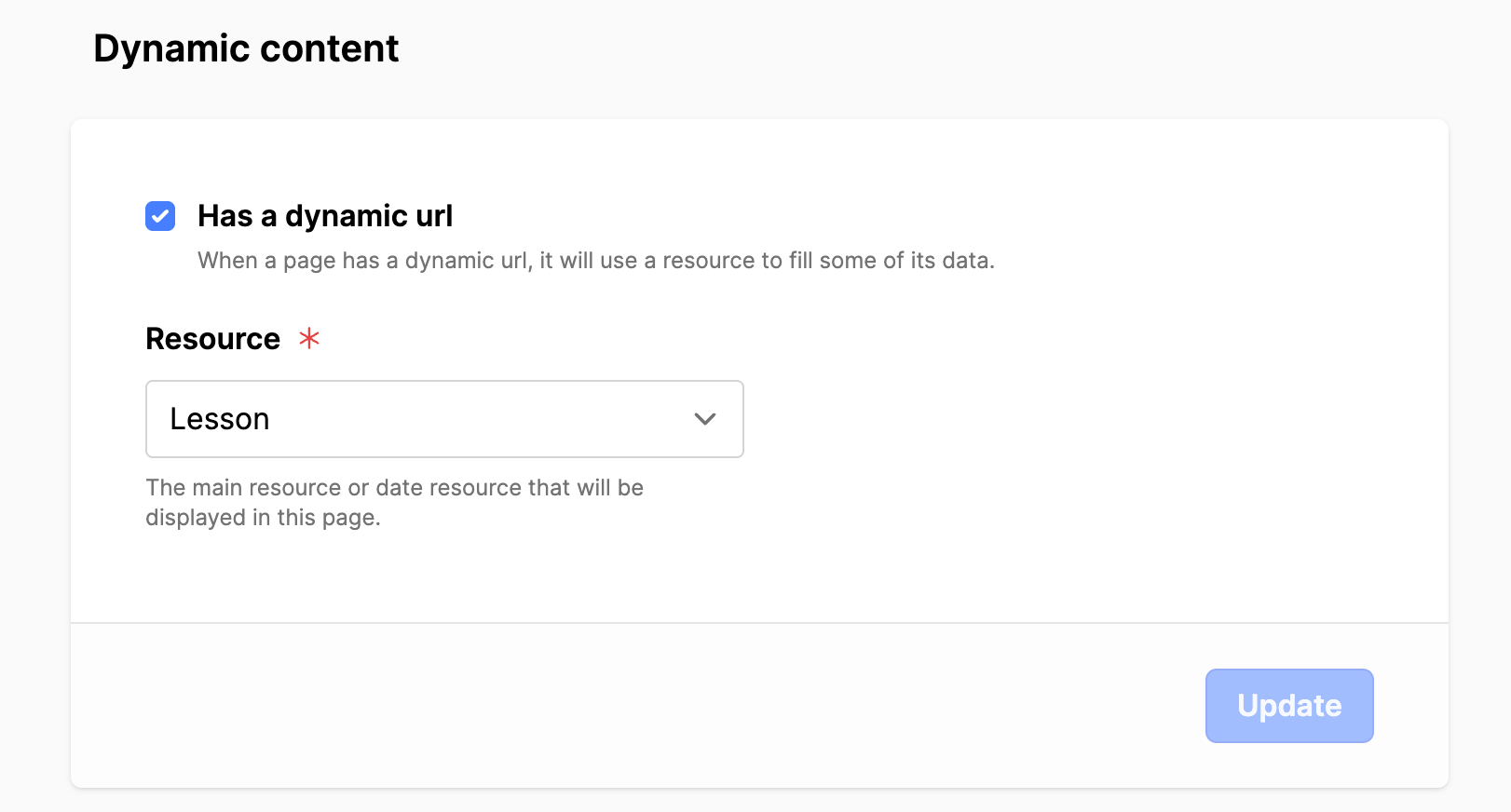
- Configure the Dynamic Content as mentioned above in the Page settings.
- Has a dynamic URL: Set the checkmark.
- Resource: Lesson.
- Click the Update button.
- Cache Control: no-cache, no-store: Set the checkmarks. (You may need an administrator.)
- Click the Update button.
- My courses:
- On the Courses page, click on the page menu (three vertical dots by page title), and then select Add subpage.
- Title: My courses.
- Click the Create button.
- Select a Preset: Scroll down and click on Courses: My courses (Choose EU if you are located there.)
- Open the Page settings, go to the Advanced tab.
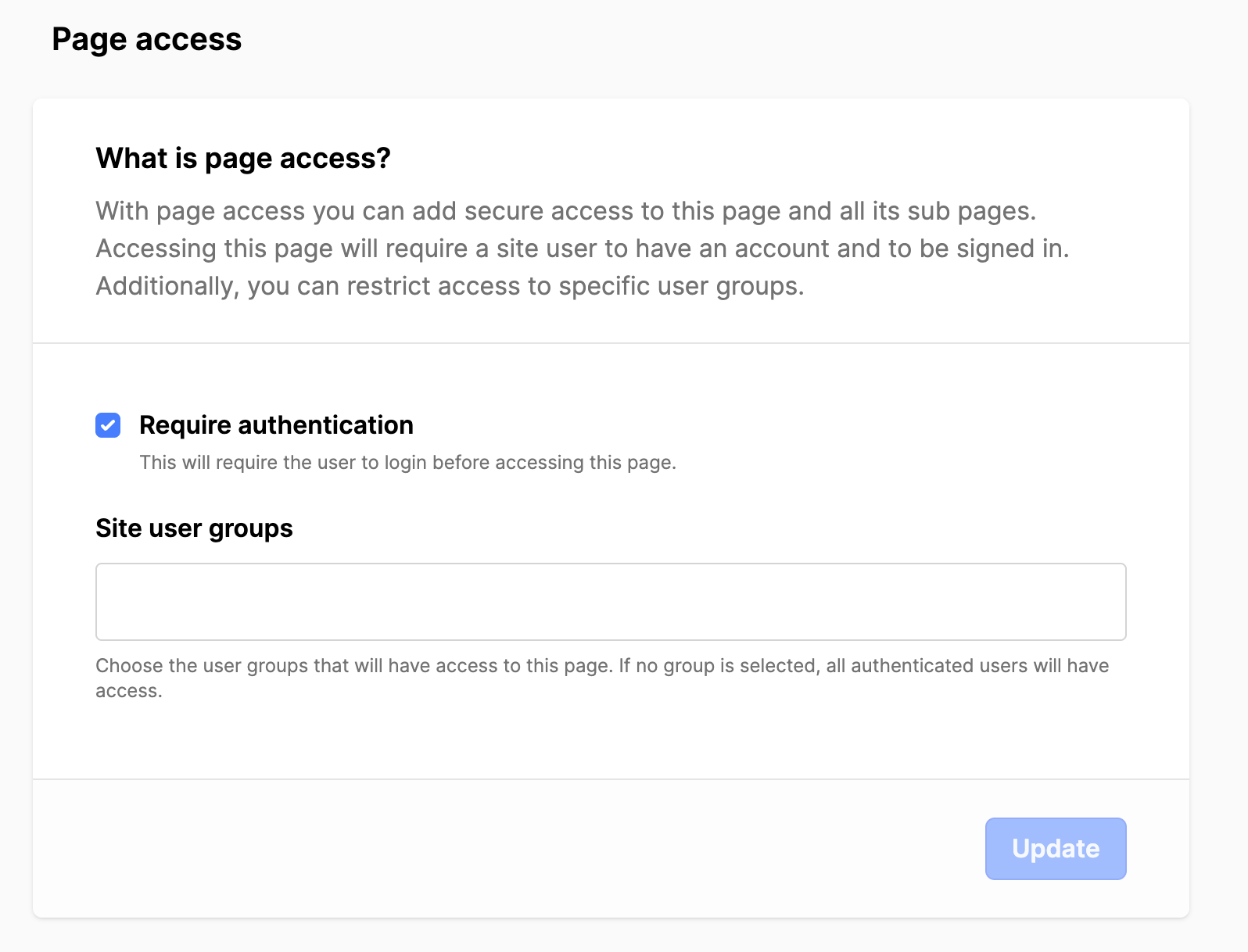
- Scroll down to Page access: Require authentication: Set the checkmark. No user groups are required.
- Click the Update button.
- Cache Control: no-cache, no-store: Set the checkmarks. (You may need an administrator.)
- Click the Update button.
- Messages:
- Add a new page (root level), Title: Messages.
- Click the Create button.
- Select a Preset: Scroll down and click on Courses: Messages. (Choose EU if you are located there.)
- Open the Page settings, go to the Advanced tab.
- Scroll down to Page access: Require authentication: Set the checkmark. No user groups are required.
- Click the Update button.
- Cache Control: no-cache, no-store: Set the checkmarks. (You may need an administrator.)
- Click the Update button.
- Advisor:
- Add a new page (root level), Title: Advisor.
- Click the Create button.
- Select a Preset: Scroll down and click on Courses: Advisor. (Choose EU if you are located there.)
- Open the Page settings, go to the Advanced tab.
- Scroll down to Page access: Require authentication: Set the checkmark. No user groups are required.
- Click the Update button.
- Cache control: no-cache, no-store: Set the checkmarks. (You may need an administrator.)
- Click the Update button.
- Sign in:
- Add a new page (root level), Title: Sign in.
- Click the Create button.
- Select a Preset: Basic.
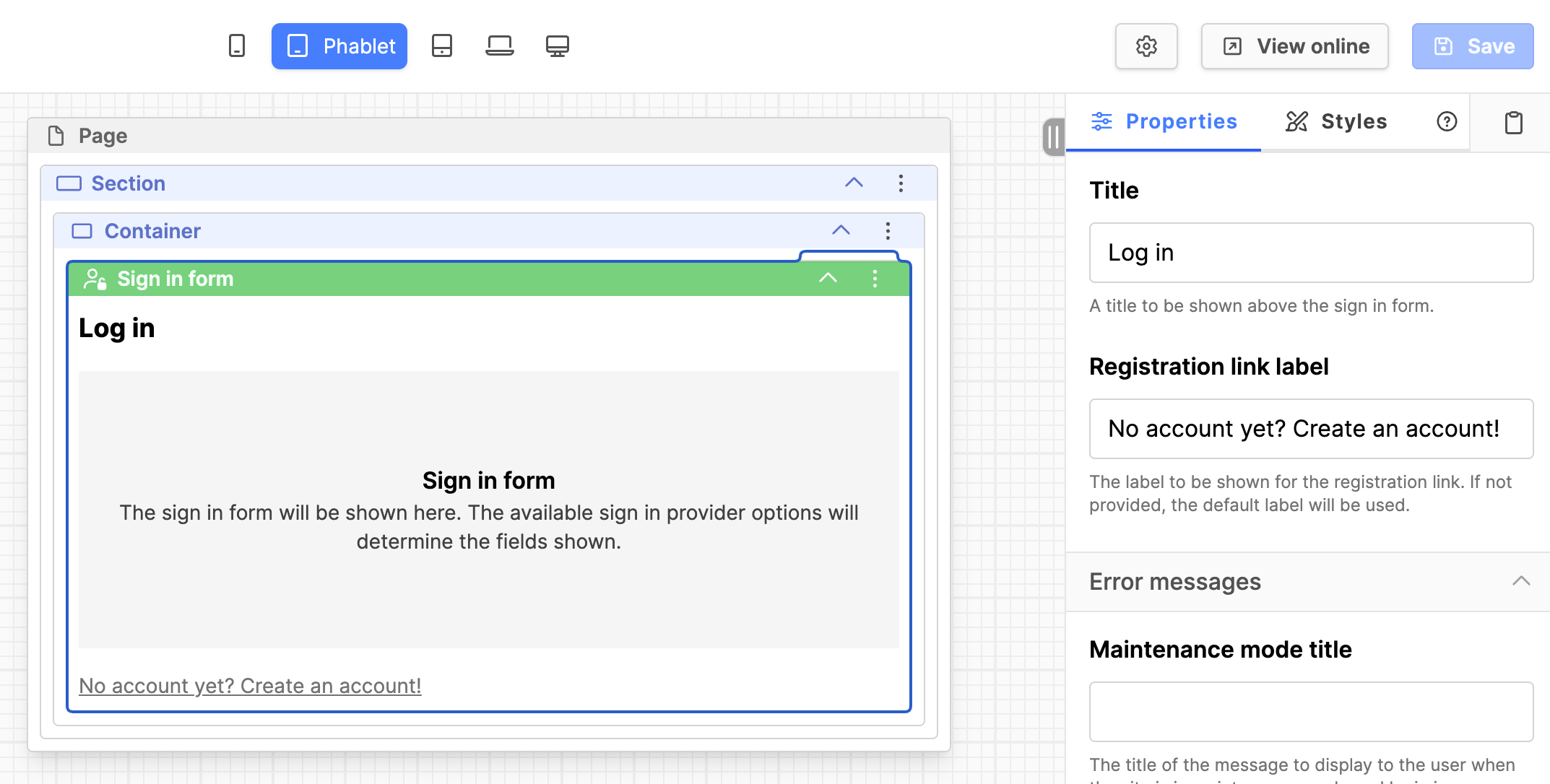
- On the page, keep the Section & Container blocks. Click on the three vertical dots on the other block titles and remove all blocks inside the container.
- Scroll down to the Authentication blocks. Drag and drop the Sign in form into the container.
- Click on the title of the block. Under the Properties tab to the right, update the form fields with desired texts.
- Click the Save button on the upper right.
- Open the Page settings, go to the Advanced tab.
- Scroll to Cache control: no-cache, no-store: Set the checkmarks. (You may need an administrator.)
- Click the Update button.
- Verify sign in:
- Add a new page (root level), Title: Verify sign in.
- Click the Create button.
- Select a Preset: Basic.
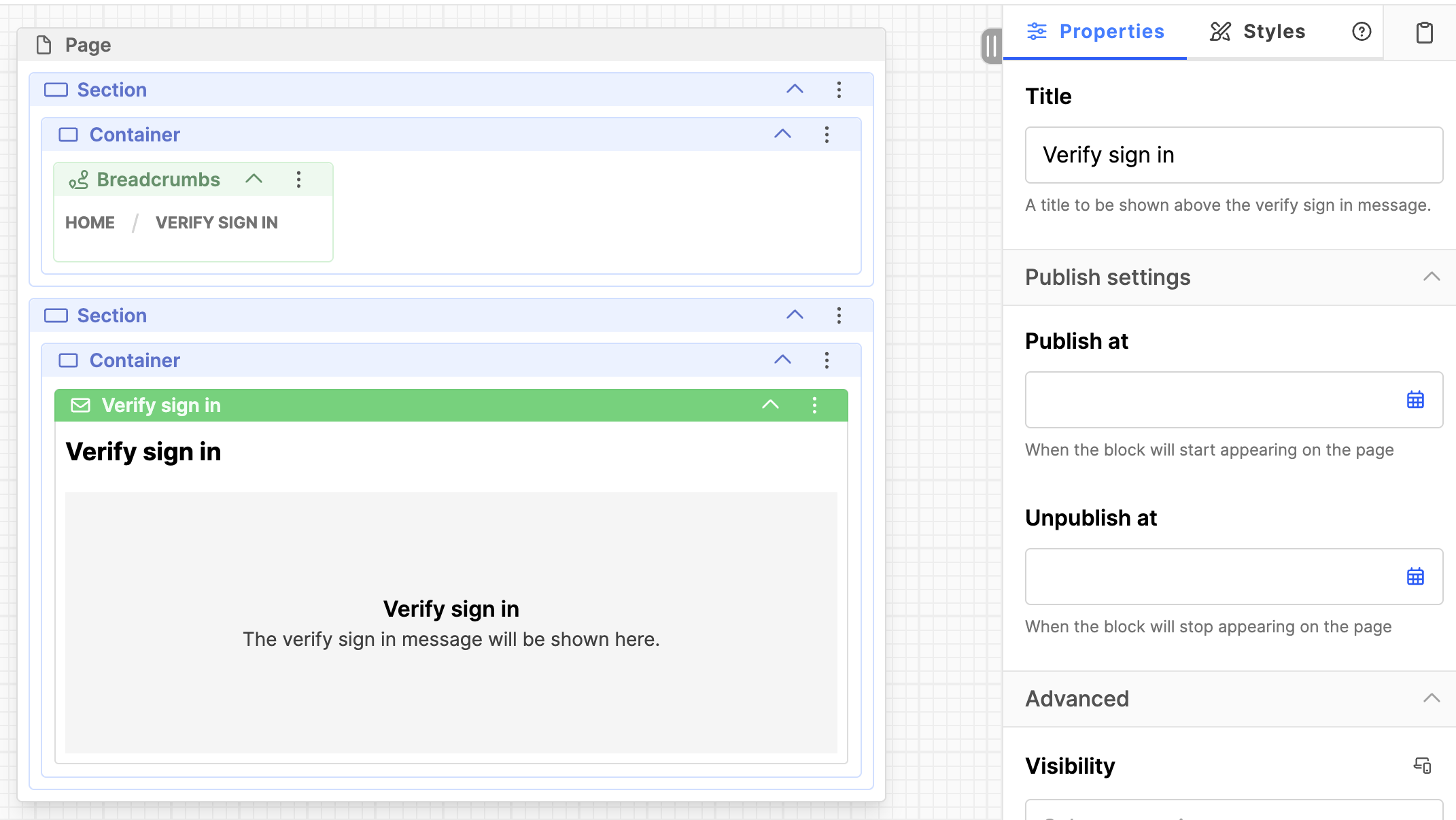
- Leave the Section, Container and breadcrumbs. Click on the three vertical dots on the block titles and remove the other blocks.
- From the Layout blocks, drag and drop a new Section block and a new Container block into it.
- Scroll down to the Authentication blocks. Drag and drop a Verify sign in block into the container.
- Click on the title of the block. Under the Properties tab to the right, update the Title: Verify sign in.
- Click the Save button on the upper right.
- Open the Page settings, go to the Advanced tab.
- Scroll to Cache control: no-cache, no-store: Set the checkmarks. (You may need an administrator.)
- Click the Update button.
- Sign in failed:
- Add a new page (root level), Title: Sign in failed.
- Click the Create button.
- Select a Preset: Basic.
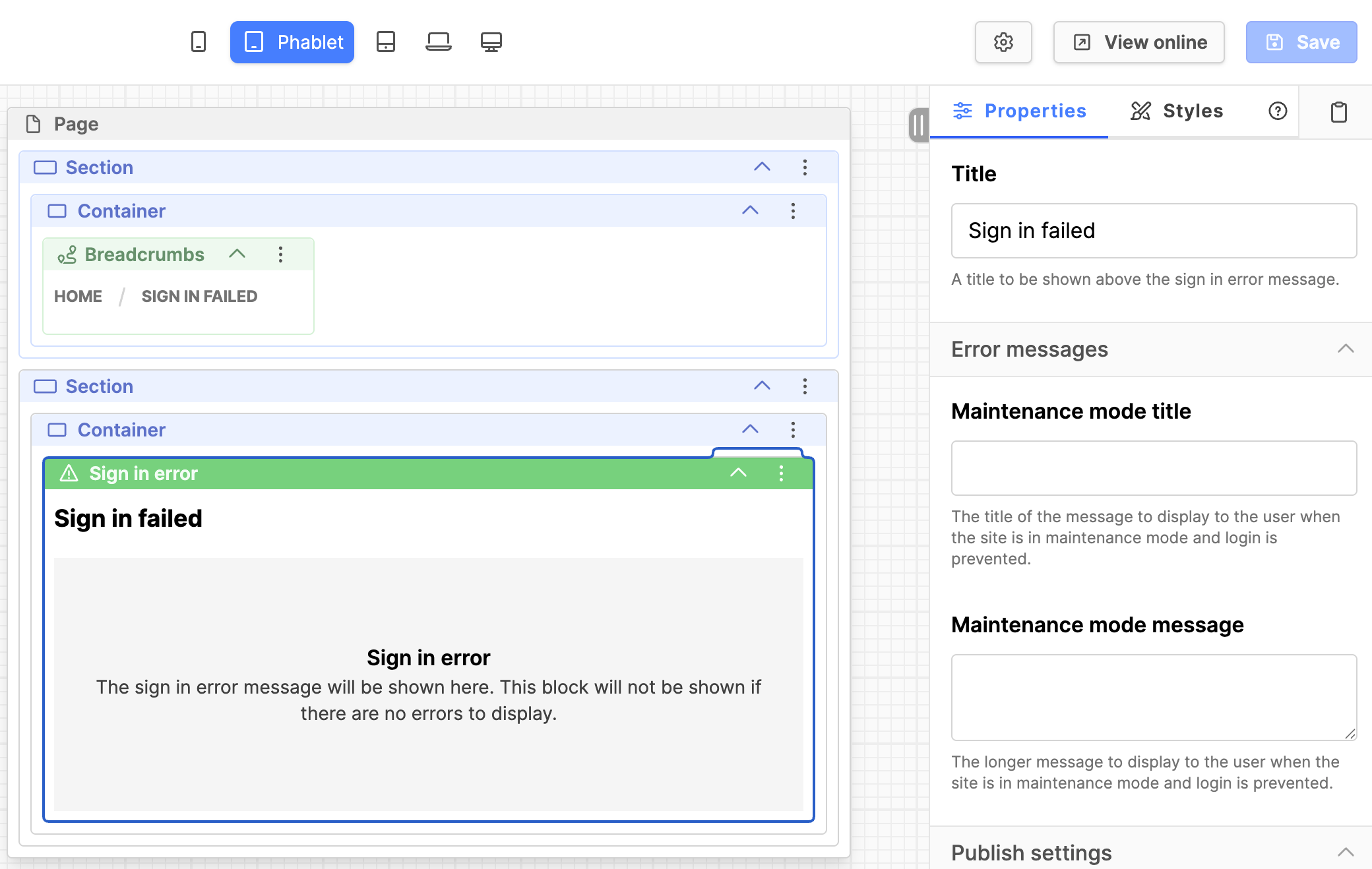
- Leave a Section, Container and breadcrumbs. Click on the three vertical dots on the block titles and remove the other blocks.
- From the Layout blocks, drag and drop a new Section block and a new Container block into it.
- Scroll down to the Authentication blocks. Drag and drop a Sign in error block into the container.
- Click on the title of the block. Under the Properties tab to the right, update the Title: Sign in Failed.
- Click the Save button on the upper right.
- Open the Page settings, go to the Advanced tab.
- Scroll to Cache control: no-cache, no-store: Set the checkmarks. (You may need an administrator.)
- Click the Update button.
- Register:
- Add a new page (root level), Title: Register.
- Click the Create button.
- Select a Preset: Basic.
- Leave a Section, Container and breadcrumbs. Click on the three vertical dots on the block titles and remove the other blocks.
- From the Layout blocks, drag and drop a new Section and a new Container block into it.
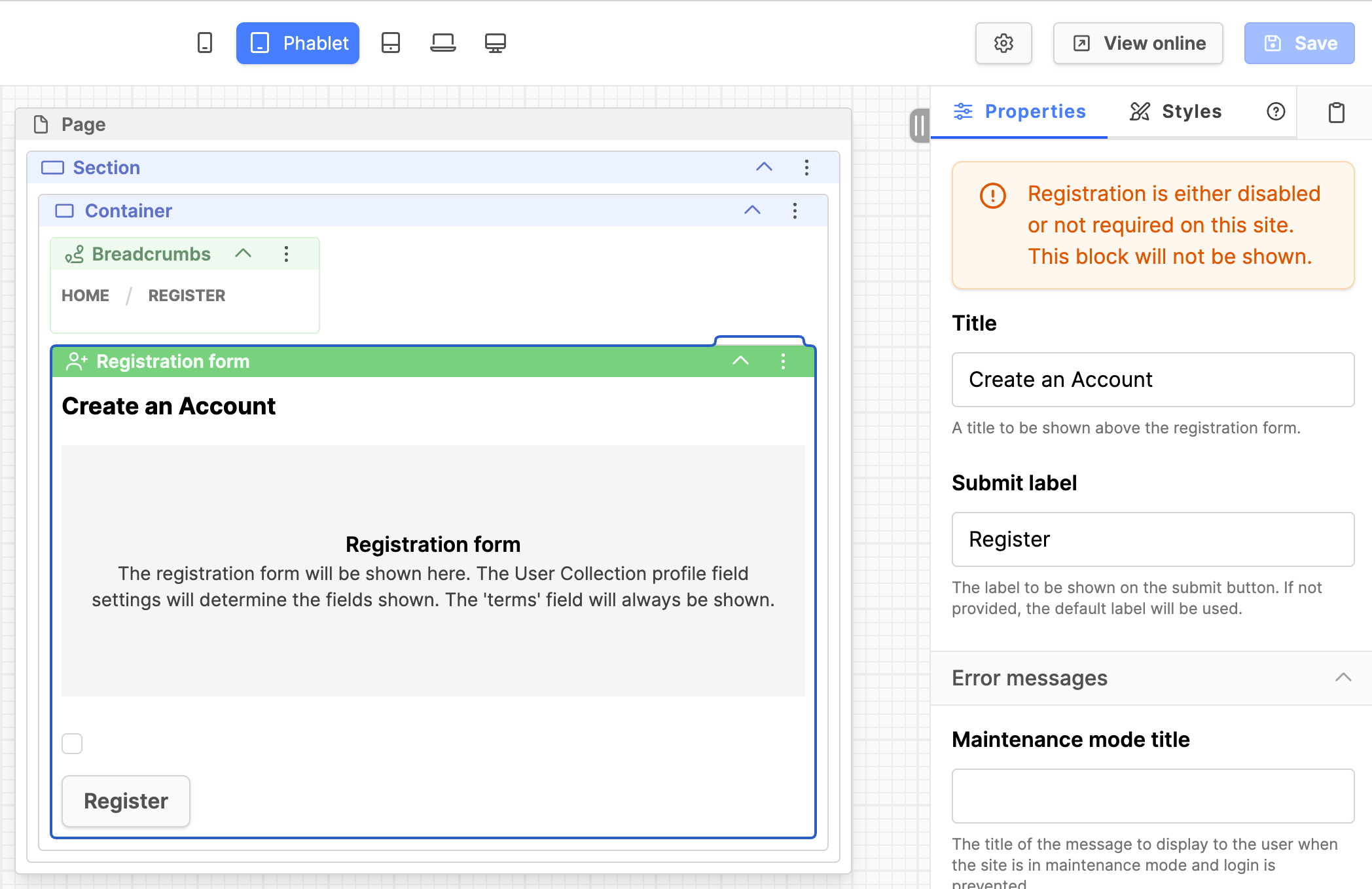
- Scroll down to the Authentication blocks. Drag and drop a Registration form block into the container.
- Click on the title of the block. Under the Properties tab to the right: Title: Create an Account. Update fields with the desired texts.
- Submit label: Register.
- Click the Save button on the upper right.
- Open the Page settings, go to the Advanced tab.
- Scroll to Cache control: no-cache, no-store: Set the checkmarks. (You may need an administrator.)
- Click the Update button.
- Privacy policy:
- Add a new page (root level), Title: Privacy policy.
- Click the Create button.
- Select a Preset: Basic.
- Click on the title of the Header block. Under the Properties tab to the right, Title: Privacy Policy.
- Click on the Rich Text block. Add your policy information to the page.
- Click the Save button.
- Open the Page settings, go to the Advanced tab.
- Scroll to Cache control: no-cache, no-store: Set the checkmarks. (You may need an administrator.)
- Click the Update button.
- My account:
- Add a new page (root level), Title: My account.
- Click the Create button.
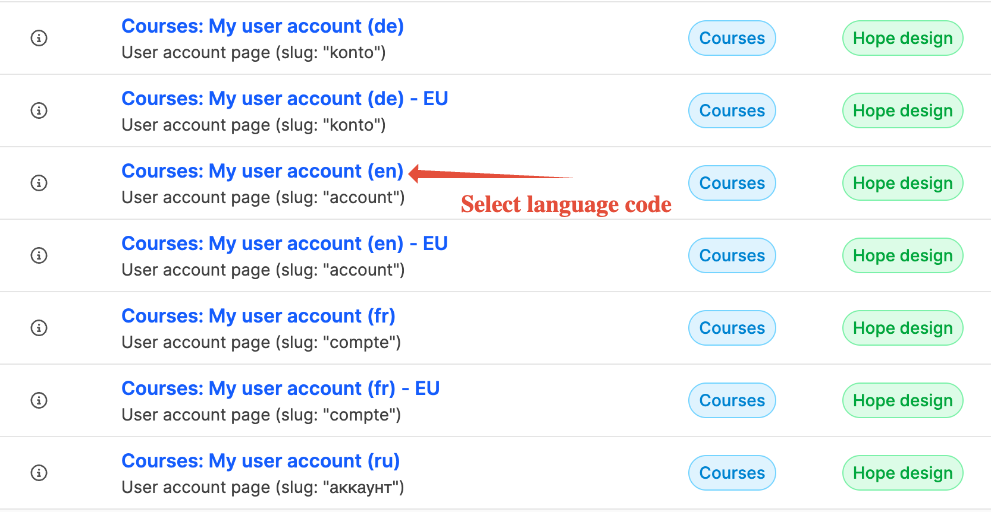
- Select a Preset: Courses: My user account (en). Verify the language code is correct for your installation.
- Open Page settings.
- On the General tab, under Slug: Click the Modify button and adjust the slug to: account.
- Scroll down and click the Update button.
- Go to the Advanced tab.
- Page access: Set the checkmark for Require authentication.
- Click the Update button.
- Scroll to Cache control: no-cache, no-store: Set the checkmarks. (You may need an administrator.)
- Click the Update button.
- Notifications:
- Add subpage under the My account page, Title: Notifications.
- Click the Create button.
- Select a Preset: Courses: Notifications (en), Verify the language code is correct for your installation.
- Open Page settings.
- On the General tab: Verify the slug reads: notifications.
- If you make changes, click the Update button.
- Go to the Advanced tab.
- Scroll to Cache control: no-cache, no-store: Set the checkmarks. (You may need an administrator.)
- Click the Update button.
- Delete account:
- Add subpage under the My account page. Title: Delete account.
- Click the Create button.
- Select a Preset: Courses: Delete account (en). Verify the language code is correct for your installation.
- Open Page settings.
- On the General tab: Verify the slug reads: delete-account.
- If you make changes, click the Update button.
- Go to the Advanced tab.
- Scroll to Cache control: no-cache, no-store: Set the checkmarks. (You may need an administrator.)
- Click the Update button.
- Terms and Conditions:
- Add a new page (root level), Title: Terms and Conditions.
- Select a Preset: Basic.
- Click on the title of the Header block. Under the Properties tab to the right, Title: Terms and Conditions.
- Click on the Rich Text block. Add your policy text later.
- Click the Save button.
Configure website pages and their blocks
Home:
- Need website design (under the submodule Appearance- Hope Design), then build the homepage.
Courses:
- Add new Section, Container, then Courses Collection blocks.
- For each Courses collection block, under Properties on the right side, set the Collection & set the course detail page.
- If you don't have any courses created, Save, then come back later.
Course Detail:
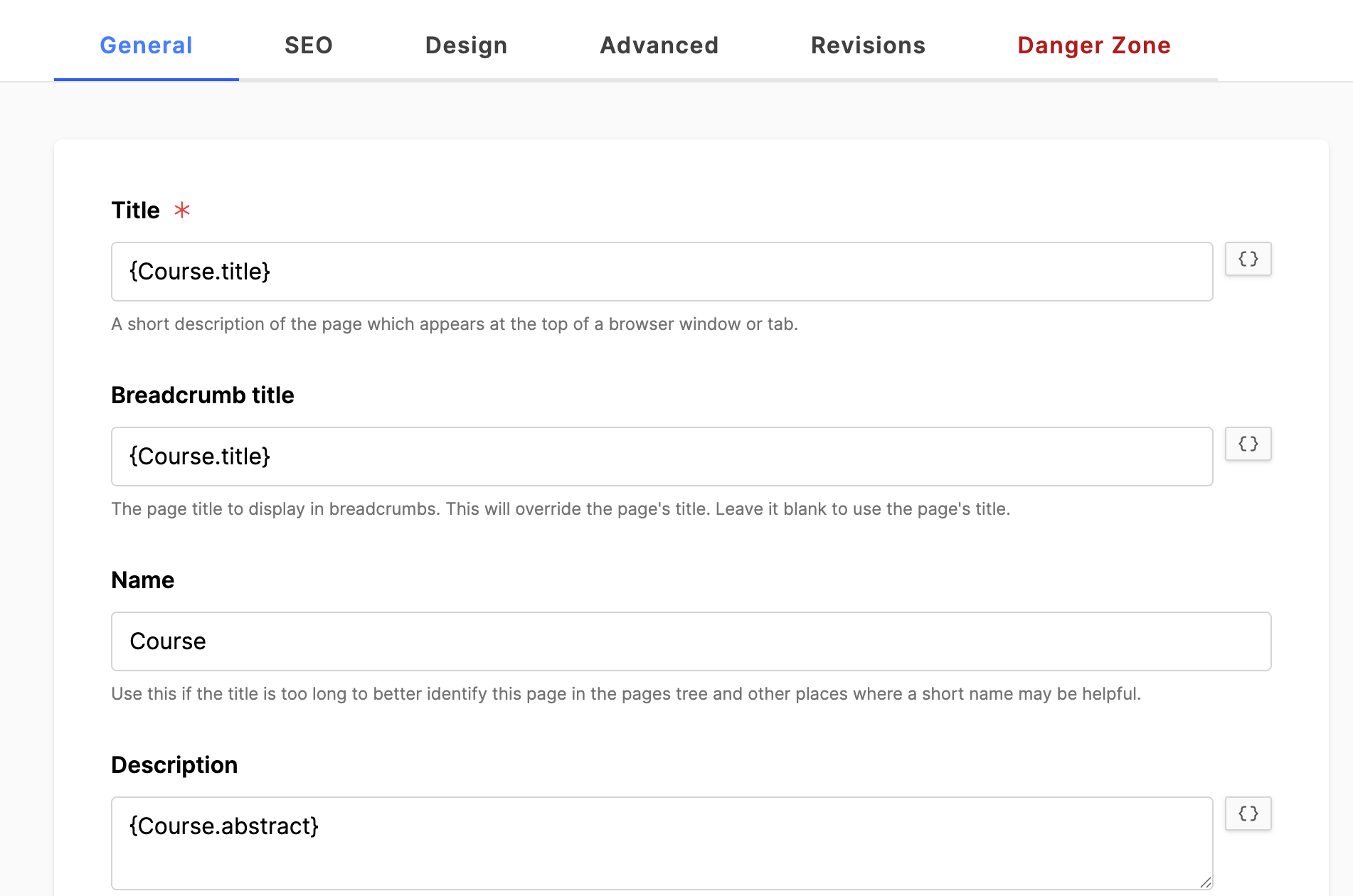
- Page Settings > General:
- Title: Click on the icon at the end of the field and select Title.
- Name: Course.
- Description: Click on the icon at the end of the field and select Abstract.
- Hide in Menus: Set the checkmark.
- Click the Update button.
- Page Settings SEO > Open Graph:
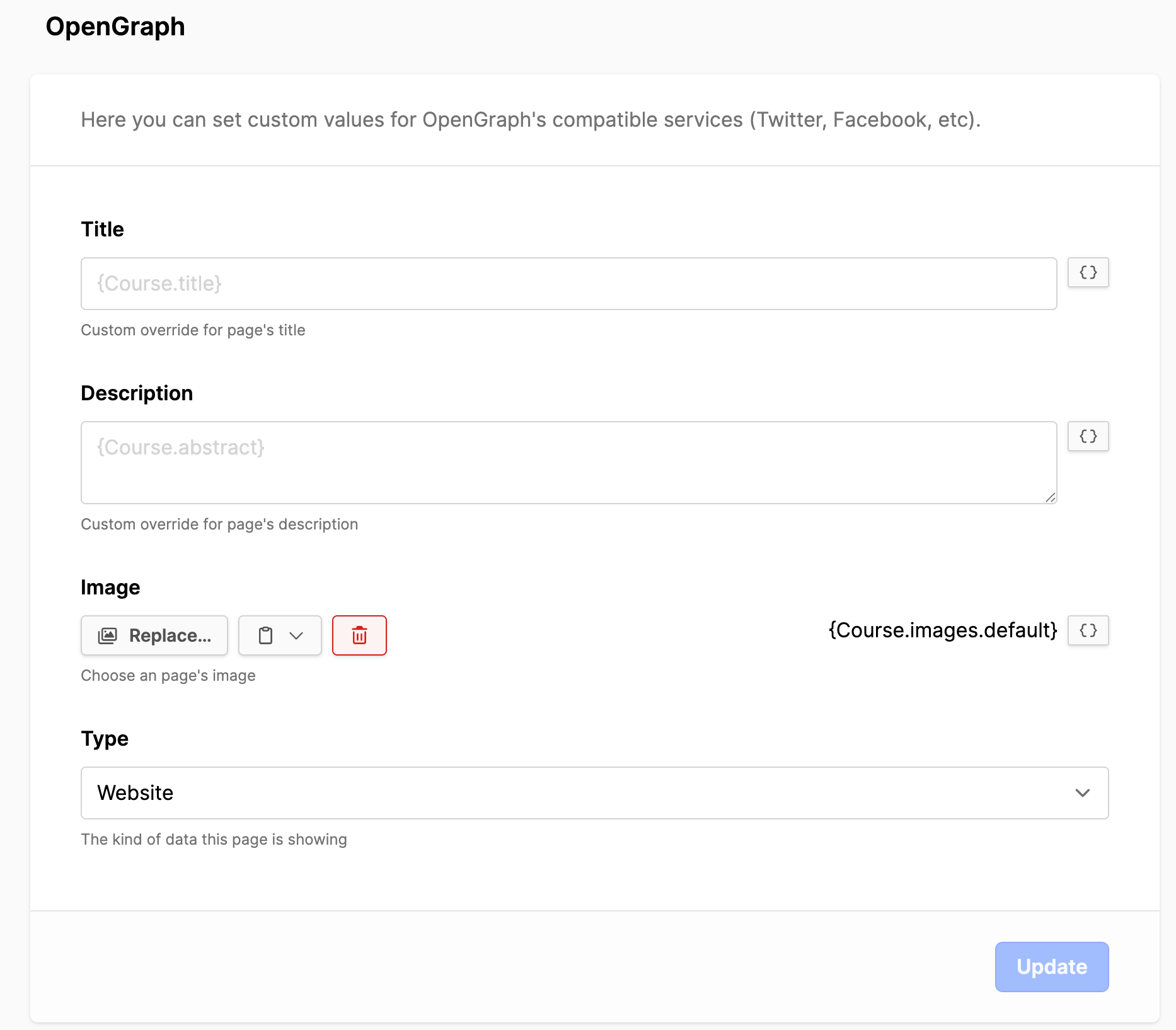
- Title & Description: Are set, overwrite if desired.
- Image: Click on the icon at the end of the field and click on the Select image button.
- Type: Website.
- Click the Update button.
- Page content:
- Click on the Course Hero block: In Properties on the right side, set Course detail & Lesson detail pages.
- On the Register block, click on the Registration Form block: add email address.
- Click on the Table of Contents block: set Lesson detail page.
- Click on the Save button.
Course Content subpage:
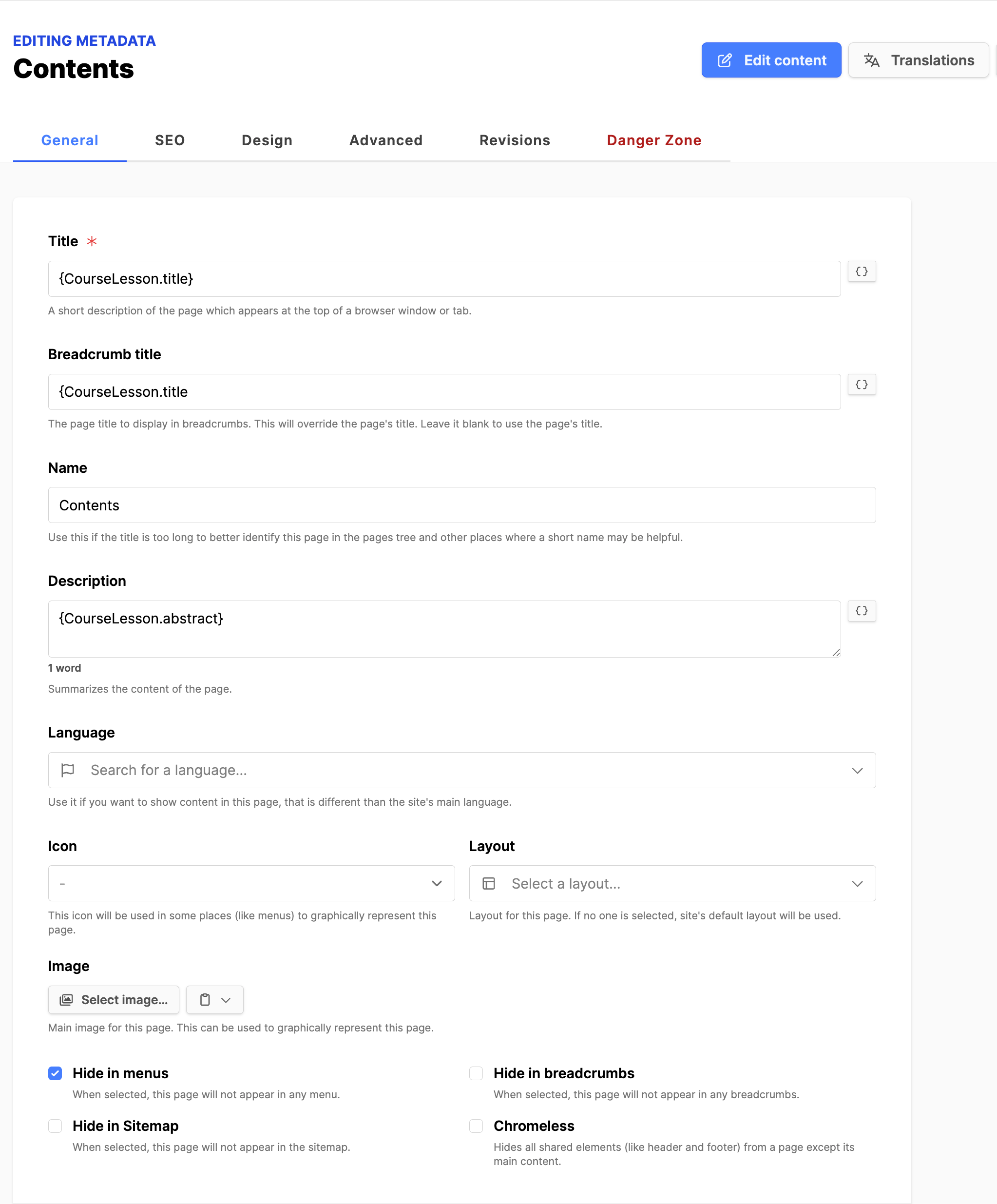
- Page Settings > General:
- Title: Click on the icon at the end of the field and select Title. {CourseLesson.title}
- Name: Course content.
- Description: Click on the icon at the end of the field and select Abstract.
- Hide in Menus: Set the checkmark.
- Click the Update button.
- Page content:
- Click on Course Navigation block: Under Properties on the right side, set the Lesson detailpage. [Contents] Click the Select button.
- Click on Course content block: Under Properties on the right side, set the Lesson detailpage. [Contents]
- Click on the Save button.
My courses:
- Page content:
- Click on the Enrolled Courses block: Under Properties on the right side, set Course & Lesson detail pages.
- Click on the Save button.
Messages:
- Can't be modified.
Advisor:
- Page content:
- Click on the Student Advisors block: Under Properties on the right side, set the Messages page.
- Click on the Save button.
Sign in
- Configured above.
Verify sign in
- Configured above.
Sign in failed
- Configured above.
Register
- Configured above.
Privacy policy
- Add Privacy policy from legal department.
My user account
- Can't be modified.
Notifications (sub-page)
- Can't be modified.
Delete my account (subpage)
- Can't be modified.
Terms and Conditions
- Add your policy text from legal department.
Website: Authentication
- Configure the Authentication submodule under the website.
- Set above.
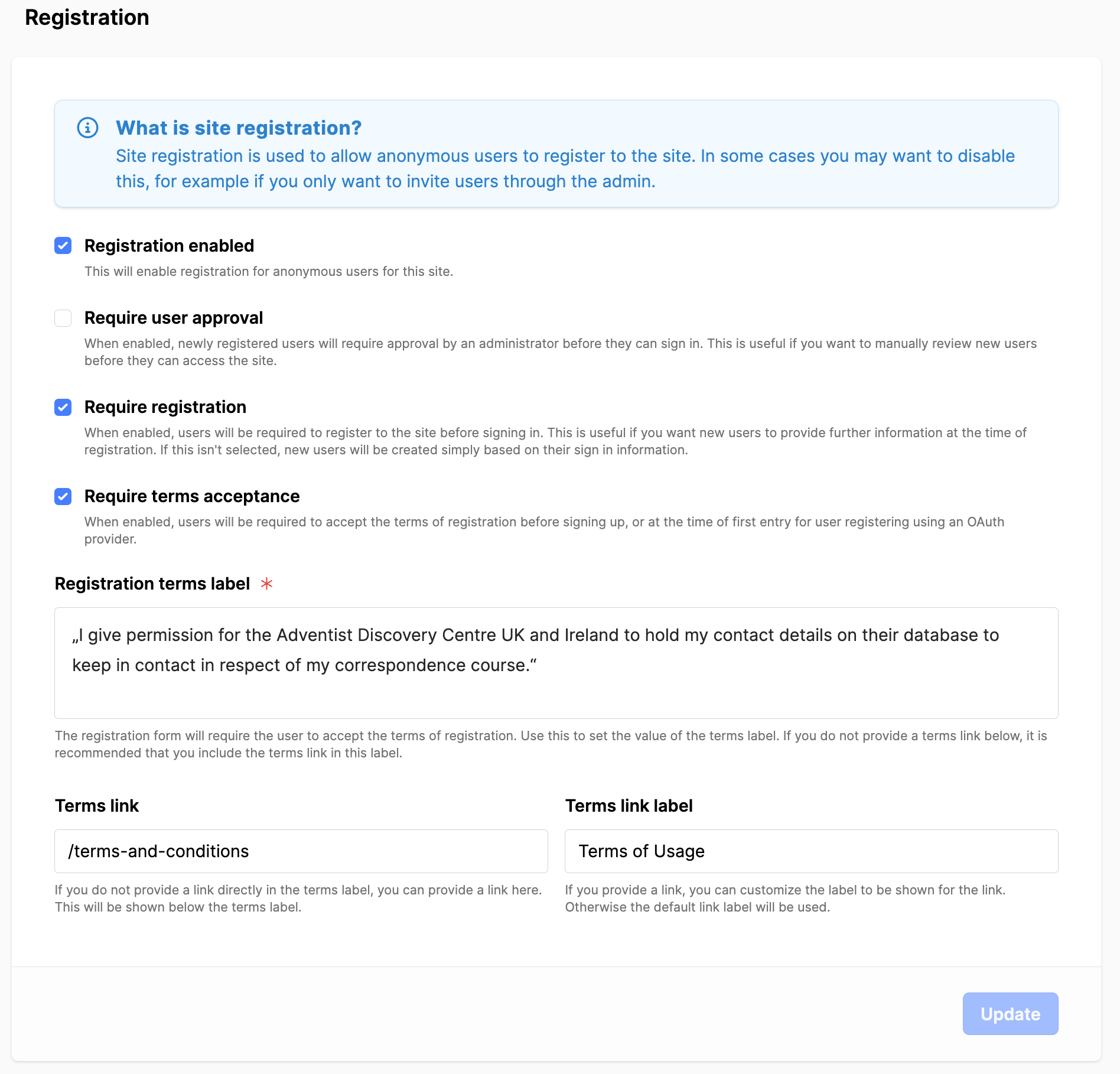
- Registration
- Registration enabled: Checked.
- Require registration: Checked.
- Require terms acceptance: Checked.
- Registration terms label: Example: I give permission for the Adventist Discovery Centre UK and Ireland to hold my contact details on their database to keep in contact in respect of my correspondence course.
- Terms link: Set to slug of Terms and Conditions page. (/terms-and-conditions)
- Terms link label: Example: Terms of Usage.
- Click the Update button to save changes.
- Providers
- Enabled providers: Email sign in.
- If no provider is there, go back to Admin Area Authentication above.
- User Menu
- Leave unassigned.
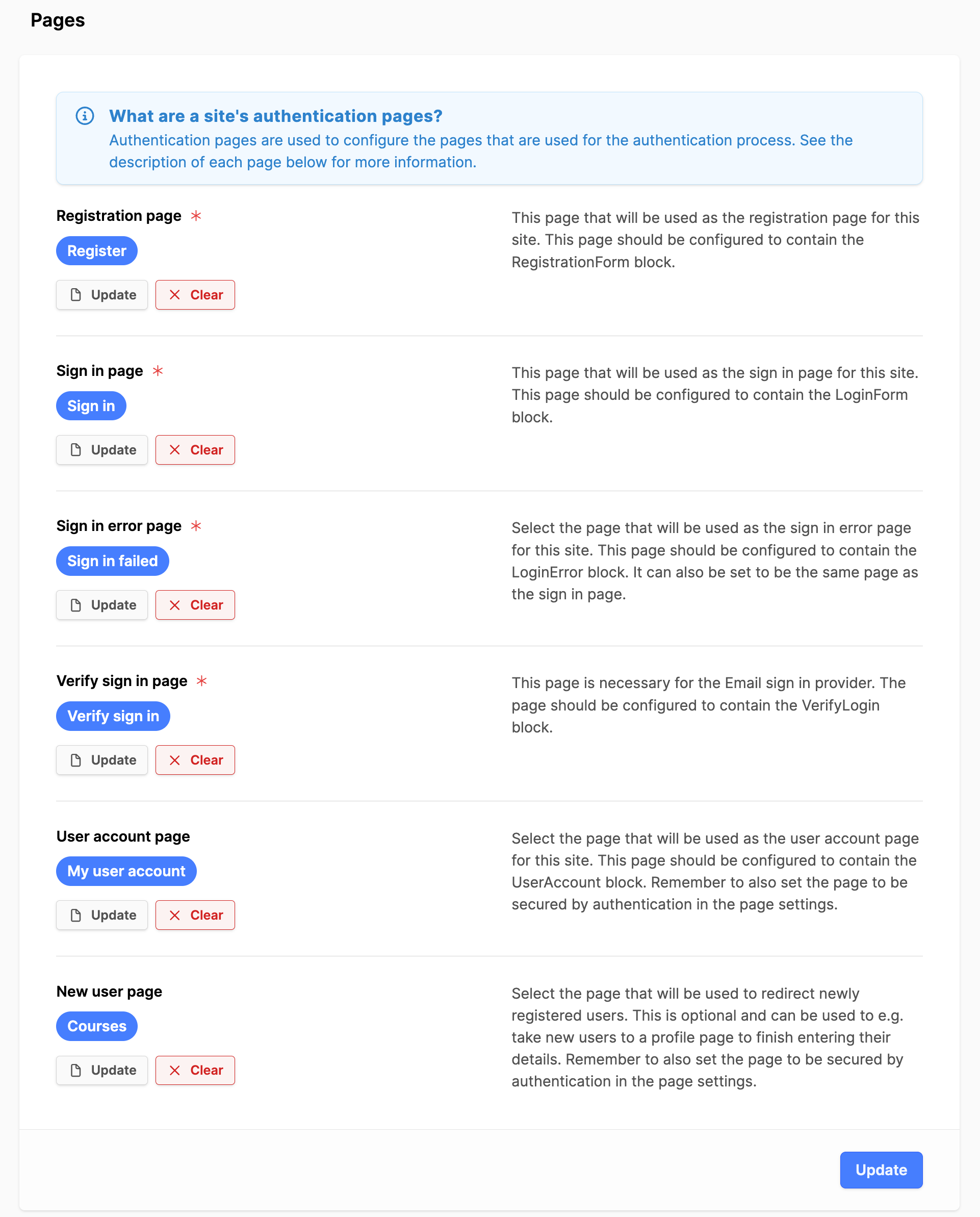
- Pages
- Use the Select a page button to assign the pages to website pages that deal with the matching functionality. Click the Select button in the modal box for each page.
- Click on the Update button.
Website: Menus
Create the following menus under your website Menus.
- Expand your website under the Web module.
- Click on the Menus submodule.
- Click on the Add Menu button to add a new menu.
Main Navigation
- Title: Main Navigation
- Automatic mode: Remove the check.
- Click on the Page link button to add the following pages:
- Courses
- My Courses
- Messages
- Advisor
- Click the OK button in the modal box.
- Click the Create button.
Footer menu
- Title: Footer menu
- Automatic mode: Remove the check.
- Click on Page link button to add in the following pages:
- Privacy Policy
- Terms and Conditions
- Click the OK button in the modal box.
- Click on the Create button.
Add an image for E-mails
Website: Settings
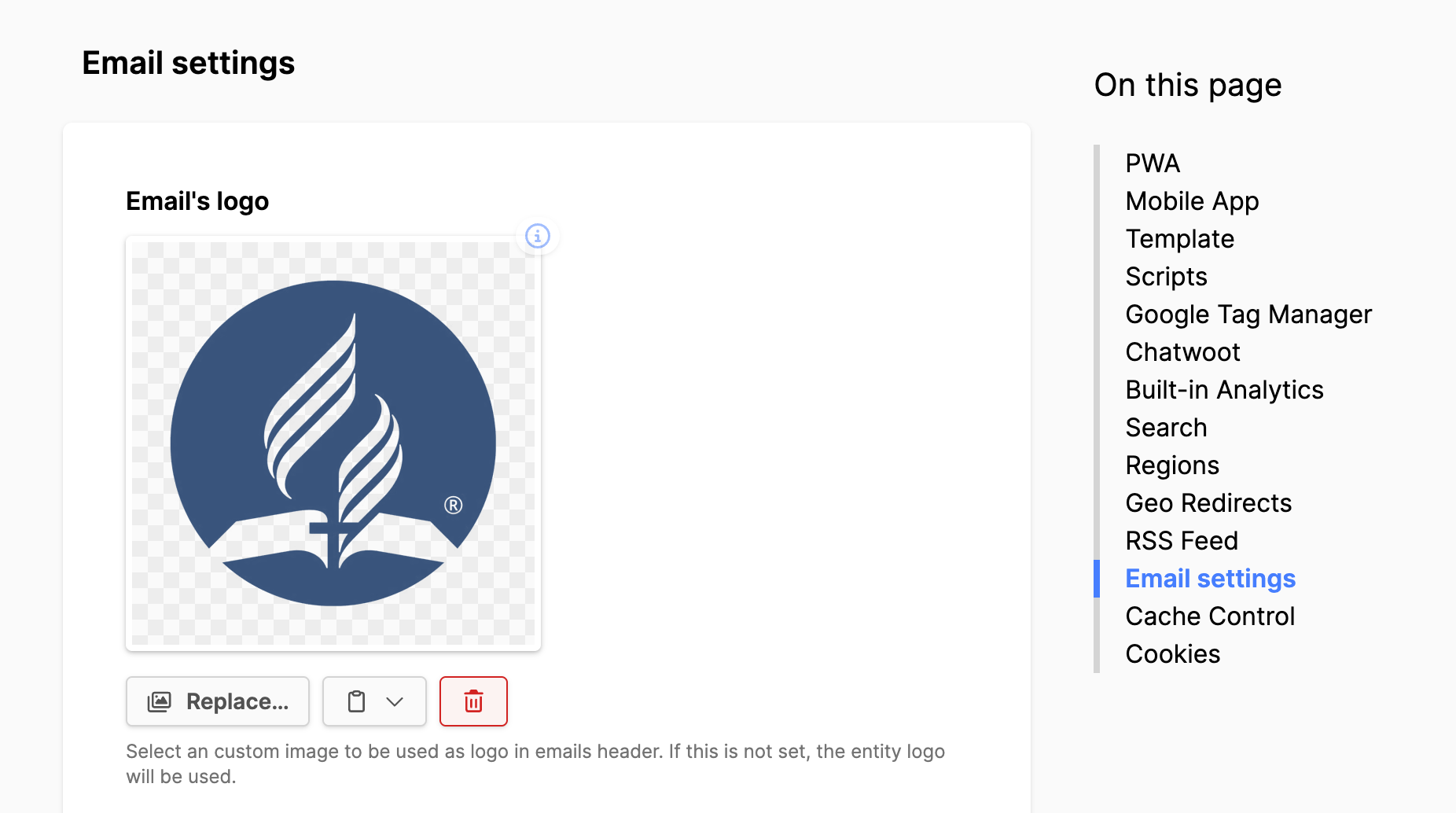
- Under your website, in the Settings submodule, navigate to the Advanced tab.
- Scroll down to the section Email settings.
- Add a .png or .svg file to the Email's logo, so any emails sent out will have a logo.
- Click on the Save button.
Entity Configuration
The backend domain for the entity needs to be configured, so the domain name is pre-pended to the links sent out in system E-Mail.
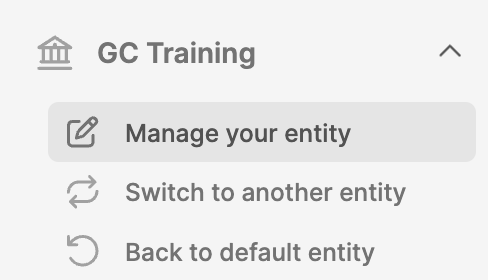
- In the upper left corner, expand your entity.
- Click on Manage your entity.
- Click on the Configuration tab.
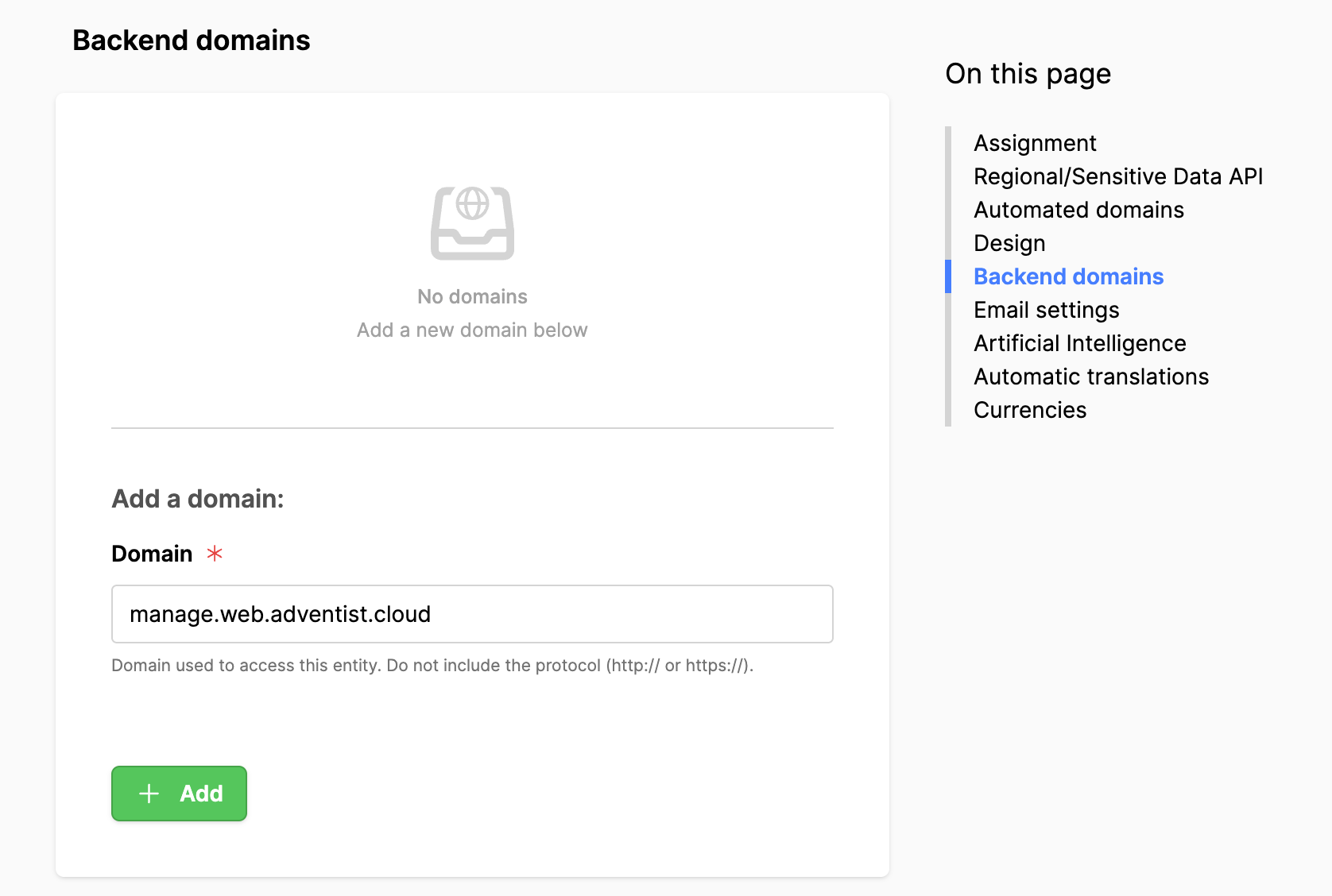
- Scroll down to Backend domains.
- Domain: if you have a custom backend domain name, add it in the field (no https://). Otherwise enter the standard backend domain: manage.web.adventist.cloud.
- Click on the Add button.
- During the test phase, check that student messages to their advisor have the full URL, including the domain name, as well as messages to the advisor about correcting quizzes.
Admin Area > Groups:
- Expand the Admin Area.
- Click on the Groups submodule.
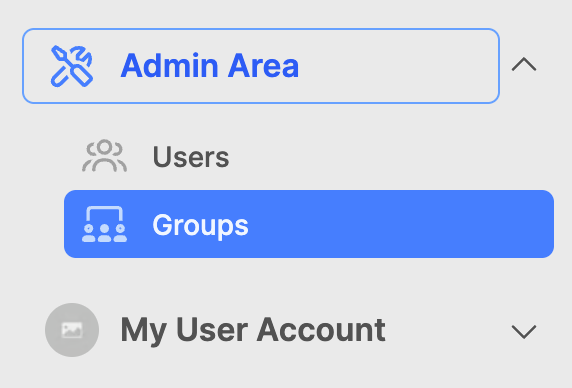
Create the following Groups for the courses module by following these steps:
- Click on Add group button.
- Add the GroupName below.
- If needed, check the box Requires two-factor authentication. (The user group should require it for security reasons.)
- Click on the Create button to create the group.
- When the group opens, click Courses under Permissions.
- Expand to set the Course Provider.
- Then add rights to the group as per below.
- Click on the Update button when all the permissions are set.
Institution Manager
- Providers: Read, Update
- Courses: Read, Share
- Collections: Read
- Countries: Read, Create, Update, Delete
- Advisors: Read, Create, Update, Delete
- Students (all): Read All, Update All
- Questionnaires (all): Read All
- Statistics: Read
Course Advisor
- Providers: Read
- Courses: Read
- Advisors: Read, Update
- Messages: Read, Create, Update
- Students (advisor): Read, Update
- Questionnaires (advisor): Read, Update
- If you don't need, don't create a POOL OF ADVISORS.
- Instead of creating an additional group: Course Advisor Substitute
- Students (all): Read All, Update All (??)
- Questionnaires (all): Read All, Update All
Course Advisor (Substitute)
- Providers: Read
- Students (all): Read All, Update All (??)
- Questionnaires (all): Read all, Update all
Course Editor
- Providers: Read, Update
- Courses: Read, Create, Update, Delete, Clone
- Collections: Read, Create, Update, Delete
Website Manager
- Click on Web Permissions for this group.
- Sites: Read, Update
- Advanced: Appearance
- Pages: Read, Create, Update, Delete
- Menus: Read, Create, Update, Delete
- Redirects: Read, Create, Update, Delete
- Authentication: Read, Create, Update, Delete
- Analytics: Read
User Manager
- This group should have Two Factor Authentication (2FA) turned on
- Click on Users and Groups Permissions for this group.
- Users: Read, Create, Update, Delete
- Groups: Read, Update
- !! The users need to have this group in order to make a backend user an advisor.
Courses Module
Configuring these settings is done below:
- Create a backend user and assign them to the provider Course Advisor group created above.
- Add the backend user as an Advisor to the new provider.
- Set the new advisor as a backup Advisor.
- Configure the Email settings for the provider messages.
- Add Countries (and their regions/zip codes).
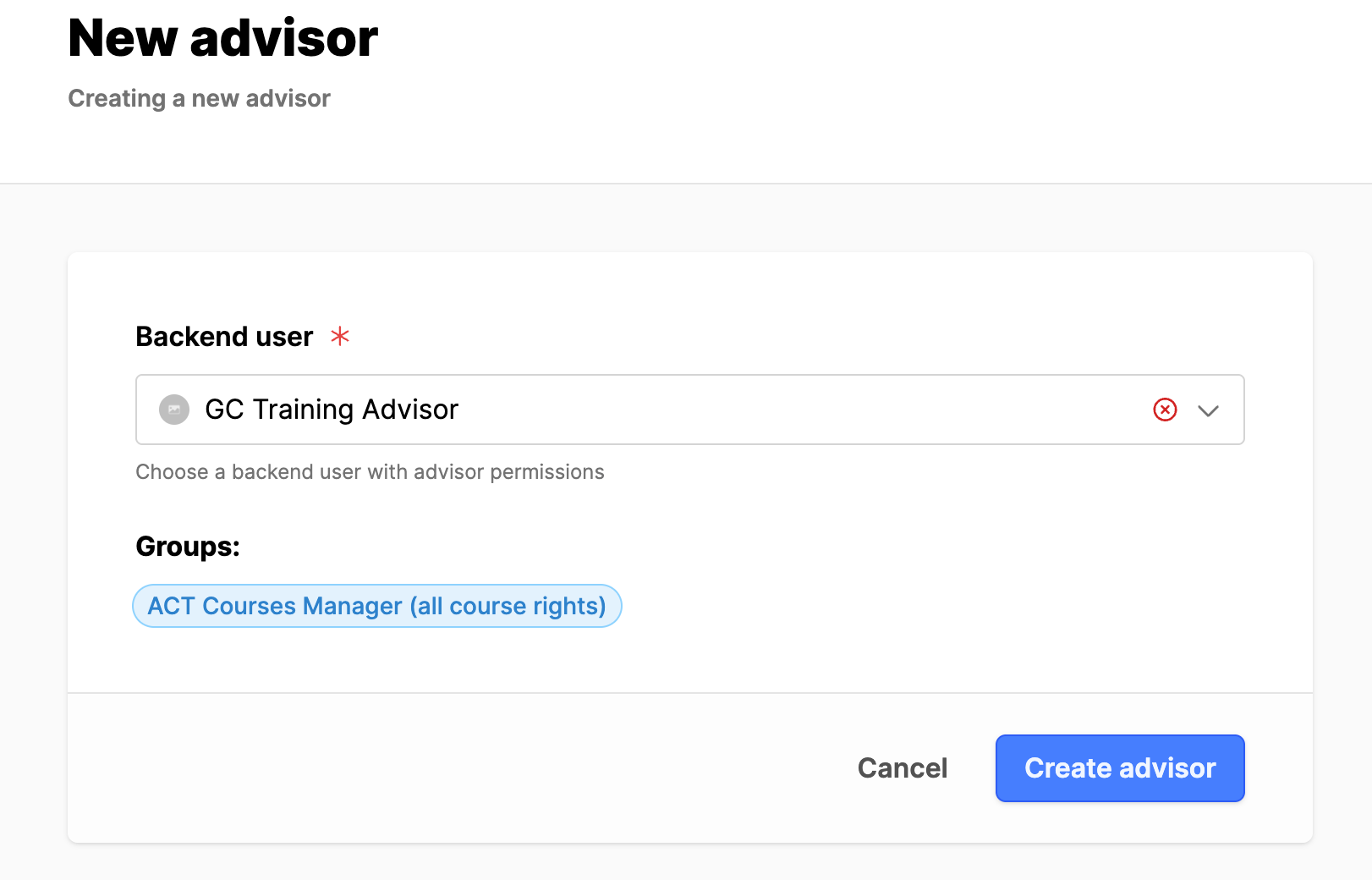
Provider > Advisor:
- Expand the Courses module.
- Expand your course.
- Click on the Advisors submodule.
- Click on Add Advisor button.
- Search for the new backend user (Advisor), select the user, click on the Create advisor button.
Provider > Settings:
- Expand the Courses module.
- Click on the Settings submodule under your course.
- Verify you are on the General tab.
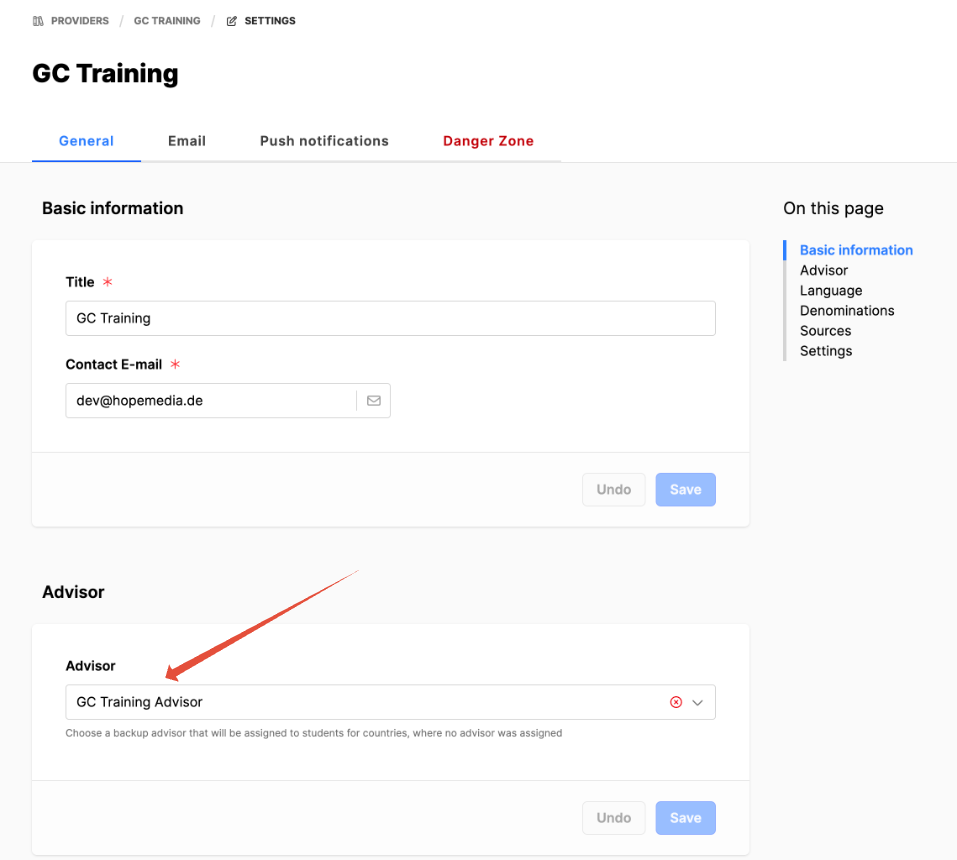
- General tab:
- Under Advisor, select the default advisor and click the Save button.
- (If you don't have an advisor setup, this can be done later. This account will be the fallback advisor that will be assigned when someone registers for a course and there are no regions.)
Provider > Settings > Email:
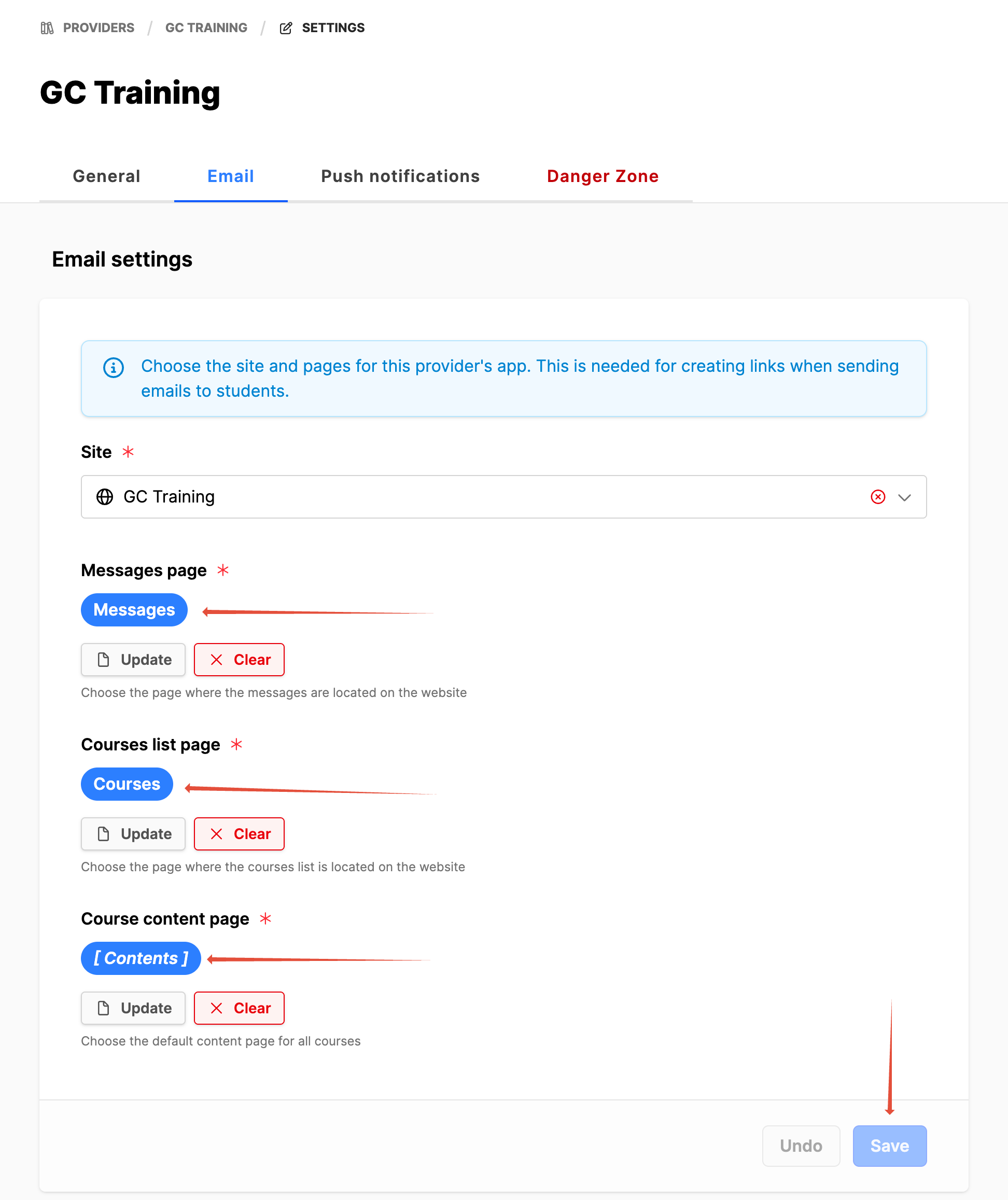
- E-mail tab: (Configure website page destinations for email links.)
- Scroll up and select the Email tab, then select the website for this course.
- Select the website pages for the following: Messages, Courses list, Course content.
- Note: Check the name of the page and look for a radio button to select. You may need to expand a page tree to view the pages below a given page (course content).
- Click on Save button.
- Push notifications:
- (This is not needed unless you have built a web app for your courses.)
Provider > Countries:
Note: If there are multiple countries involved and only one advisor to oversee them, just setup the country and then create one region or postal code for that country. In this case, don't assign the advisor to the country. Just make sure they are set as the default advisor for the provider (under provider/settings). Then when the student registers for a course and wants an advisor, they can choose that one region/postal code.
To assign advisors to students, you will need to create countries that this entity will offer courses to. When the student clicks on the button to start a course, they will see a modal box of options for how they can take the course. If they start with an advisor, the advisor is assigned by the country and the region/zip code the student selects.
- Expand the Courses module.
- Click on Countries submodule under your course.
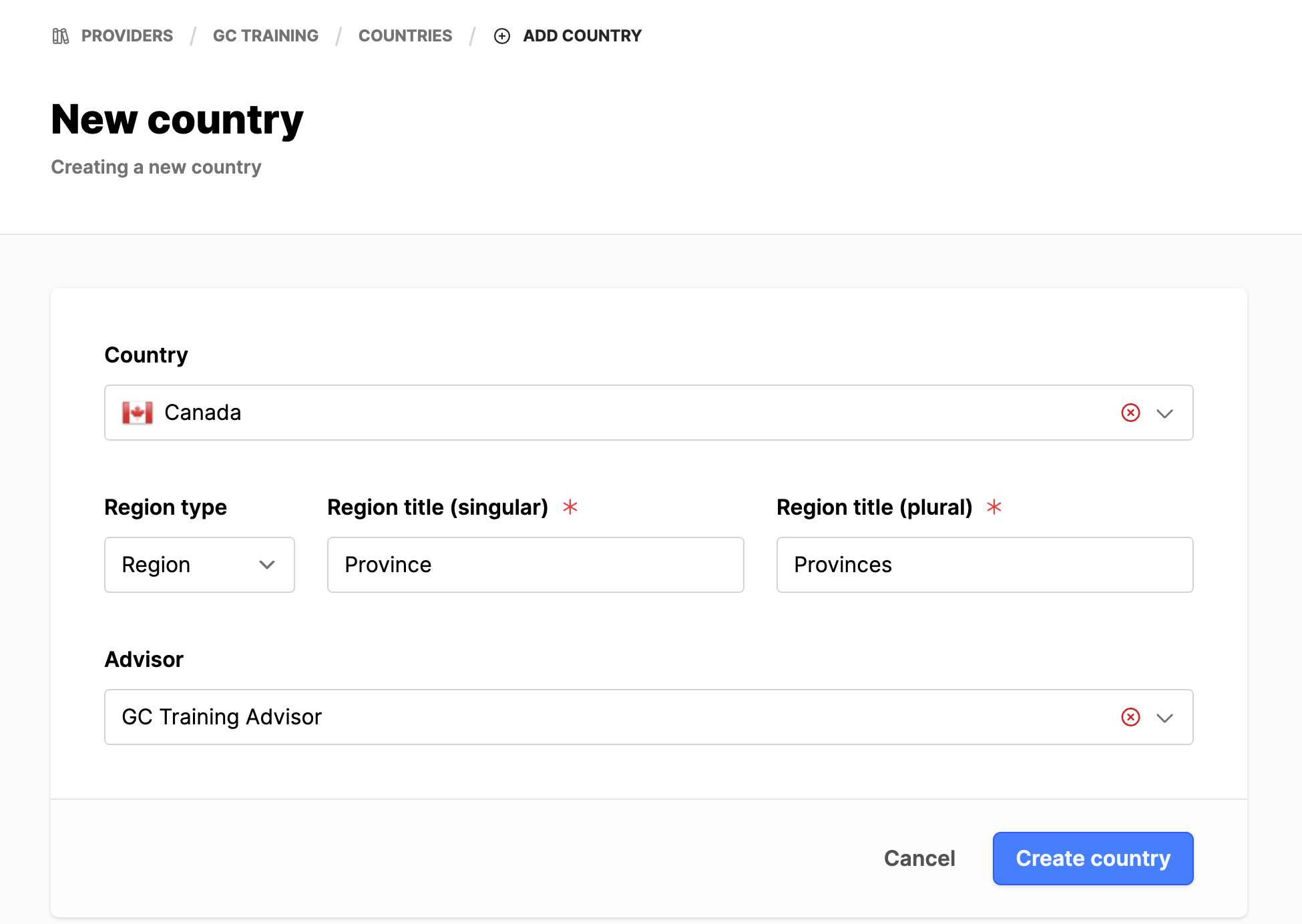
- Click on the Add country button on the upper right.
- Select a Country for the entity in the field. This will open additional fields.
- Region type: Pick Region or Postal code depending on your workflow.
- If Region type, fill both fields for:
- Region title (singular): ex: State or Territory
- Region title (plural): ex: States or Territories
- Add a default Advisor for the country.
- Click on the Create country button.
 |  |
- Once the country is added, you will want to add the Regions (or postal codes) and their advisors.
- If using Regions:
- Click on the name of the Country in the country list.
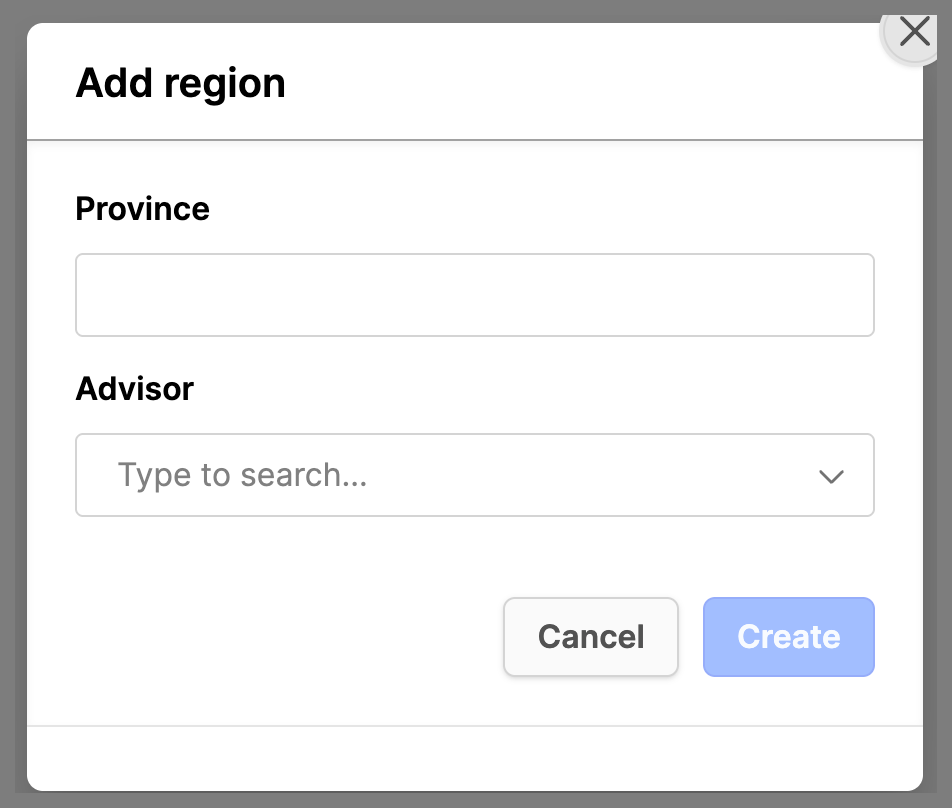
- Click on the Add region button.
- In the modal box, add the name of the Region and assign the Advisor.
- Click on the Create button.
- Continue through until all are created.
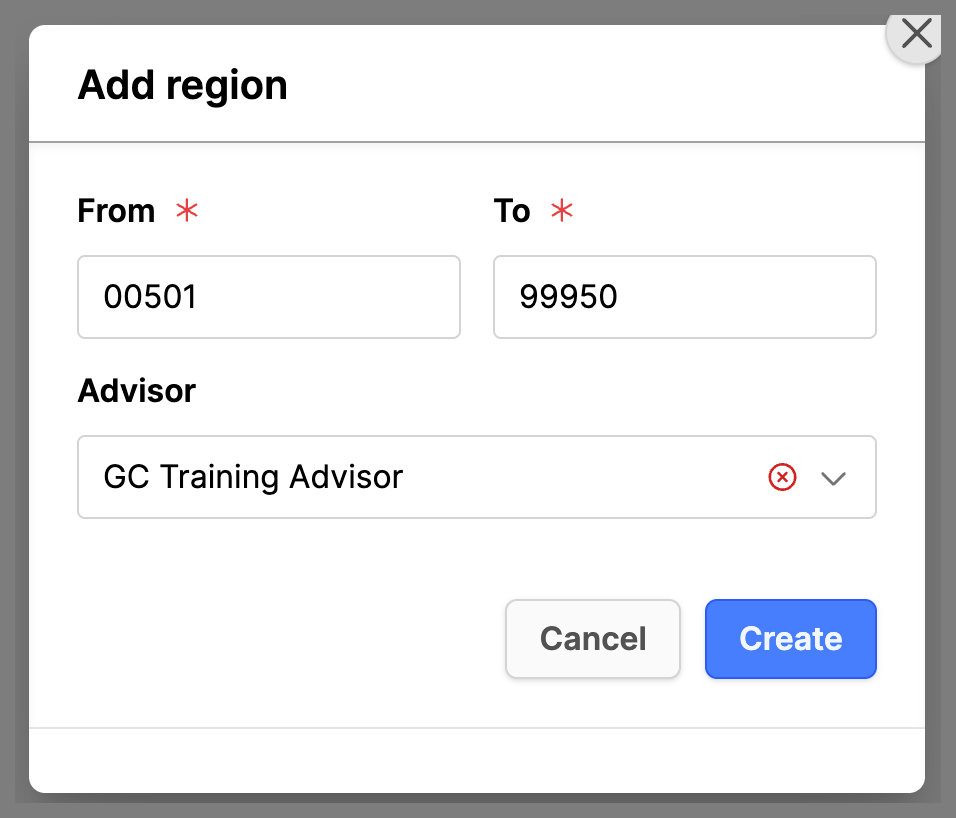
- If using Postal codes:
- Click on the name of the Country in the country list.
- Click on the Add region button.
- In the modal box, add the From and To Postal codes.
- Assign the Advisor.
- Click on the Create button.
- Continue through until all are created.
- Another option here is to simply create a region or postal code for the entire country. If there is only one advisor, this can be an option as well.