
Overview
These notes provide information on creating a new website using the Web Engine content management system for how to create a new empty website from scratch. The following notes are for the ALPS or Adventist design but should cover aspects for other designs as well.
If you already have a website, then you will want to read an article on adding website pages, creating menus, or another topic that provides details on adding the content and elements to your website; see links at the bottom of the page.
How to
Create a new website
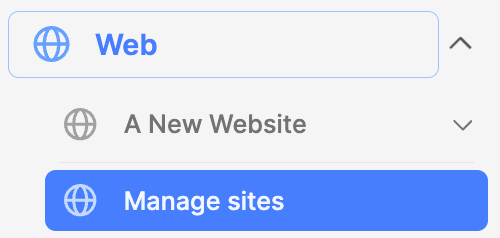
- Navigate to the Web Module and expand the module.
- Click on the Manage sites section title.
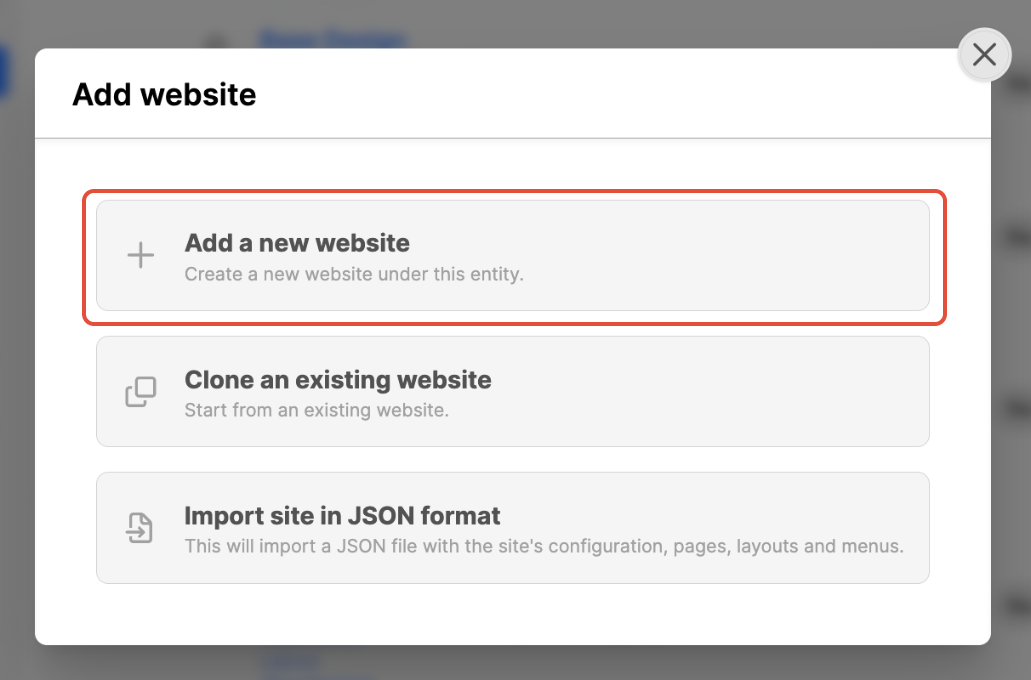
- Click on the Add website button on the upper-right.
- Click on the Add a new website option.
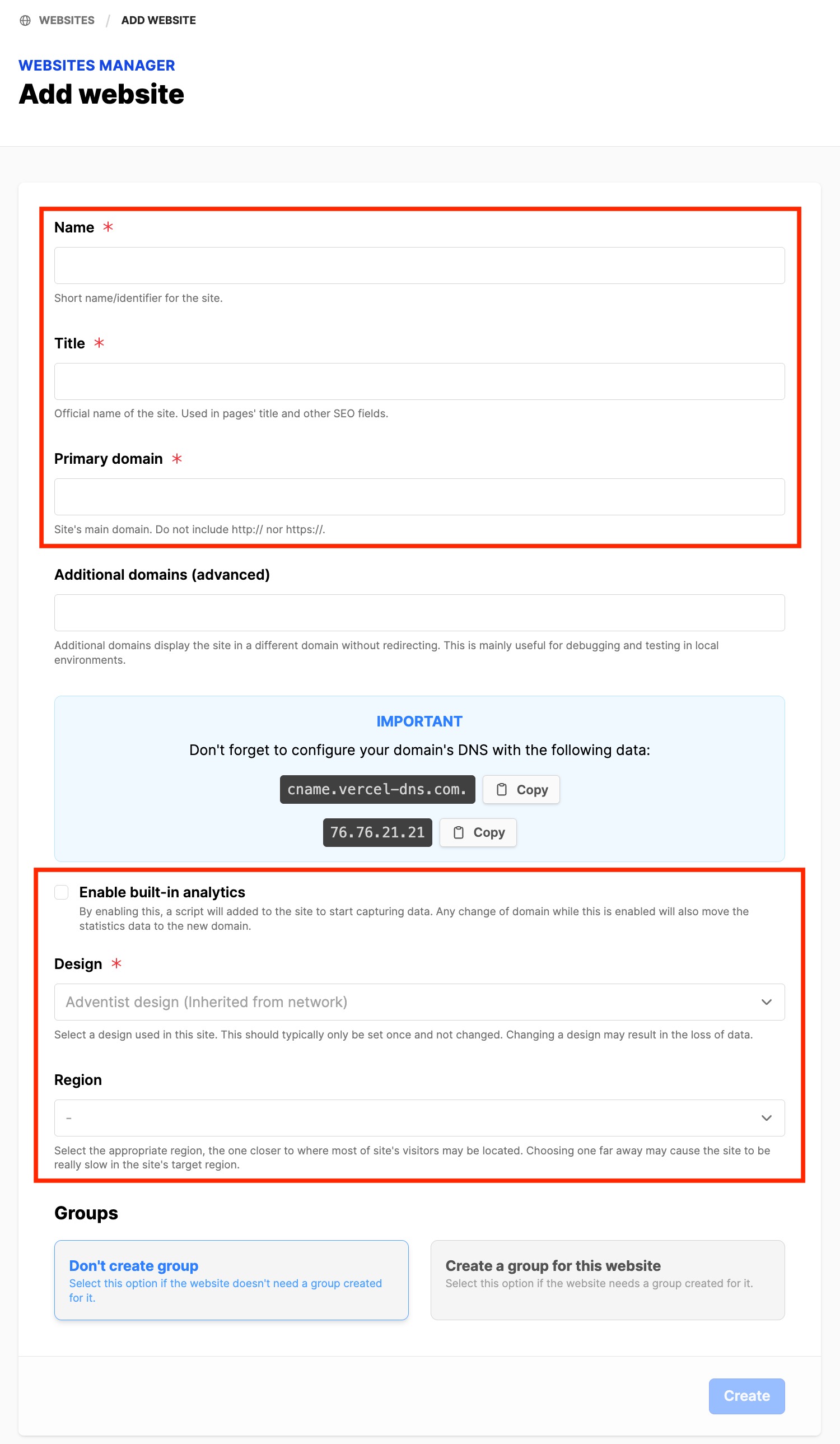
- Fill out the fields:
- Name: a name to identify in the backend of Web Engine
- Title: Official name of the website
- Primary domain:
- <your-website>.staging.web.adventist.cloud (<your-website> = your website name)
- Use "a-z", "0-9", "-" characters only
- Enable built-in analytics: Always set the checkmark, if someone needs website statistics
- Design: Select the design for this website.
- "Adventist design" (ALPS) for Division, Union, Conference, local churches
- "Adventisten.de design" for entities in German speaking countries (only with approval)
- "Base design" for special projects (only with approval)
- "Hope design" for Media library or Courses module websites
- Region: Select the closest region to the target audience (if field is visible).
- Groups: Add a group if someone is supporting this website. If you add a group, you will see the option to add a user as well; skip Add user initially; add later after the website has been setup.
- Click on Create button to create the website
- The new website should open on the right side; if not look for the name under the Web module and click on the name of the newly created website.
Web > website > Pages
Homepage
- Click on the name of the website. (there should be a Home page already created)
- Click on the Home page.
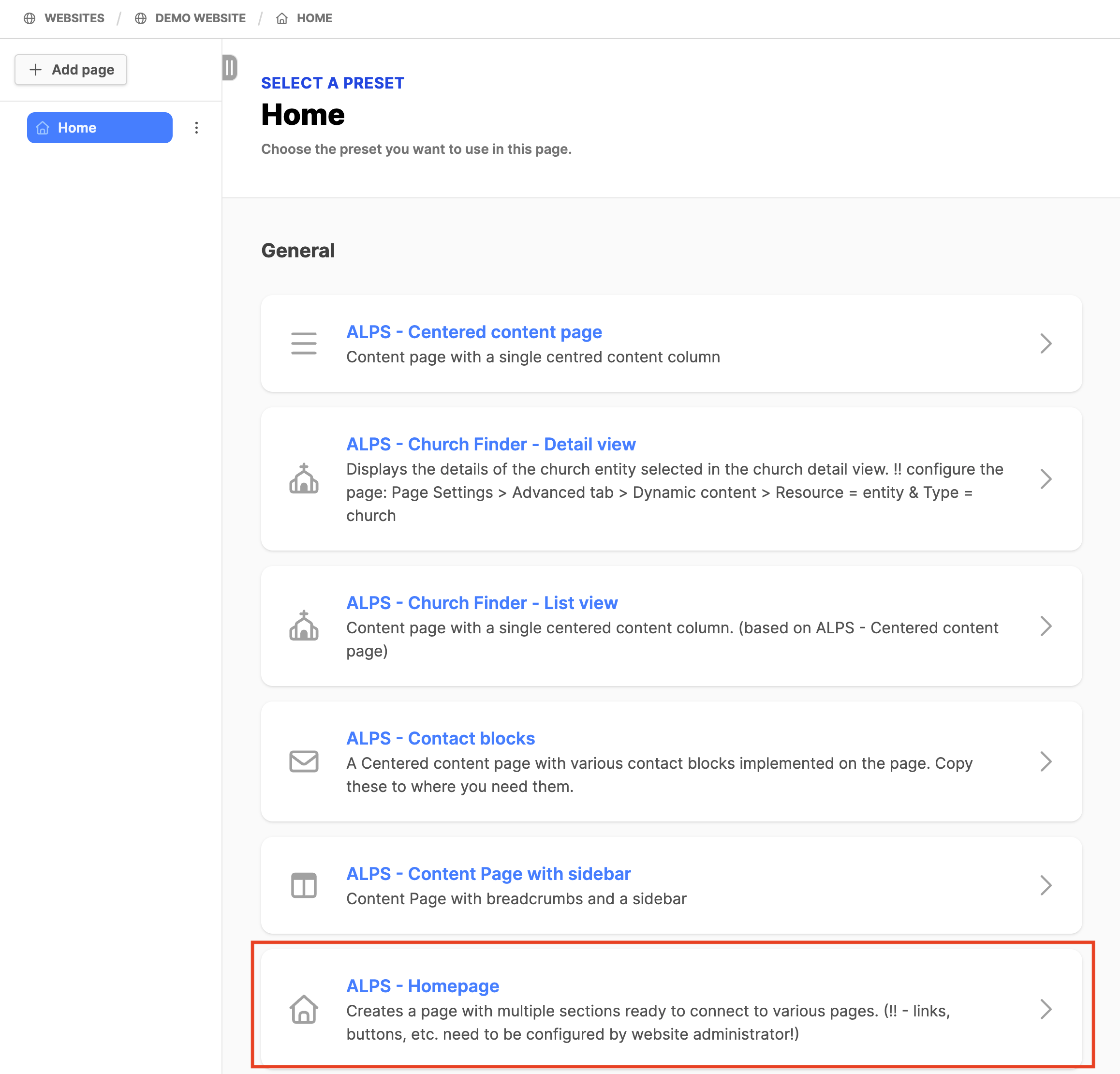
- Select a preset page template for the Homepage
- Some designs may have a preset for the homepage (Adventist design: ALPS - Homepage)
- Otherwise, select a preset and build the homepage as the design requires. Click the Save button.
- See Additional information at the bottom of the page on how to add content to a page.
- Click button View online in the upper right corner of the backend. The website homepage should appear.
- If an error occurs, review the steps above. (If a problem persists talk with your administrator)
Note:
When using the ALPS design for standard pages on the website, use the ALPS - Centered content page or ALPS - Content Page with sidebar. These pages are ready for displaying content in the proper padding across device sizes.
Web > Menus
- After pages are created, see the link at the bottom of the page to create menus.
Web > Layouts
- For most designs, no layouts are required
Web > Appearance
- Set logos, menus, etc. using the Appearance submodule; see link at the bottom of the page.
Additional Information
- To start building pages see Developing webpages (Overview); Adding website pages
- Creating Menus on the website
- Adjust the website by using the Appearance submodule
- Website Template used for setting up automated websites (ex: a local church website)
- Transparent Headers allow page header backgrounds to be transparent