
Overview
The articles module can be used to create a blog on the website, by adding pages that use the standard articles blocks. Adding a blog is similar to adding a news list and detail pages; there are a few adjustments needed.
Notes:
Before you begin, make sure you have:
- Setup the Articles module
- Added article pages to the web module
- Created an article (at least a testing article)
How to
Website setup
- If the website will only have a blog, then only one article list and detail page on the website are needed for the blog.
- If there is a blog and a section for news or article pages, then the blog will need to have its own list and detail pages.
- When creating a blog it is suggested to use a "blog" flag. Configure the frontend blocks to include the "blog" flag. This will make sure only blog articles are displayed on those frontend blocks.
- If articles or news articles exist, then make sure their frontend blocks exclude "blog" flags.
Add a blog flag to a website
- Click on the Web module to expand it.
- Expand the website.
- Click on Settings for the website.
- Click on the Flags tab.
- If there is no Blog flag, click on the Add flag button.
- Expand the new flag.
- Name: Blog.
- ID: blog.
- Click on Update button.
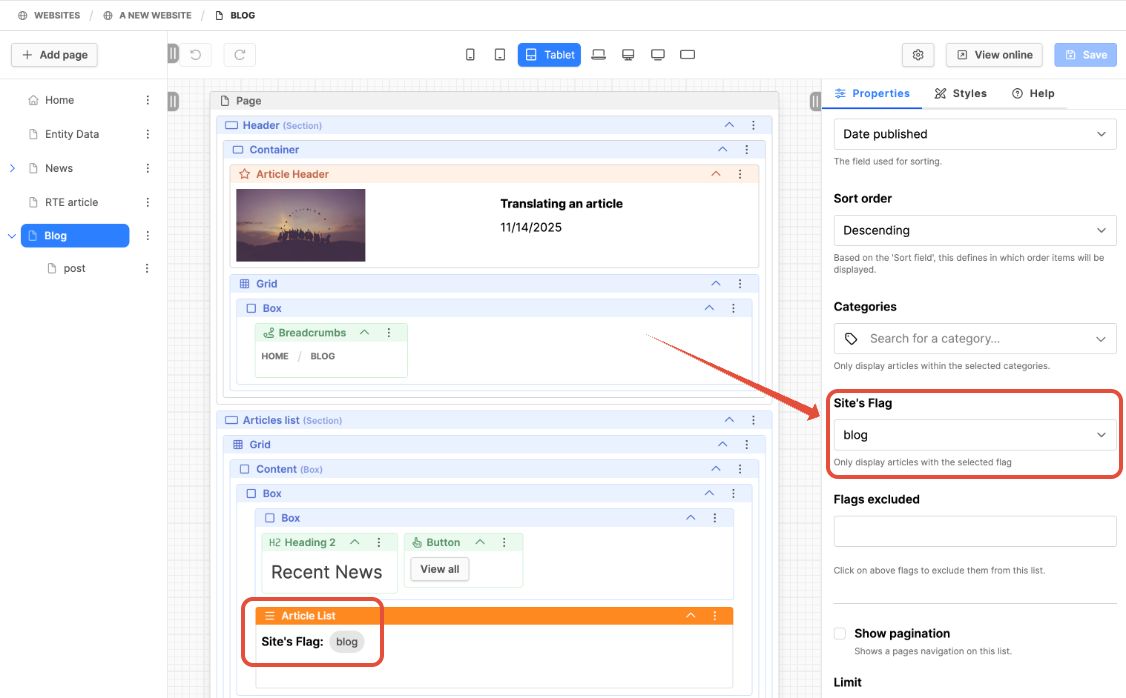
- Navigate to the website Blog List view page with the Articles List page preset.
- Click on the Article List block on that page.
- Under Properties on the right side, expand the Filters and sorting section of the Article List block.
- Site's Flag: blog.
- If the List view page has an Article header block, add the blog flag to that block also.
- Click the Save button.
Blog Posts
- Blog posts are stored as articles under the Articles module.
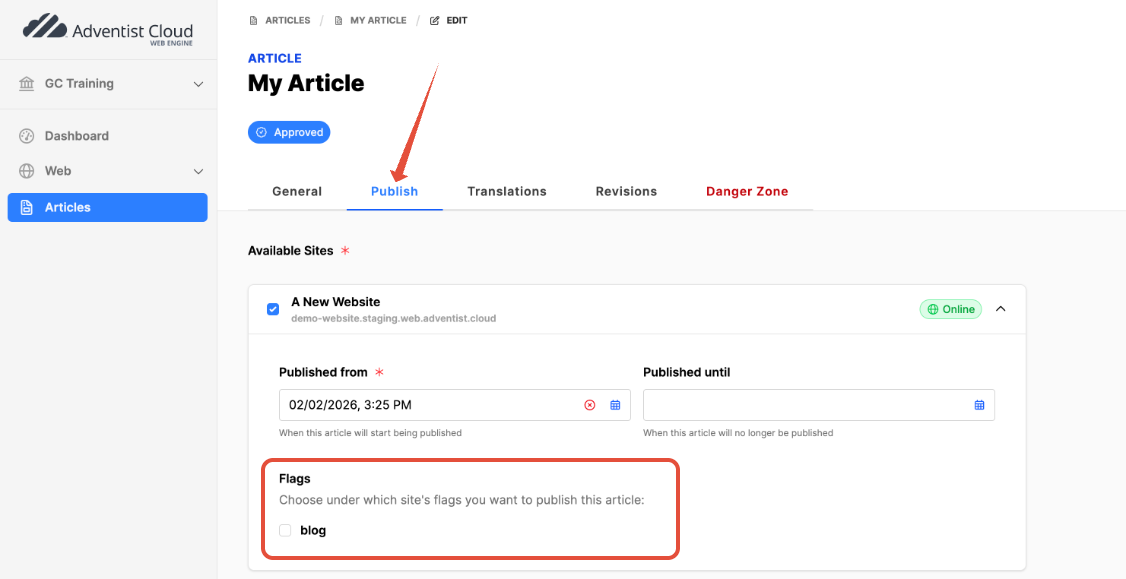
- Under the Publish tab of the blog (article) the checkmark should be set on the Blog flag under the website.
- When publishing, expand the website section [click title] to see available flags. Click the Publish button.
- When the publishing button is clicked for the article, it should appear under the "Blog" list page. You can return to your website, to the Blog page, and click on the View online button.
Additional Information
- Create articles for the website
- Adding article pages to the web module