
Overview
It is possible to translate Web Engine articles into multiple different languages, in order to reach a greater number of people. If the partner has AI translation enabled, the editor can quickly translate their content into another language, which they don't actually speak themselves. The translated article can then be reviewed by a qualified translator, to ensure the content and its context is properly represented in the new language.
Note:
- The administrator needs to add the desired language to the entity before the article can be translated.
- User rights may also need to be adjusted, to include translation of articles.
How to
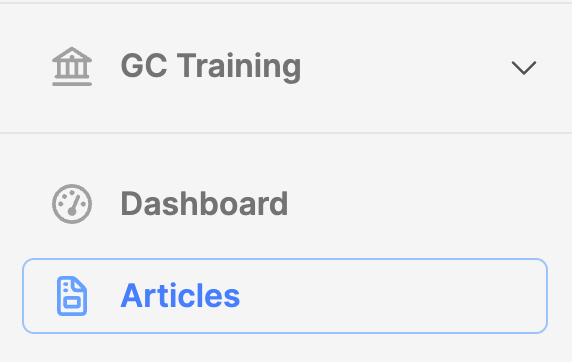
Navigate to the list of articles on the entity. Do this by clicking on the Articles module, or depending on rights, click on Manage articles submodule.
Translate an article
- Locate the article in the list of articles.
- Click the title to open the article for editing.
- Click on the article Translations tab.
The following steps assume the entity administrator has added the required language to the entity, and no translation has been done yet.
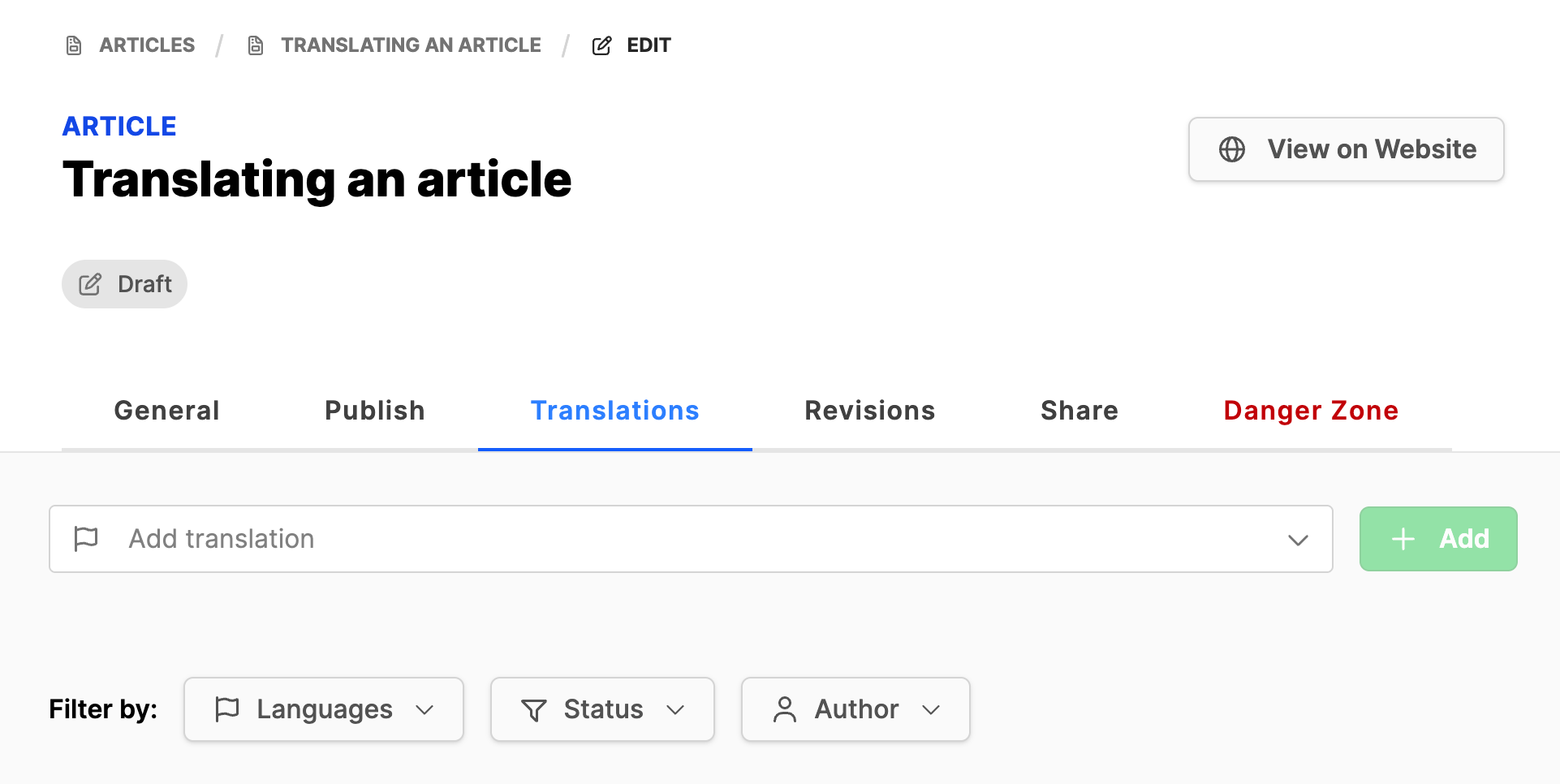
- If the needed language is not listed:
- Click in the field Add translation and select the language the article should be translated into.
- Click on the Add button to the right of the language field.
- If the required language is already listed, simply click on the article title for the desired language to translate (may say: Missing title).
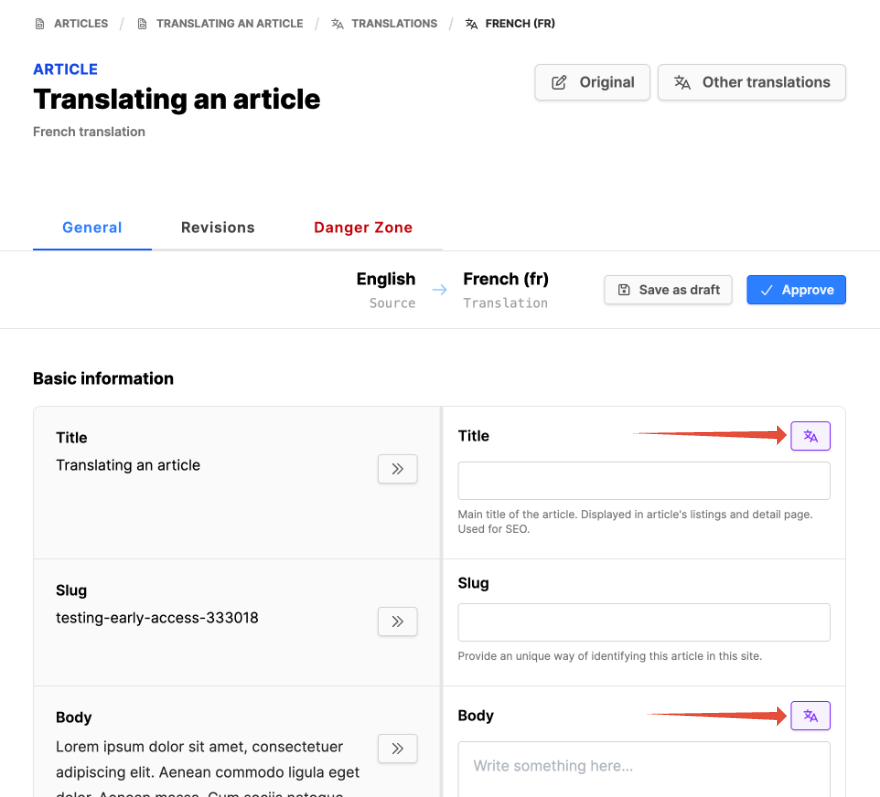
- An interface for translation will appear, with all article fields displayed.
- The source language will be on the left and the target language on the right.
- An AI translation button should be next to the target language field on the right end.
- Click on the AI translation button to translate the text in the source field into the target language.
- (If there is no language icon to the right of the target field, AI translation is not enabled. Manual translation can be done via DeepL, Google or another similar tool. Or speak with your administrator to see about AI translation.)
- If the source field value should be copied over, without translation, click on the icon >>.
- Once the translation is completed, click on the Approve button, or else click on Save as draft. (The button might show "Done" instead.)
- Once approved, the article translation can appear on any page set to that target language.
Notes:
- Images containing text should have the embedded image text translated into the target language as well. This means a second image with the translated language should be available.