
Overview
After the website is set up and configured for translation, the pages of the website will need to be translated into the desired languages. Depending on the website configuration, this translation work can be either done manually or assisted with AI translation. Each page of the website will need to be translated into the target language.
Note: Website pages will use the source language, and not translated languages, as the URL. If there are links, buttons, etc. as page content on a page, those links should point to the source language of the website and not the translation of that page.
How to
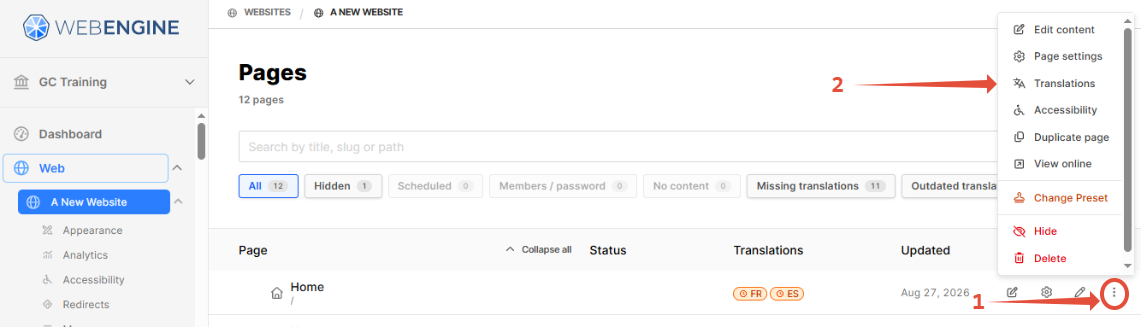
- Under the Web module on the left sidebar menu, click on the title of the website. The Pages manager will open on the right.
- Click on the three vertical dots to open the page menu across from title of the page to translate.
- Click on Translations in the menu.
- The translation overview for the page will open.
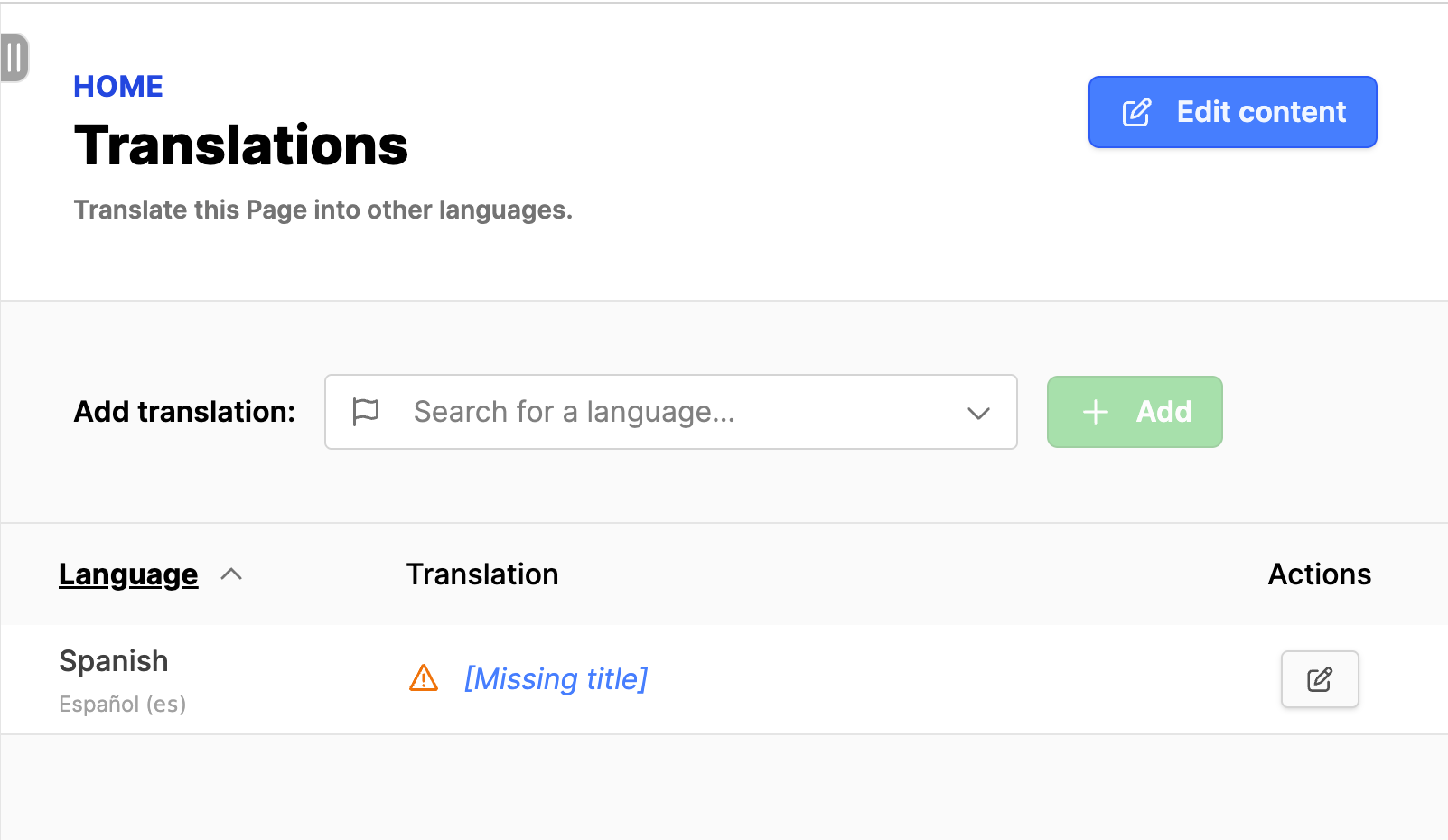
- Use the field Search for a language to locate the language to add, if it doesn't exist already.
- Find the language in the list and click on it.
- Click on the green Add button to add the language to the website.
- Alternately, if visible, click on the Translation link (ex: [Missing title]) for the language.
- The translation interface for the website will open.
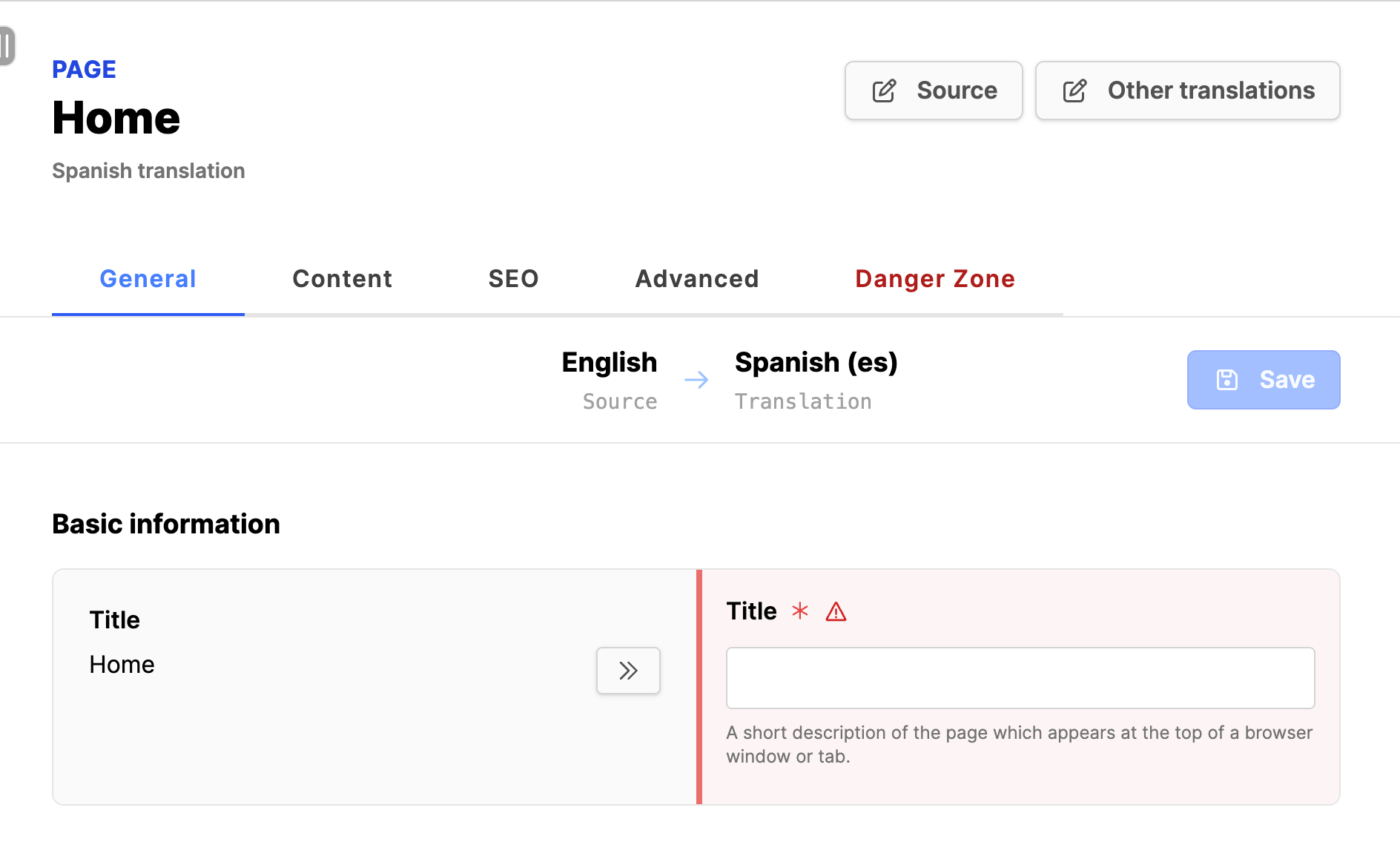
- Check all tabs, General through Advanced, to see if any translation is required.
- On the Content tab, click on the Options button and show hidden blocks and structure; this will display all page content, should you need to do this.
- Translate all the fields under all tabs that need to be translated.
- Guidelines for translation of fields:
- Use the AI translation or manual translation to place the proper text in the fields on the right side of the interface. Check for proper context, spelling, etc.
- Some fields may not need to be translated. Copy over items by clicking on the icon >>.
- Don't translate slugs or portions of URLs, unless the system is set up for those language paths.
- Flags only need to be translated if appearing in the frontend. Most times you will not translate the flags.
- After all translation is done click on the Save button to keep your work!
- Repeat this process of adding any additional translations to the page, by clicking on the Other translations button on the upper right.