
Overview
The Articles module offers different workflows depending on the size of the team or if there is an approval process in place. Consider the following and choose which workflow will serve the needs of your team best.
If only one person writes, edits and publishes the articles, a Simple workflow suffices. If the group process is informal, and no one has to approve articles for publishing, a Simple workflow suffices.
If there is a formal workflow of approving articles before publishing (or translating), then the team should use an Approval workflow. If some users are authors, some are editors, some are publishers, etc. and an author cannot publish to the website directly, then use the Approval workflow.
How to
Article Module setup for Simple workflow
For most websites, the simple workflow will provide all the functionality needed for publishing articles to the website.
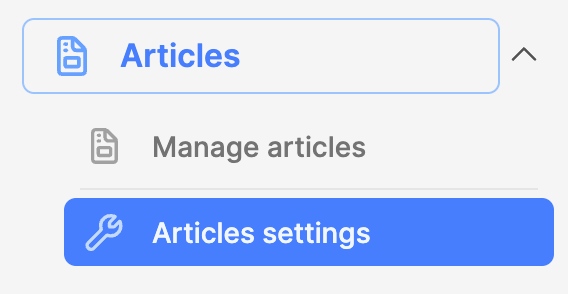
- Expand the Articles module and click on Articles settings. The Articles settings interface will appear.
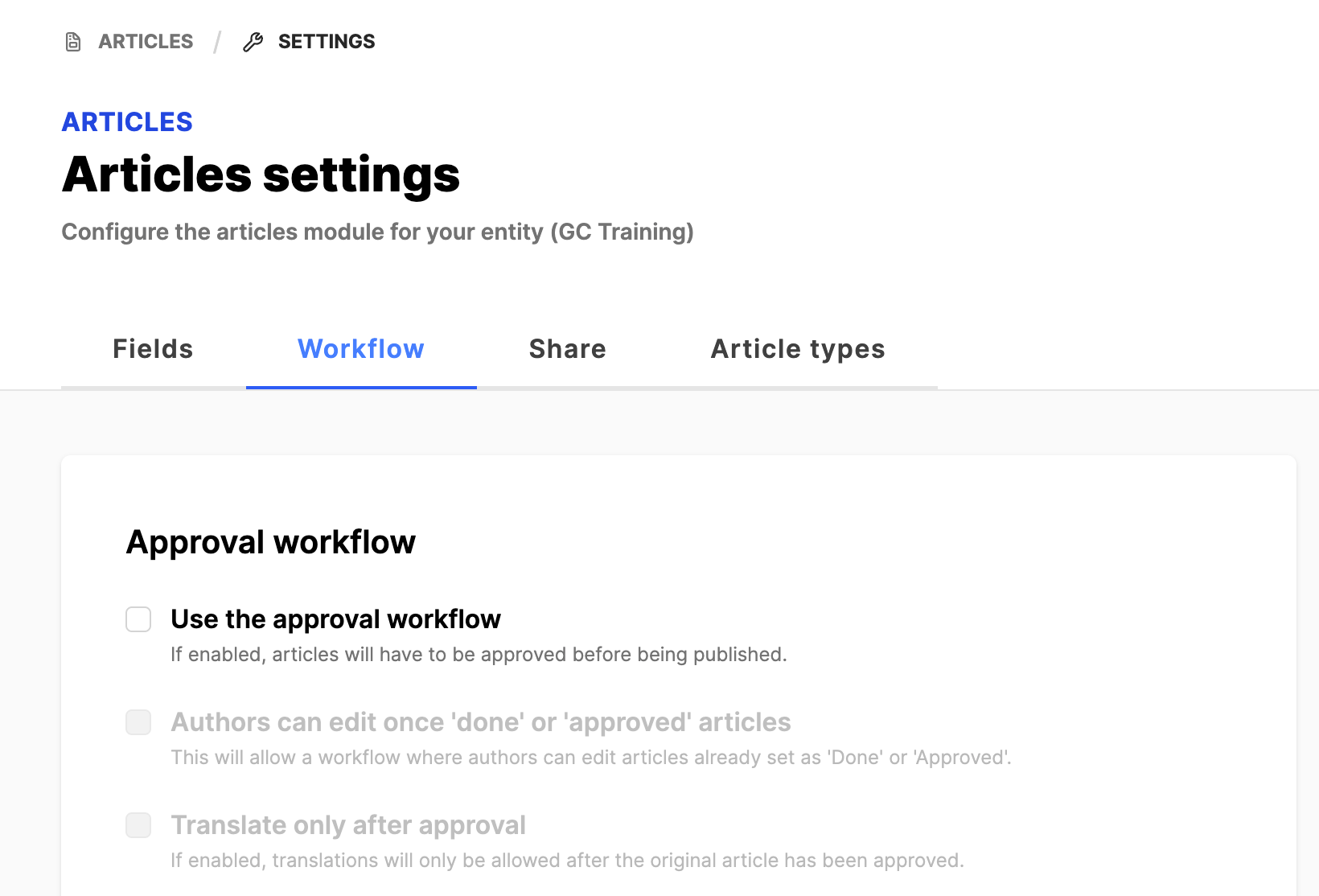
- Click on the Workflow tab.
- Leave all fields unchecked
- If any checkmarks are removed, Save the changes.
Article Module setup for Approval workflow
The Approval workflow is needed when the person who writes the article sends the article to another person for review and approval before the article can be published to the website.
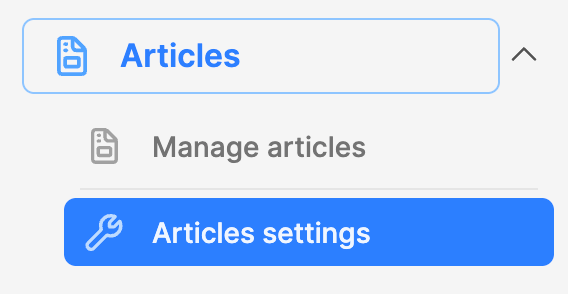
- Expand the Articles module and click on Articles settings. The Articles settings interface will appear.
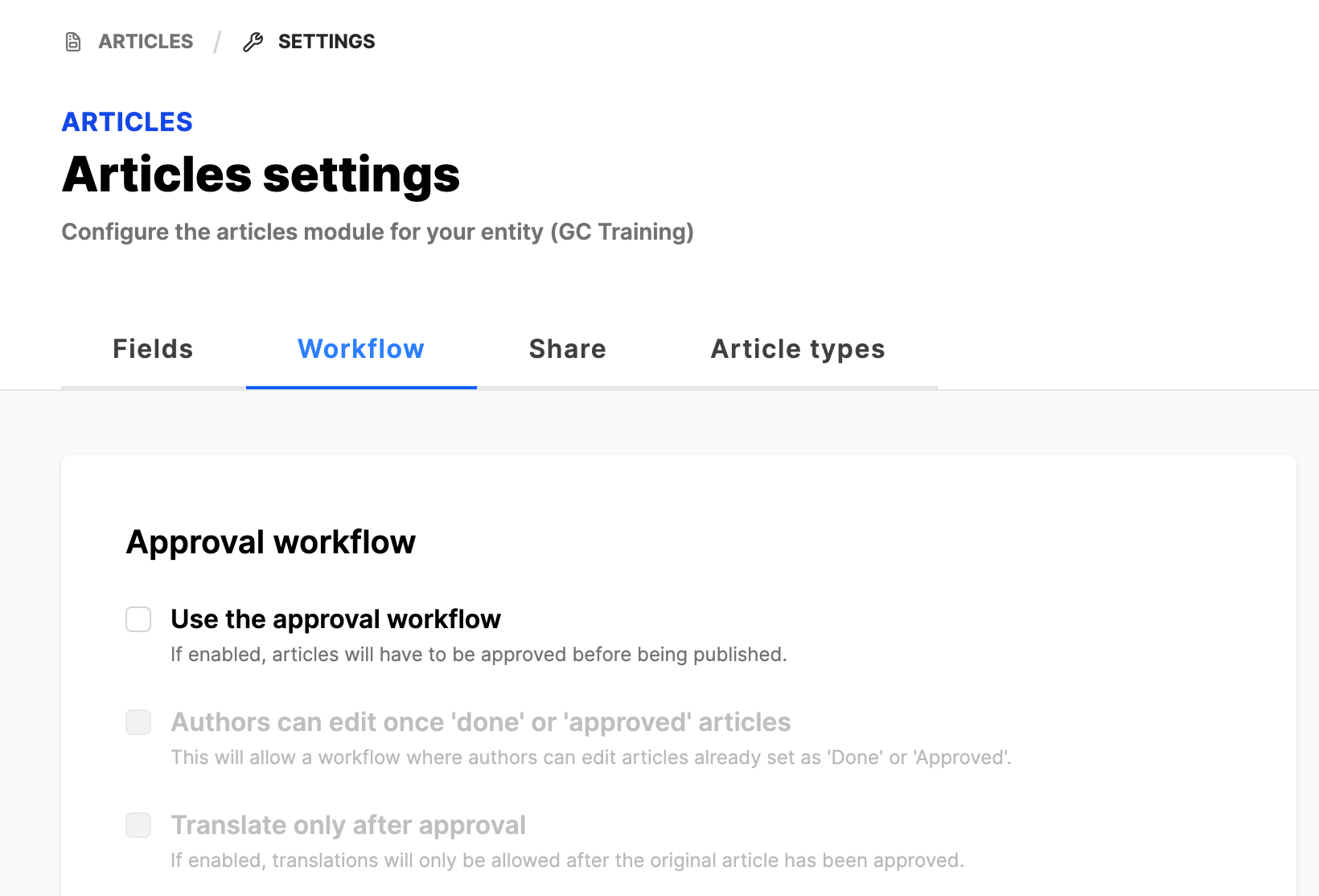
- Click on the Workflow tab.
- Workflow:
- Approval workflow:
- Use the approval workflow: Set the checkmark if there are dedicated editors and authors are not allowed to publish directly to the website.
- Authors can edit once 'done' or 'approved' articles: This depends on your internal workflow.
- Translate only after approval: This depends on your internal workflow.
- Early access:
- Early access is covered in a different article. See the link below.
- Other options:
- These are for special use cases.
- These are for special use cases.
- If changes are made, click the Save button.
- Approval workflow:
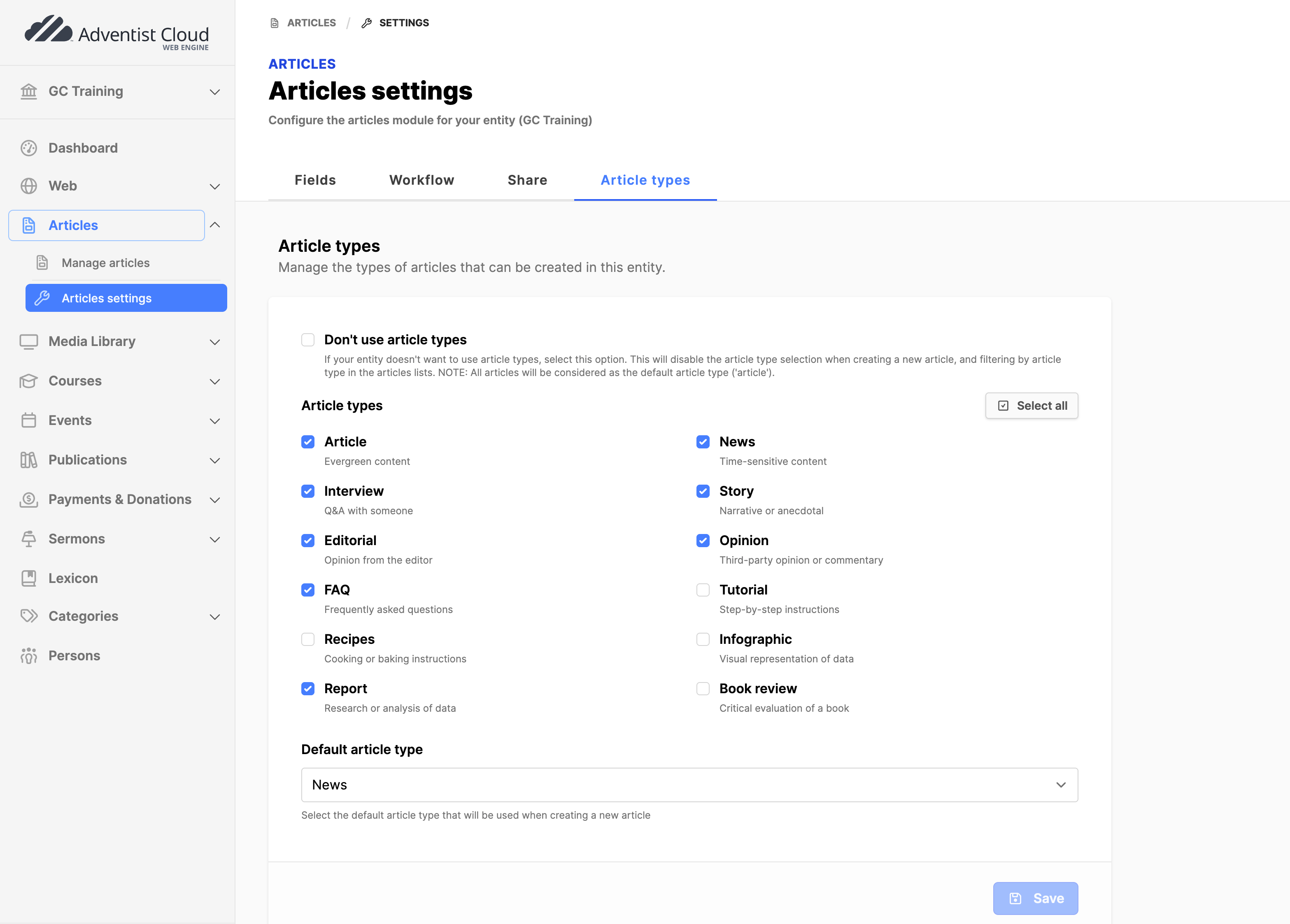
Articles settings> Article types tab
Most partners will not need to use this functionality. They can simply use the default settings. If needed, it is possible to configure the types of articles that will appear in the select list under Article type when creating or updating an article.
Points to consider:
- It is possible not to use article types at all by setting a checkmark in the field.
- Article types can be selected or de-selected as needed.
- A Default article type that appears in that field in a new article can be set.
- When changes are completed click on the Save button.
Additional Information
- Configure Article sharing
- Configure Article early access viewing