
Overview
If you receive a cloned website or a website that was setup for you, pages for displaying articles will probably already exist. If there are no articles or news pages, the quickest way to setup these up are to use page presets. There is one preset for listing the articles and another preset for providing the article details.
It is possible to build these pages yourself. However, if you have not done this before, we would recommend using the page presets. These presets can be adjusted to fit your design, if that is required. Additionally, depending on the website design, multiple article pages may be required, each with different filtering.
To explain the user experience, articles are listed on an article list page. This is just a list of all the articles which have been published to this website. When the user clicks on one of the articles, they are forwarded to the article detail page. The article detail page contains all the details for the selected article.
How to
Add an article list page to your website
Navigate to the page tree of the website where you want to add article pages:
- Click on the Web module.
- Click on the title of the website.
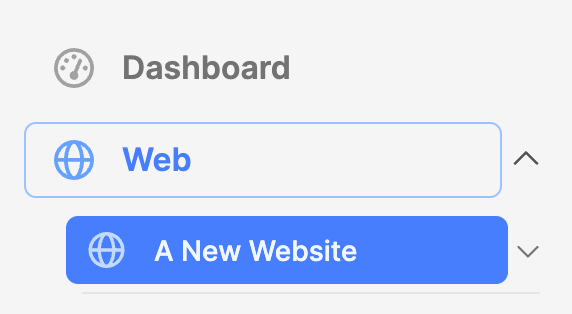
- The page tree for the website will appear next to the module list.
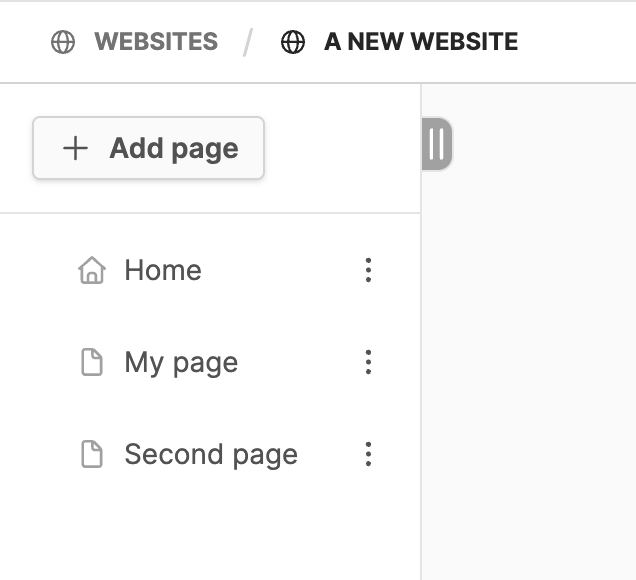
- Click on the Add page button.
- In the title field, provide the name of the page: e.g. News.
- Click on the Create button. The Page preset list will appear.
- Scroll down to the Articles page presets and click on Articles list preset.
- The page preset is applied to the page.
- The article list page has been created.
Add an article detail page to your website
- Continuing from the steps above, create the article details page.
- Click on the three vertical dots next to the page title (News).
- Click on Add subpage option in the menu.
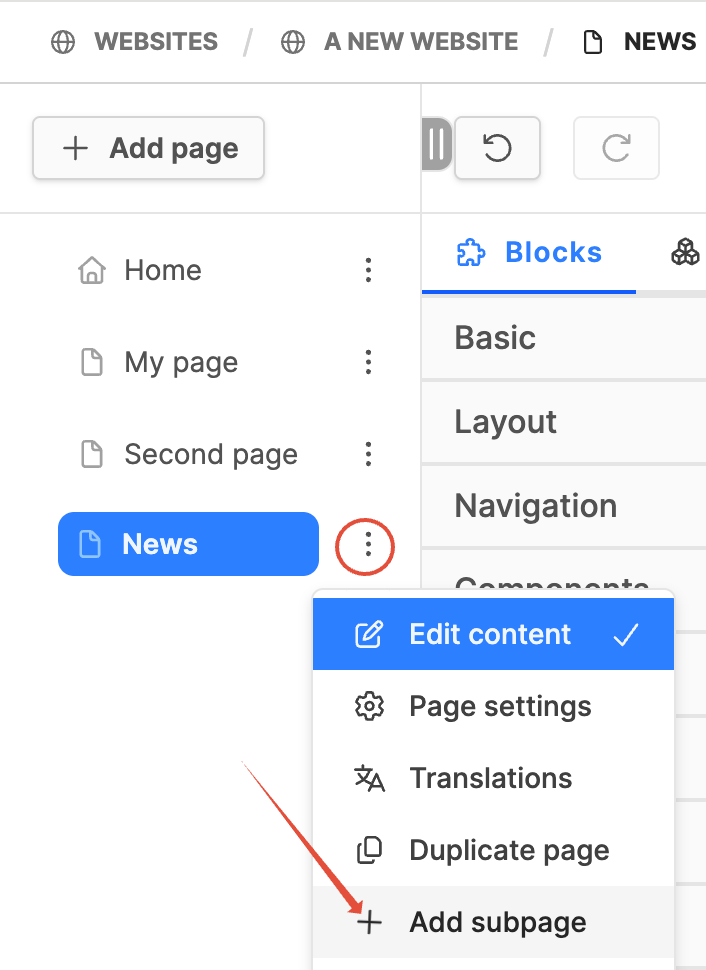
- Add the Title for the article details page (e.g. Details).
- Click on the Create button. The Page preset list will appear.
- Scroll down to the Articles page presets, click on Articles details preset.
- The page preset for Article details is applied to the page.
Configure the Article detail page settings
- Locate the article detail page in the website page tree.
- Click on the three vertical dots.
- Click on Page settings.
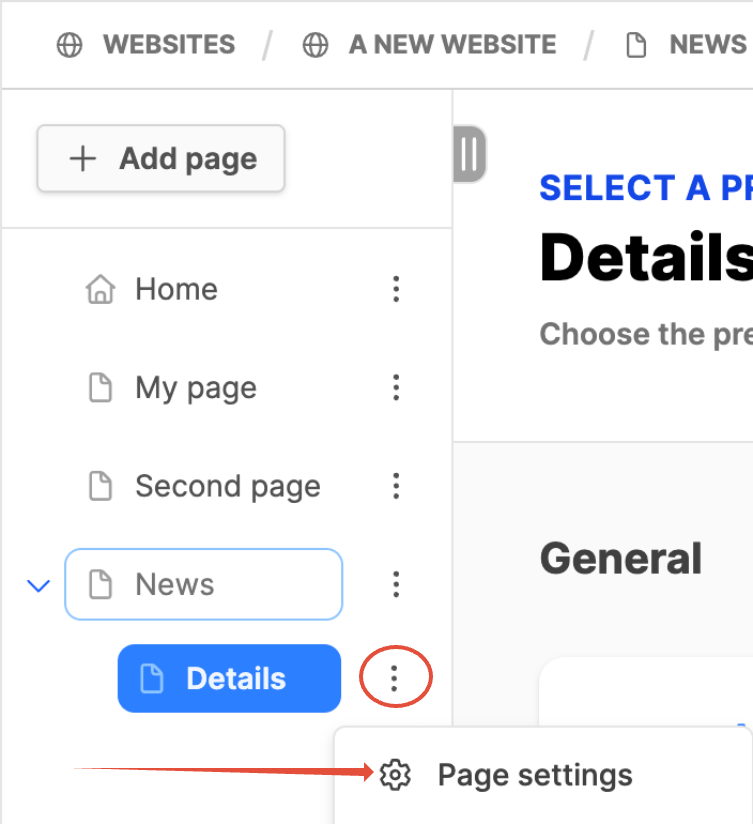
- When the page settings interface appears, click on the tab Advanced.
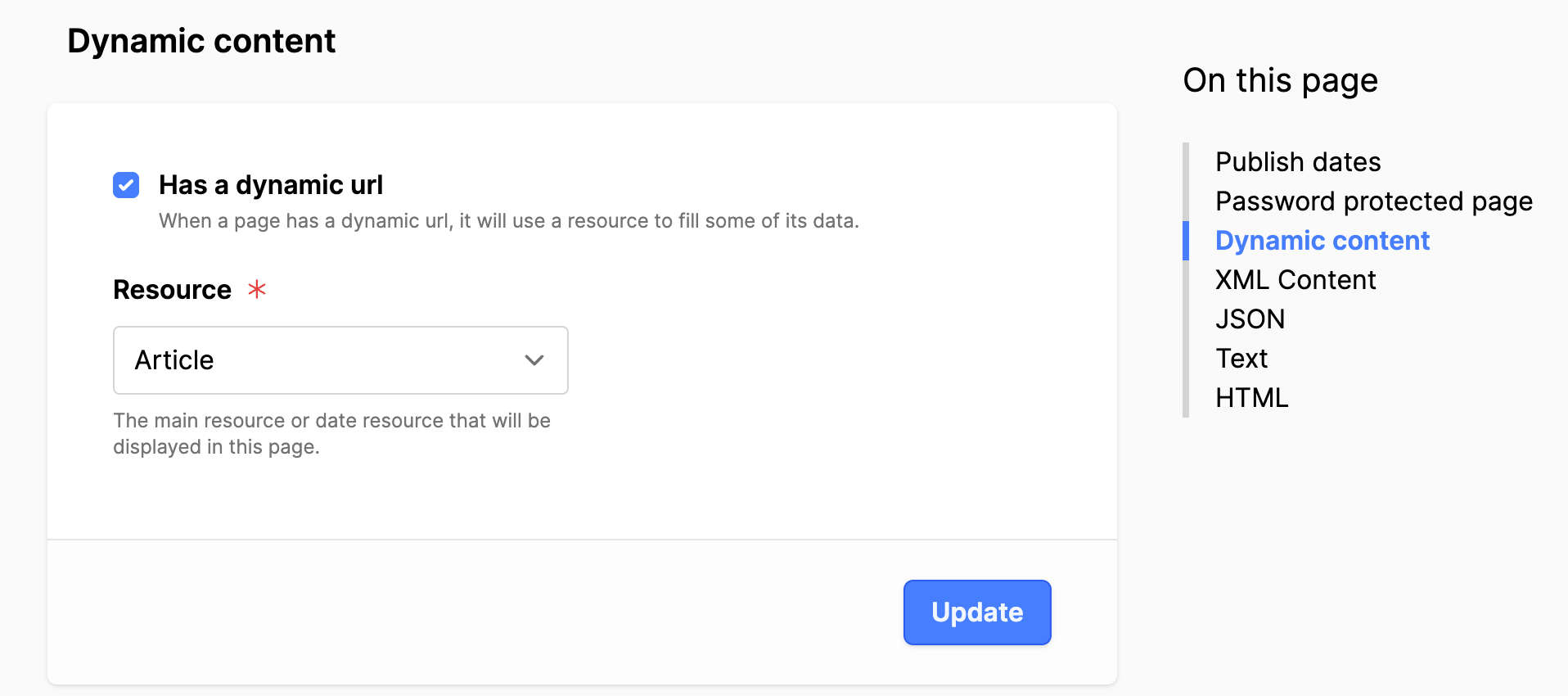
- In the menu on the right, click on Dynamic content.
- Set a checkmark in the field Has a dynamic URL.
- In the Resource field select Article.
- Click on the Update button.
- This tells the page to expect a dynamic URL based on the article slug passed from the article list page.
- Next, in the page settings, click on the General tab.
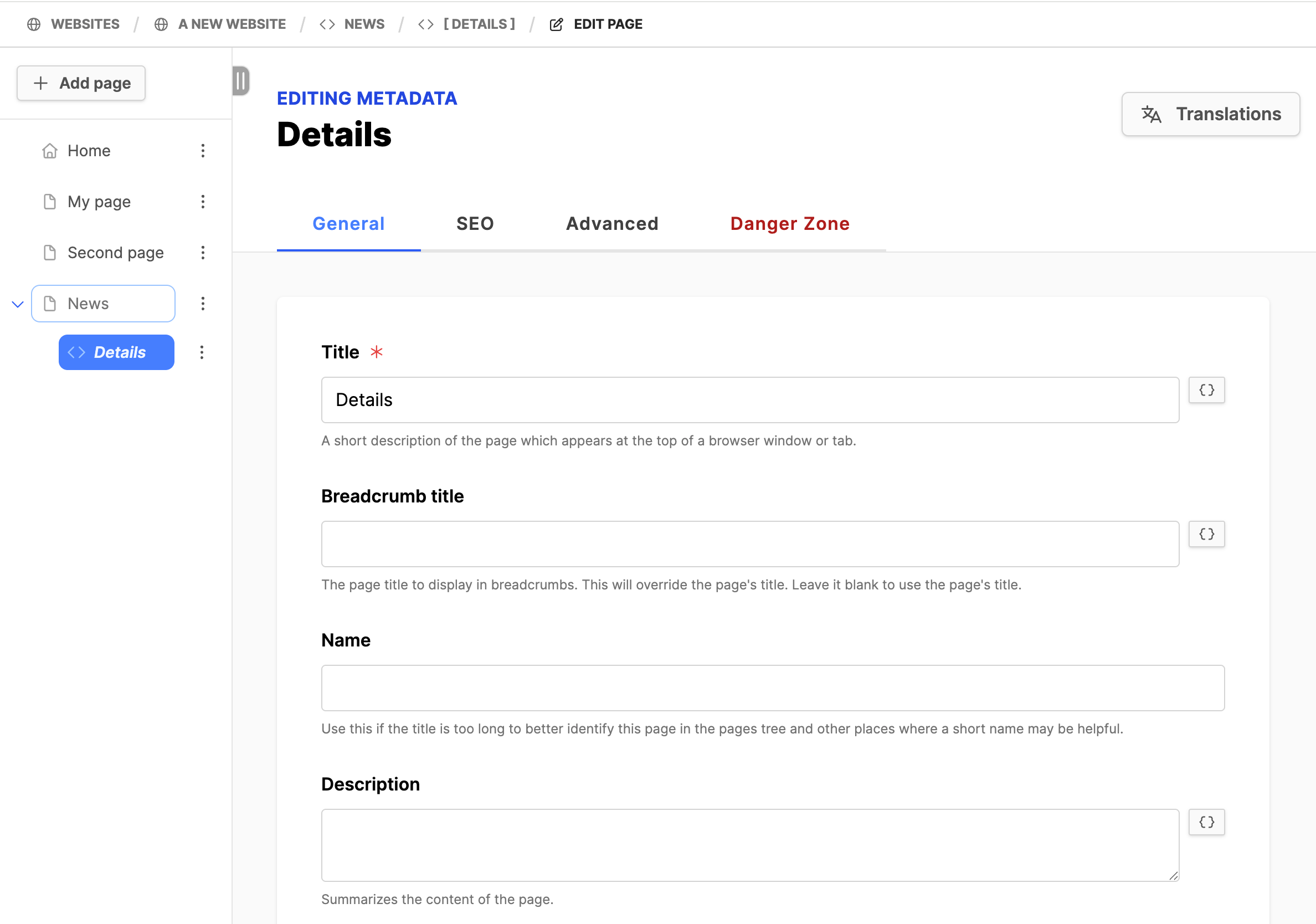
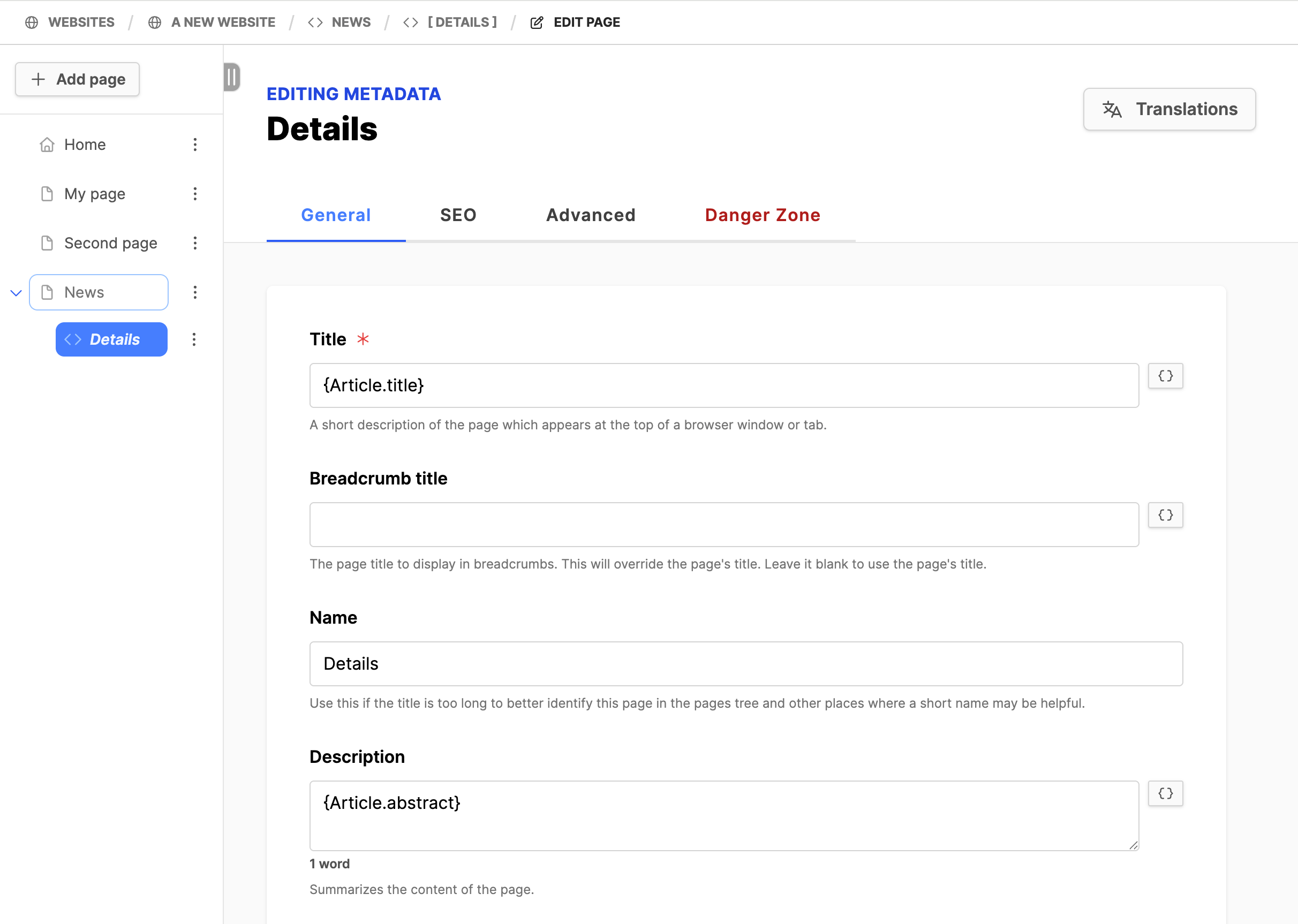
- Cut and copy the Title (Details) into the Name field below. (This appears in other interfaces.)
- In the Title field, click on the icon {} to the right.
- From the menu, click on Title.
- The Breadcrumbs field will inherit from the Title field, so you can leave it blank.
- In the Description field, click on the icon {}.
- From the menu, click on Abstract.
- Scroll down and put a checkmark in the Hide in Menus checkbox. A detail view should only be accessed by clicking on an item from the parent list page. No one should directly navigate to a detail page from a menu. Directly navigating to a detail page will throw an error: Article not found.
- Next click on the Update button.
- Now the title of the page, and the page description will be set dynamically when the article slug is passed into the article detail page. In most cases there is only one article detail page. This page serves up all the articles that are clicked on in the article list page.
Configure the Article list page settings
- Once the Article Detail page is configured, the articles list page block(s) need to be configured.
- Locate the Article list page (News) and click on the title to edit the page content.
- On the page, the article blocks will appear (e.g. Article Header, Article List, etc.).
- Click on the light orange bar on the first article block on the top of the page.
- The Properties tab for the block will refresh on the right side of screen. Scroll down to Detail page.
- Click on the Select a page button.
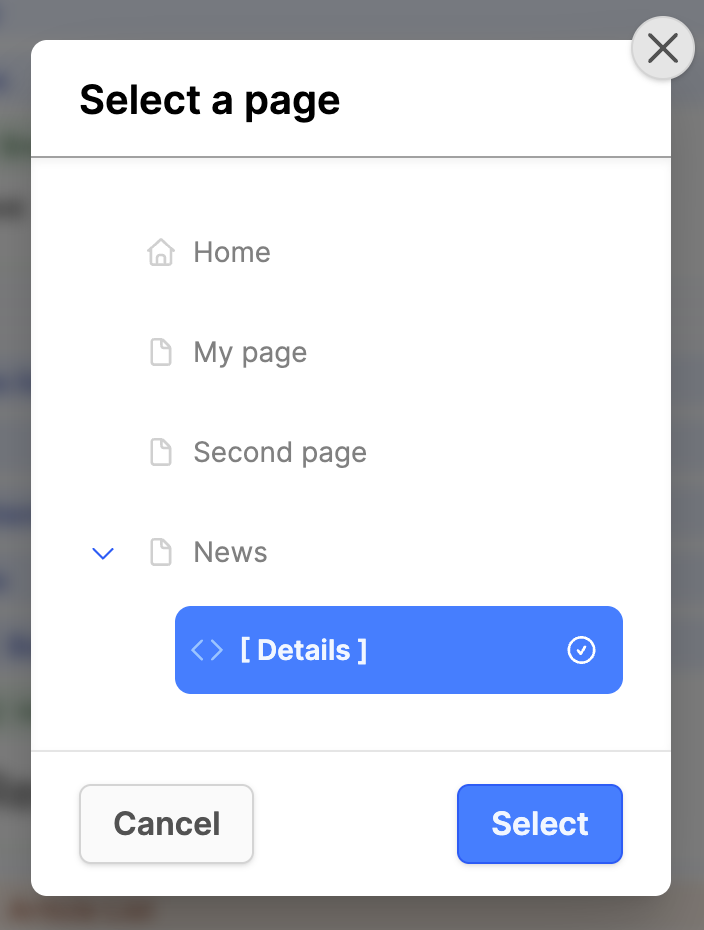
- Expand the article list page (News) and click on the radio button to the right of the details page.
- Click on the Select button.
- Scroll down again, and the details page title (Details) should now appear under the Properties tab.
- Click on the Save button in the upper right corner to save your changes to the page.
- Continue down the page, following the above steps, to add the detail page to all the article blocks on the page that require it, which the light orange bar indicates.