
Overview
The website Menus sub-module allows users to create one or more menus as required by the design of their website. The menus can be added to the website to assist visitors in finding information. The menus can be either automatically created by the system, or manually created by the editor of the website.
Automatic menus are rare, as the system creates a menu from all the pages it finds, and this is usually not helpful to the editor trying to implement the design. Manual menu creation is recommended and is in use for almost all websites built with Web Engine.
How to
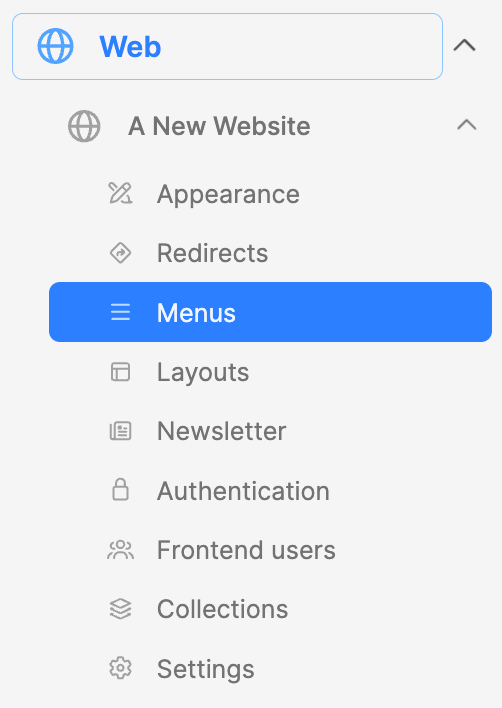
- Click on the Menus submodule. This will open an interface on the right side of the screen.
- Click on the blue Add menu button on the upper right.
Build menus
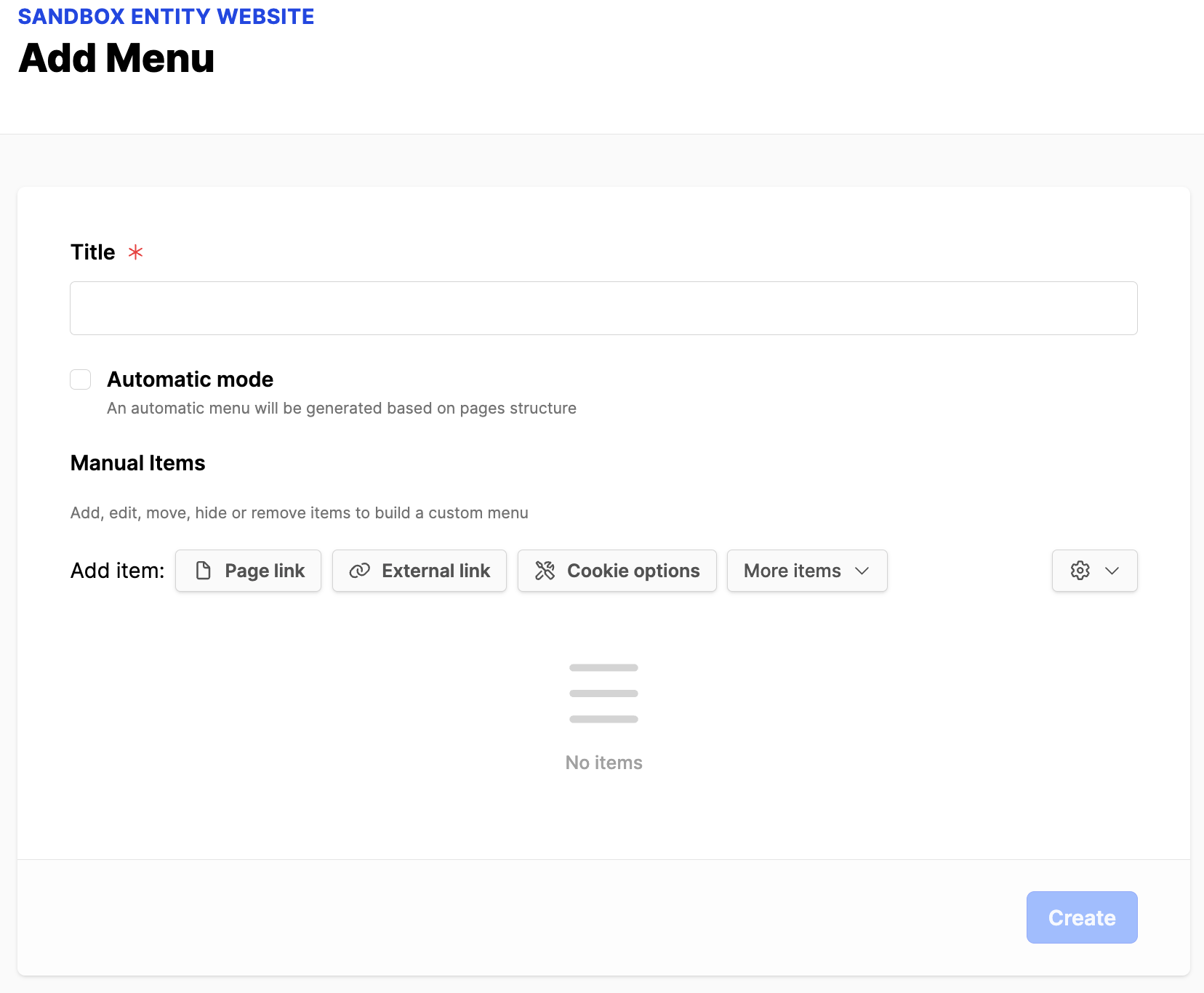
- Fill in the Title (i.e. Primary menu). The title identifies the menu; it doesn’t appear on the website.
- Uncheck the box for Automatic mode; this allows for creating a menu manually (recommended).
- Choose from the Add item buttons to create the menu links:
- Page link: Choose pages from the website. Clicking will open a modal box with a list of the pages on the website. Choose the pages you want in the menu, by putting a checkmark next to the page. Then click on OK in the bottom right corner. You need to create the pages first, for them to appear on the Page list.
- External link: allows for adding an external link to the menu. After clicking the button, add a Label and a URL and then click on OK in the bottom right corner.
- Cookie options: allows you to configure the cookie preferences menu
- More items: provides additional options to add to the menu
- Language switcher: a toggle for websites that have already been translated
- User menu: places the frontend user menu element on the menu
- Drawer toggle: (ALPS design) an icon allowing to open the drawer menu
- Submenu toggle: adds an element to the menu, to group navigation links under. After adding, you will need to edit and rename to the desired heading title.
- Click the three dots to the right of the menu item to edit the item.
- Organizing the navigation:
- In the menu, you can click and drag a link to a different location.
- When you see the blue line, let go and the page will be where the blue line was.
- Create a subpage by dragging a page beneath a parent page. Once the blue line shows an indention on the left, it will become a subpage, at that level.
- When done with your menu, click the blue Create button.
Using menus
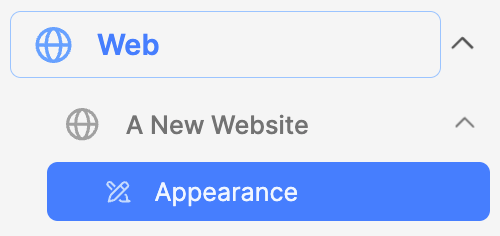
- To Add the menu to your website, navigate into the Appearance web sub-module
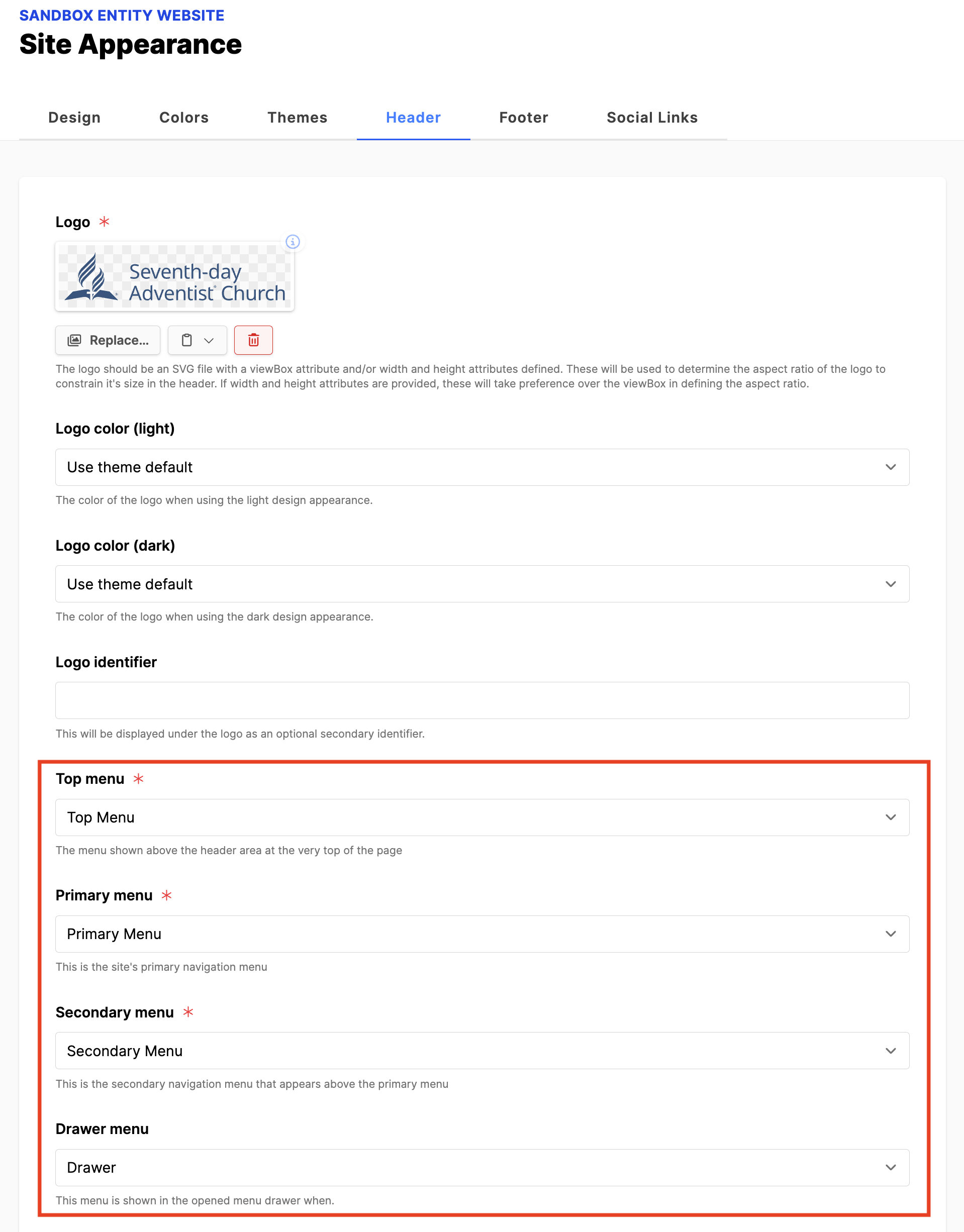
- For a header menu, click the Header tab. (Top, Primary, Secondary and Drawer menus)
- For a footer menu, click on the Footer tab.
- Scroll down to the field where a menu is required.
- Using the dropdown arrow, choose the menu you have created.
- Scroll down and click the blue Update button.
- Where the menu appears depends on the design:
- Top menu is a thin menu that is shown above the header area at the very top of the website. A common use is for links to send a visitor to other websites.
- Primary menu is the main navigation menu for the website.
- Secondary menu appears above the primary menu and is smaller; it can be used as a utility menu.
- Drawer menu is found by clicking on the seventh column, or the three stacked horizontal lines.
- Footer menu is for conveying website pages that have less priority
- Footer social menu is for displaying the links to social channels (ALPS)
- To view the menu on the website
- Click on the title of the website
- Then click on the Home page
- Next click the View online button on the upper right.
Additional Information
- Styling menus covers more advanced options.
- Translation of menus if you are using multiple languages on the website