
Overview
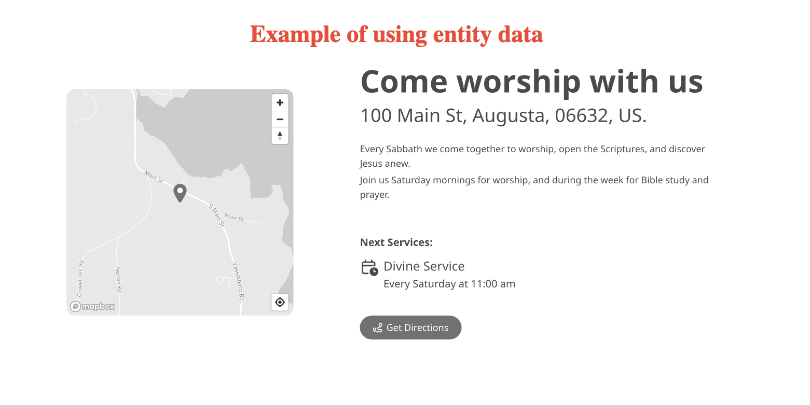
Each entity can manage its data in the backend of Web Engine. This data can be used on the website through the use of Entity variables. Conferences, unions and divisions can access the data of their sub-entities in order to assist them.
Church entity data can be managed through the ACMS system or Web Engine.
- It is important to know if your church data is updated via an ACMS import!
- If you are using ACMS as the system of record, then you should make your changes under ACMS.
- If you are using ACMS, there will be a data import run regularly to import changes made under ACMS.
- Note: If you make changes in the Web Engine backend, the ACMS import will overwrite your updates in the backend of Web Engine.
- If your system is not using ACMS then you can make your changes in the back end of Web Engine.
How to
In the upper left corner of the screen, expand the arrow next to the name of your entity. Then click on the Manage your entity link.
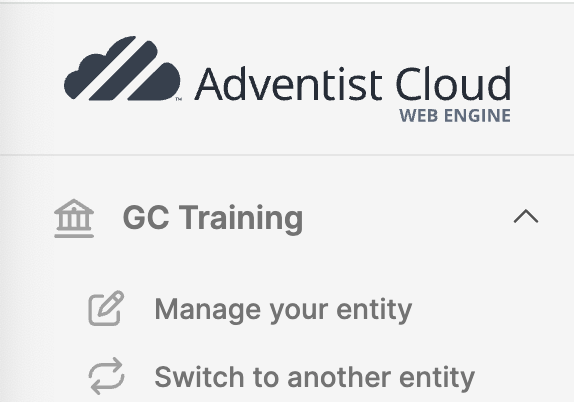
An interface should appear with the name of your entity at the top of the screen. On the General tab of the interface are all of the fields where you can supply the information about your entity.
General Tab
- Basic information: Fill out the fields to provide the meta data for your entity. Do not fill out the Code field at this time. This is for a special use and should not be modified at this time.
- Language:
- Main: This should be the primary language of the entity.
- Additional languages: Add additional languages for your entity (needed for multi-language websites).
- Timezone: Select the timezone for the entity.
- Address: Fill out the fields with the address information of the entity. Use the location field to put a pin on the map for the entity location. Longitude and Latitude will fill out when the location field is filled and the save button is clicked.
- Contact: Add contact information for the entity.
- Image: Upload a nice image of the entity, which can appear on the website when using entity variables.
- Amenities: Add any special offerings the entity may have.
- Click the Save button if changes are made on any section.
Subentities
If there are any sub-entities below the entity, these will be listed on this tab.
- It is possible by clicking on the name of the sub entity, to manage that entity.
- On the right end of the row, click on the three vertical dots to edit, disable or delete the sub-entity.
Configuration
This allows for configuration of the entity.
- Assignment:
- Network: Set if this domain is part of a known network.
- Type: Set the type of entity.
- Parent entity: Set the correct parent of the entity.
- Automated domains: This field is where a root domain for the automated sites can be set. The value in this field, will be used as the root, when matching a template to an entity under Manage automated sites.
- Design: Set a default design for any sub-entities created.
- Email settings: Configuration settings for emails sent out from the entity.
- Artificial Intelligence: Add an AI key if you have one (to be used for the Automatic translations).
- Automatic translations: Configure automatic translations using AI.
- Currencies: Add currencies here if donation module is being used.
- Click the Save button if changes are made on any section.
Services
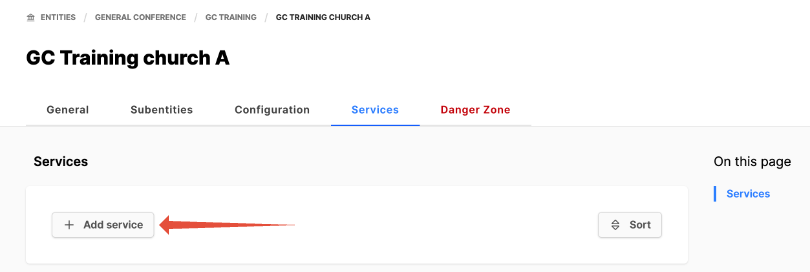
The services tab should only be visible for the church entities. This area can be used to add the various services a church offers. To add a service to a church, simply click on the Add service button.
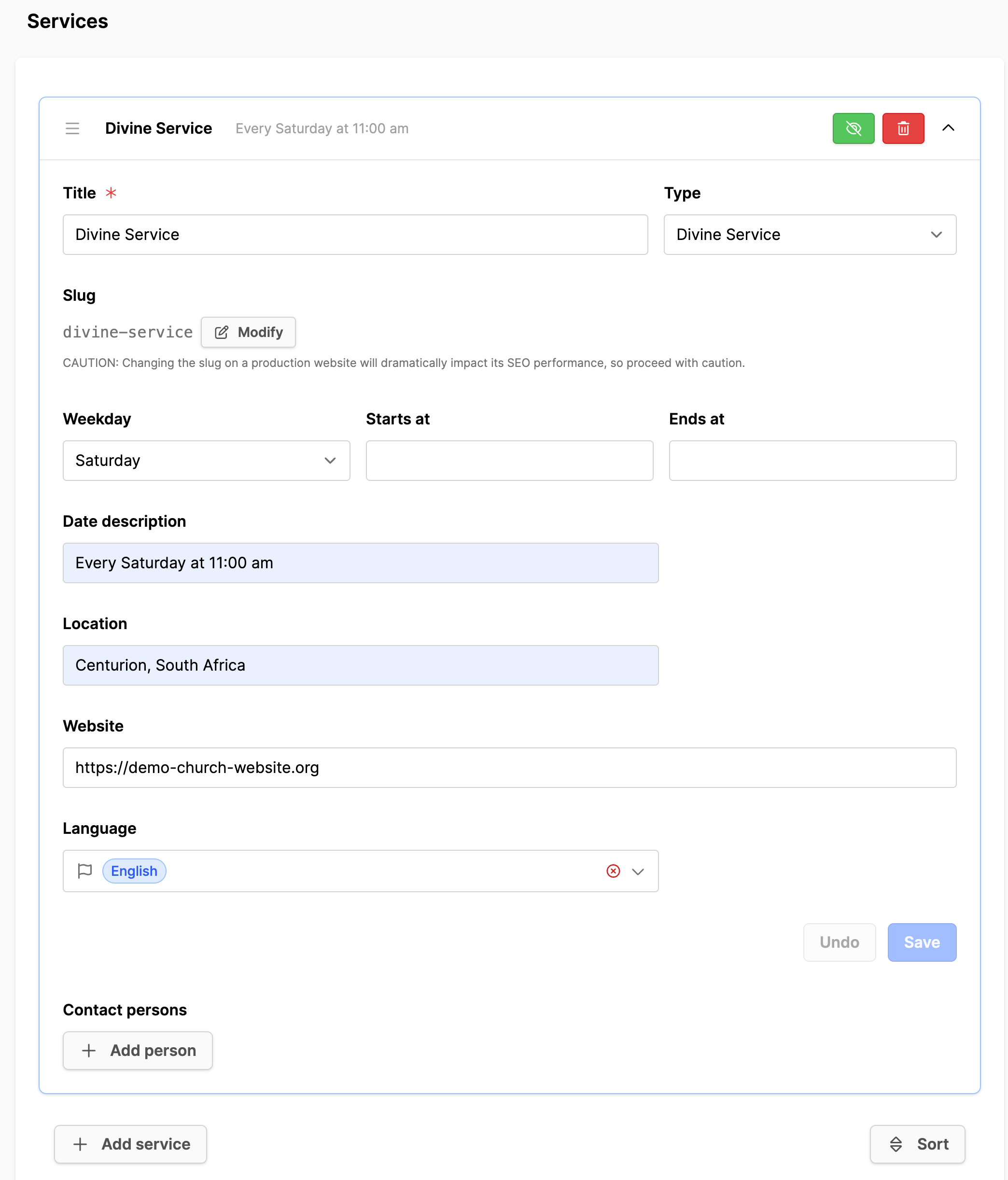
- Click on the service to expand it.
- Title: Provide an appropriate title for the service. This will appear in the frontend.
- Type: Set the type of service this is. (Used by the system; doesn't appear in the frontend)
- Slug: This should match the title, with dashes instead of spaces.
- Weekday: Select Saturday or the day when the service is offered.
- Starts at / Ends at: Add a start and end time.
- Date description: Additional data for the service (i.e. Every Saturday at 11:00 am). This could be used instead of the start and stop times, if desired.
- Location: Where the service will take place (or additional information).
- Website: Add a website if available.
- Language: Select the language of the service.
- Contact persons: People from the Persons module can be added as contacts to the event by clicking the Add person button.
- Click on Save button when all the information has been added.
Managing sub-entity data
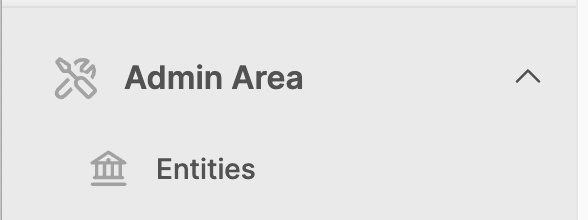
Accessing the data depends on the role and access provided to the user. If the user is a conference or entity administering several churches, the church entities can be accessed under the Admin Area on the left bottom corner of the backend.
- Expand the Admin Area.
- Click on Entities.
- Enter the church name in the Search field. The system filters the list automatically to display the church entity name.
- Click on the Name of the church, in the search results.
- The entity will open for editing.
- Make adjustments to the entity as noted above.
- Save your work in each section by clicking on the Save button.