
Overview
Web Engine has the ability to clone an existing website. This allows an editor to copy an existing website and quickly create a new website, without having to build a new website completely from scratch. This can help divisions, unions, conferences or even local churches to quickly stand-up a new website from a website that is already running and proven.
The copy will be exactly that, a copy of the existing website. This means after cloning a website, the person cloning should review the clone, to ensure everything is working properly. Additionally consider the necessary updates to the website title, SEO information, etc.
How to clone
From the Web Module, there are two paths for cloning a website at this time.
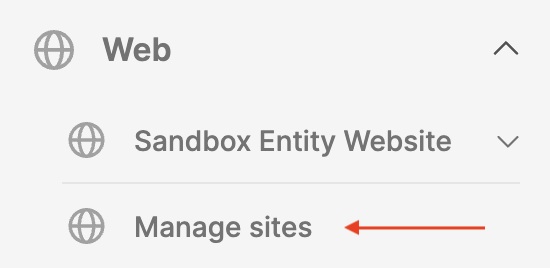
From the Manage Sites interface
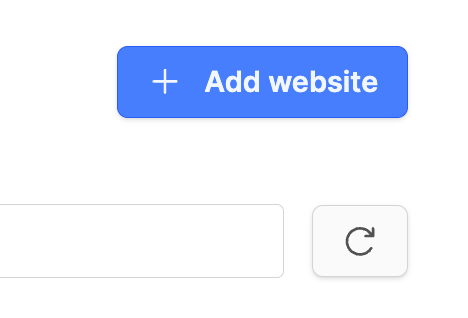
- Click on the button Add website on the upper right corner of the screen.
- (If the button is not there, talk with your administrator as your rights need to be adjusted.)
- Select option Clone an existing website.
Or the second option
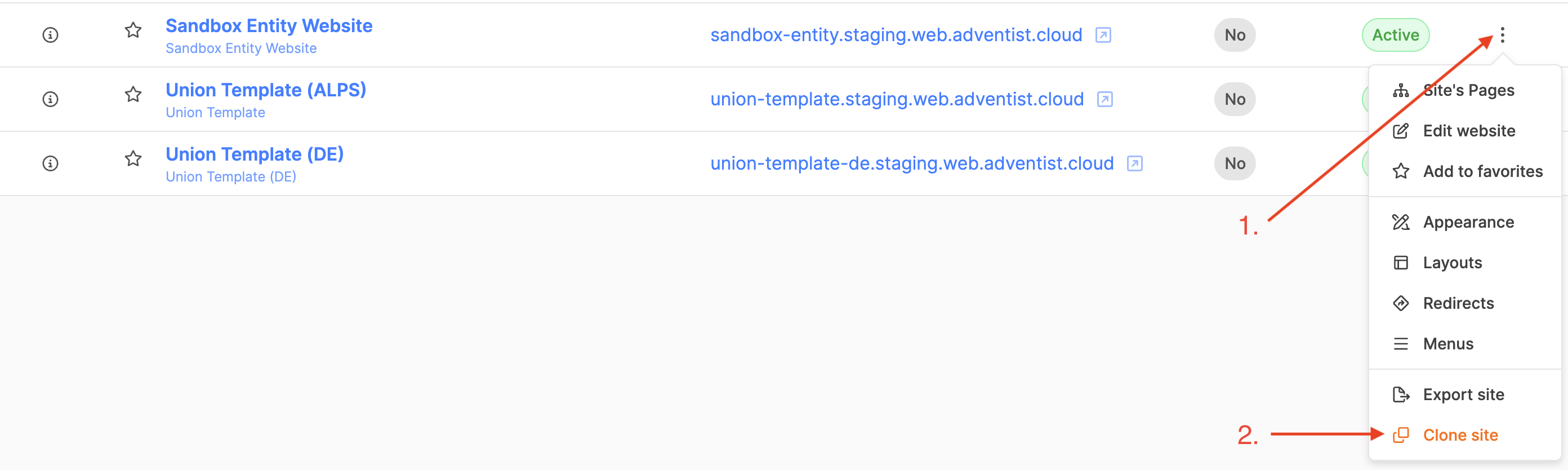
- Locate the website to be cloned.
- Under the Actions column on the right, click the three vertical dots, select Clone site.
- If the option is not there, talk with your administrator as your rights need to be adjusted.
In either case the Add website interface will appear. With the second option, the source website will already be filled in, as the website to clone has already been chosen.
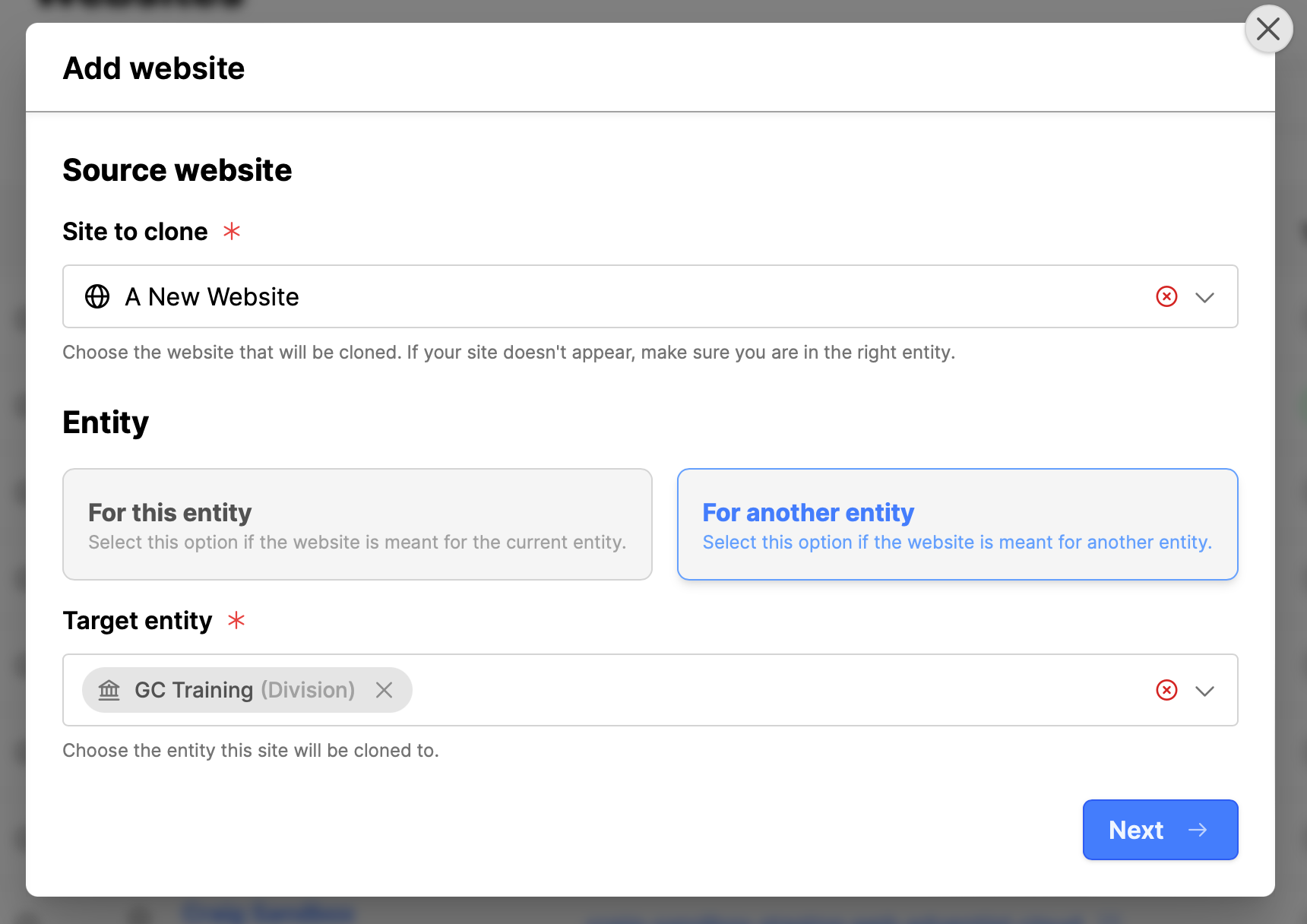
- Site to clone: Choose the website to clone. (If the list is long, type the name in the search field.)
- Entity: Select the owner (entity) of the website.
- For this entity: If the website resides under the current entity.
- For another entity: Select the entity where website will be cloned into.
- Target entity: Select an alternate entity from the list.
- Click the Next button.
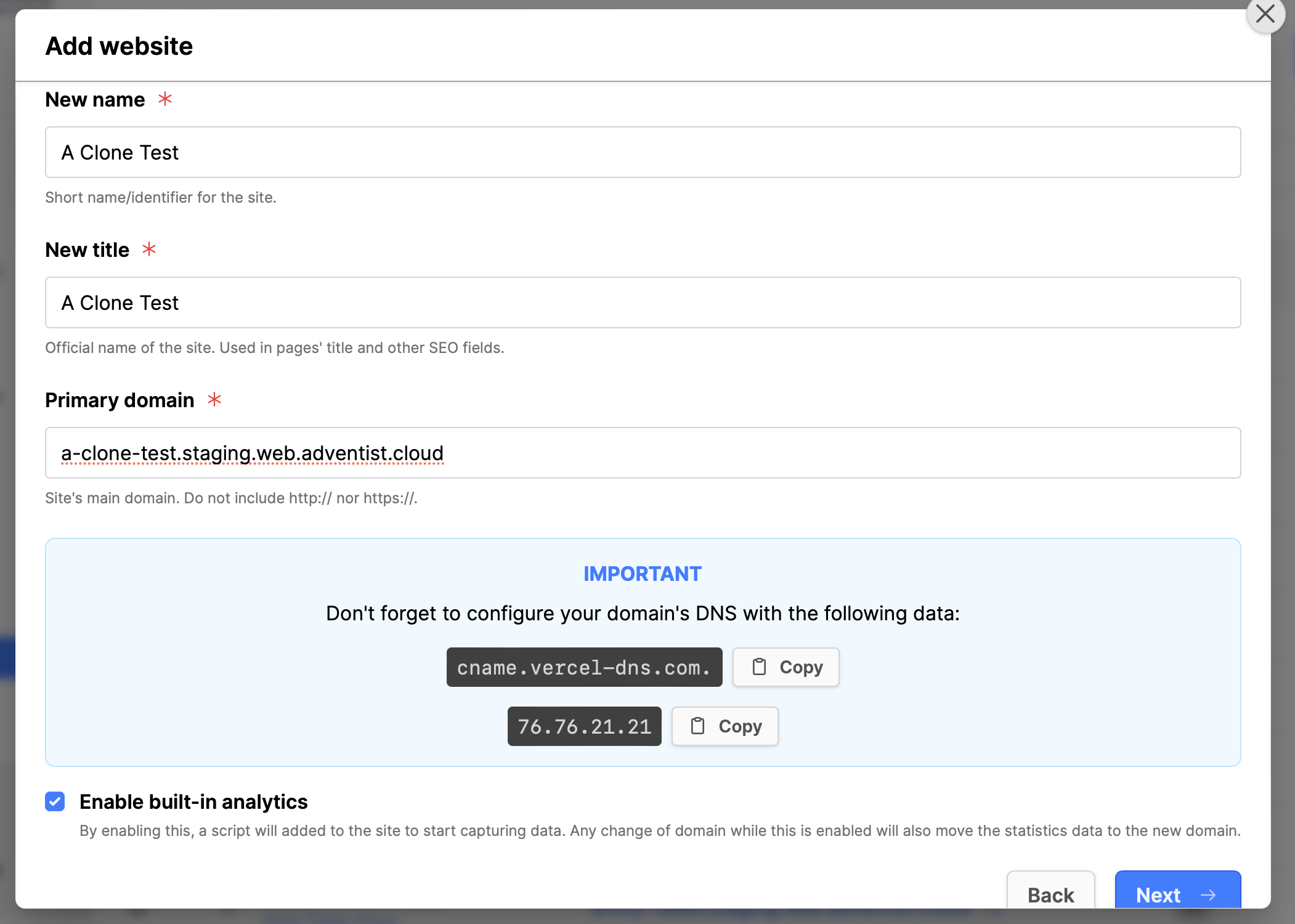
- New name: Choose a name for the new website.
- New title: Choose the official name for the website.
- Primary domain: Enter the domain name.
- Initially use a relaunch domain name to prevent search engine indexing until the website is ready.
- ex: (your website name).staging.web.adventist.cloud
- Enable built-in analytics: Always check this if anyone needs website visitor statistics. Do not enable analytics for template websites, these are used for the automatic websites and are used by multiple entities, not a single entity) so there is not a way to record the statistics.
- Click the Next button.
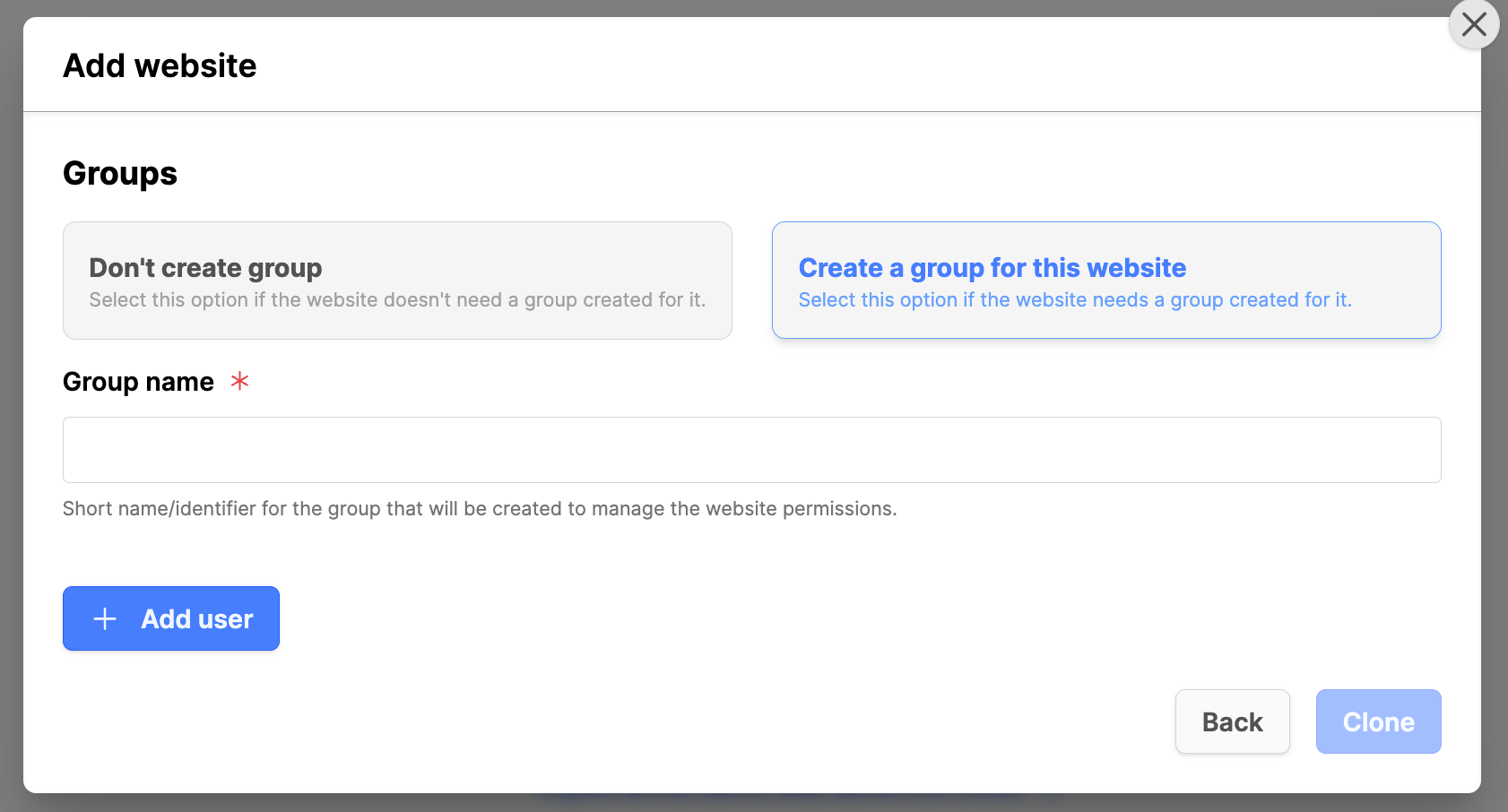
- Groups: If additional backend users require access to this website, create a group. Do not create groups for template websites. Template websites have no backend login for teams to update the website. These are used for the automatic websites and are used by multiple entities, not a single entity).
- Group name: enter a group name that indicates the website the group will be working on.
- Add user: Skip this initially. Add users later after a website review and any training is done.
- Click on the Clone button. (Or go back if needed.)
- The cloning process might take a few minutes, depending on the website size.
- Once cloning is successful, switch to the entity where the website was created, in order to see the website.
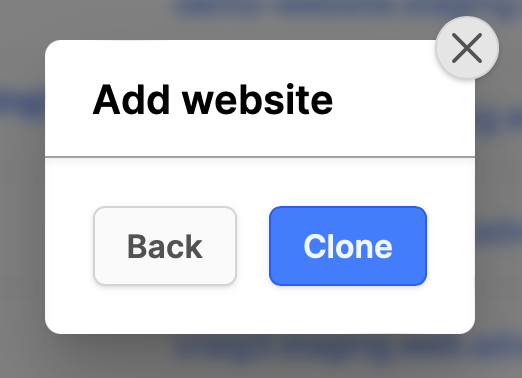
- If you see the above image, with no groups indicated, it means that your rights do not include creating groups. You should follow up with your administrator to verify your user rights.
Copyright responsibility
- The content on an existing website may have certain licensing restrictions. There could be images, logos, icons, audio, text, video or download files that are licensed to or by the original entity who owned the website being cloned. Theses must be replaced if you do not own the licensing.
- The website may have implemented a design that has been developed by a third-party. Ensure that you have clarified with the owner of the design that you are allowed use of the website design.
- It is the Responsibility of the user who is cloning a website to review all website content for all potential licensing issues.
Additional Information
- Create a robots.txt file to block search engine indexing of the relaunch website
- See Updating a cloned website
- Importing a website