
Overview
When the team working with the Web Engine course module need to update an open course with students, they may realize that the course is "locked" because there are students already in the course. This is done as the student progress is tracked by the system, creating new content in the course, after a student has passed by the new lesson will cause problems for the system.
The solution is to update the course, then retire the existing course. This allows current students to complete the course, still have the course listed under the My Courses section, and have new students enroll into the new updated course.
How to
Retire or Update a course with current students
Here are the suggested steps to retire a course, replacing it with an updated clone of that course:
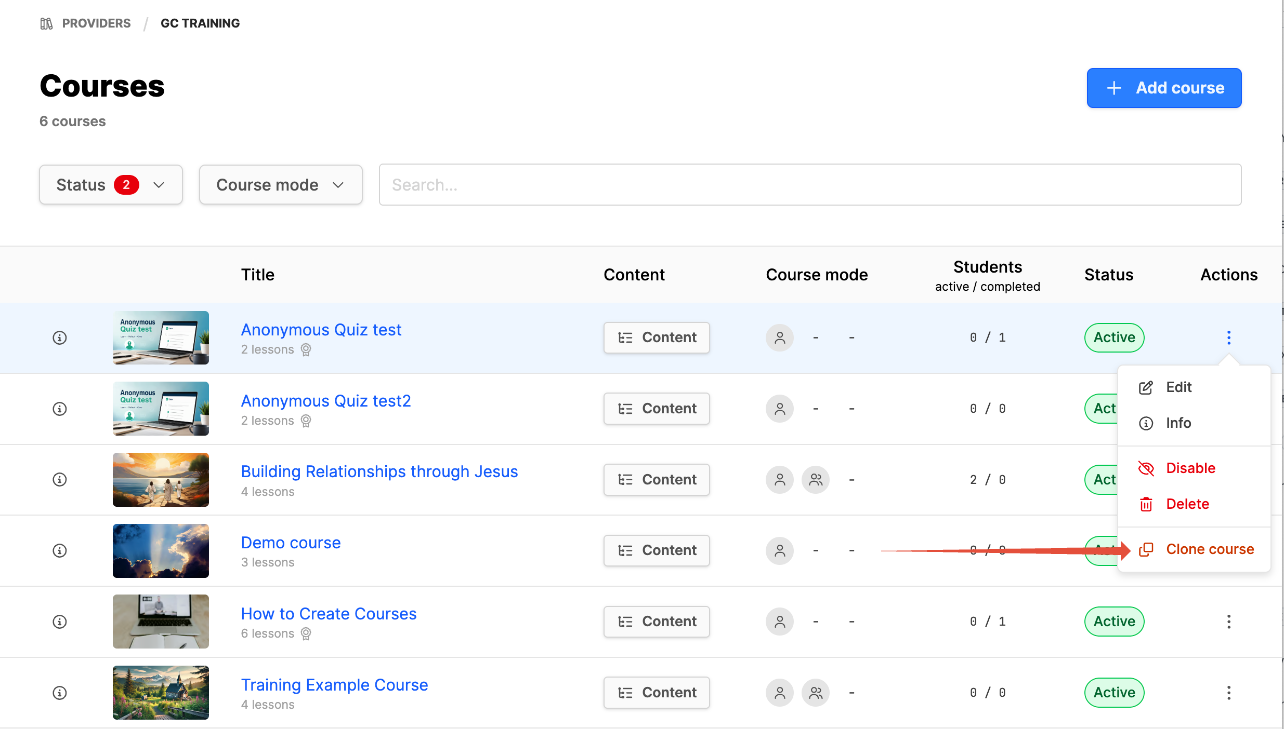
- Clone the course you would like to retire.
- Update the clone for the new workflow or update content of the clone as needed.
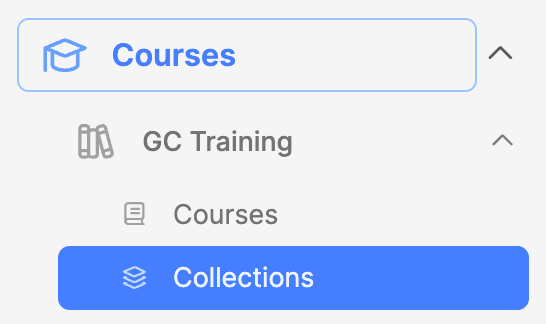
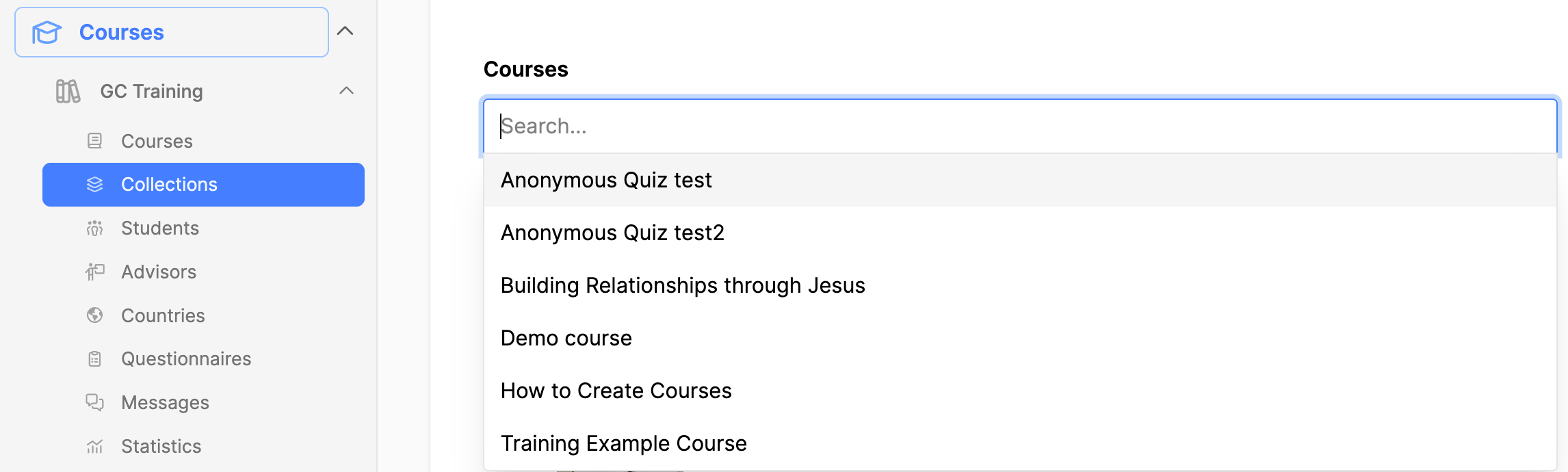
- When ready, add the new course (clone) to the Course Collection where the original course exists.
- Click on Collections.
- Click on the title of the Collection to open it for editing.
- Click in the Courses field and locate the new course, then click on the title of the new course, to add it to the collection.
- Click on the Save button.
- For the course being retired:
- Delete the retiring course from the Course Collection, by clicking on the trashcan icon. It will still appear under the students "My Courses" area. But it will no longer show on the frontend, as you have replaced it with the updated clone.
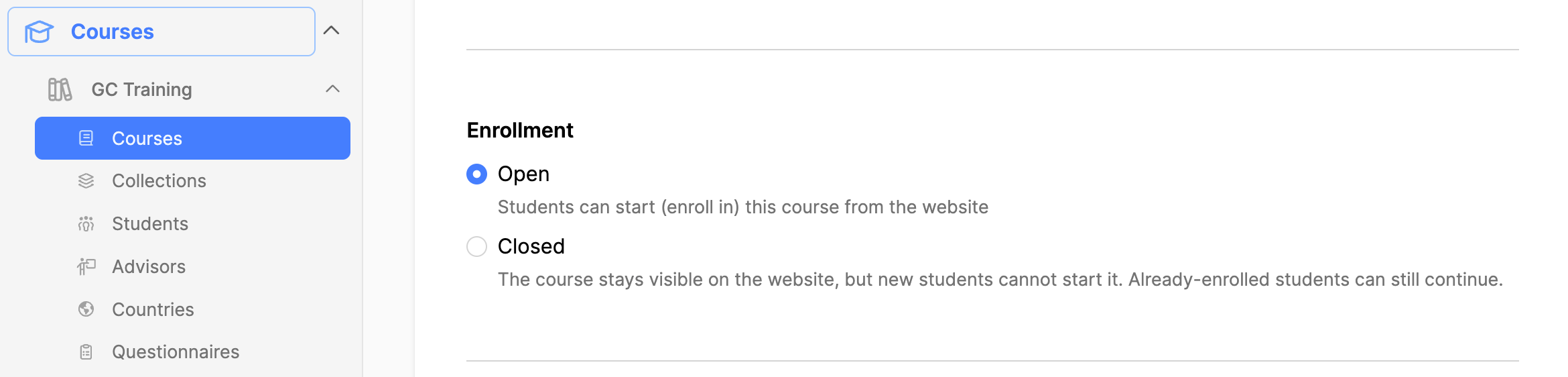
- Alter the enrollment status of the retired course:
- Edit course by clicking on title, in the courses list view.
- Navigate to the General tab, to section Settings.
- Under Enrollment click on Closed.
- This allows current students to finish, but no new students can join.
- When the student completes the orignal course, they will still have this in their "My Courses" area.
- DO NOT deactivate the retired course, or it will not show under the students "My courses" area.
Additional Information
for review 2026-10-19