
Overview
If there is an existing event which has the desired information, it can be cloned to create a new future event. So, past or future events should be available to clone, to create new future events. Cloning saves time, instead of manually copying everything over, or retyping the information in the fields.
Note: Review the orange section: Some fields will not be cloned to see what is not copied over.
How to
Clone Events
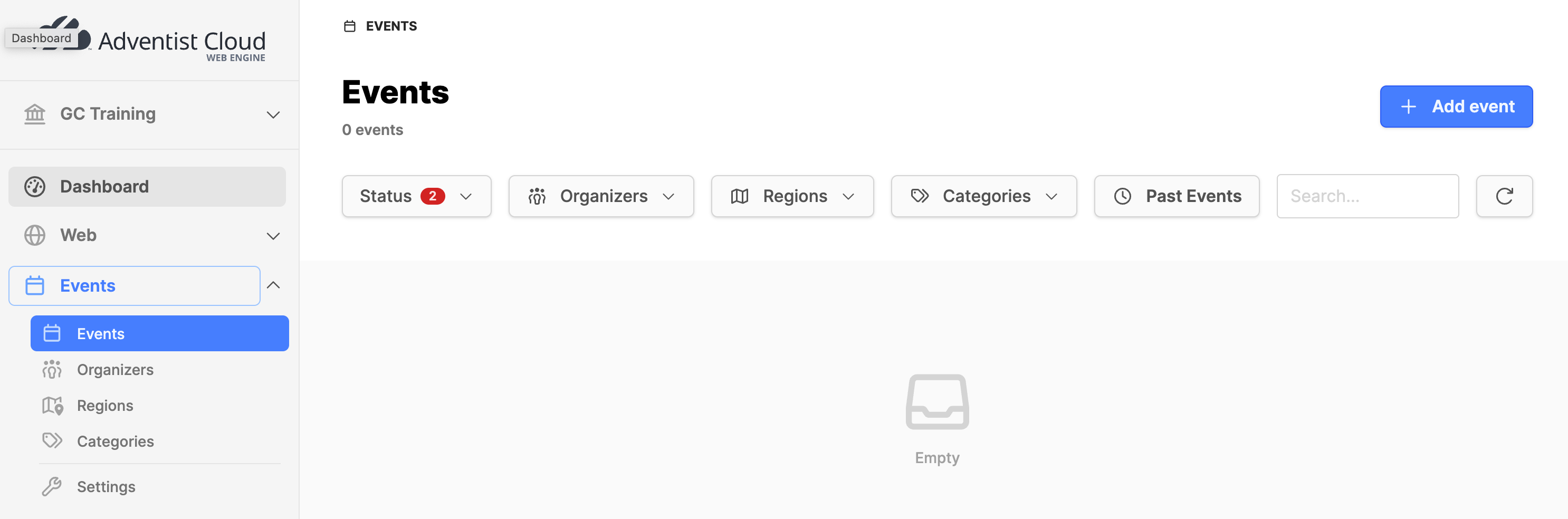
- Navigate to the Events module and expand it.
- Click on the Events submodule.
- Click on the Add event button in the upper right corner.
- Click on Clone event in the modal box.
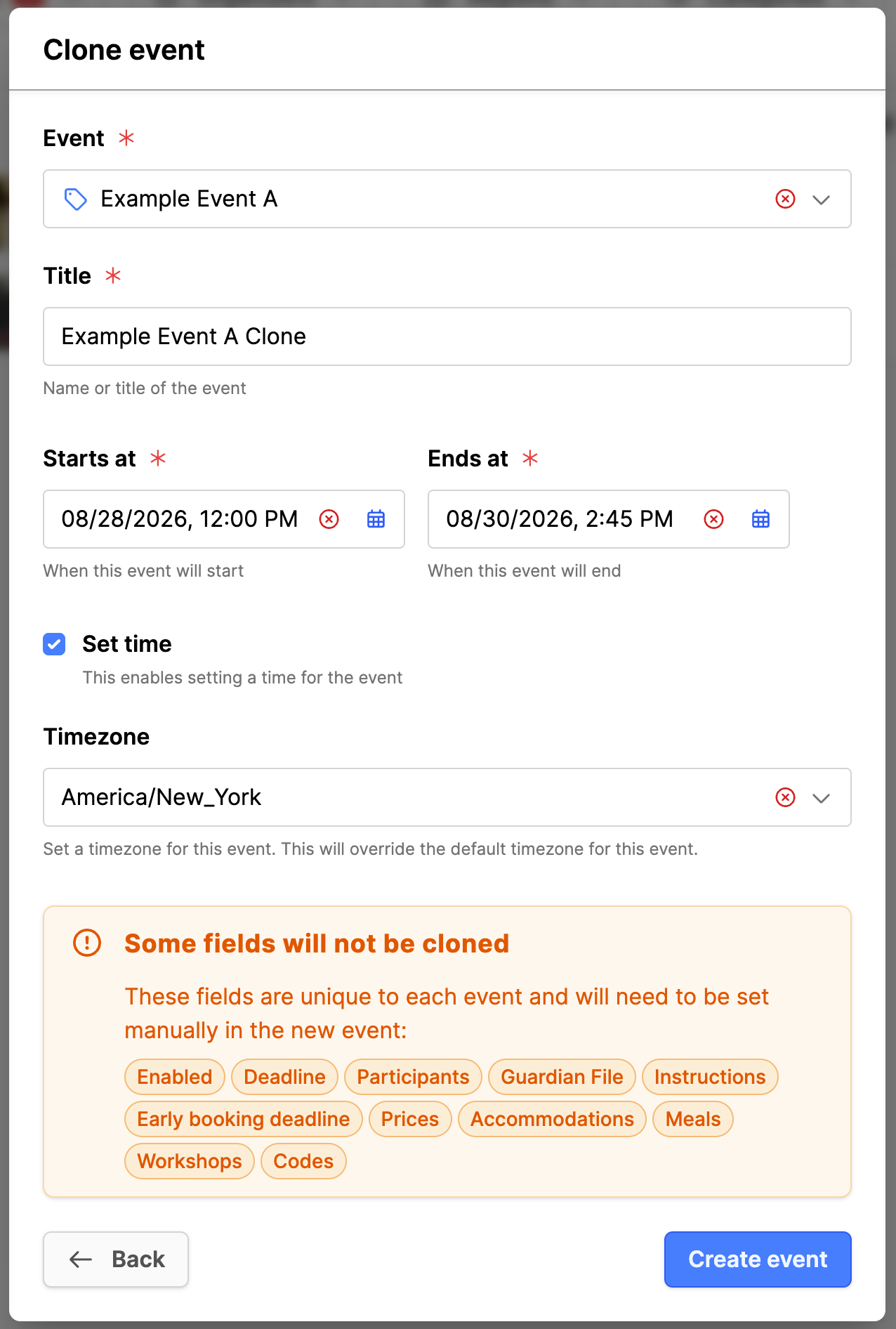
- Event: Expand the list and search for the event to clone.
- Title: Provide an updated title.
- Set time: Check the box for if needed.
- Starts at: Add the date and time.
- Ends at: Add the date and time.
- Timezone: Select the timezone where the event will happen, if needed.
- Some fields will not be cloned: Note: Review the information in orange that will not be copied over.
- Click on the Create event button. Click and drag, if needed.
Update the Event clone
- The cloned event will be deactivated initially so that it does not show in the frontend.
- Review the cloned fields and update the fields you need.
- Again, remember those fields which were not copied over, in case you need to display them.
- Click the Update button if changes are made.
- Click on the Events submodule on the left side.
- From the events list, click on the three vertical dots to the right of the event in the list.
- Click Enable in the menu.
- Click on the Enable button in the modal box.
- The event should have a status of Active.
The event should now be available for display in the frontend on the websites for the entity.
Additional information
- Events module setup
- Adding an event organizer
- Add an event region
- Add event categories
- Add Events pages to the website (ALPS)