
Overview
Redirects are used on the Web module, to accept a source URL and redirect it to a new destination. Often when building a new website for updating an existing website, the structure of the new website will be different than the old website structure. Redirects are used to avoid the users receiving a 404 error, when the link is no longer working.
Redirects can also be used for redirecting a page or show of the website to a new destination.
How to
Redirect a URL to a new webpage
Navigate to the Redirects submodule and add the redirect for the existing URL.
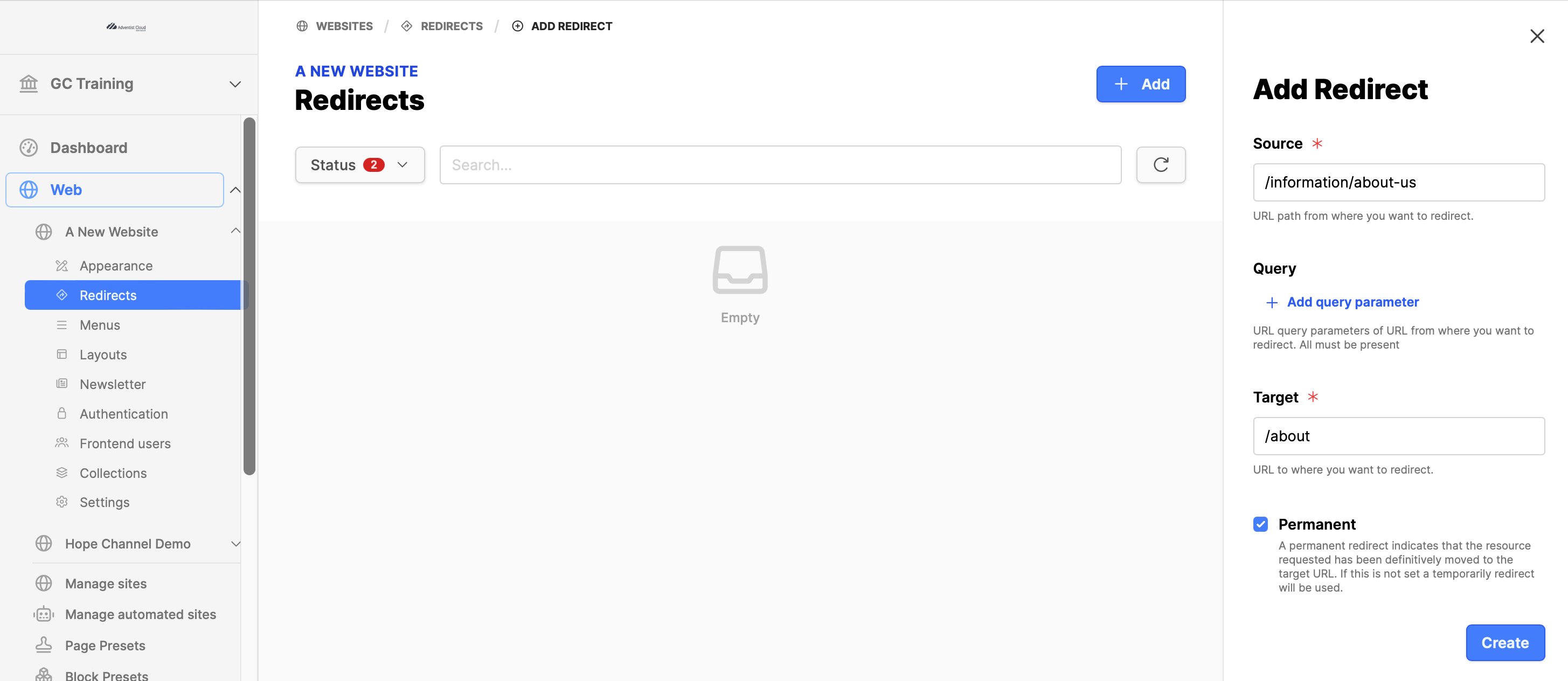
- Expand the Web module.
- Expand the website.
- Click on the Redirects submodule.
- Use the Search field to verify no redirect exists.
- If there is no existing entry, click on the Add button.
- Example:
Source: /information/about-us (old website path)
Target: /about (new website path)
- Set a checkmark for the Permanent checkbox.
- Click the Create/Update button
- If you have a dynamic URL, see the notes on match pattern.
- Note: Please consider the possible paths for the page/show you want to redirect. There may be multiple redirects to add, one per path.
Redirects can be edited later. It is also possible to disable, enable or delete redirects as needed. Always test the redirects to ensure that they are working. It may require the cache clearing parameter in the URL to ensure proper functioning.
Note: There is current a feature with URLs that begin with a language code. The language code is filtered out at a higher level, before the system tries to do a redirect. Therefore, a URL starting with a language code should have the language code removed.
Ex: Leading "en" removed in source.
https://eud.adventist.org/en/copyright/imprint/
Source: /copyright/imprint
Target: /imprint
Redirect a URL to another website
Navigate to the Redirects submodule and add the redirect for the existing URL.
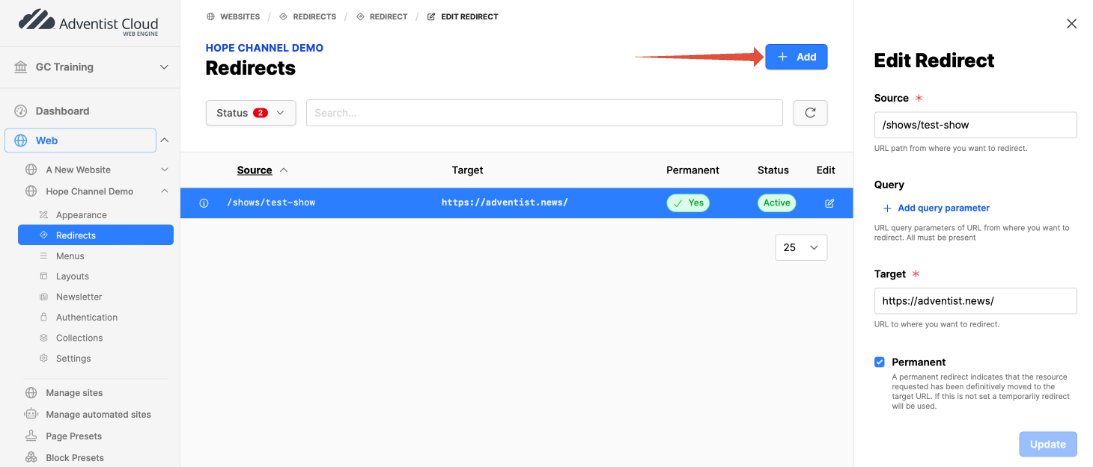
- Expand the Web module.
- Expand the website.
- Click on the Redirects submodule.
- Use the Search field to verify no redirect exists.
- If there is no existing entry, click on the Add button.
- Example:
Source: /shows/test-show
Target: https://adventist.news/
- Set a checkmark for the Permanent checkbox.
- Click the Update button
- If you have a dynamic URL, see the notes on match pattern.
- Note: Please consider the possible paths for the page/show you want to redirect. There may be multiple redirects to add, one per path.
Redirect a Show to a new URL (a new slug for the show)
Navigate to the show in the Media Library and make the update.
- Expand the Media Library module.
- Click on the Name of the Channel.
- Locate the Show in the list of shows.
- Click on Action menu for the show and select Edit.
- Under the General tab, Basic information, locate the Slug.
- Click on the Modify button.
- Adjust the slug as needed.
- Click the Change button to accept the changes.
- Click on the Save button to save this update.
- (Please consider as well if you have any hard-coded references to the old URL.)