
Overview
The Rich Text Editor is one way you can customize the text and add images or videos to your Web Engine pages. The editor tools may be familiar to you from other programs you have used. When doing a mouse-over, placing the cursor over a tool, you will see a title for that tool.
How To
Remember to always click on the OK button of the RTE after any changes are made and you are done working in the RTE block. Sometimes a modal box may appear as you add an element within the RTE. After saving the changes in the modal box, you will still need to click on OK for the RTE and the blue Save button on the upper right to save any changes.
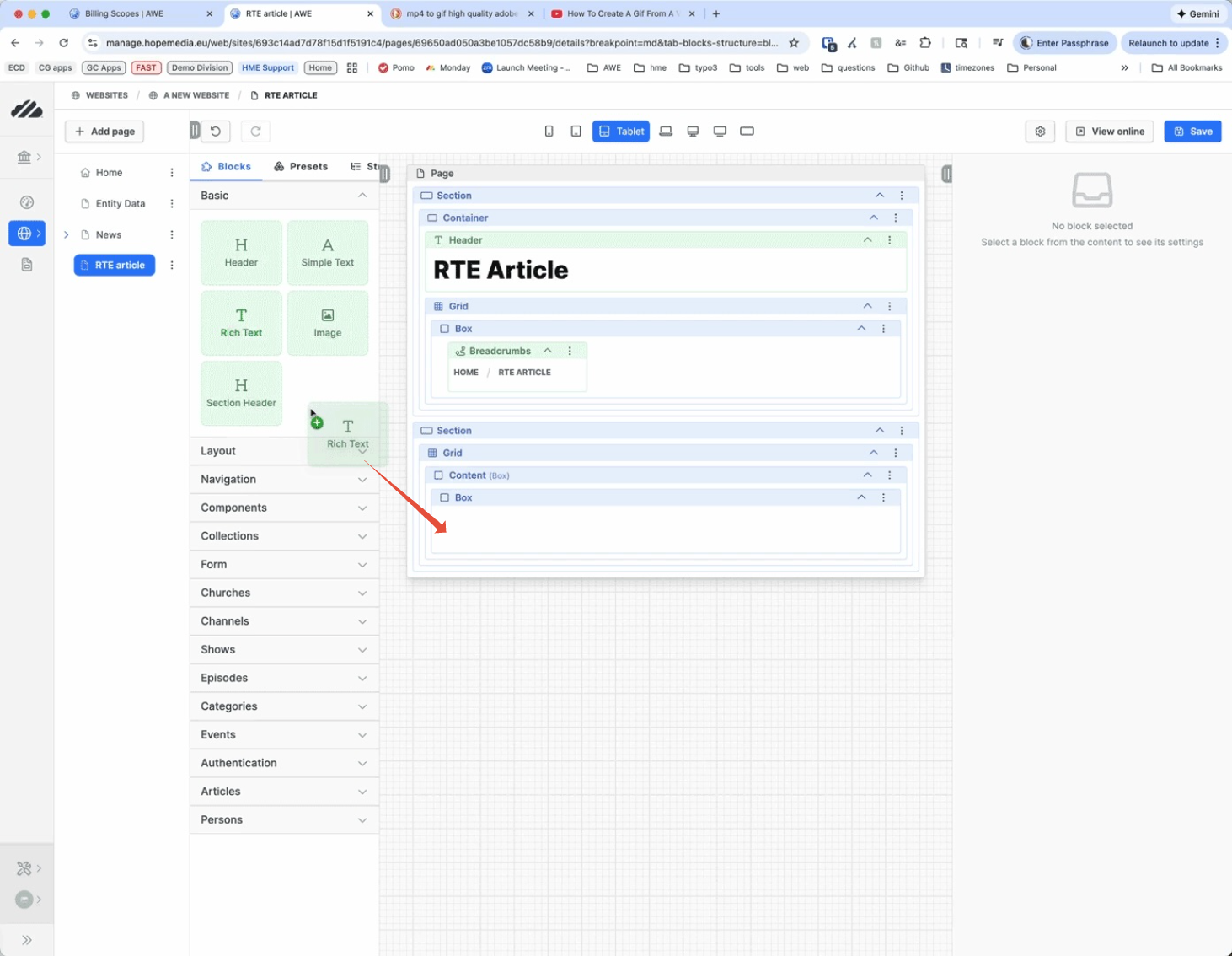
- Under Blocks > Basic, drag and drop the Rich Text block into a Box or Grid block.
- The RTE block displays "Click to start editing".
- Mouse over the block and then click on the Edit button.
- A modal box opens.
- Click on the round blue menu icon to open the menu.
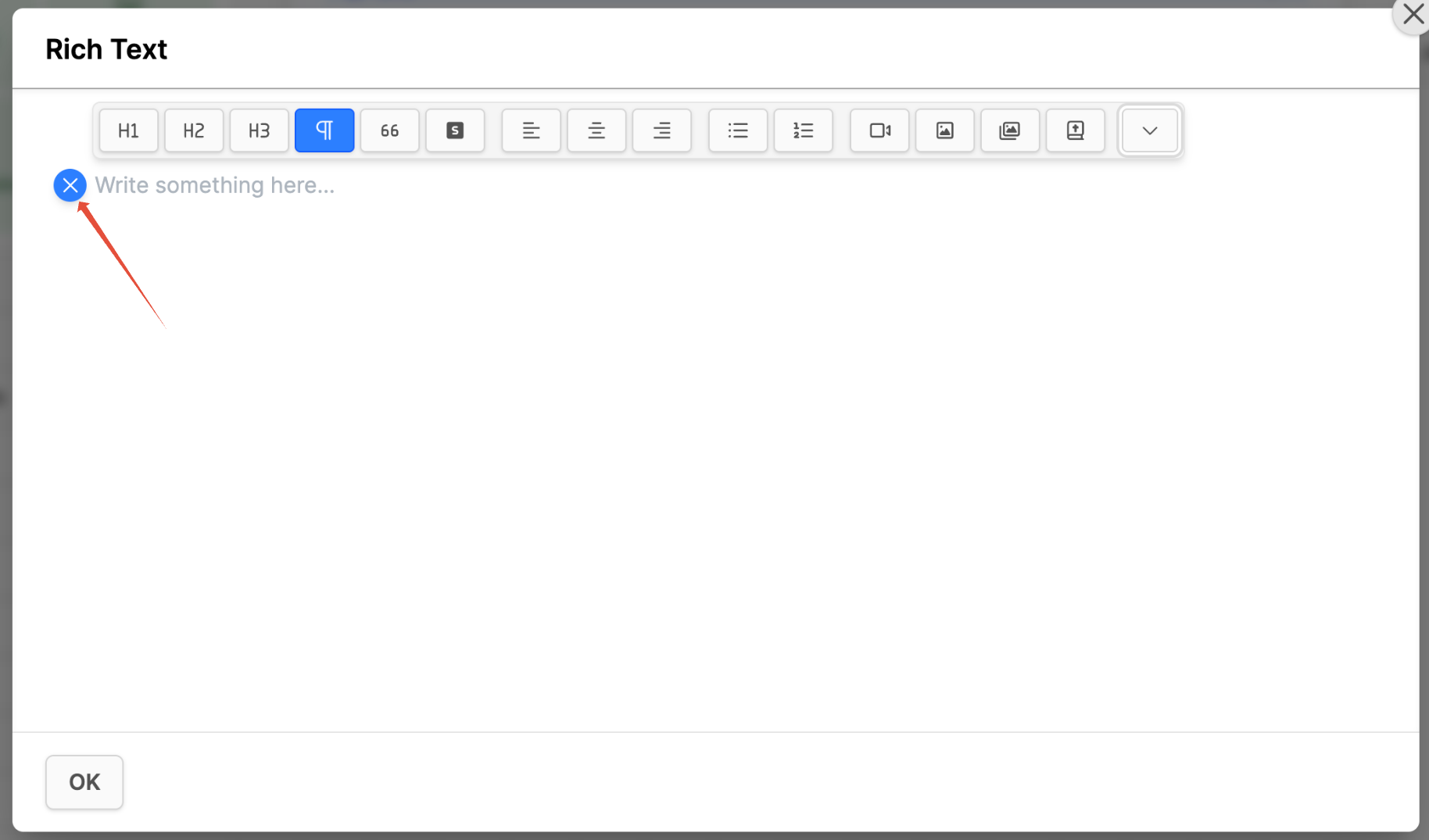
- Menu Options:
- Heading (1, 2 and 3)
- Paragraph
- Blockquote
- Small Text
- Align (left, center and right)
- Bullet List
- Ordered List
- Video Media field
- Use a Full YouTube URL, Vimeo URL or Jetstream URL.
- Add Caption and Copyright if required.
- Click the blue Update button.
- Image field
- If it's a .png with transparent background, set the checkmark for Transparent checkbox.
- Alignment: Set as needed. (default spans the image across the whole width of the screen)
- Add Caption, Alt text, Link and Copyright if needed.
- Click the Update button.
- Image Gallery: The Image Gallery only works in the Hope Design at this time.
- Bible Verse
Advanced options
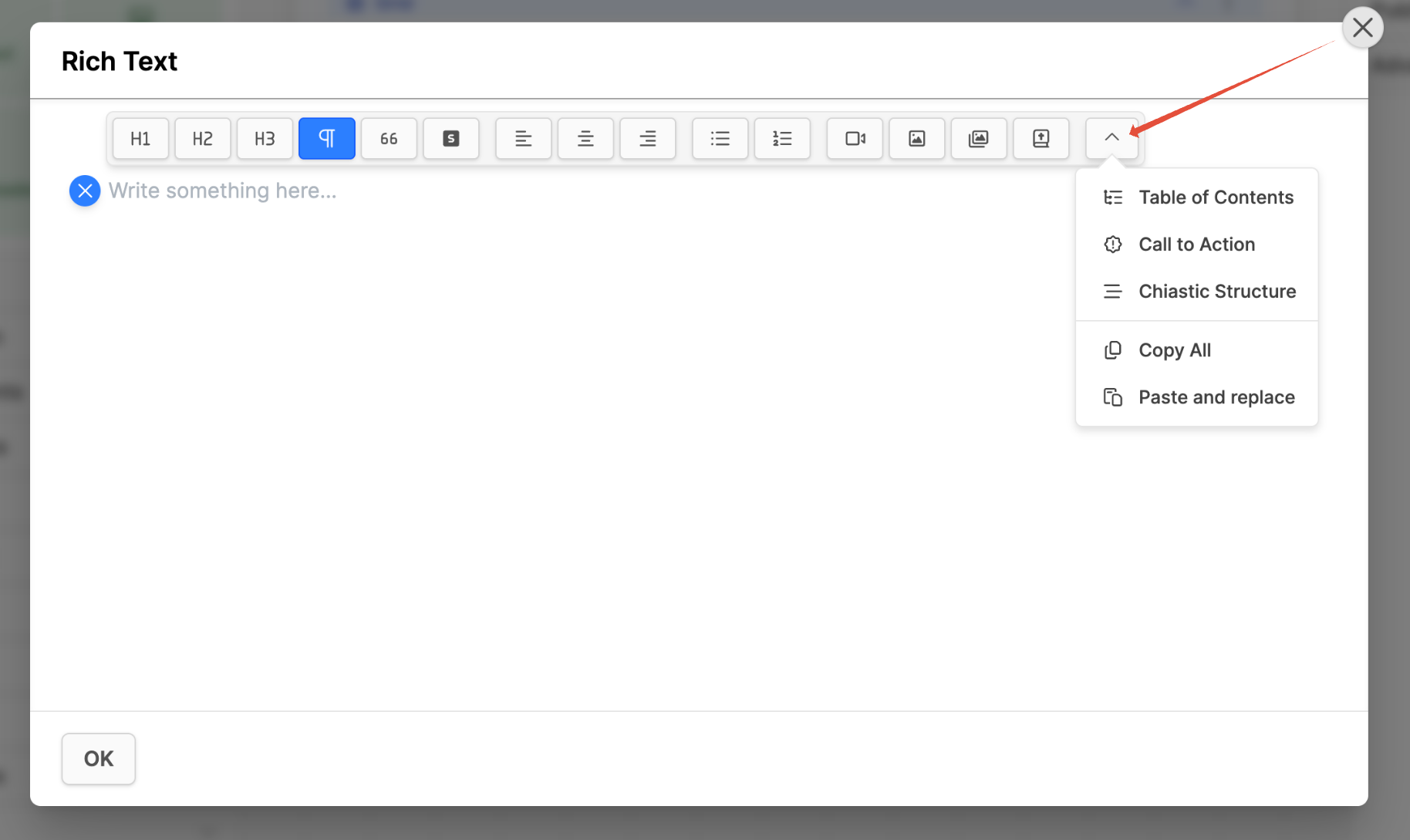
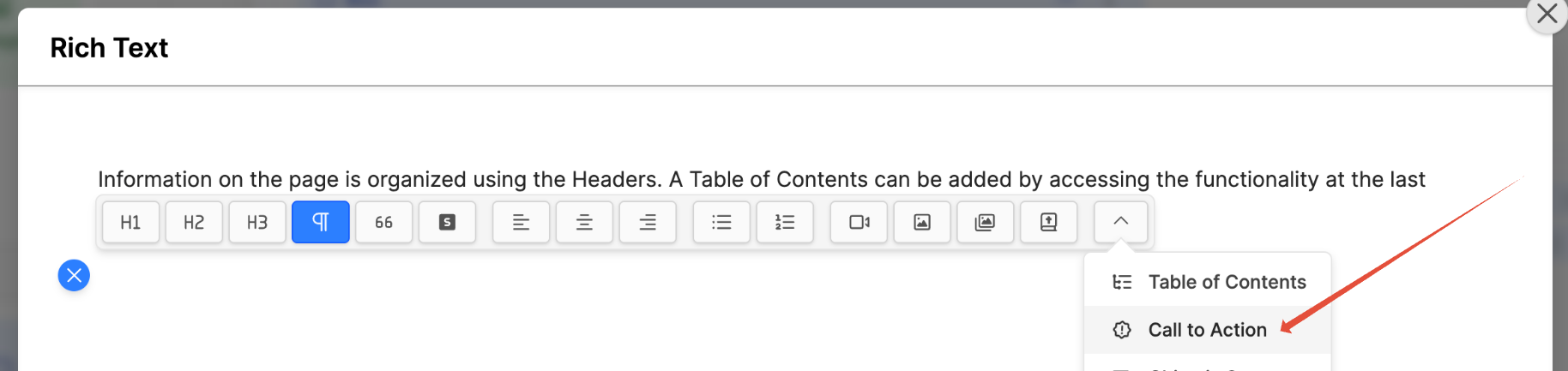
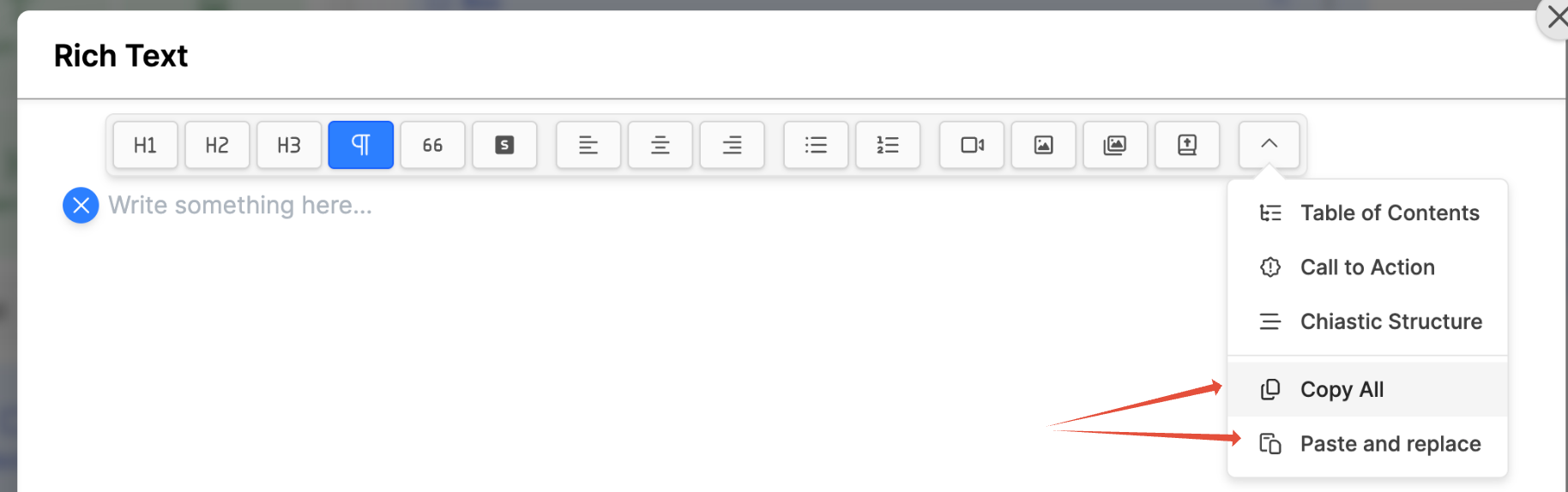
The last chevron icon is the Advanced options dropdown.
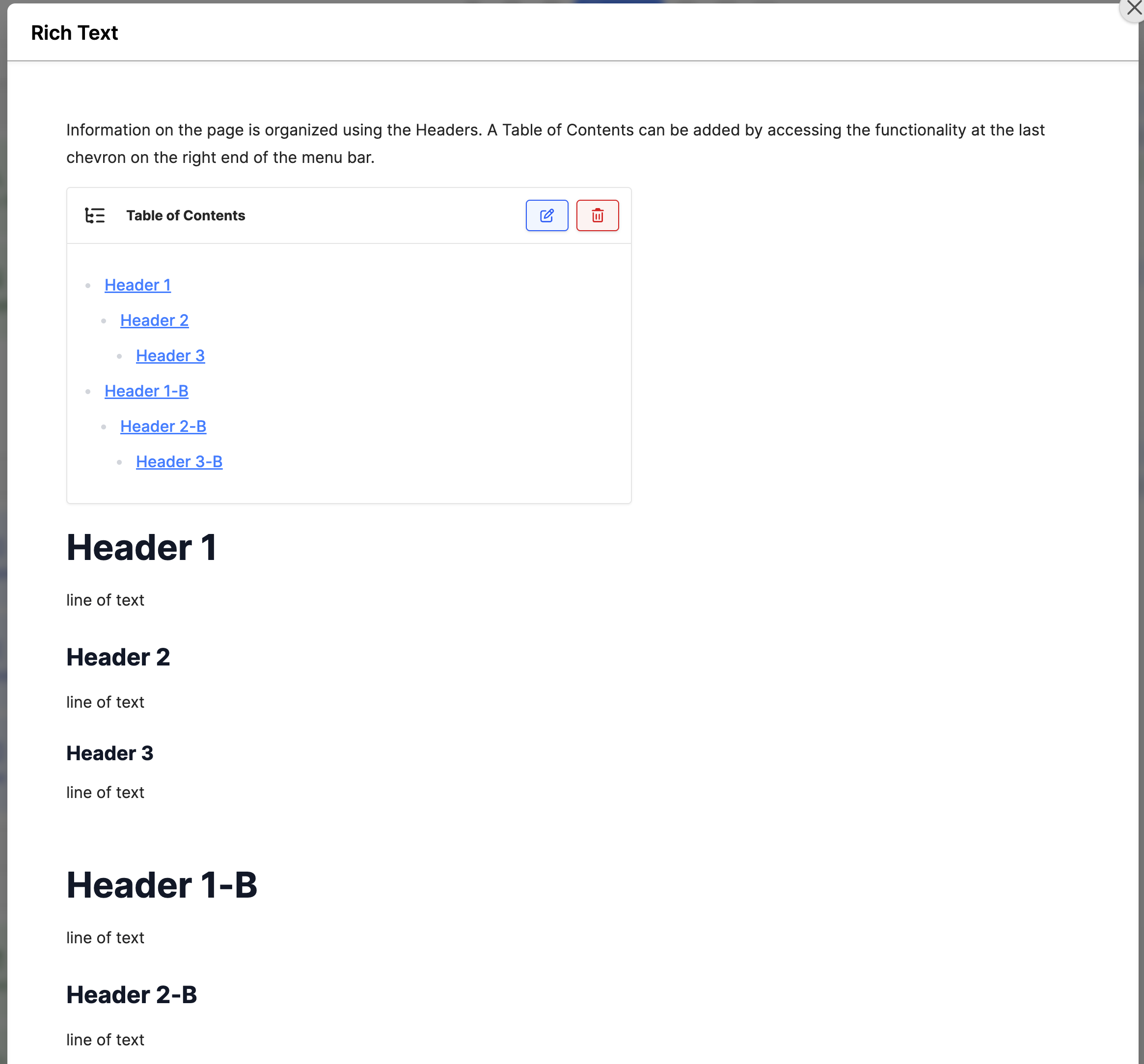
- Table of Contents (TOC):
- Structure the page using Header 1, Header 2, Header 3 in the text.
- Put the cursor in an empty line before the first header.
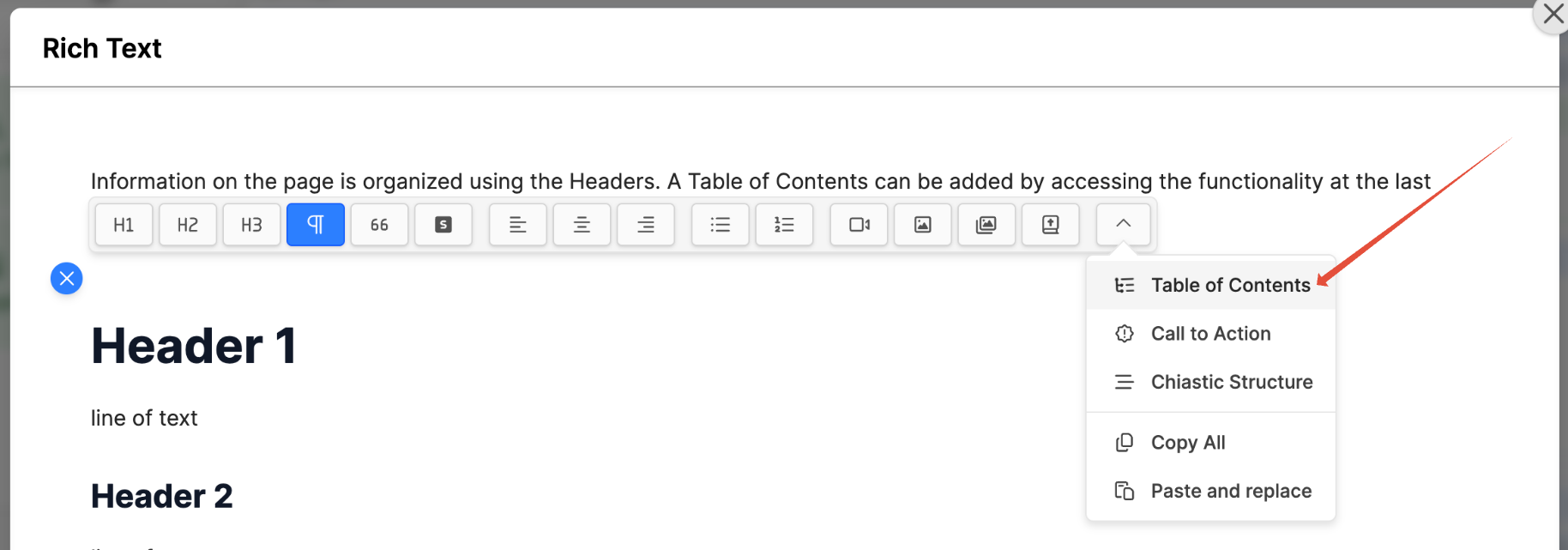
- Open the menu and click on Table of Contents.
- The TOC will automatically pull those headers into itself. Changes to the header will be automatically updated in TOC.
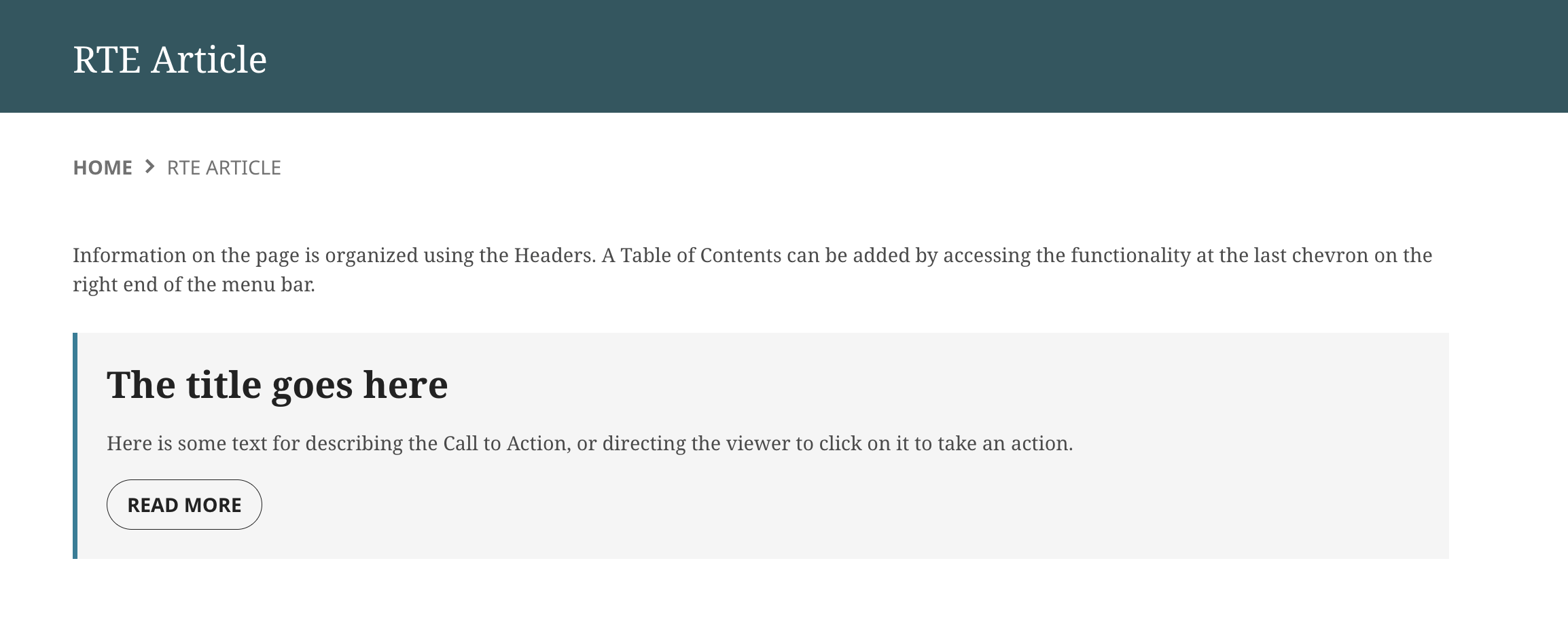
- Call to Action button (CTA):
- Place the cursor where the CTA is needed.
- Open the menu and click on Call to Action.
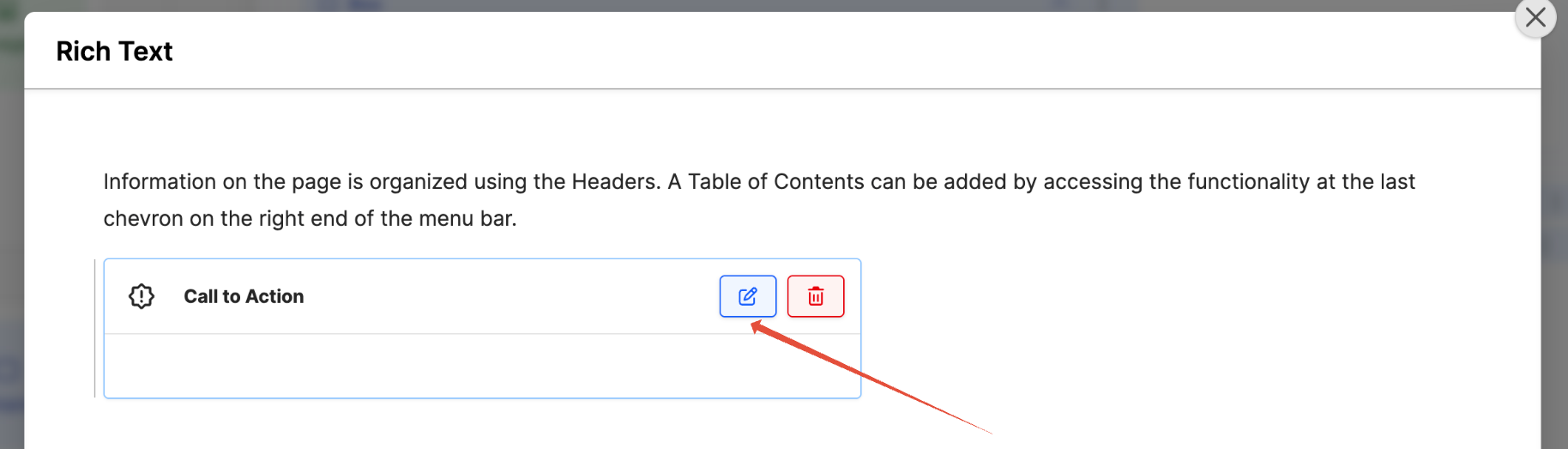
- Once it appears in the block, click on the Edit icon.
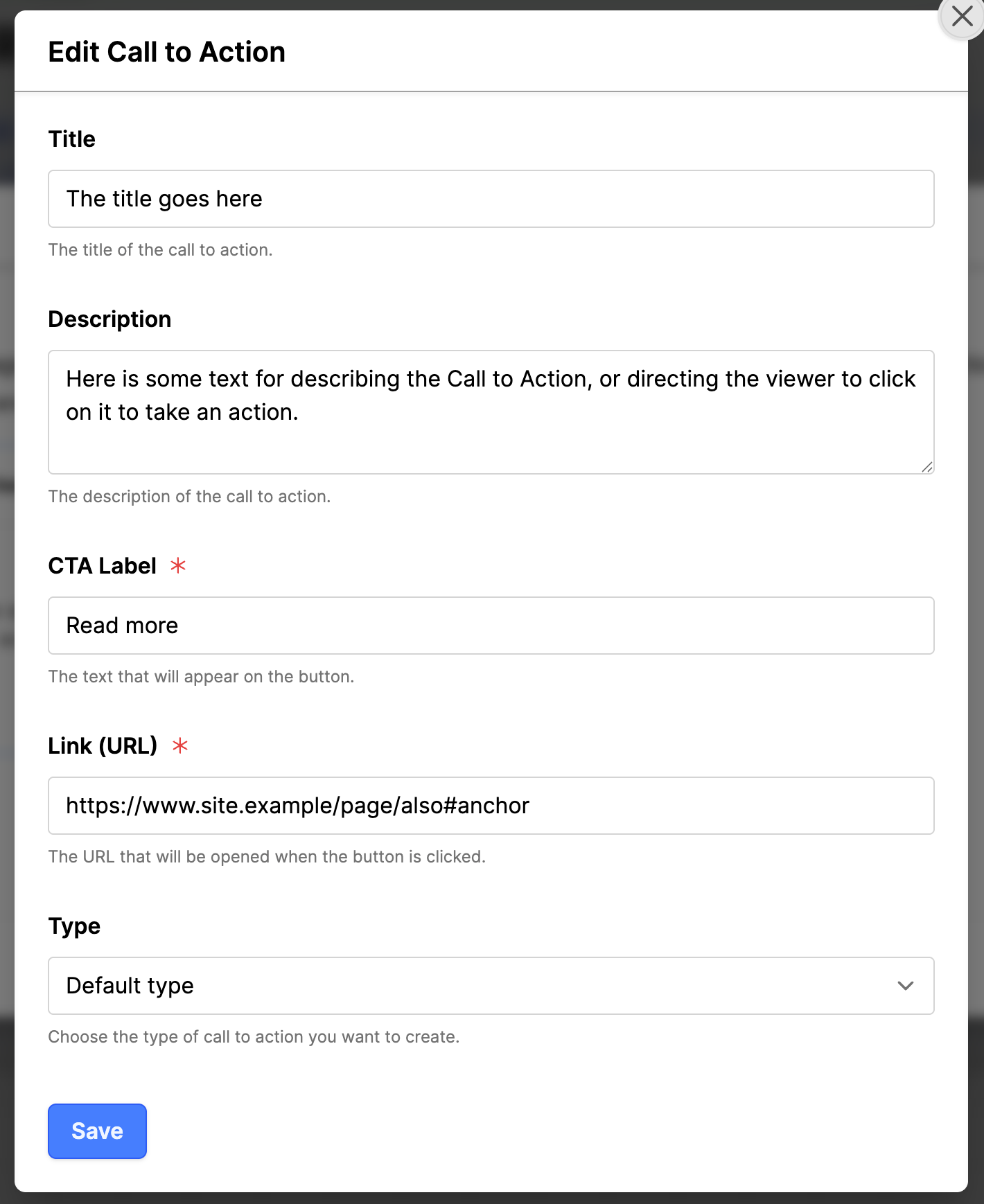
- Fill in the fields for Title and Description to give context for the CTA.
- Add a Label which will appear on the button.
- Add a URL for where the visitor will go.
- Click the blue Save button.
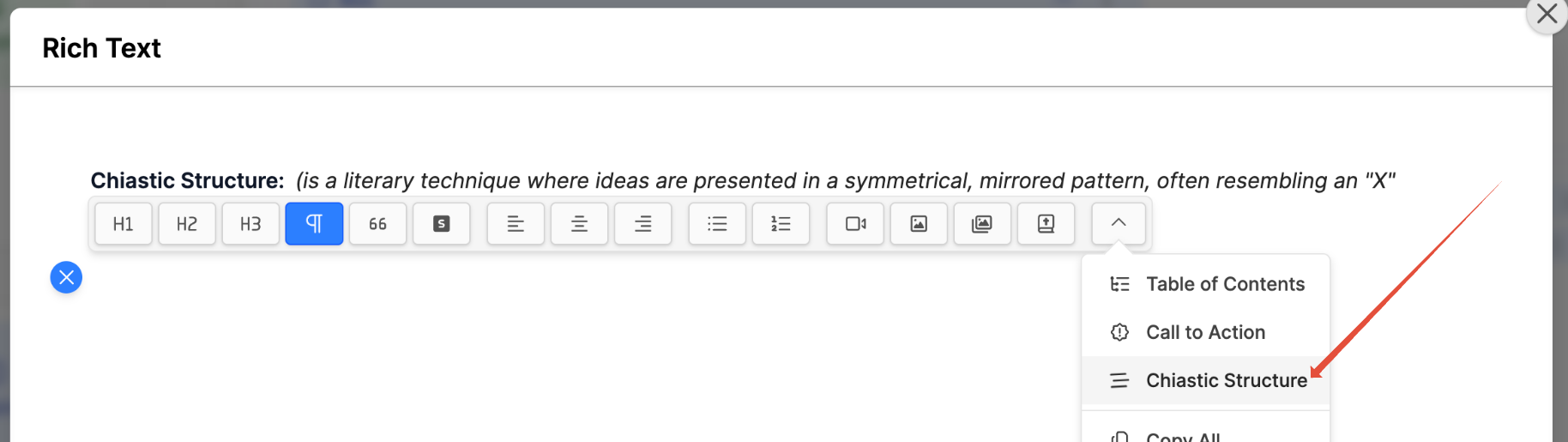
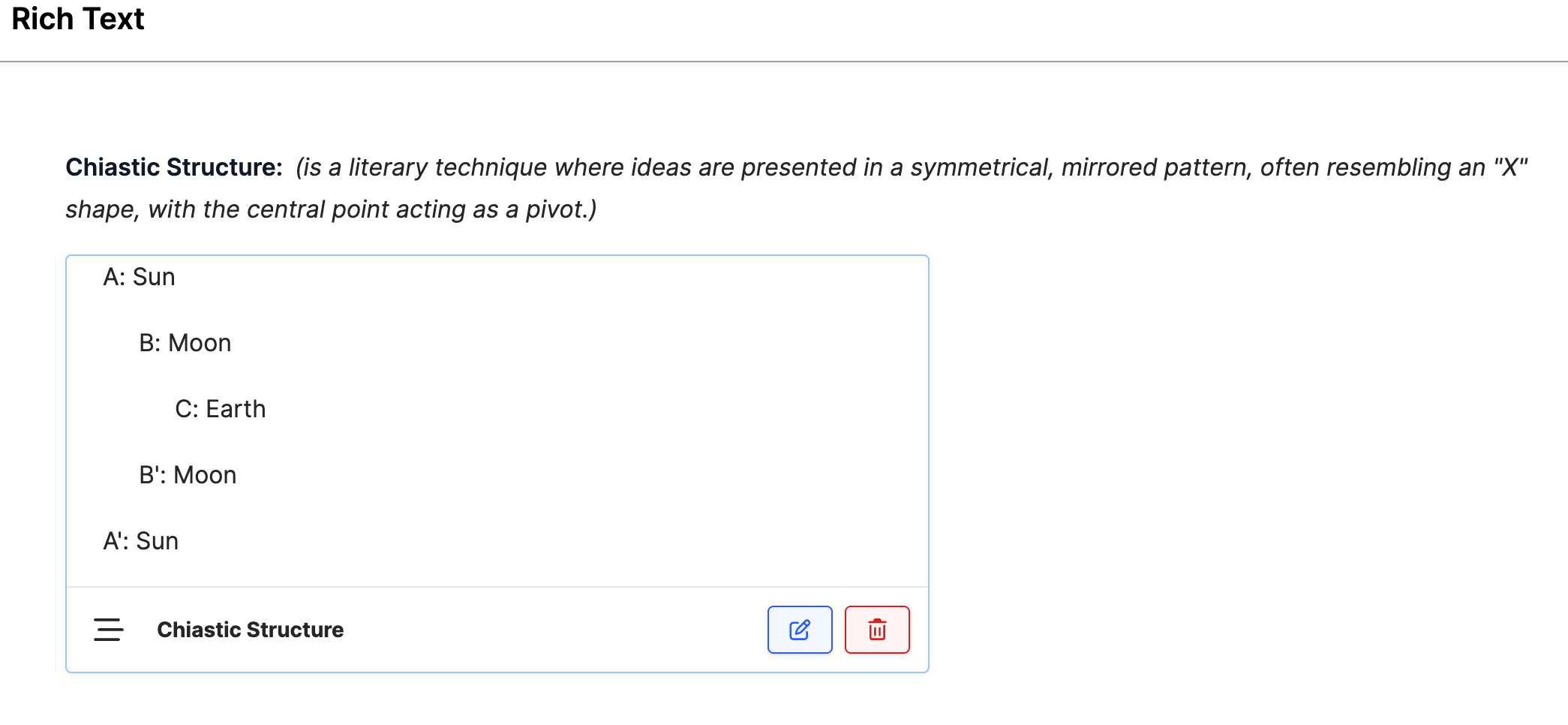
- Chiastic Structure:(only works only on Paul design) Is a literary technique where ideas are presented in a symmetrical, mirrored pattern, often resembling an "X" shape, with the central point acting as a pivot.
- Place the cursor where the Chiastic Structure is needed.
- Open the menu and click on Chiastic Structure.
- Once it appears in the block, click on the Edit icon to open the modal box for editing.
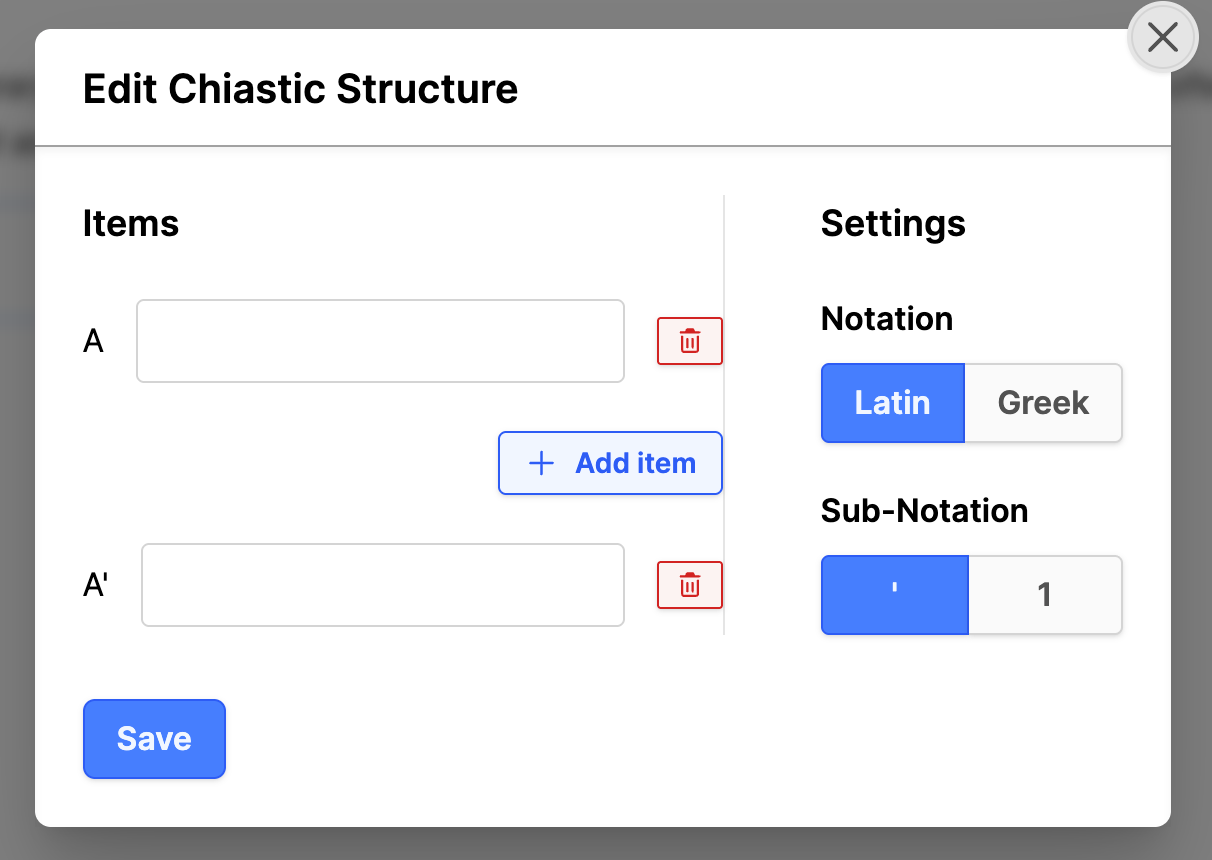
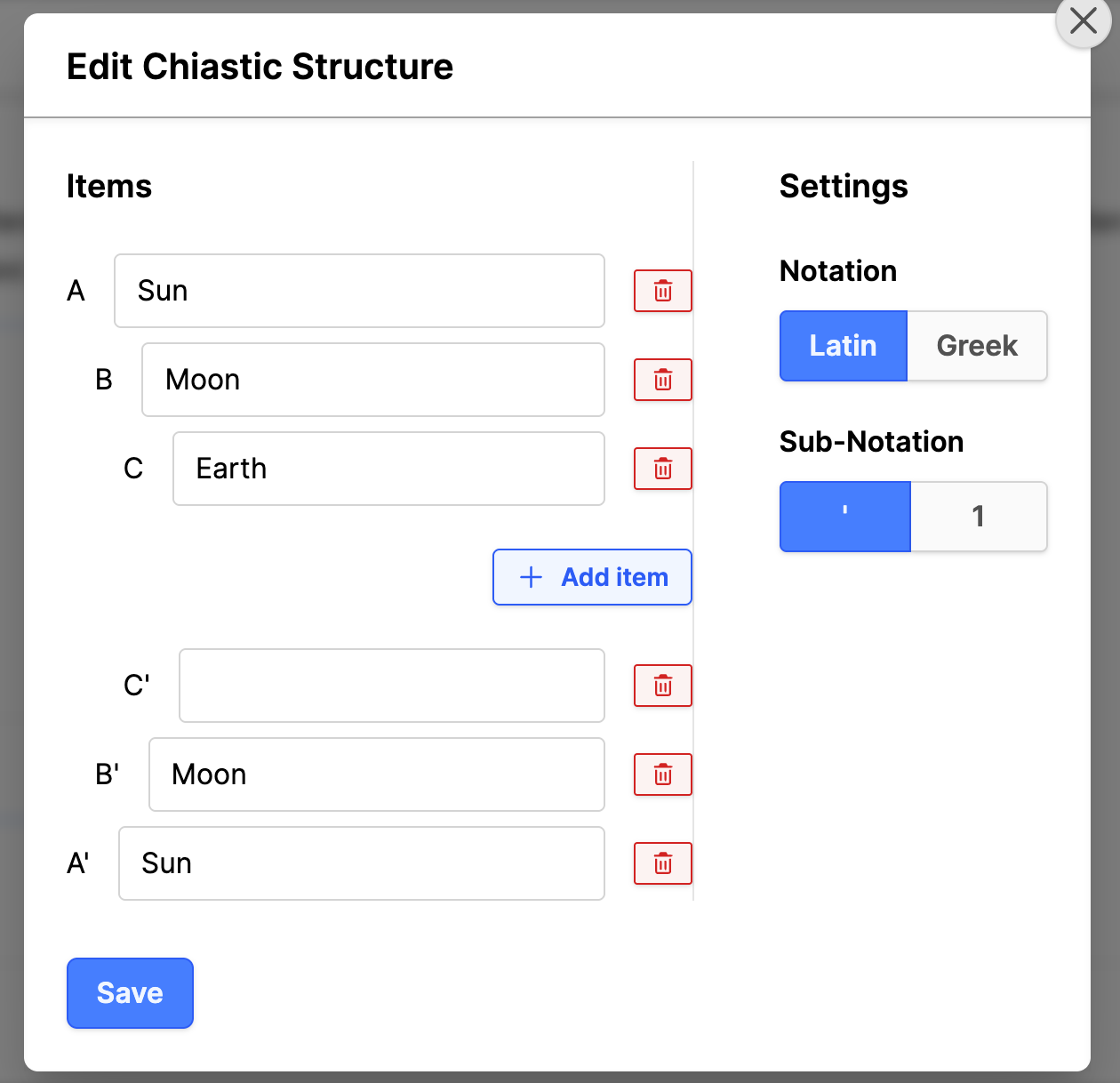
- Add the items to the structure by adding to the open fields.
- Click on + Add item to add another line to the structure.
- Adjust settings as necessary.
- Click on the Save button when done.
- Copy All & Paste and replace:
- Use Copy all to copy all of the content, including images and video elements.
- Use Paste and replace to paste all of the content from Copy All into another RTE.
- (There is a bug here with the Paste and replace, ticket opened): After pasting the content with Paste and replace, add a space " ", then remove the space.
- After the work is done, click on OK for the RTE. Then Save the page changes.
Formatting Text
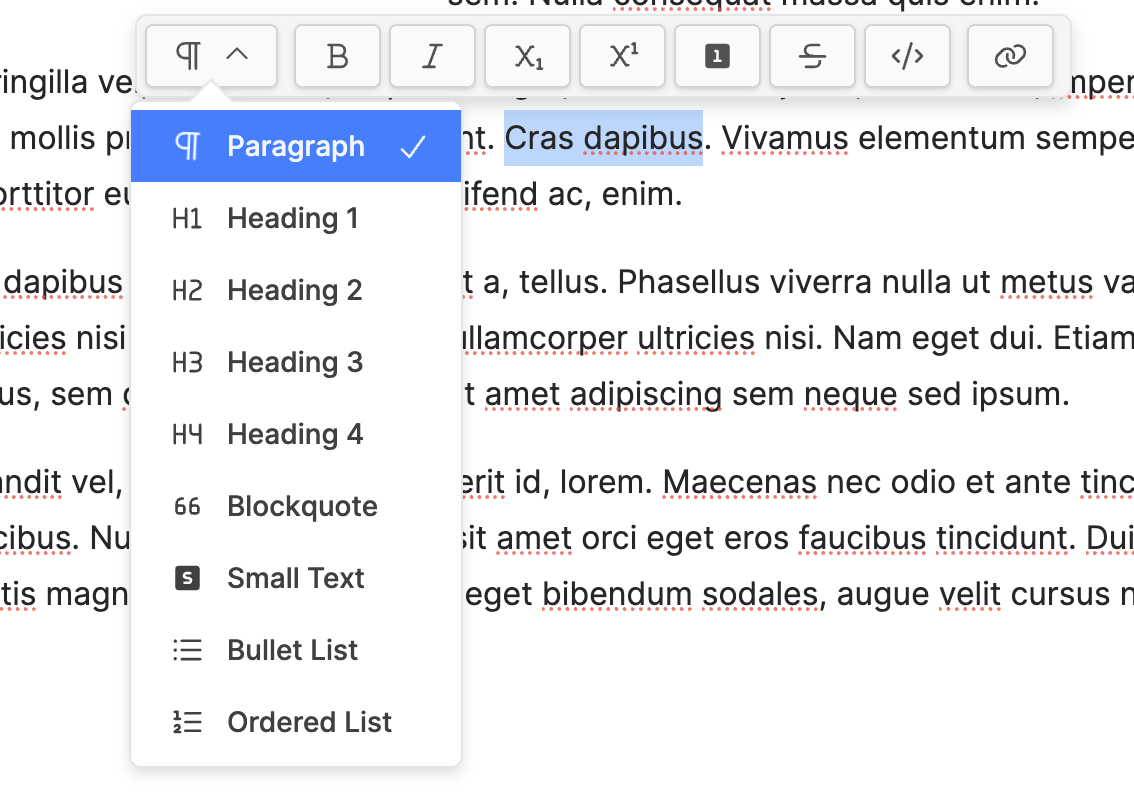
Highlight a section of text and another menu will appear with additional options. Use these options for formatting the selected text into one of the various options under the paragraph icon on the menu. There are also options to format the text with the standard Bold, Italic, Subscript, Superscript, Footnote, etc.
- Footnotes:
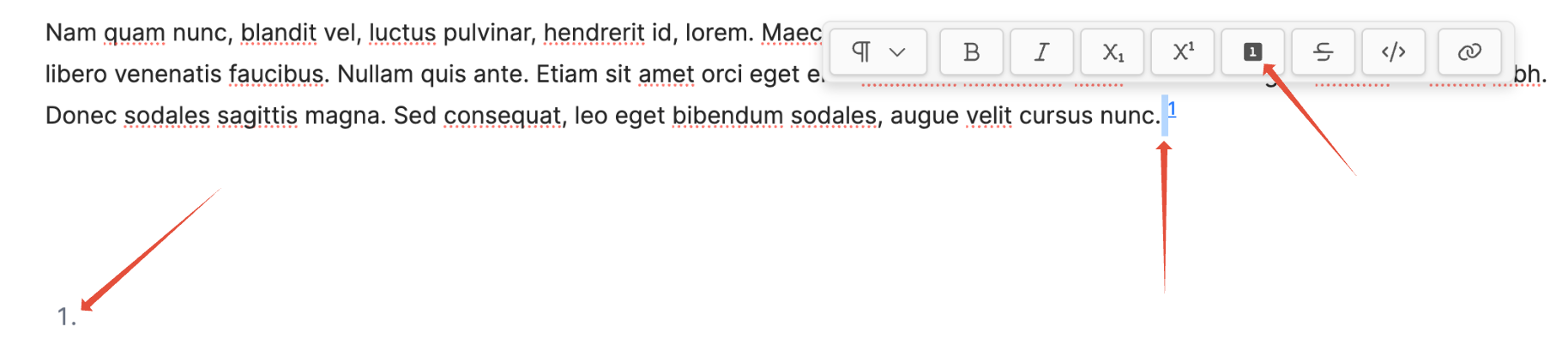
- For a Footnote you have to put a space in, then select that space, then click on the Footnote icon.
- Then you can add the footnote reference at the bottom.
- Link:
- Select a piece of text, click the Link icon in the menu.
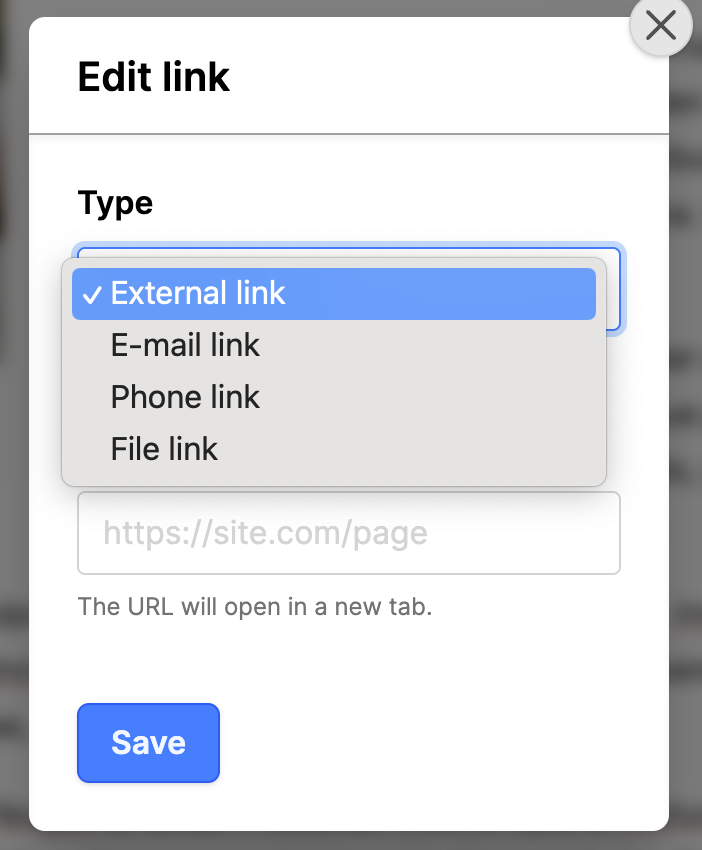
- In the modal box, you can select a link Type: External link, E-mail link, Phone link or a File link.
- Enter any information (URL, email, phone number, file) into the field.
- Click the Save button.
Additional Information
- Adding content with Blocks
- Once you have created some pages, see Creating Menus in Web Engine