Overview
The majority of work on the website will take place using the Webpage editor interface in the Web Engine backend. Using this interface, the editor of the website will implement the design they have been given, or simply make updates to the existing design. Frontend blocks are the building components to make the desired design come to life.
How to
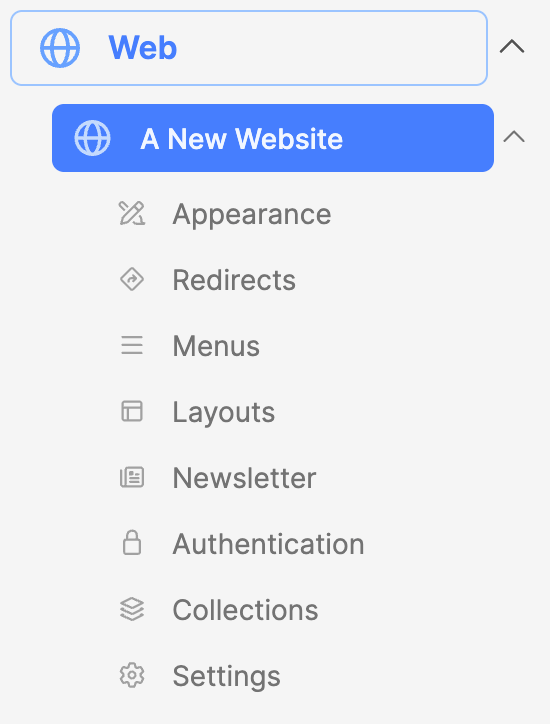
- Click on the website name, to open the editor on the right side of your screen, The page tree will be displayed.
- Click on a page to show the complete editor.
- The following is a brief overview of the Webpage editor interface:
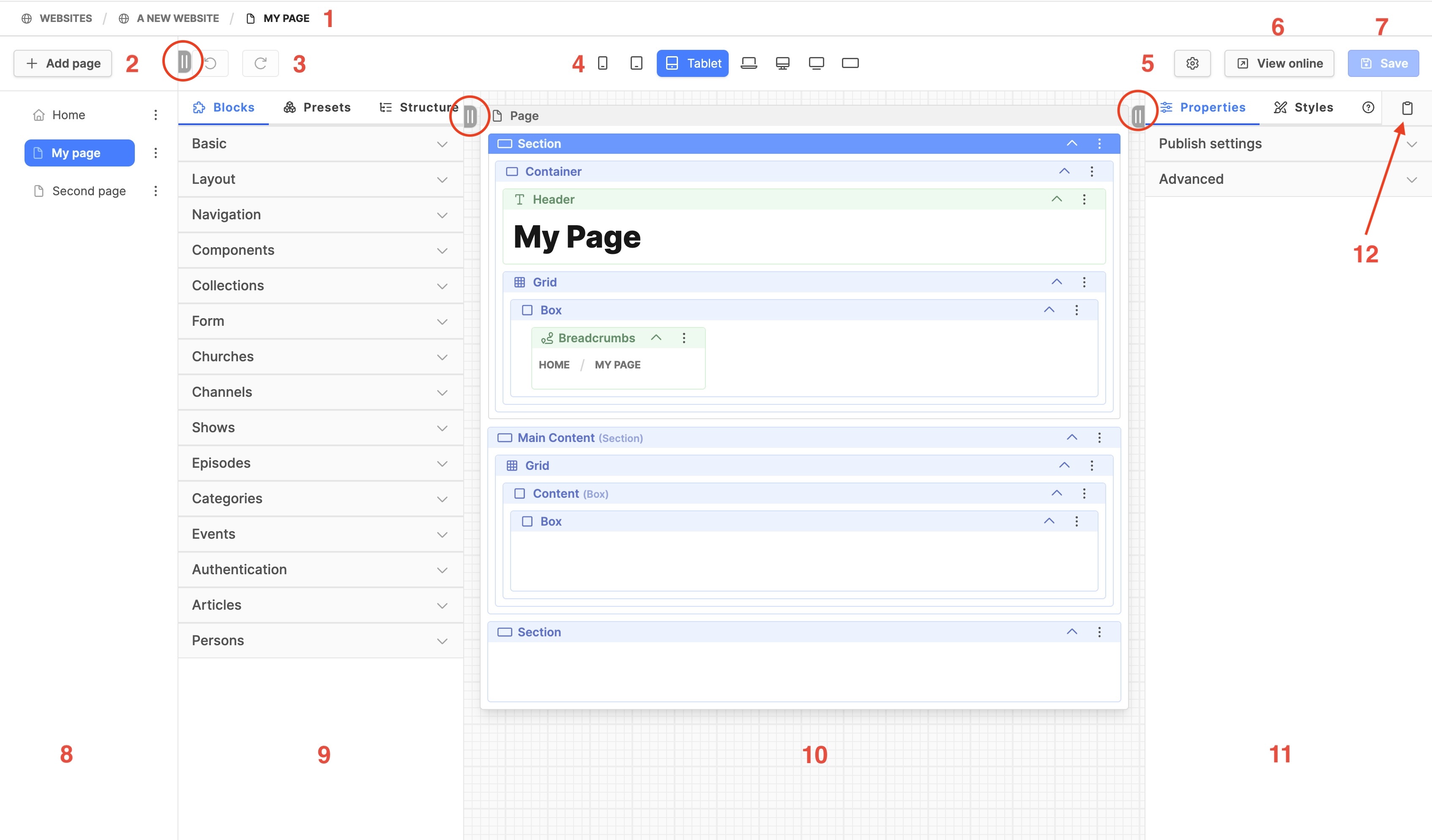
The following correspond to the numbers on the diagram:
- The current page location on the website
- The Add page button (to create a new webpage)
- Undo and redo buttons
- Device width breakpoint buttons (click to switch page width)
- Mobile: up to 639px
- Phablet: 640px
- Tablet: 768px
- Laptop: 1024px
- Desktop: 1280px
- Wide: 1536px (Adventist design)
- Gear icon to access webpage Page settings and Translations
- View online button to view the current page (saved) content and layout in frontend
- Save button to save the changes to the page!
- Website page tree (displays website structure)
- Frontend blocks panel
- Blocks groups: available frontend blocks grouped by functionality
- Presets: block presets displayed here (when available)
- Structure: displays outline of page structure as blocks
- Page content and layout of the selected page
- Configuration of current selected frontend block:
- Properties: the attributes of the frontend block (text, image, backgrounds, videos IDs, etc.)
- Styles: the frontend block colors, fonts, text size, alignment, spacing, padding, etc.
- Help: (work in progress)
- Block settings Clipboard: copy the block settings to post on another block (!!Use with care. Currently the clipboard copies the content as well as the styles. Copy styling, then add new content.)
The red circles indicate tabs which can be collapsed to create additional space to work with the Webpage editor interface. Additionally, the border between page tree (8) and frontend blocks panel (9) is adjustable.
In the bottom left corner, below the user settings, is an icon << that will collapse the entire left navigation panel.