
Overview
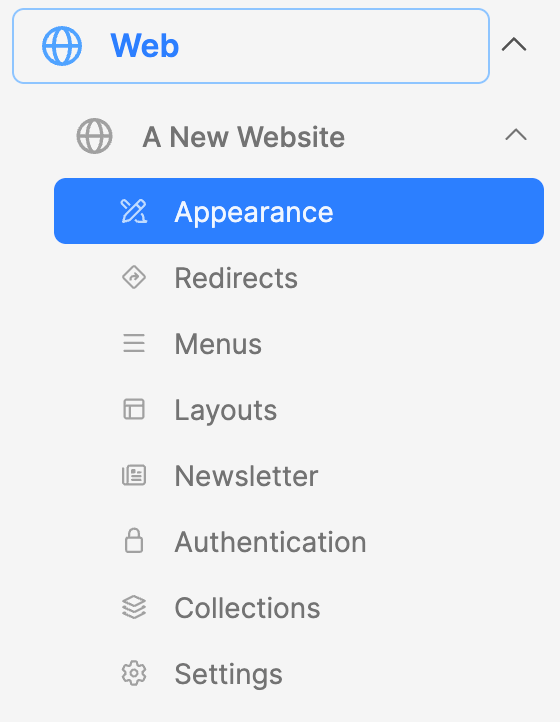
The website Appearance submodule is where the outward appearance of a website can be configured. Here the menus, certain standard texts, theme, etc. can be chosen. In setting up a website, the editor will need to visit this submodule to make an adjustment or two.
How to
- Click on the Appearance submodule. This will open an interface on the right side of the screen.
- Click on the Tab(s) needed as detailed below.
- There may be some variations between designs for what is visible on the tabs.
Web > Appearance > Design
- Design
- Design: This is locked when the website is created.
- Default layout: Set only if the layout is being overwritten.
- Design Options
- Design variant: Do not adjust after the website is worked on!
- Appearance: It's best to leave alone.
- Color theme: Adjust as needed.
- Typography theme: Adjust only if needed.
- Use Sabbath Column: Turn on/off the 7th column.
- Rounded elements: Adds the ability to round the edges of certain elements.
- Sans-serif headings: Override the default Serif font headings.
- Default button variant: Set the button variant to use.
- Button label case: Set the button text case.
- Click on the blue Update button to save your changes.
Web > Appearance > Colors
- Colors: These are system colors. We recommend not altering. Adjust only if needed.
Web > Appearance > Themes
- Custom themes: You can create a custom theme with colors if needed.
- Default themes: These are ALPS Color themes already available for the system.
Web > Appearance > Header
Set the fields as the design dictates.
- Logo: Set the logo for the website.
- Logo color (light): Use this color when website is in light mode.
- Logo color(dark): Use this color when website is in dark mode.
- Logo identifier: This is a text that appears under the logo.
- Top menu: A menu appearing at the very top of the page.
- Primary menu: The main navigation menu for the website/page.
- Secondary menu: A menu of additional functions/utilities that appears above the primary menu.
- Drawer menu: The menu behind the 7th column.
- Disable drawer toggle: Hides the drawer toggle in menus.
- Drawer description: Add text to be displayed in the opened menu drawer.
- Click on the Update button to save your changes.
Web > Appearance > Footer
Set the fields as the design dictates
- Footer logo: The logo to display in the footer.
- Description: Description to display in the footer.
- Copyright: The copyright information for the website (date appended automatically to copyright field).
- Footer menu: Add the menu created for displaying in the footer.
- Footer social menu: Add the menu of social media links created for displaying in the footer.
- Click on the Update button to save changes.
Web > Appearance > Social links
- The Social links option is for the Hope design. For Adventist design please create a Social links menu and add it to the Footer area.
- Click on the button, then add link to your channel.
- Click on the Update button to save changes.
Additional Information
- Translate website appearance
- Create a new Website (ALPS)
- Placeholder logos: https://www.adventist.design/downloads/logo/