
Overview
You will want to create pages to add your own unique content on a Web Engine site. To add pages to a Web Engine website, the process is simple and straightforward. Pages are added using Page Presets. These are preconfigured pages that may be almost completely ready to use, or which have no content blocks, only layout blocks, and are empty for you to add content blocks and design the page yourself.
Note:
When using the Adventist ALPS design, for an "empty" page, always use a Page Preset of either:
- ALPS - Centered content page
- ALPS - Content Page with sidebar
How to
Add pages to a website
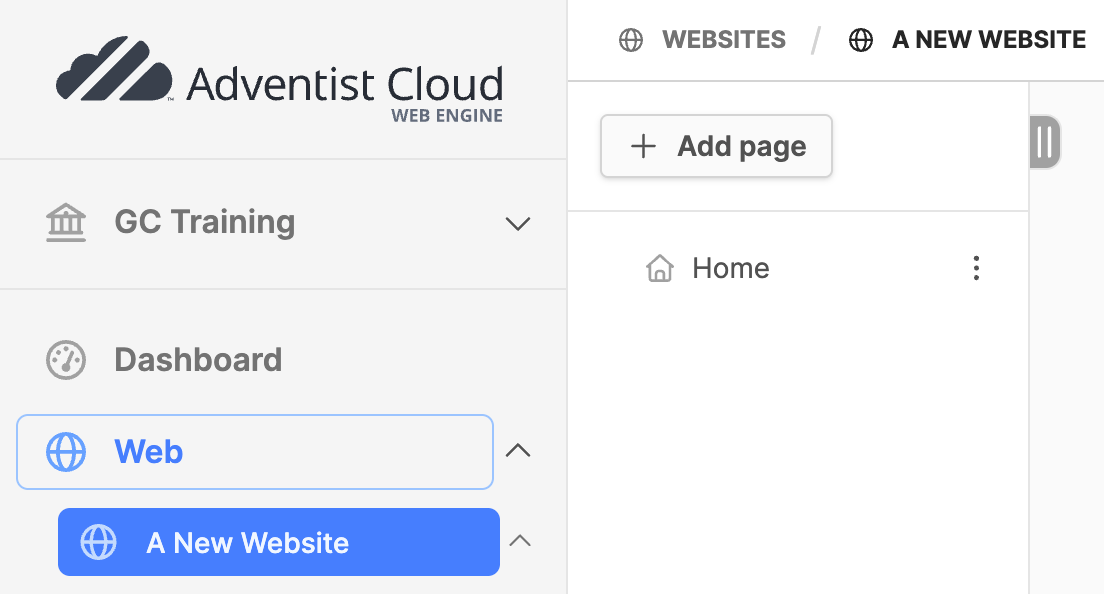

- Under the Web module on the left sidebar menu, click on the title of the website. (the page tree will open on the right)
- Click on the Add page button at the top of the page tree.
- Fill in the Title field.
- The Slug will be created automatically. (this becomes part of the URL)
- Click the blue Create button.
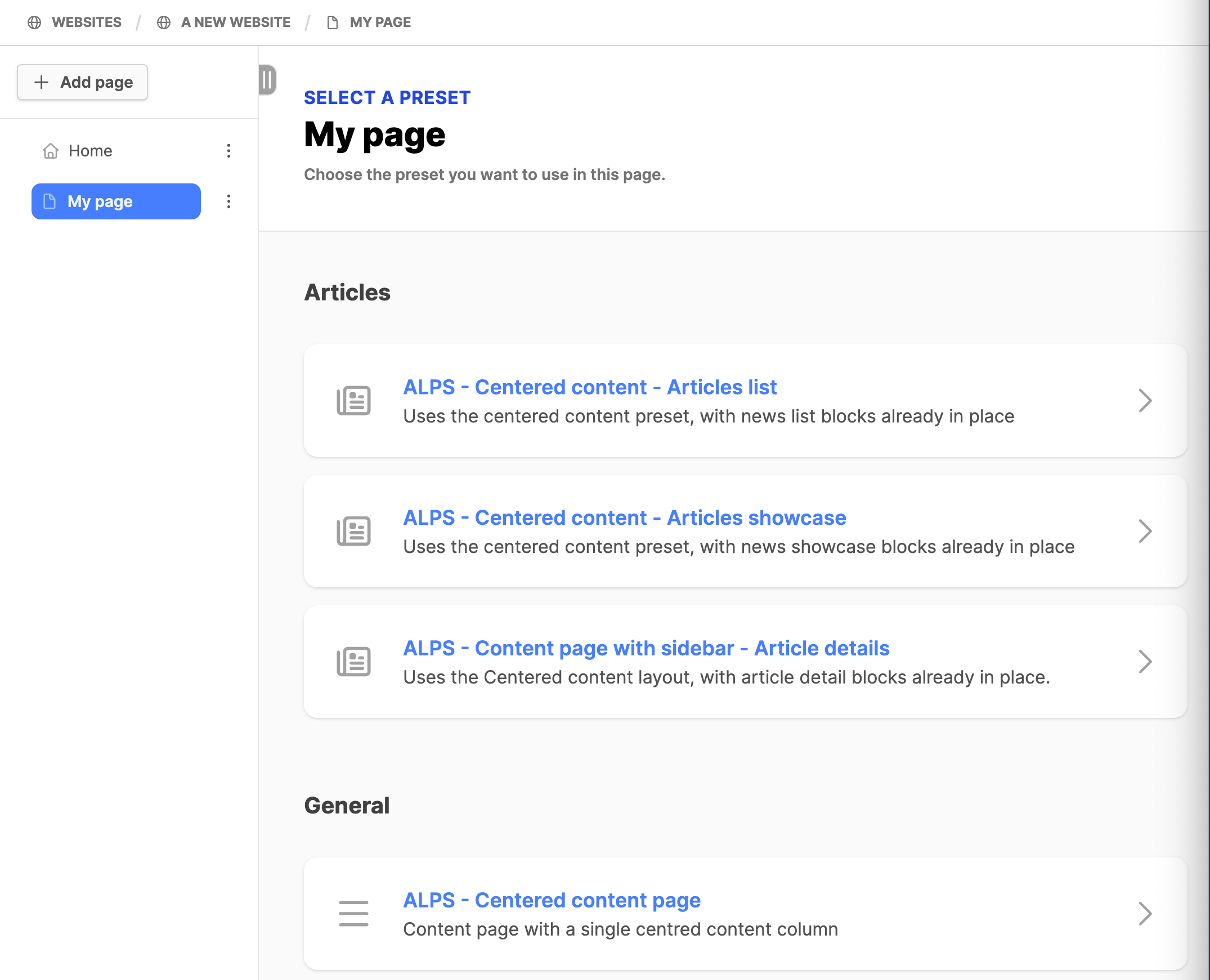
- Next, Select a Preset appears on the right. Review the list and see if the page you need is listed. As mentioned above, for an "empty" page, choose ALPS - Centered content page or ALPS - Content Page with sidebar. These pages provide default margins and spacing for the different device widths. Using the Empty page preset requires a lot of configurations already set up in those mentioned above. Choose the preset by clicking on it and the preset is applied to the page.
- See below for how to Change preset. Note: Changing the preset deletes the content you have created.
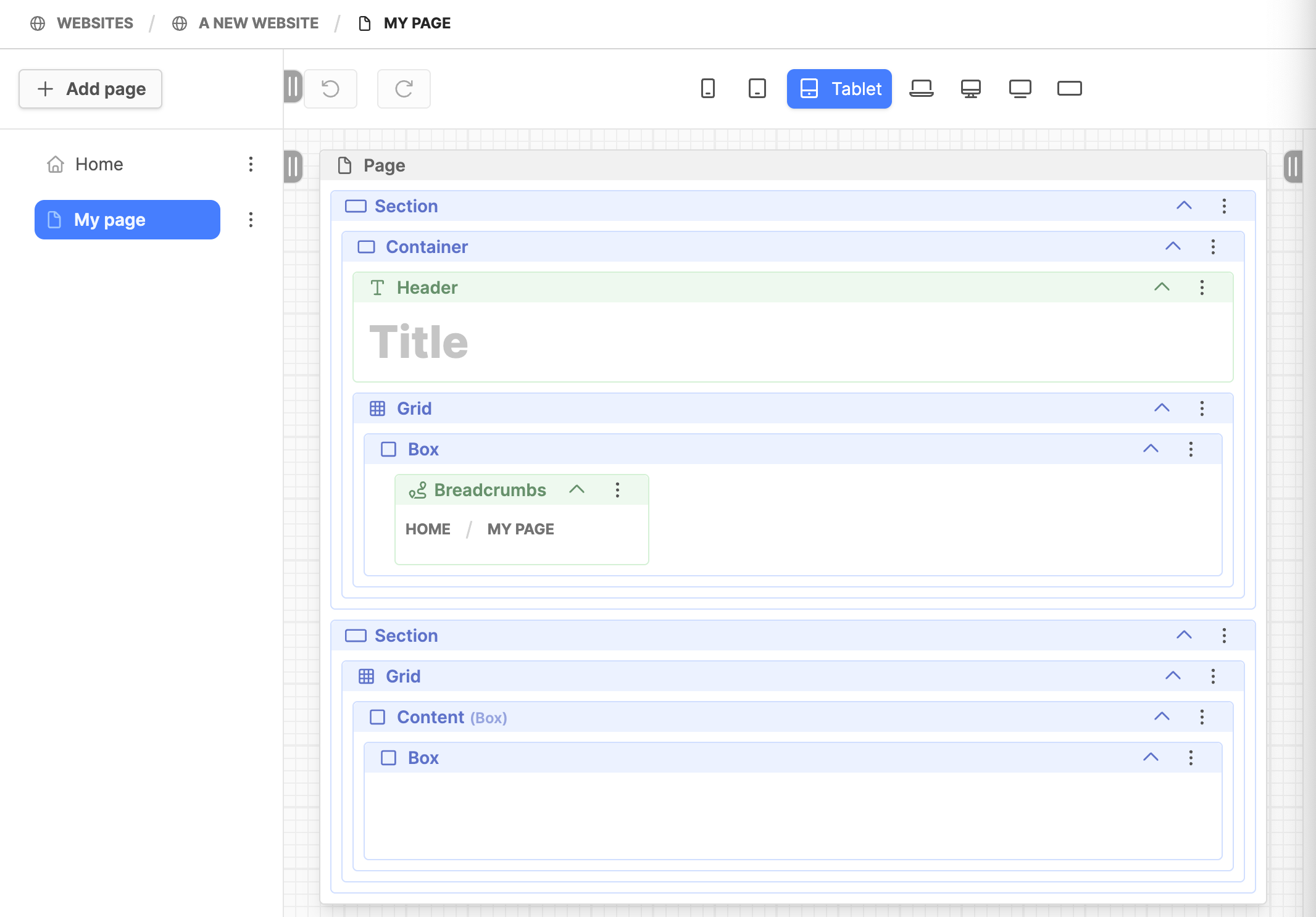
- Here is an example of a page with the "ALPS - Centered content page" preset applied:
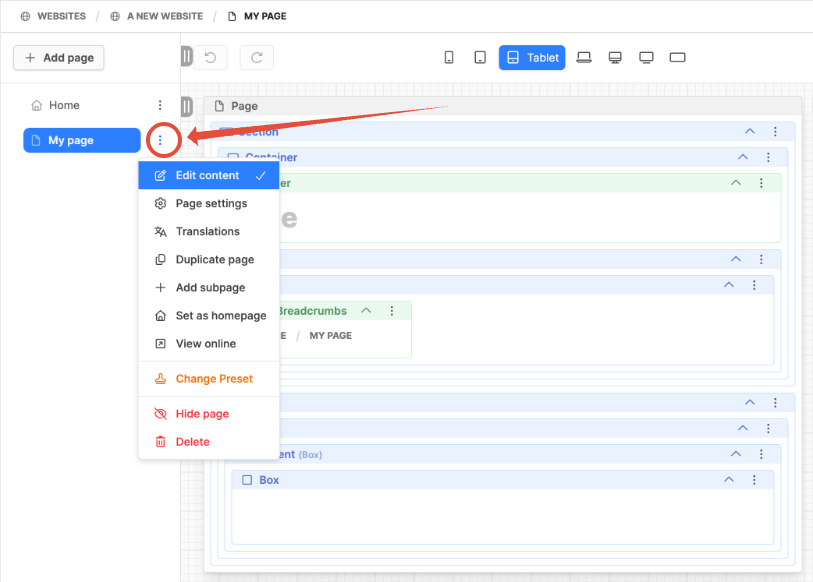
- The Page menu can be accessed by clicking the 3 vertical dots to the right of page title:
- Edit content: Access the page content to work on the page
- Page Settings: Access the configuration settings of the individual of the page
- Translations: Translate the content elements on the page
- Duplicate page: Make a copy of the current page
- Add subpage: create a child page below the selected page
- Set as homepage: Use with caution! (sets page as homepage of the website)
- View online: View the page content in the frontend.
- Change preset: Swap out the current page preset. Note: This removes any content on the page!
- Hide page: Disable the page, it will no longer appear in the frontend.
- Delete: Delete the page. Content is permanently deleted.
Organize website pages
Notes:
- Remember, navigation menus are created separately from the page tree structure
- If the website is a relaunch of an existing website, then mirror the structure of the existing website to reduce the number of website redirects needed. Otherwise use redirects to get visitors to the correct page.
- Otherwise, the page tree or website structure can be setup as needed.
How to organize
- Drag and move the pages to a new location as needed. When you see the blue line, let go to drop the page.
- If one page is moved over the top of another page and let go, it will become a subpage.
- Multiple levels of pages can be created to develop the structure required.
- Expand the chevron (arrow) beside the page title to view subpages.
Additional Information
- Before you begin
- Webpage Editor interface
- Developing pages on the website an overview for creating webpages
- Adding content with Blocks
- Using Layout Blocks
- Blocks with download functionality
- Once you have created some pages, see Creating Menus in Web Engine
- Set up Church Finder pages