
Overview
This article covers how to create user groups. Only a small number of users will need this level of access in the system. A person in the User Manager role will only be able to grant access to what they can access themselves.
Access to backend modules is controlled by user groups. Backend user groups should be created in such a manner that user access can be controlled as closely as possible. Access should allow users to work as they need to but not allow access to additional areas.
Note:
ADMINISTRATORS: Groups that have the rights to create users, as well as groups that have a large number of rights to sensitive information/areas, should be protected by 2 Factor Authentication (2FA) and require users assigned to those groups to download an Authentication App such as Google Authenticator onto their mobile device. This is to prevent unauthorized access to the accounts that are able to add new users into the system or have a lot of access in the system.
How to
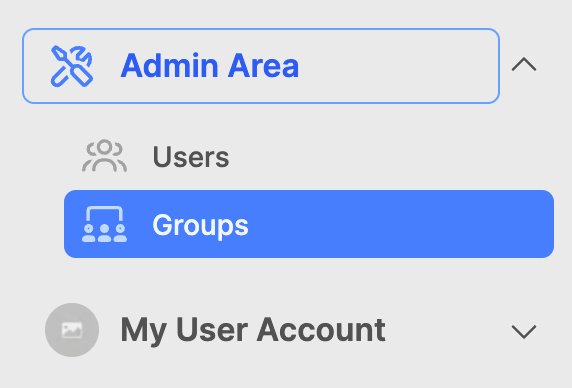
Steps to create a backend user group:
- Expand the Admin Area in the lower left corner of the Web Engine.
- Click on the Groups section.
- Verify a group with the rights you are seeking to grant, doesn't exist.
- Click on the Add group button in the upper right corner of the screen.
- Name: Provide the name of the group.
- Requires two-factor authentication (2FA): Set a checkmark if this is a group that handles user accounts, or the group has access to sensitive areas or a lot of content.
- Click on the Create button.
Assigning Rights to a group:
Once the Create button is clicked, the group will be saved and the group editing interface will be opened with the group name at the top. The Permissions tab should be selected.
- Along the left side, under the Permissions tab, is a list of module access rights.
- Assign access rights determined by the purpose of the group.
- Create groups based on module access or on the function of a particular role.
- Assign the minimum rights needed for the users to do their work.
General rules for groups:
User Manager:
- Only create one group under an entity for creating users and groups.
- This functionality should not be hidden inside another group.
Web module:
- Always pick a website! If a website is not chosen, the group can access all websites for the entity.
- Depending on team size; create multiple groups. Editors update pages. Managers update website settings also.
Additional Information
- Creating user accounts
- Editing user accounts and adding users to groups.