
Overview
A created user account may need to be adjusted as the user takes on more responsibility or shifts their position within the organization. Also, if someone was to leave the organization, the user role should be disabled or deleted, removing access to the system.
How to
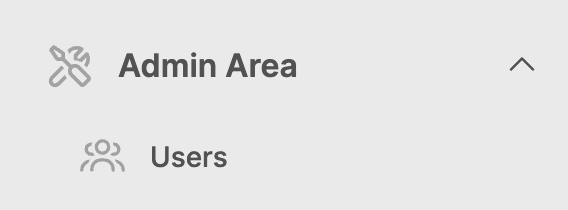
In order to edit users, navigate to Admin Area in the lower left corner of Web Engine, expand that and look for Users.
Edit a user account:
- Click on the Users section.
- A list of users with access to the entity will appear.
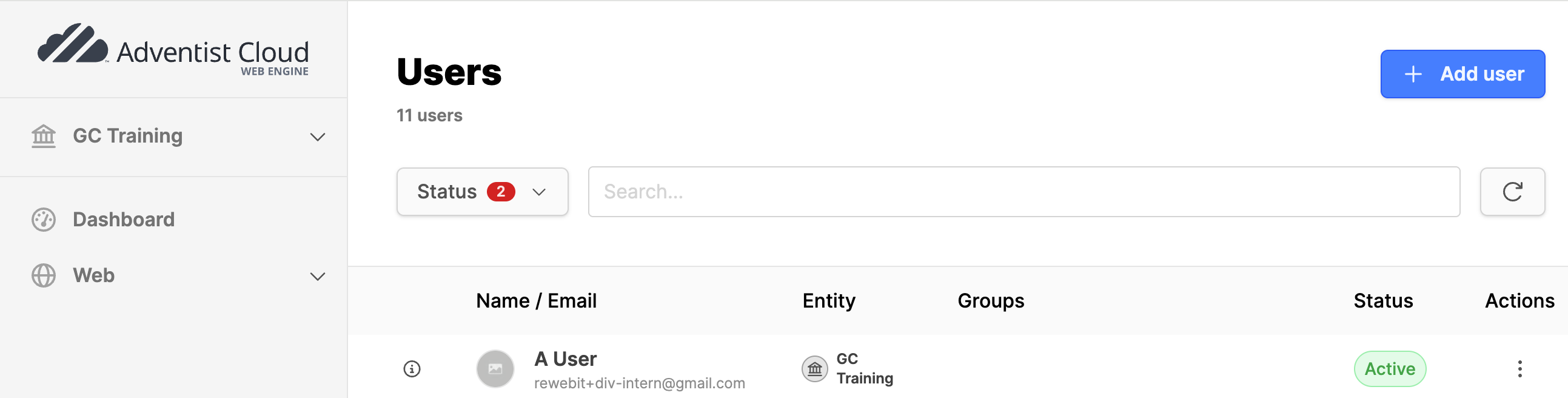
- Status filter: Filter the list of accounts by Active, Disabled or Deleted status.
- Search field: Use to locate a user when the list is long.
- Info icon: Click to open a drawer on the right to see account information, as well as buttons to Edit, Transfer, Disable or Delete the account.
- Name/Email: The user's name and the email tied to their account.
- Entity: The entity the user account was originally created under.
- Groups: A list of groups the user is in.
- Status: Active or Disabled account status.
- Actions:
- Info: Same as the Info icon function.
- Edit: Update the Name, Email or Interface language.
Adding users to groups
To add a user to a group, navigate into the Groups submodule.
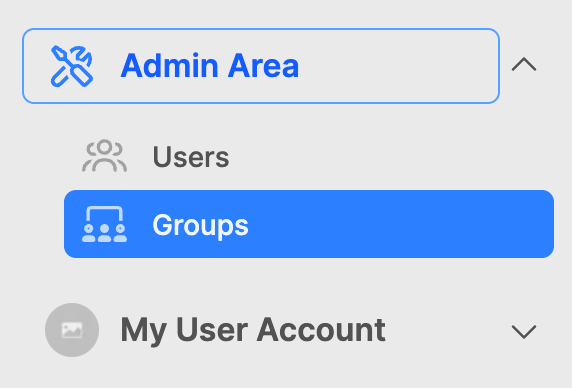
- Expand the Admin Area in the lower left corner of the Web Engine.
- Click on the Groups section.
- Find the Group in the list to which you want to add the user.
- Click on the Group Name.
- Click on the Users tab.
- Click on the Add user button.
- Either add an existing user or a new user with their Email and Name. Click on the Create button.
- The user will then have the access the group is configured with.
Transferring a user:
Before transferring a user, it would be better to remove any groups or access they have to the current entity. Confirm with the other entity, that the user account has been successfully transferred.