Overview
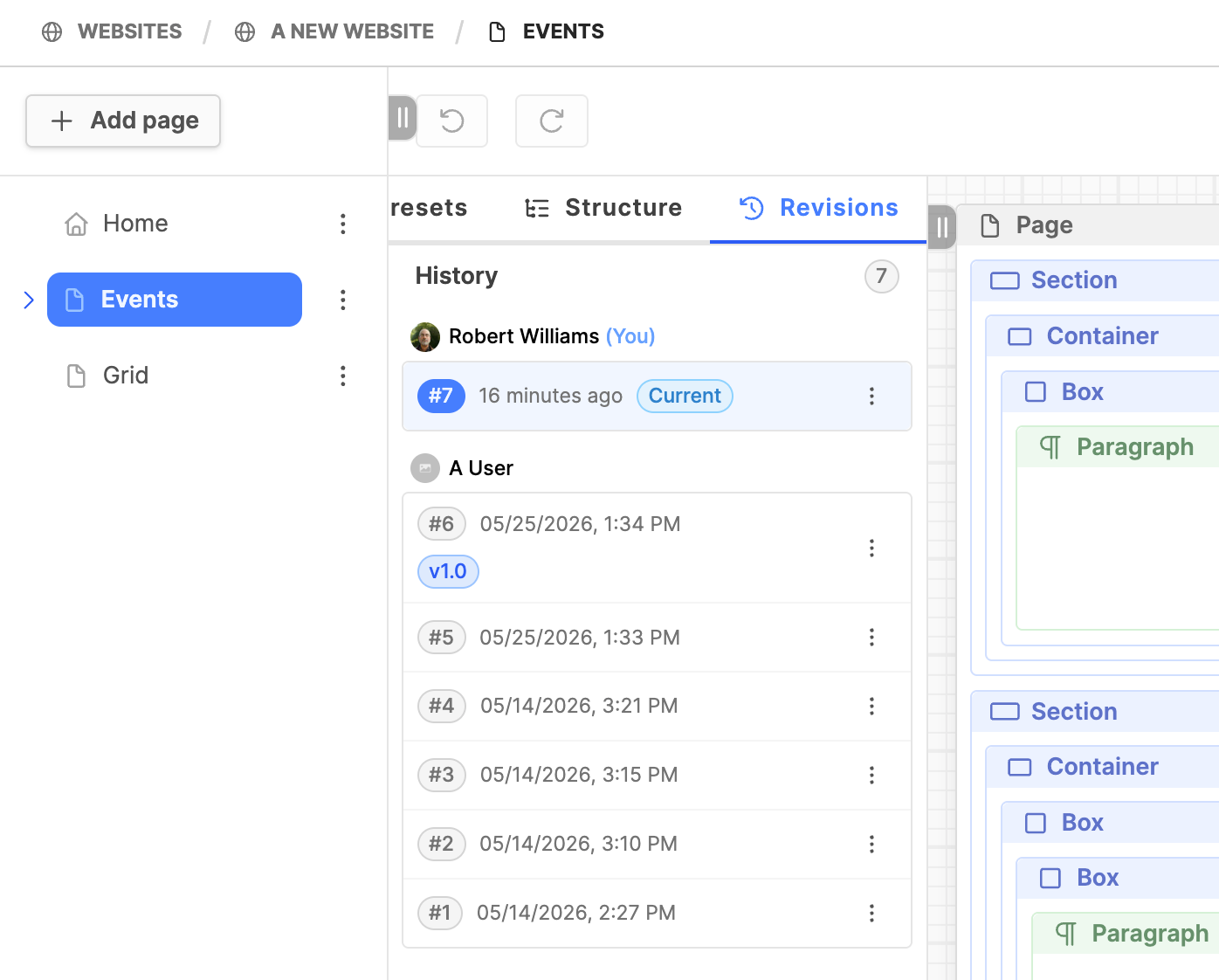
Sometimes mistakes are made and a webpage needs to be rolled back or reverted to a previous version. Or it could be that someone started making changes, but then the design plan for the webpage changed. When this happens, it is possible to use the Revisions tab on the Webpage Editor interface to revert to a previous version of the webpage.
How to
Revert to a previous version of a webpage
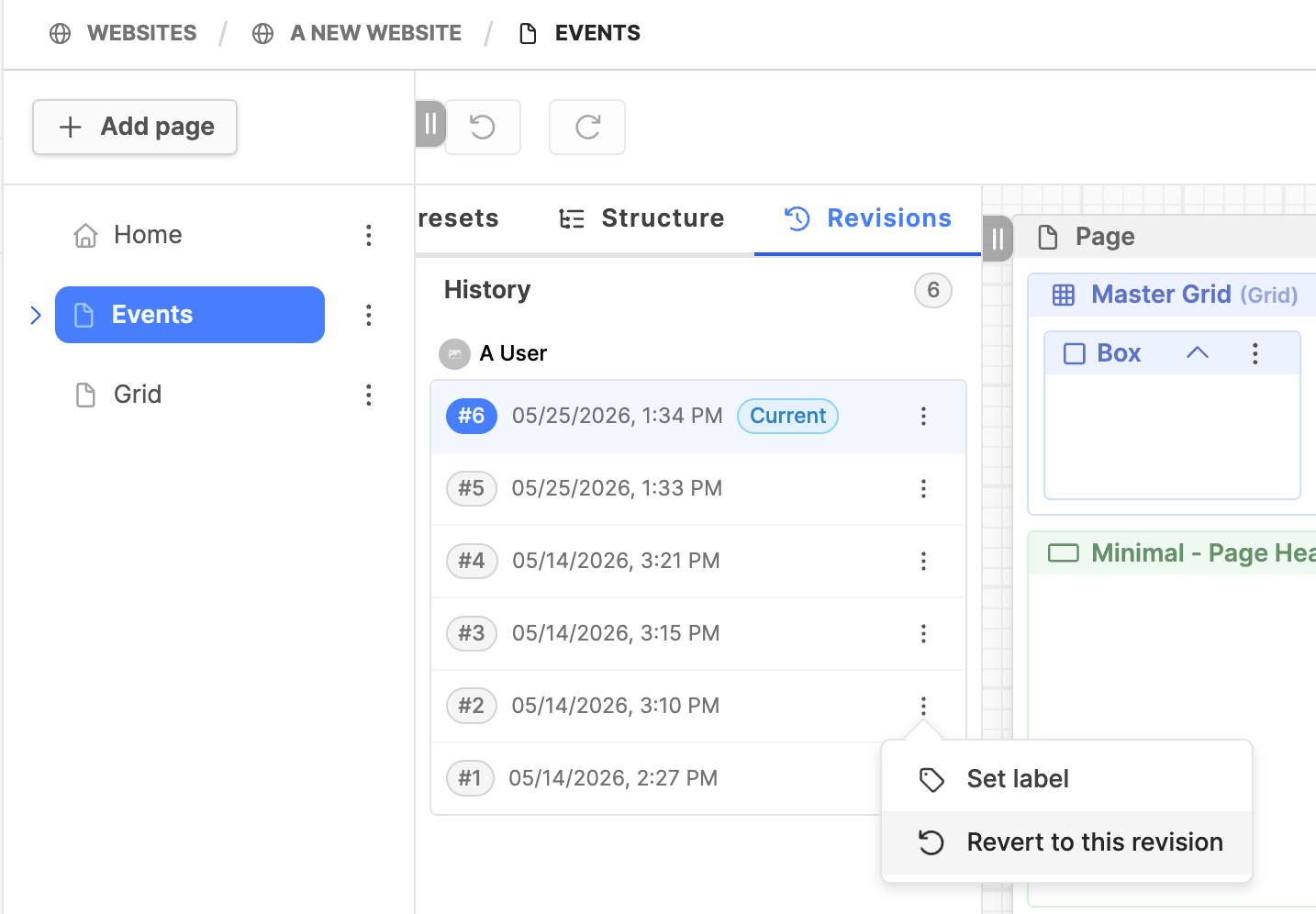
- Once you are in the Webpage Editor interface of your website, open the webpage in the page tree.
- In the column to the right with the blocks, drag it open to reveal the Revisions tab to the far-right side and click on it.
- In the History list, find the version of the page you want to set as active.
- Click on the three vertical dots to open the menu.
- Click on Revert to this revision to roll the page back to the selected version.
- Click on the View online button to confirm the change. If you do not see the page update, reload the browser page and then check again.
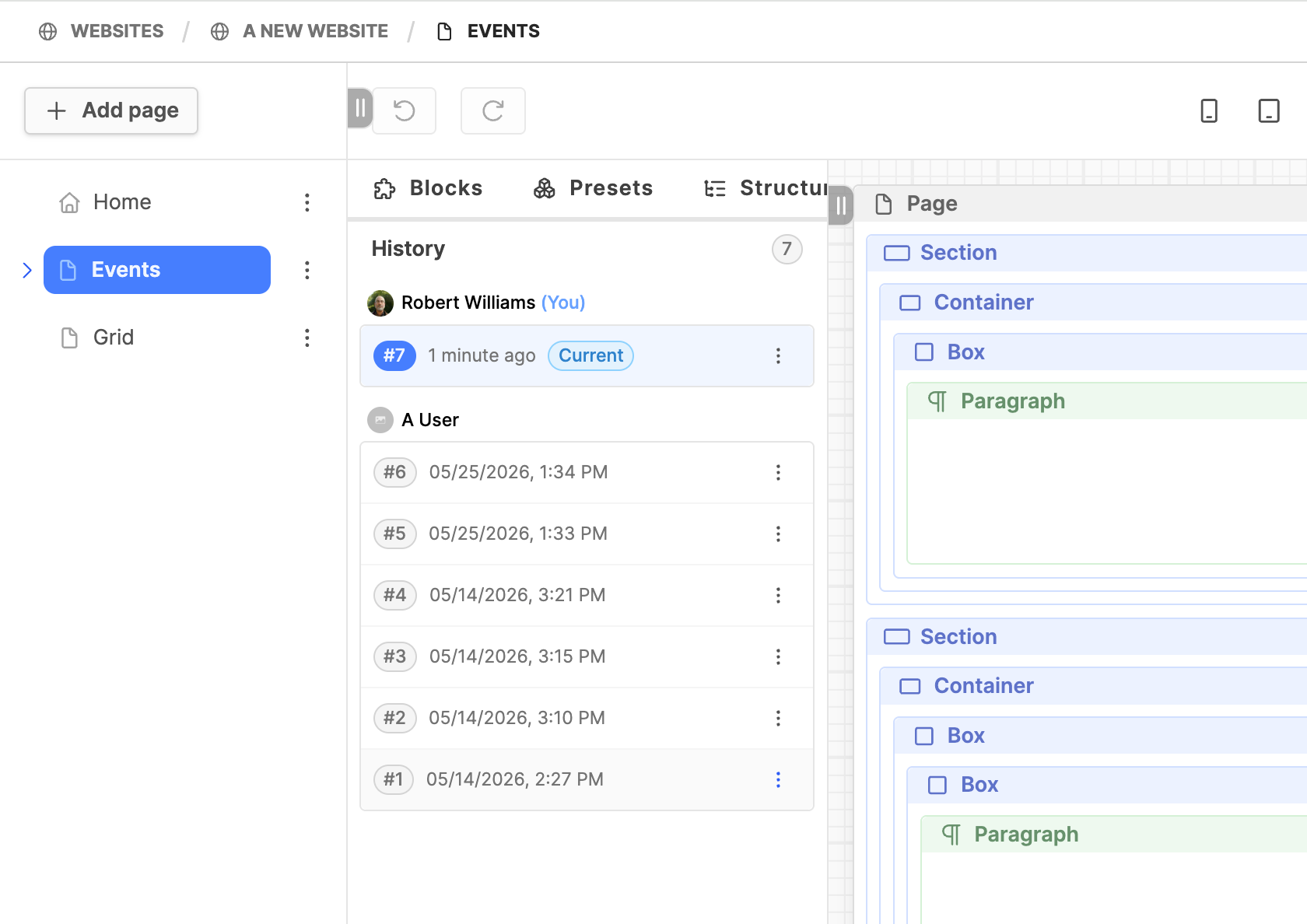
Pro Tip: When the final version of a webpage is live, set a label on the page. In this manner it is possible to quickly return to the previous "last good" version of a webpage. You can do the same with updates; set a label on the final page for the same reason. This allows you to quickly return to the proper production version of a webpage.
Set a version label on a webpage
When the work on a webpage is completed, set a label on the page. This allows for the quick reversion or rollback to that "good version" of the webpage. So, in the event the page is worked on in the future, and then it needs to be returned quickly to the last good version of the page, you quickly know which version of the webpage to revert to.
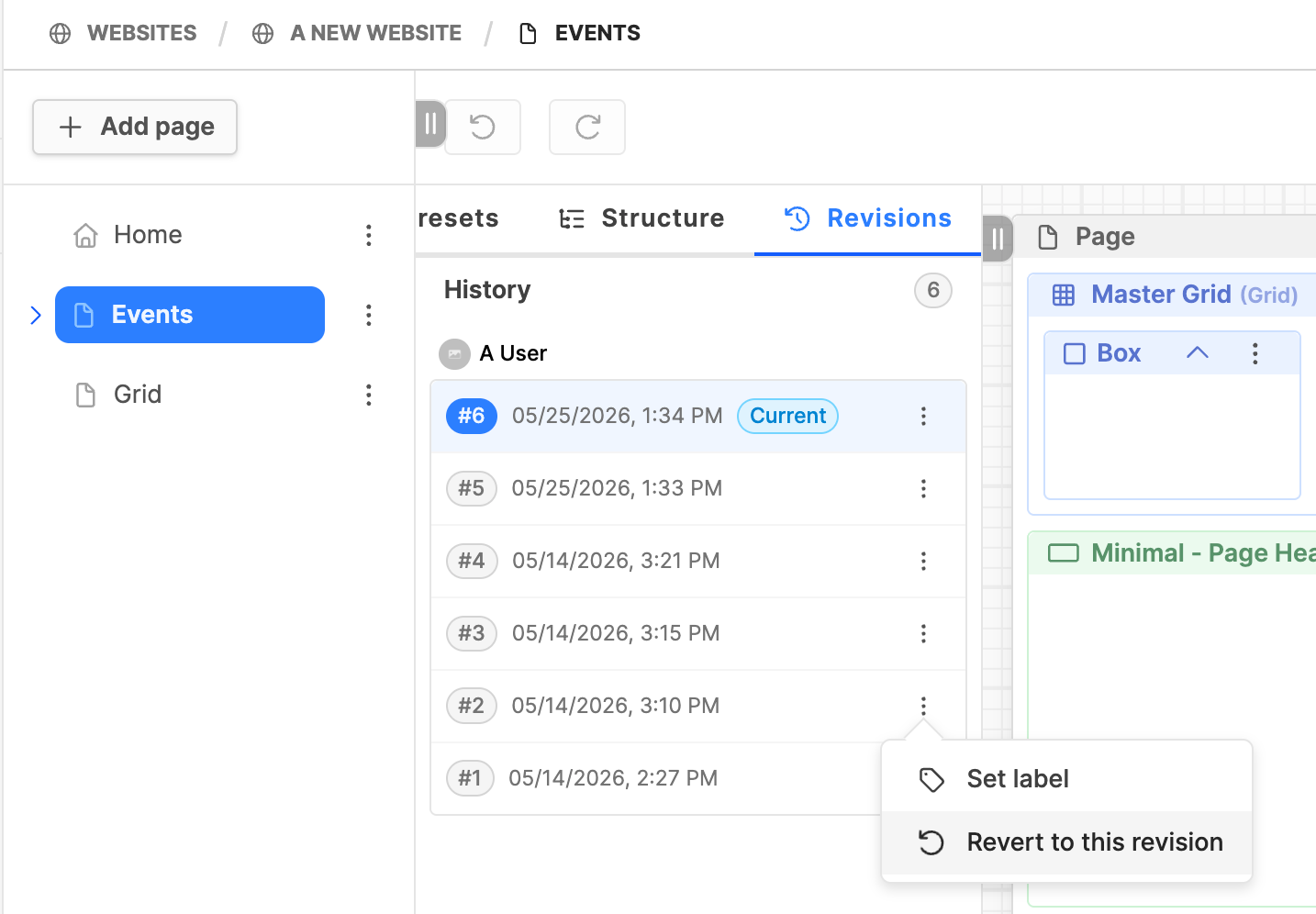
- Once you are in the Webpage Editor interface of your website, open the webpage in the page tree.
- In the column to the right with the blocks, drag it open to reveal the Revisions tab to the far-right side and click on it.
- In the History list, find the version of the page you want to set a label on.
- Click on the three vertical dots to open the menu.
- Click on Set label to mark the page.
- Fill in the Set label field in the modal box.
- Click on the Save button.
- The new label will appear under the version number, date, and time.