
Overview
It is possible to write articles to display on the frontend of the website. Creating an article on the website is relatively straight-forward. For most users the simple workflow will enable them to write, edit and publish the articles by themselves.
If the team writing the articles is somewhat larger, there may be an "approval workflow" in place. In this case some users (authors) will write articles and other users (editors/managers) will approve the articles for display on the frontend of the website.
Note:
- Admin should have configured the articles module for the necessary workflow
- Article and website language must match, otherwise the article will not appear on the website
- Once created, an article can be published to any website on the entity having an article detail page
How to
Navigate to the list of articles for the entity. Do this by clicking on the Articles module, or depending on rights, click on the submodule Manage articles.
Create an article
- In the upper right corner, click on the Add article button. The Add article interface will appear.
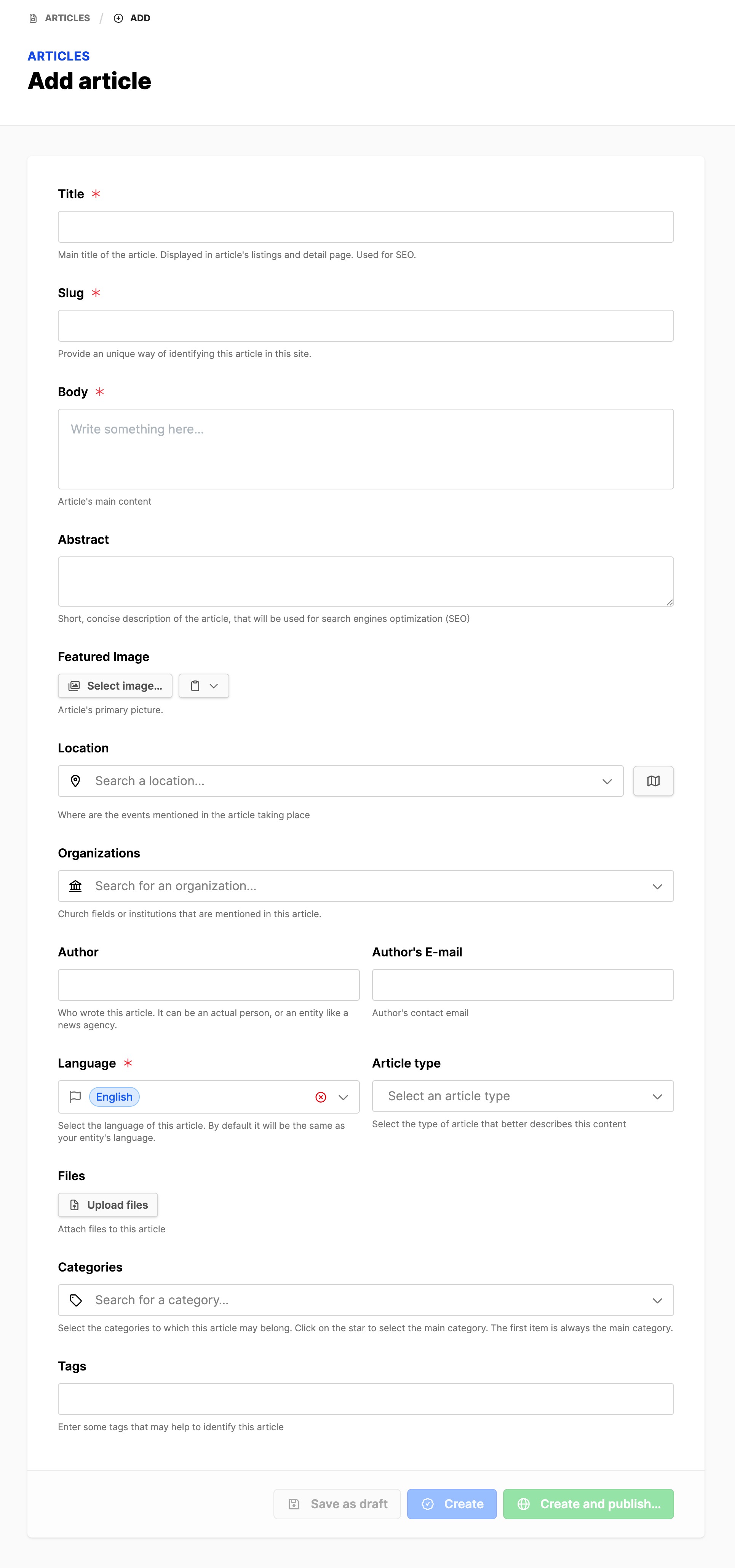
- Required fields are marked with a red *.
- Title: The title of the article. It could be good to consider shorter focused titles as long wordy titles will appear in the frontend and can affect the layout of the page.
- Slug: (Automatically created as title is entered. If desired, consider shortening the slug)
- Body: The content of the article; this field is a Rich Text Editor, allowing for text formatting, adding images and videos.
- Use headings (H2-H4) to break up the content and allow for scanning of the content
- Use lists to consolidate points and quickly convey information
- If using Photos or images, give credit to the creator. Also use alt-text to assist visually impaired visitors
- Language: (Automatically filled.)
- Featured Image: Add a nice 16x9 image to attract interest. Images should be 2k minimum, so 3200px by 1800px.
- Additional fields: use depends on needs/workflow:
- It is a good idea to fill out the additional fields to allow others to know: where geographically this article originated from, who wrote it, what organizations are involved and the category the article focuses on.
- Abstract: Short text used to attract visitors to read the article, also used for SEO metadata.
- Location: Where is the event of the article taking place.
- Organizations: Add organizations related to the article.
- Author & Author's E-Mail: The article writer and their email.
- Article type: select an article type if your workflow uses various types of articles. If the website only has news, then use the news article type consistently.
- Files: If there are files to attach to the article, attach them here.
- Categories: Add a category to the article if categories are being used.
- Tags: Add tags if used in your workflow.
- Once the fields are filled out, the article can be saved as a Draft, Created or Published using the buttons at the bottom of the interface.
- If the article is ready for publishing click on the Create and publish or Publish button.
Publish an Article
- Once an article is ready for publishing, click on the Publish button to publish it. If the article is ready, and the button is not activated, make a small change to an article field and then revert the change to activate the button. After clicking on the Publish button, the Publish tab should be displayed.

- Set a checkmark next to the website name, where the article will be published.
- Then expand the Website block by clicking on it:
- Published from Dates:
- By default, the article will go live on the website at the end of the publishing process.
- Otherwise: set Published from field to the date when the article should go live. Set the Published until date for when the article should be hidden, which is optional.
- Flags: Flags are used to groups articles on the website. Select the flags needed and also, know if there are special functions for the flags. A "featured" flag may be used to keep an article in a more visible position on the page, if the blocks are setup to use that flag.
- Published from Dates:
- Canonical site page: This is the owner of the article. Select the original website and detail page for this article.
- Note: If you don't see the detail page for the website you want to publish to listed in the select list, it means that there are no detail pages on the website. Someone needs to create an article detail page below the article list page for the website, then a detail page will appear in the list.
- Canonical URL: If the article is reprinted from another source, add the URL for where the article originally appeared, so that ownership can be determined.
- This field doesn't need to be filled if the Canonical site page field is used.
- If this field is used, it overrides the Canonical site page value.
- The Canonical URL tells search engines who originally published the article, so there is no ownership confusion for the search engine.
- Click on the Publish button to complete the publishing process.
- Verify the article appears on the website(s) that you chose.
Notes: Definition of types of articles
- Article: A text written on a topic and is not time sensitive, e.g. a doctrine or Bible topic.
- News: A text written about a recent event and is time sensitive.
- Blog: A text giving an opinion or information on a topic.
Article revisions
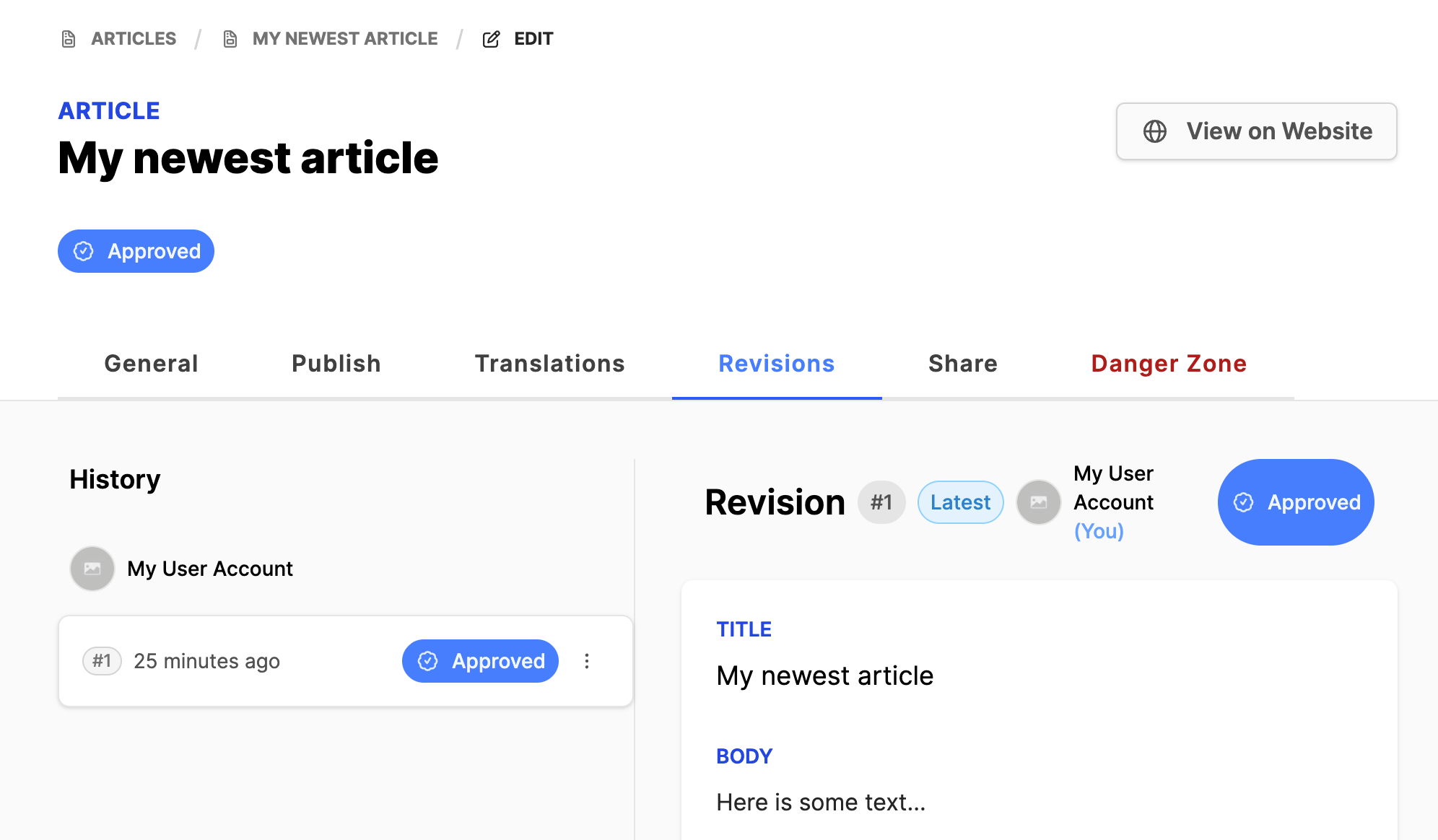
The articles are revised as they are worked on. If an article needs to be reverted to a previous version, open the article for editing (click on title) and go to the Revisions tab for the article.
Follow these steps on the Revisions tab:
- Under History click on the article number badge to select the revision.
- The article will appear on the right side; verify it is the correct article to revert to.
- Under the History: click on the three vertical dots for the article
- Mouse over Revert to this revision, then click either:
- Revert as draft or
- Revert as approved
- If Revert as draft is selected, make the changes to the article and then once approved, Publish the article again.
Additional Information
- Article translation
- Configure Article sharing
- Using the Rich Text Editor
- Adding Article pages to the web module if your website doesn’t appear on the list mentioned above
- Website Blog setup