
Overview
An RSS feed for articles can be configured for the website. The feed will be automatically updated as new articles are published to the website. The RSS feed allows interested parties to have access to updates as soon as they become available.
It is possible to configure multiple RSS feeds on the website. If additional RSS feeds are required, additional RSS pages will need to be created. The page name will need to vary for each RSS endpoint created using the steps below.
How to
Website configuration for the article RSS feed
Navigate to the page tree of the website where you want to add article pages:
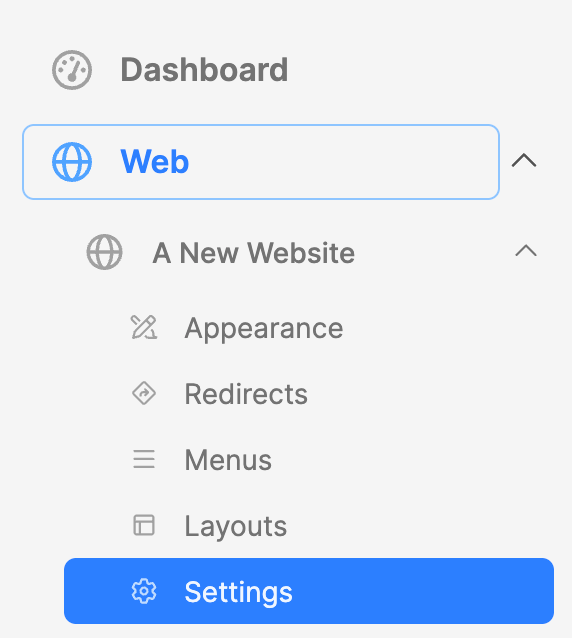
- Click on the Web module to expand it.
- Expand the website with the arrow to the right.
- Click on the Settings option.
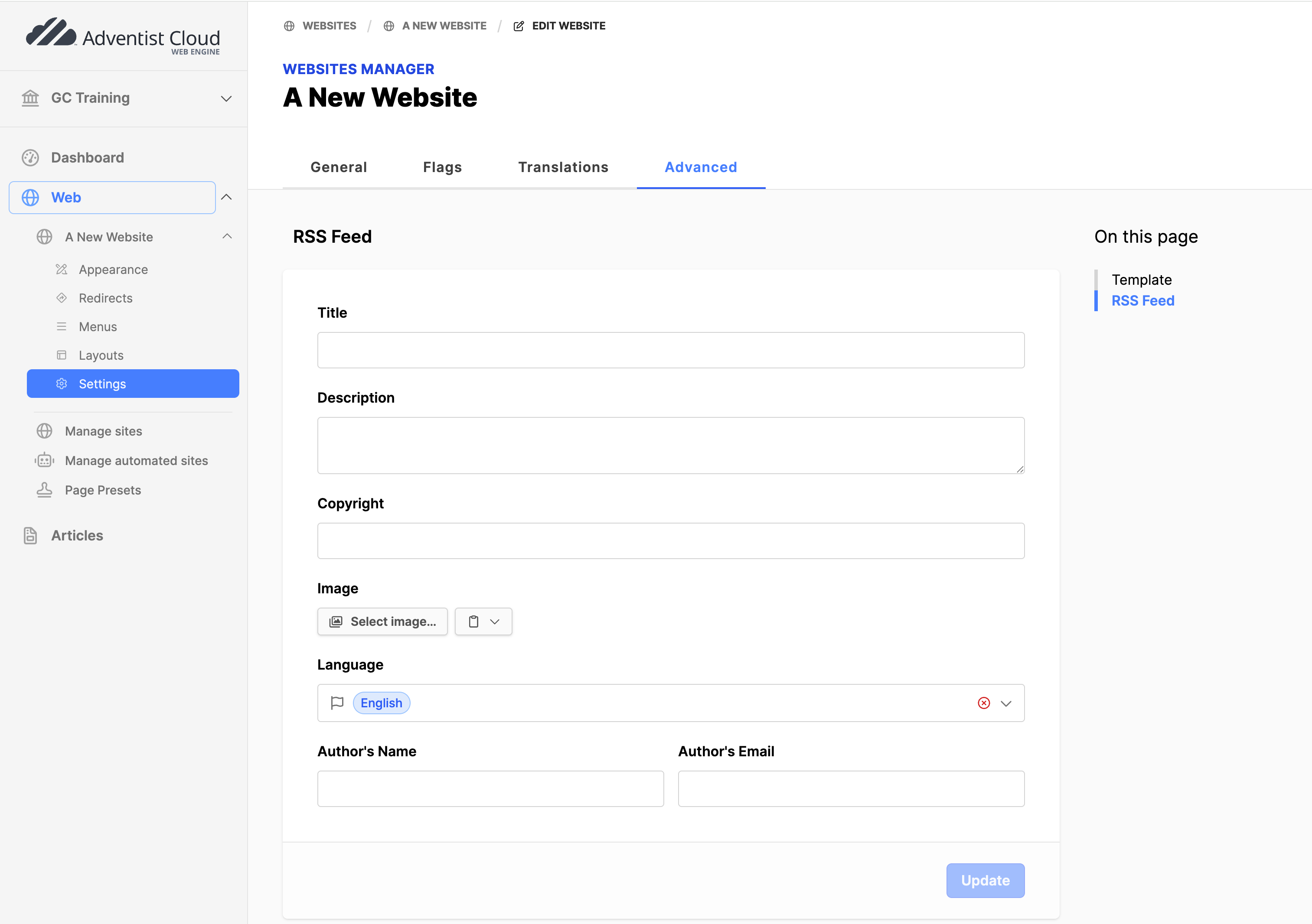
- Click on the Advanced tab.
- Click on the RSS Feed option in the menu on the right.
- Fill out the Title field with the name of your feed.
- Provide a Description.
- Provide a Copyright.
- Upload an Image (3000px X 3000px).
- Provide the Author's Name and Author's Email.
- Click on the Update button.
Add RSS Feed page to the website
- Click on the name of the website to open the page tree on the right side of the screen.
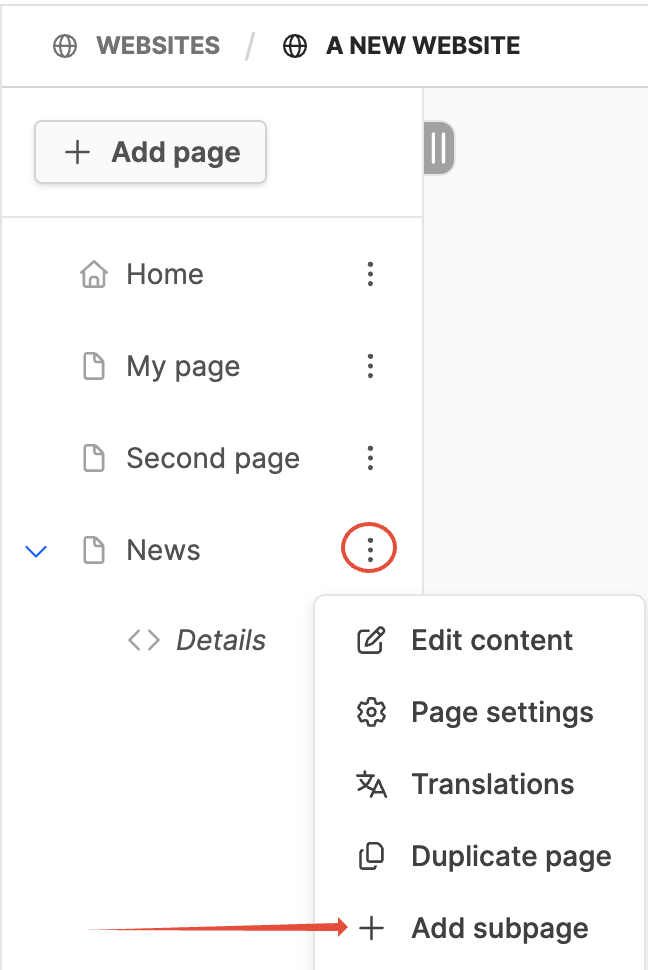
- In the website page tree, find the article list page ("News"), for the articles that will be published in the feed.
- Click on the three vertical dots.
- Click on the Add subpage button.
- In the title field, provide the name of the page: RSS.
- Click on the Create button. The Page preset list will appear.
- DO NOT apply a page preset to the RSS page!
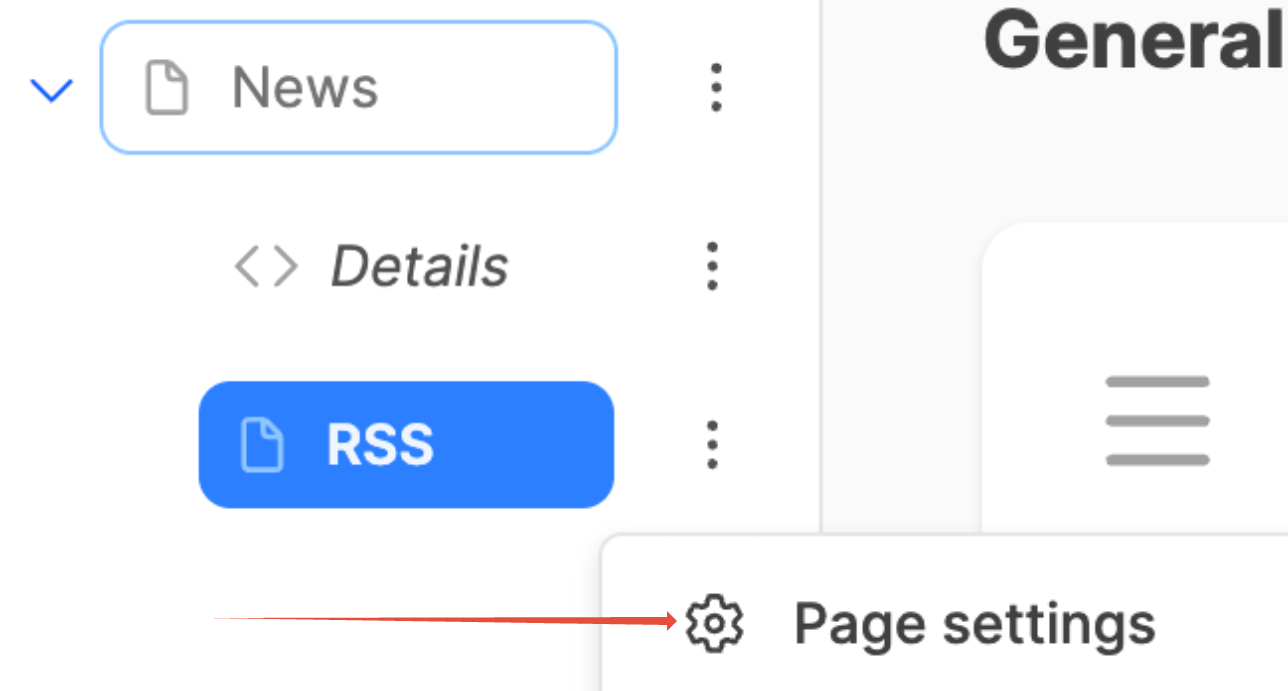
- Click on the three vertical dots to the right of the new RSS subpage title.
- Click on Page settings.
- Click on the Advanced tab.
- Click on XML Content option in the menu on the right.
- At Outputs XML set a checkmark.
- XML Resource: Select Articles Feed. Several fields for the RSS Feed will appear.
- You may see the values from the website settings in the feeds, overwrite these if needed.
- Sort field: Date published.
- Sort order: Descending.
- Limit: 100 (recommended).
- Site's Flag: If used, set to News. This is important if you have multiple uses of articles on your website (news, blog, articles, etc.) and need to ensure that only News articles go into the RSS feed.
- Detail page: Click the Select a page button. Click the radio button to the right of the article details page. Click the Select button on the modal box.
- Click on the Update button to save the changes.
Testing the RSS Feed for the website
- In the website page tree, click on the articles list page ("News") in the backend.
- Click on View online button. A browser tab will open with all the articles listed.
- In the browser address field, the URL will need to be adjusted.
- After the page name, add "/RSS".
- Original URL: https://demo-website.staging.web.adventist.cloud/news
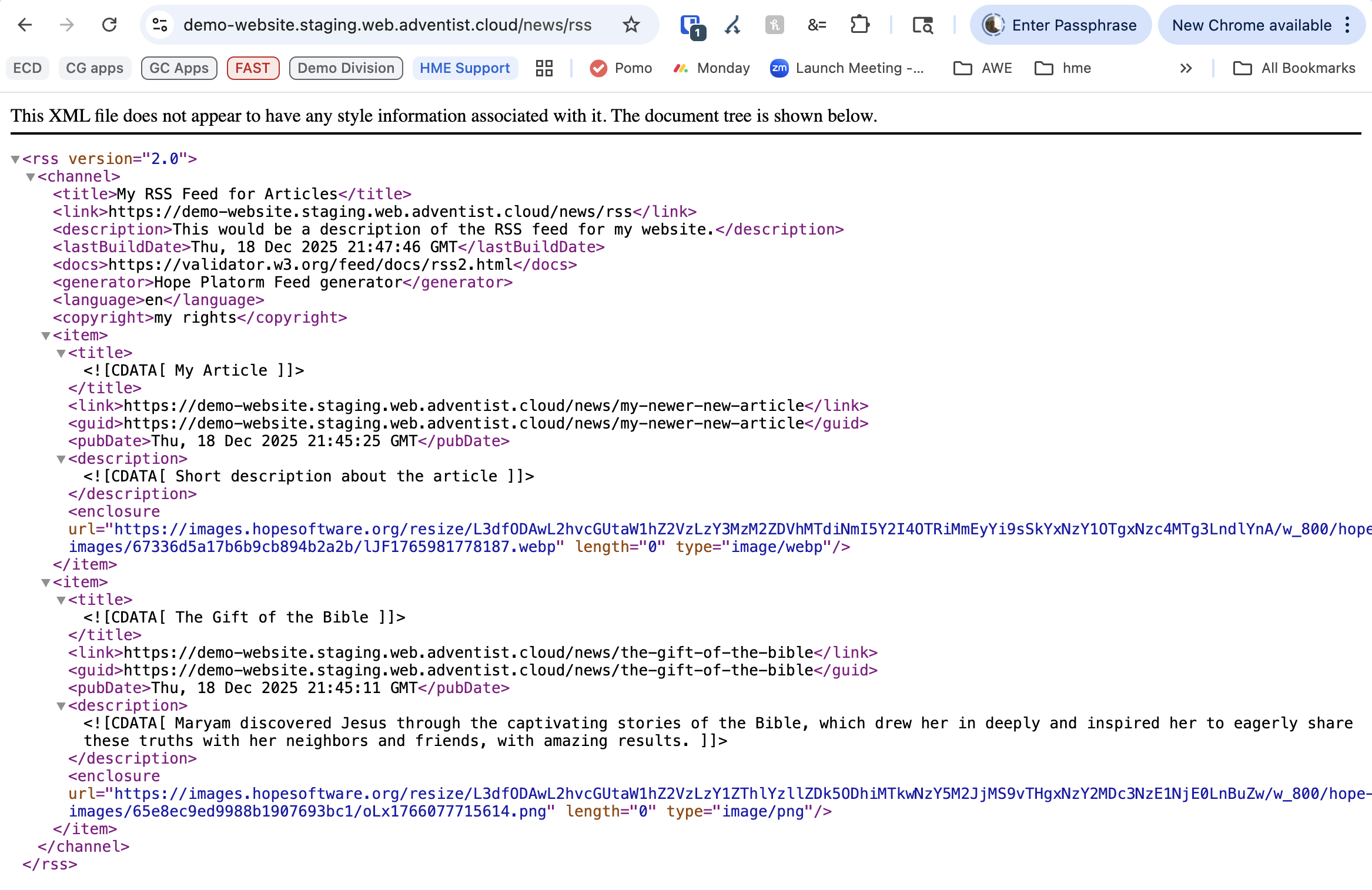
- Updated URL: https://demo-website.staging.web.adventist.cloud/news/rss
- Hit enter to submit the change.
- You should see the RSS Feed for the articles.
- Verify the RSS feed information is correct.
Additional Information
- Creating articles for the website
- Publishing syndicated articles to the website
- Website blog setup