
Overview
Automated websites should be implemented using website templates. The blocks may differ, depending on the design implemented, but it should be possible to update the Events frontend block to point to the correct source of events for displaying in the automated website template.
How to
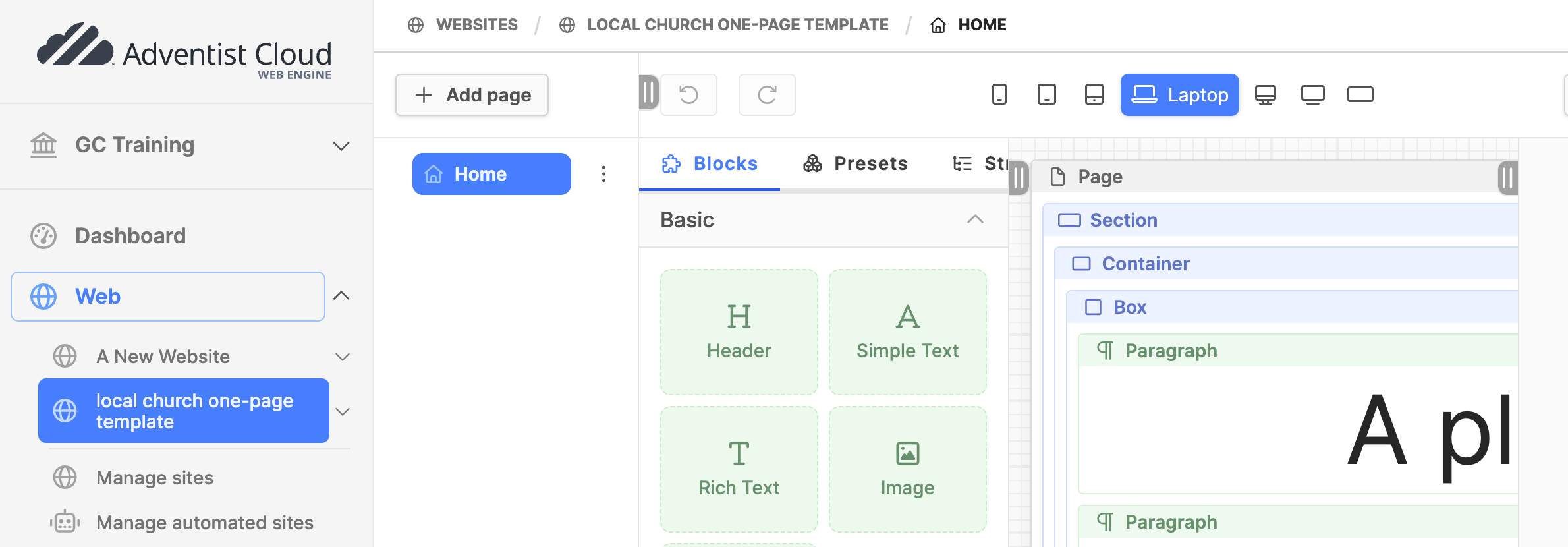
- Expand the Web module.
- Click on the name of the website template. (The website page tree will open on the right.)
- Click on the page name where the event block is configured (e.g.: Home).
- The page will appear with its layout and blocks.
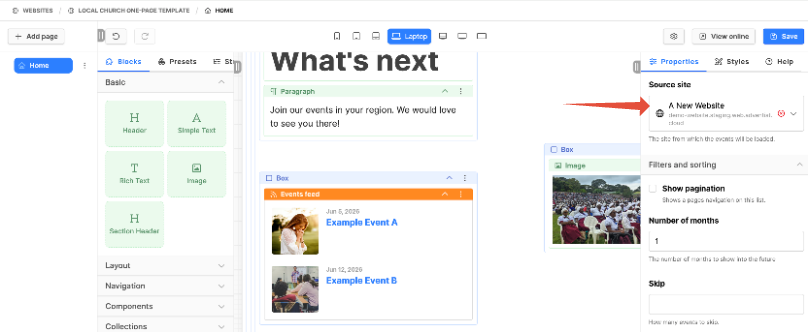
- Scroll down the page to the Events block (ex: Events feed).
- Click on the header of the Events feed block to highlight it.
- On the right side of the screen, look for the Properties tab.
- Under the properties tab, look for Source site.
- Click on the Search field to expand the list of websites.
- Select the name of the website that events will be pulled from.
- Note: If the expected website does not appear in the list, please note that a detail page may not be configured for that website. In order for a website to appear in the list, it must have a configured detail page.
- Click on the Save button on the upper right.
Verify the Events block is working
- Note: The following steps assume you have matched a local church to the website template you are working with. (See the Creating a website template and Use the website template article links below.)
- Expand the Web module.
- Click on Manage automated sites.
- Look for a church entity that is using the website template just updated. (Look under the Template column.)
- Click on the church Domain using the desired template.
- The events should display on the website in the frontend.
Additional information
- Events module setup
- Creating a website template for automated websites
- Using the website template for automated websites