
Overview
Media Library Collections can be added to the pages of a Media Library website to help visitors quickly find the content they are looking for. There are different frontend blocks to use, depending on how you would like to organize and display the information.
Note: The following article makes the assumption that a website for the Media Library has been set up and configured. This means that the pages for the website have been configured to point to an existing Media Library. At the current time, the support staff are usually cloning the Media Library website for the partner, so this work will not need to be done by the partner.
How to
Add a Collection to the frontend of the website
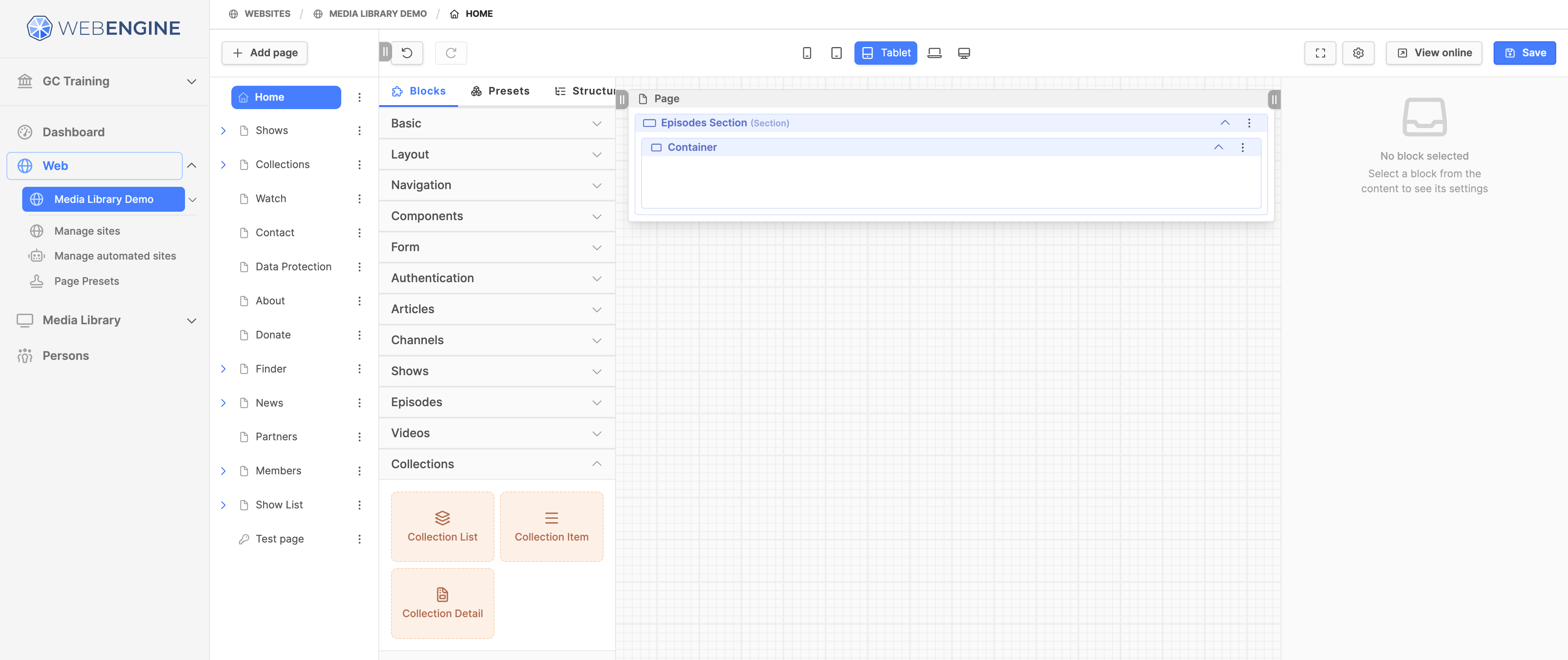
- Expand the Web module.
- Click on the website name. The website page tree will open on the right.
- Click on the webpage name where you want to add the blocks.
- Under Blocks, expand the Collections group.
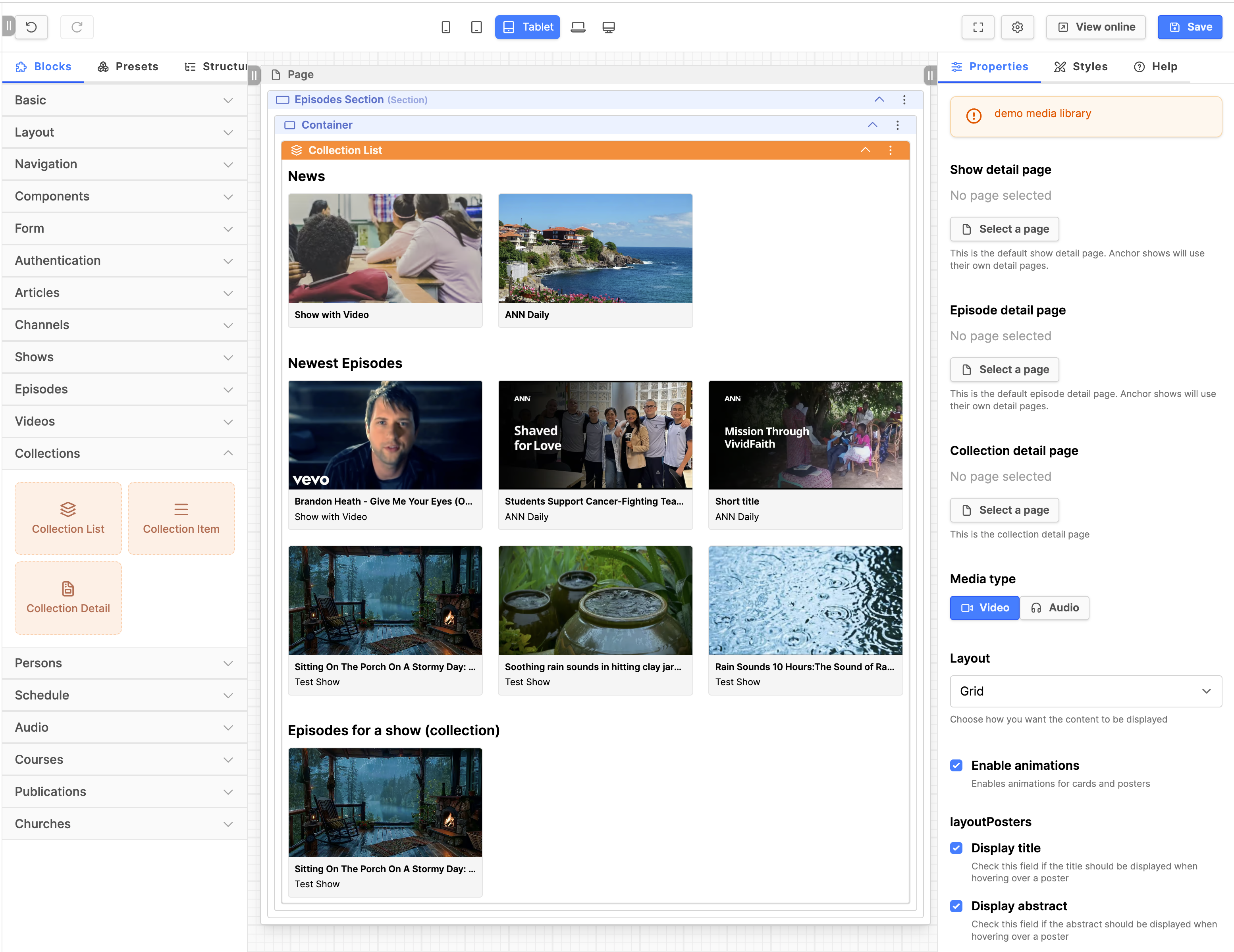
Collection List block
- Note: The collections are displayed in the Collection List block as they are ordered under the Media Library Collections submodule. Please reorder there if necessary. All the collections in the Collection List block are also displayed in the Hope Channel App if the partner is listed in that application.
- Drag the Collection List block into the container block.
- Click on the block title to select it, if it is not already selected.
- Under the Properties tab, review the following:
- Show detail page: Click on the Select a page button. In the modal box, find the Show detail page and click the Select button.
- Episode detail page. Click on the Select a page button. In the modal box, find the Episode detail page and click the Select button.
- Collection detail page: Click on the Select a page button. In the modal box, find the Collection detail page and click the Select button.
- Enable animations: If not checked, set a checkmark to enable this.
- Click on the Save button to save your work.
- Click on the View online button to view the frontend.
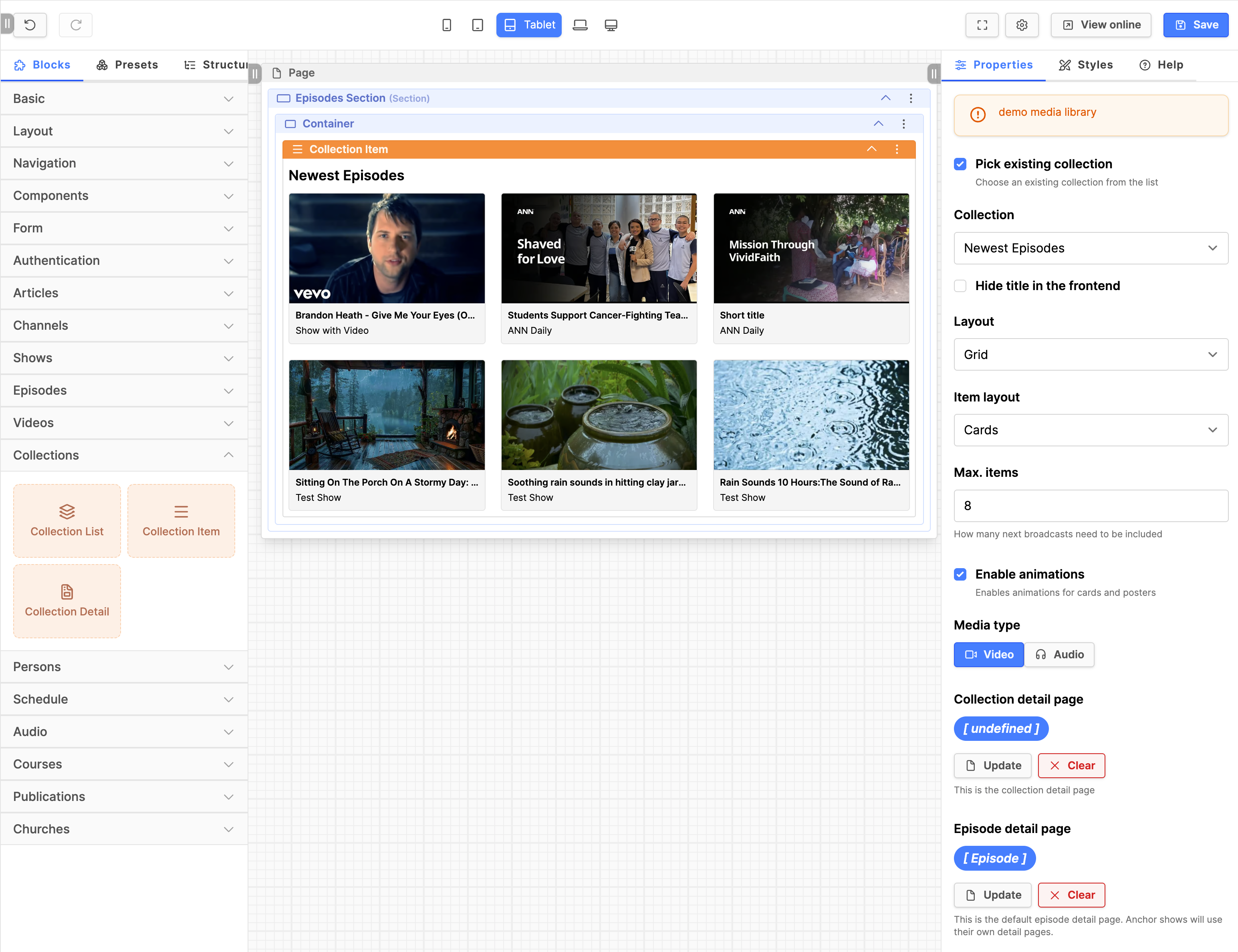
Collection Item block
- Note: The Collection Item block displays an individual collection, not all collections as the Collection List block does. It allows you to display only some of the collections, should you wish to not display all of the collections on a page.
- Drag the Collection Item block into the container block.
- Click on the block title, to select it, if it is not already selected.
- Under the Properties tab, review the following:
- Pick existing collection: Set a checkmark.
- Collection: Choose the collection to display.
- Enable animations: Set a checkmark in the field.
- Episode detail page: Click on the Select a page button. In the modal box, find the Episode detail page and click the Select button.
- Collection detail page: Click on the Select a page button. In the modal box, find the Collection detail page and click the Select button.
- Click on the Save button to save your work.
- Click on the View online button to view the frontend.
Additional information
- Setting up the Media Library module
- Creating a Media Library Collection
- Website Collections for Episodes