
Overview
Please remember choosing the right Page Presets can help you layout the page. The Page Presets should already have some basic padding and layout configured, which saves you time. The Empty preset is empty, and you will have to create everything yourself. It is not recommended to use this preset, unless no other preset can be found to start with.
The layout of a webpage can be achieved through the use of the blocks under the "Layout" sections of the Blocks tab. The layout blocks do not appear visually on the webpage, but allow the designer or editor to combine and configure them to position elements on the webpage.
Note:
- It is very important to remember to design "mobile first". Meaning setup the padding, spacing, sizes, configuration, etc. on the mobile width first.
- Devices will inherit the configurations of the next lower device width that has been configured.
- Ex: Mobile width padding is set to 32px, so Tablet will be 32px as well, unless Phlabet is set.
How to
How the Layout blocks work to layout a page:
- The page itself is the outermost "container"
- A page can contain one or more "Section" blocks to create topic sections
- The page content should be broken into Sections as the content focus changes
- Each Section on the page can have a different layout
- Each Section block can contain one or more Container blocks
- Organize the content logically by using the Container blocks
- Each Container in the Section can have a different layout
- Inside the Container block, use Grid and Box blocks to layout the content
- Think of Grid like a "CSS Grid" element on the page
- Think of Box like a "CSS Flexbox element on the page
- Box and Grid blocks can be placed inside each other
- One or more Box blocks can go into a Box or Grid block
- A Grid block can go inside a Box block
It may be possible to position boxes and grids outside of the Section and Containers, but realize when you do, you may not be able to configure the page content as you would like to.
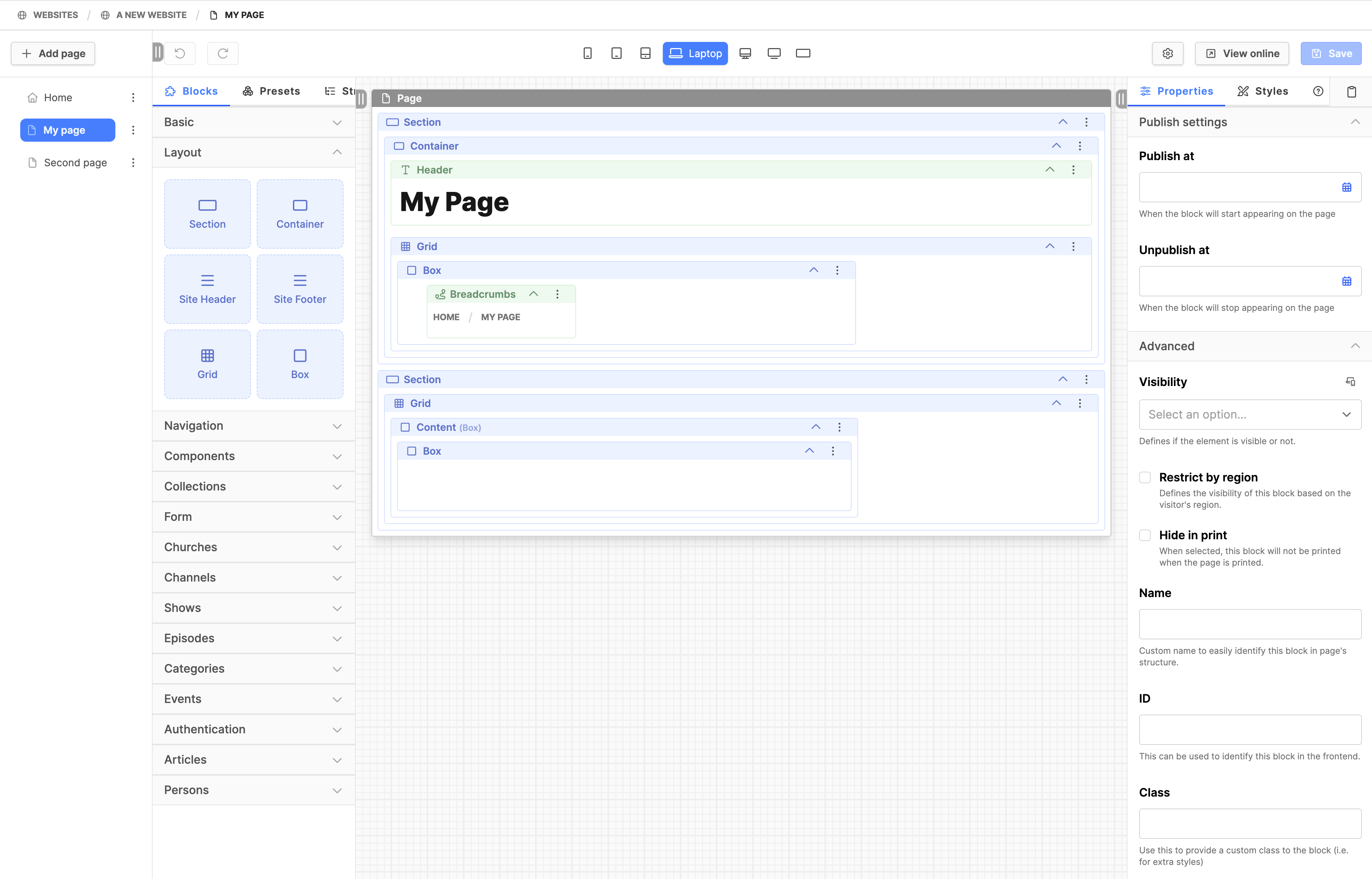
This image shows the "ALPS - Centered content page" layout:
(the ALPS design uses the Grid block inside the Section block to achieve the 7 column design)
Adding layout blocks to the page:
- From the Blocks tab on the left, click on the layout block and drag it onto the page where it is needed.
- The green colored line will show where the block can be positioned (red line indicates block cannot go here)
- Create the webpage design using the layout blocks
Adding content into the page layout:
- Add frontend content blocks to the layout, by dragging and dropping into position within the layout
- Some frontend blocks may only go into certain layout blocks (colored lines will indicate what is possible)
- Click on the block header to see its tabs: Properties, Styles, Help (tabs appear on the right side)
- View the Styles tab of the block to see what spacing, padding, width, etc. can be configured for the block to assist laying out content on the page for the design you are building. Do this at the end, once content has been added. Start adjusting at the mobile width first.
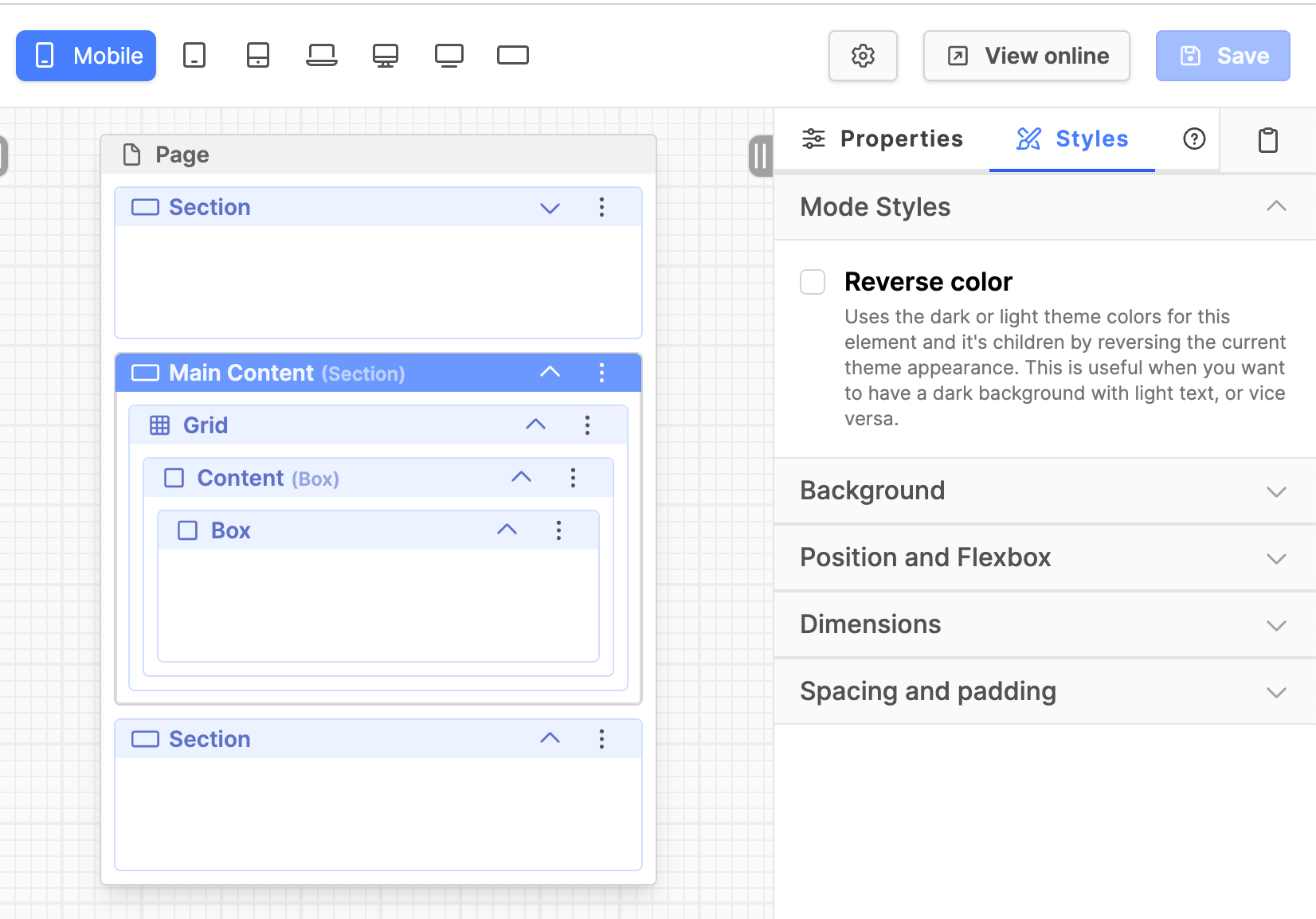
Pro Tip:
Under the properties tab, look for the Name field. Add a name for the section to that field. The header will display the name you have added. This is helpful when you have multiple sections and containers, to keep things organized!

Page device widths
Along the top of the page are icons representing device widths. By clicking the icons, adjust the page to the represented device width, the layout of the content of the page can be seen.
The icons correspond to the px dimensions as follows:
- Mobile: up to 639px
- Phablet: 640px
- Tablet: 768px
- Laptop: 1024px
- Desktop: 1280px
- Wide: 1536px (Adventist design)
Additional Information
2025-12-12 to review