
Overview
Frontend blocks are used to display frontend content on a website running on Web Engine. There are a variety of frontend blocks available. There are simple blocks for placing such things as an image, a piece of text or a button on the page, as well as more complex blocks for building a news page, a media library or an online course.
Note:
This page assumes that one has already read about Adding website pages. Designing webpages using Layout Blocks is also useful. Adjusting webpage settings has more advanced options. The links are available below.
How to
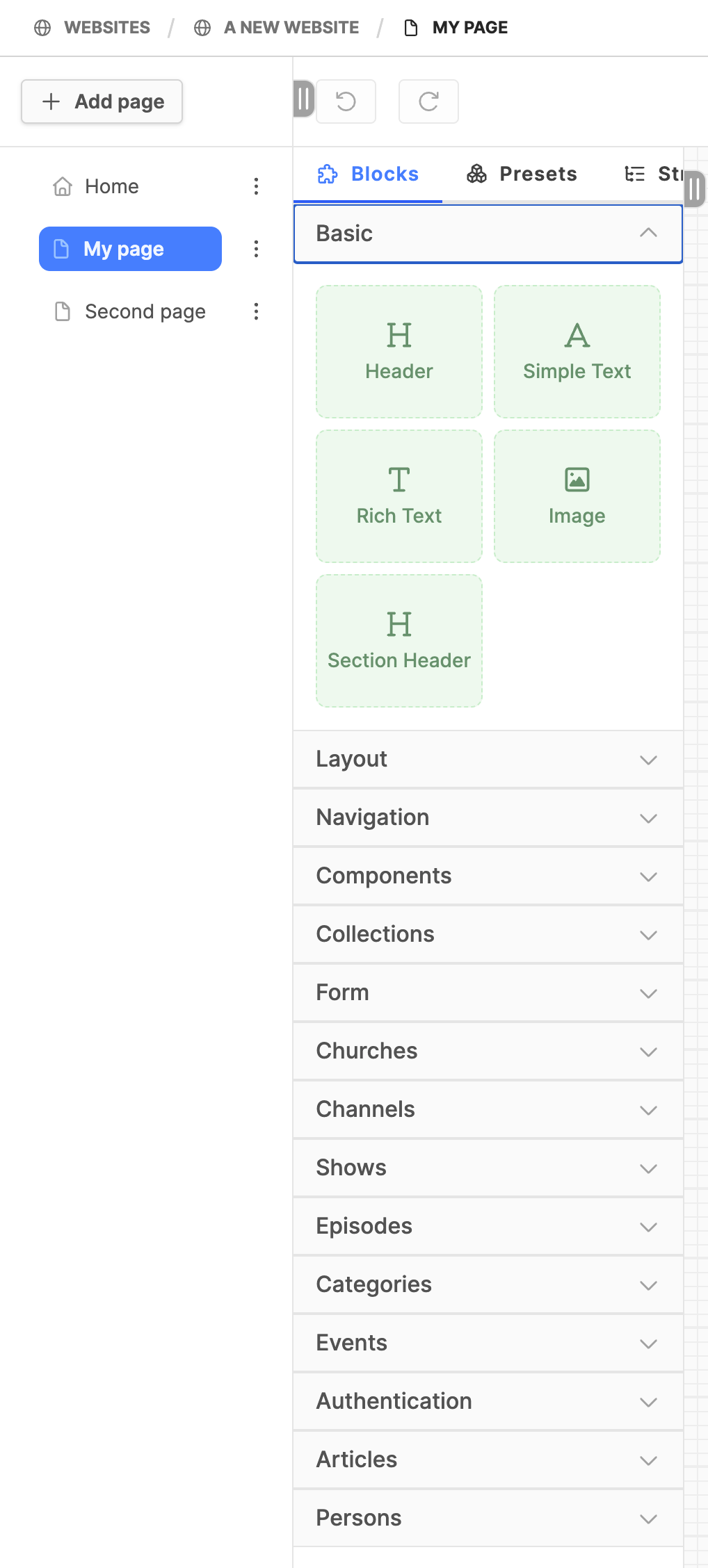
After the page is created and the initial layout has been setup, one can begin to add frontend blocks to the webpage. Depending on the Page Preset selected, there may be many frontend blocks or no blocks to add to the page. The list of Block Groups is located to the right of the page tree:
(depending on the design chosen, some block groups in the list below may not appear)
Web Engine Block Groups:
- Basic: the very basic elements one can put on the website
- Layout: blocks to create the webpage layout
- Navigation: navigation blocks
- Components: the next most common blocks for the webpage
- Collections: special blocks for displaying article and episode collections (requires Collections)
- Form: Form block and the blocks to build the form (can use box and grid layout blocks)
- Churches: blocks to setup a church finder (requires local church entities)
- Channels: blocks for media library channels (requires media library module)
- Shows: blocks for media library shows (requires media library module)
- Episodes: blocks for media library episode (requires media library module)
- Videos: for media library videos (requires media library module)
- Collections: for listing media library shows and episodes (requires media library module)
- Schedule: Add a schedule for the media library (requires media library module)
- Audio: Add a media library podcast block (requires media library module)
- Categories: block for creating a list of categories
- Events: blocks for setting up an Events branch (requires events module)
- Authentication: blocks for setting up a User area (requires authentication module)
- Articles: for setting up a news branch (requires articles)
- Persons: Adding a person's avatar to the frontend (used with person module)
- Courses: Blocks to create an online training website (requires course and authentication modules)
- Publications: Blocks to list available publications from a publishing house (requires publications module)
Text, images, video and audio can be added to a webpage depending on blocks used and the modules activated in the Web Engine backend.
Adding blocks to the page:
- Open the block group needed.
- Click on the block needed on the page.
- Drag and drop the block onto the page (a green line will appear where a block can be placed).
- If the block is in the wrong area, drag and drop it where it should be.
- Add the content to the block, and/or set its configuration.
- Always be sure to Save your work on a block with the blue button on the upper right

Adjusting the block configuration:
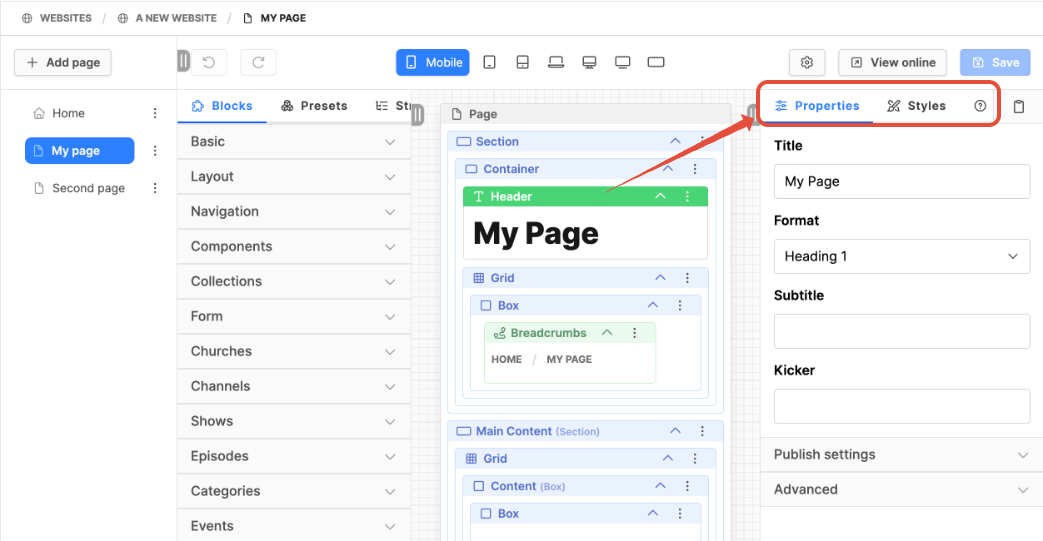
- Click on the colored header at the top of a block to select it.
- A panel should open on the right, if not open already.
- At the top of the panel are tabs for Properties, Styles and help (in the works).
- These settings can be different for each block.
- Set the Properties for the block.
- Set the initial Style settings (paying attention to style mobile first).
- Pro Tip: set initial styles but do the final layout once all content is on the page.
- Always be sure to Save your work on a block with the blue button on the upper right.
If the page preset has all the frontend blocks added:
- Adjust or add images, texts, etc. as needed.
- Check blocks as one may need to adjust the block configuration.
- Configure dynamic content from any Web Engine module as needed.
- If you do not know what this is about, ask someone to help you!
- Add configuration here: Page Settings > Advanced tab > Dynamic content.
- Always be sure to Save your work on a block with the blue button on the upper right.
Additional Information
updated 2026-01-22