
Overview
It is a common feature on a webpage that a visitor may activate a link to download a file that has been uploaded by the website editor. This article will cover the various blocks an editor can use when they need to upload a file for visitors to download from the webpage.
How to
These notes assume that the user is logged into the backend of Web Engine, and they have navigated to the backend page of the website where the file for download needs to be setup.
Navigation block group
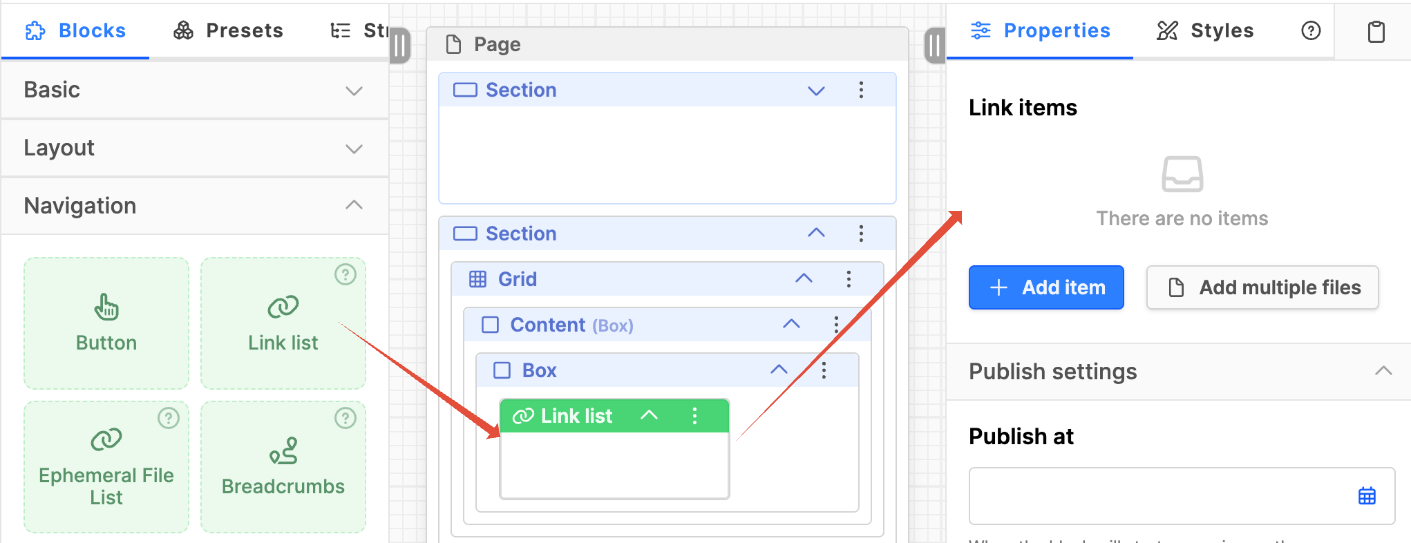
Link list block
- Drag the Link list block onto the page in the region of the page where it is required.
- Click on the header of the block to highlight it and make sure the Properties tab in the right column is selected.
- There are two options:
- Add item: To add a single file.
- Add multiple items: To add multiple files.
- Click on the desired option (Add item or Add multiple files).
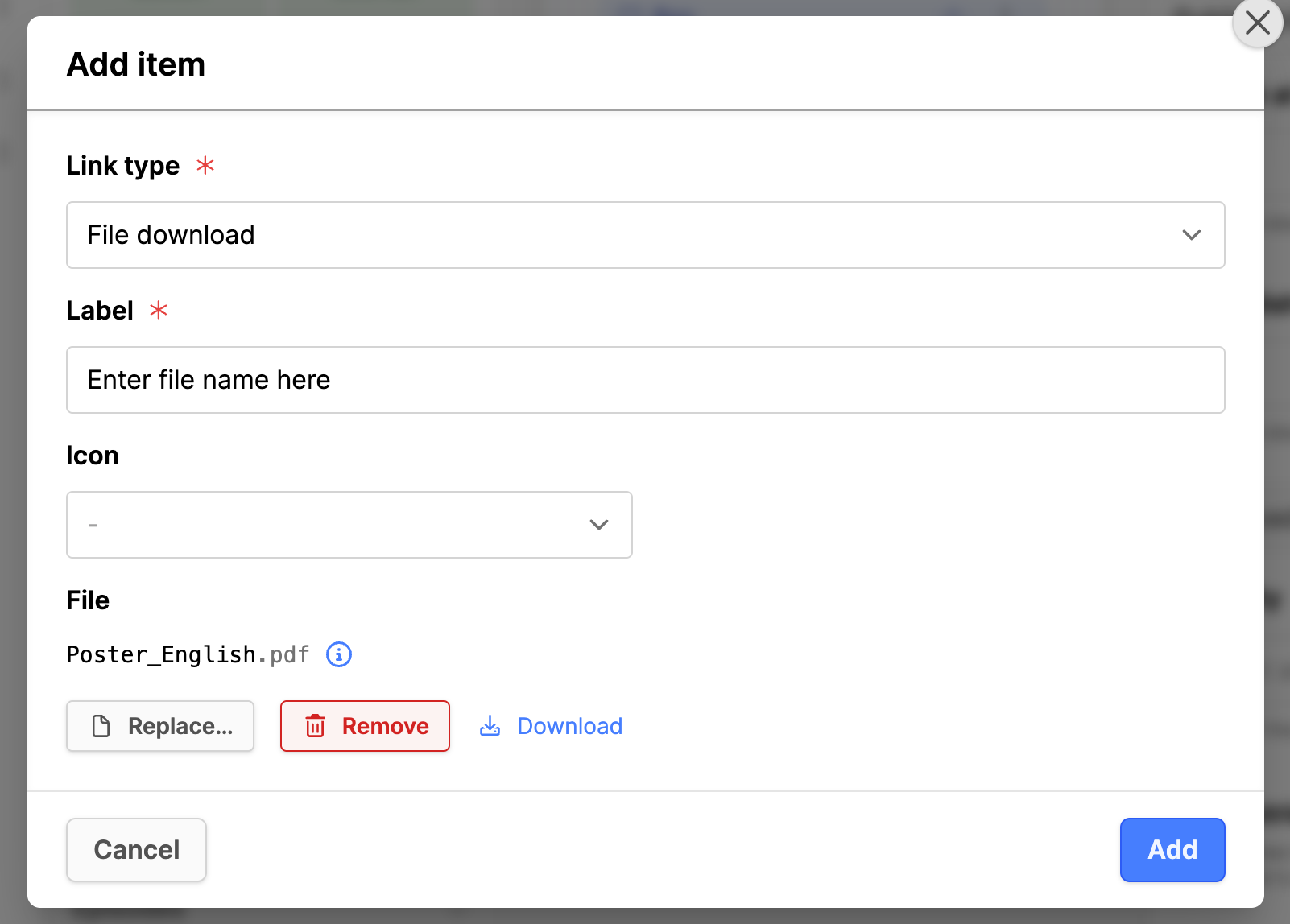
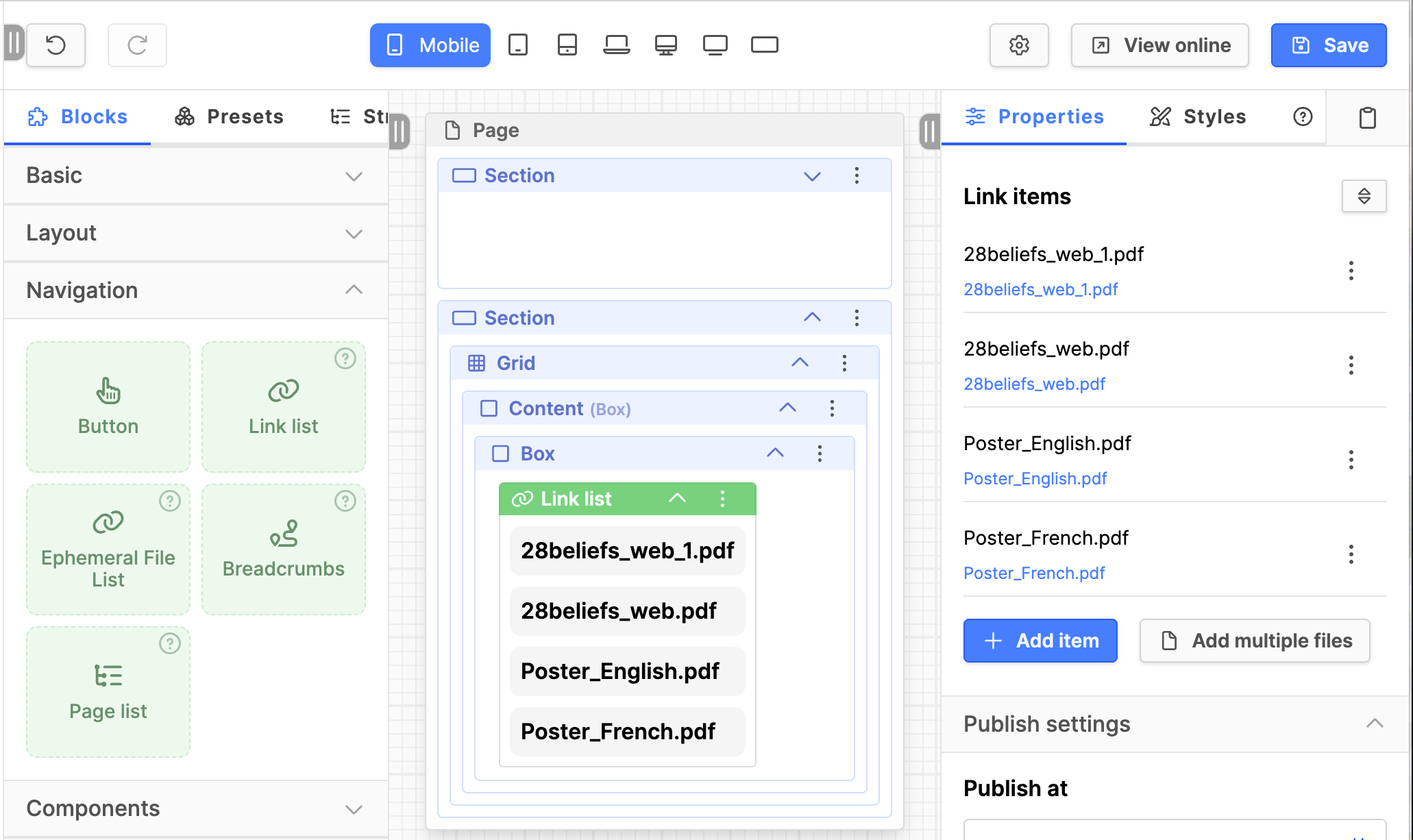
- Add item option
- Link type: Choose File download from the list.
- Label: Enter a user-friendly label for the link.
- Icon: Add an icon if desired.
- File: Click on the Select file button.
- Drag and drop a file in the box or use the Select File button to navigate to the file to upload.
- Click on the Add button to finish the process.
- Click the Save button on the upper right.
- Check your work in the frontend with the View online button.
- Add multiple files
- Drag and drop multiple files into the window or use the Select Files button to navigate directories to the files.
- The entries will be added, and the modal box will close automatically.
- Click the Save button on the upper right.
- Check your work in the frontend with the View online button.
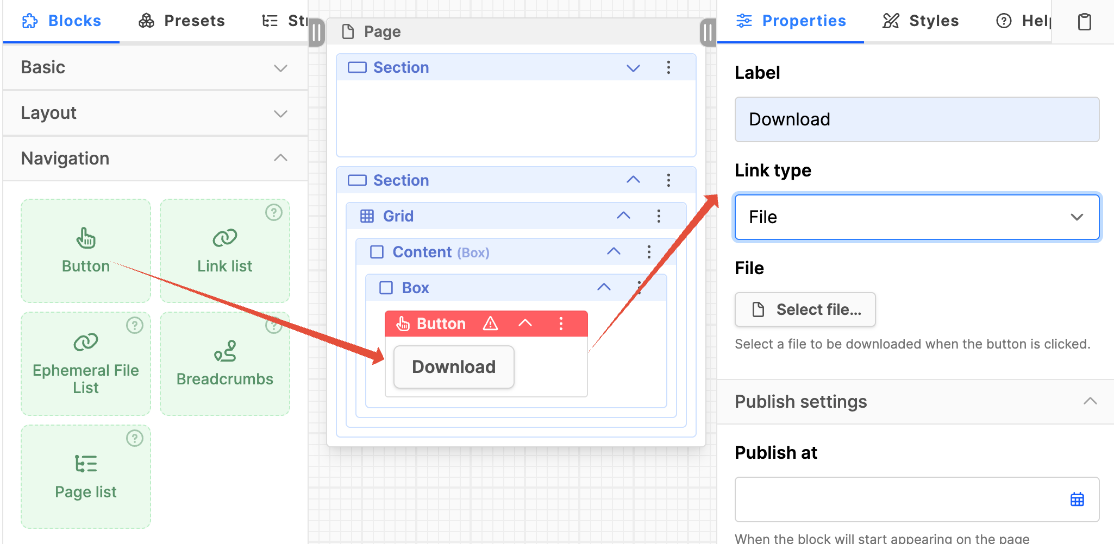
Button block
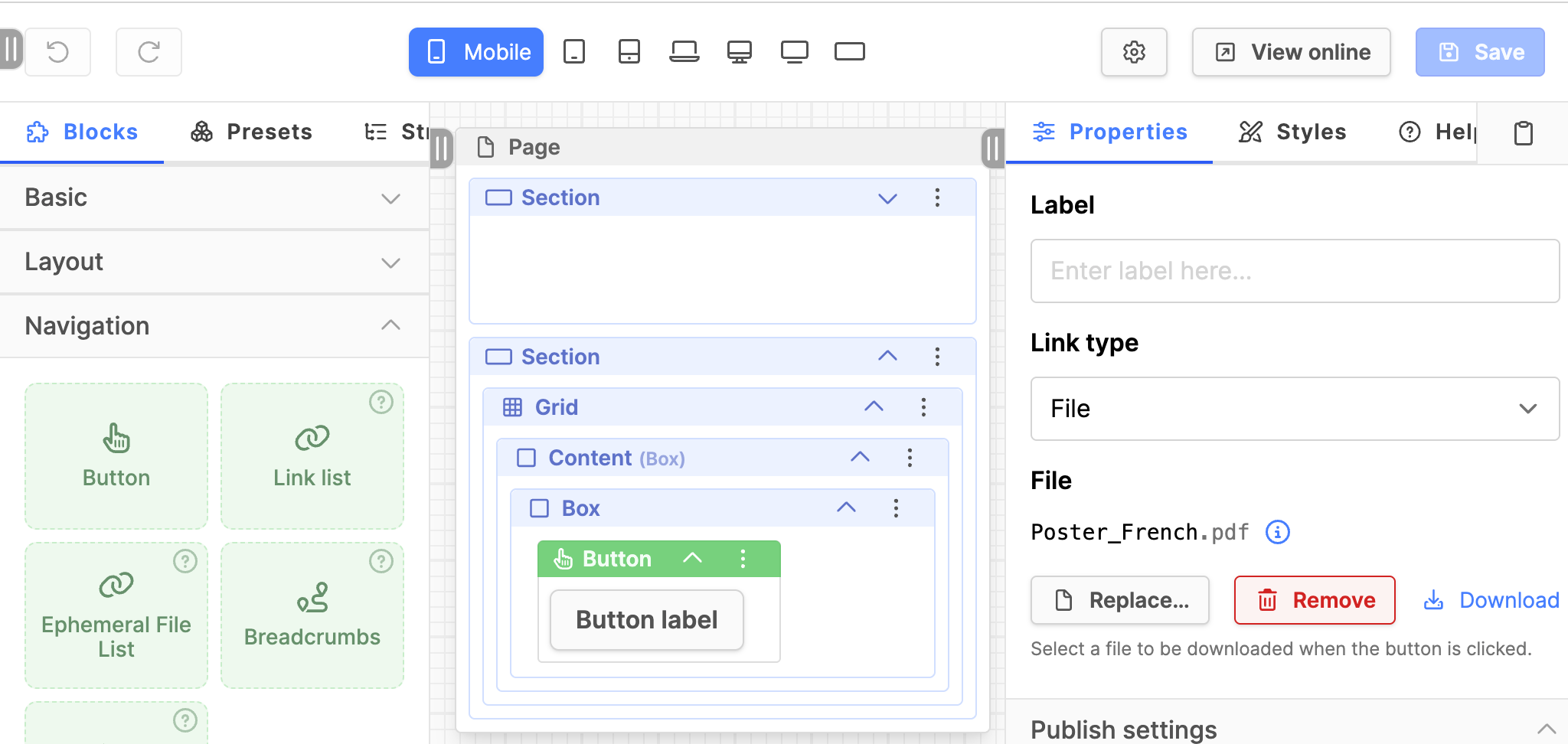
- Drag the Button block onto the page in the region of the page where it is required.
- Click on the header of the block to highlight it and make sure the Properties tab in the right column is selected.
- Label: Enter a user-friendly label.
- Link type: Select File.
- File: Click on the Select file button.
- A modal box opens with the files in the File Manager listed. Choose an existing file, choose to upload a new file, or add a link (external URL). For more information about the File Manager, see the link at the bottom of the page.
- Then drag and drop a file in the box or use the Select File button to navigate to the file to upload.
- The file will be added, and the modal box will close automatically.
- Click the Save button on the upper right.
- Check your work in the frontend with the View online button.
Ephemeral File list block
- ! This block is really intended for use on a page which is utilizing Frontend Authentication and the files should be additionally secured so that links to the files cannot be shared.
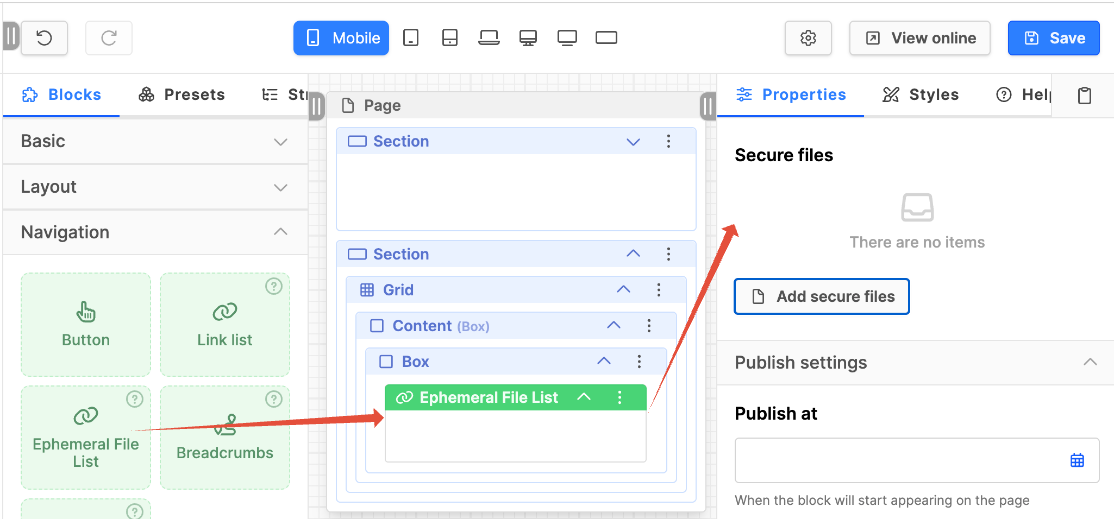
- Drag the Ephemeral File list block onto the page in the region of the page where it is required.
- Click on the header of the block to highlight it and make sure the Properties tab in the right column is selected.
- Click on the Add secure files button.
- In the modal box, drag and drop or use the Select files button to add files to the window.
- When the files are added the modal box will automatically close.
- Click the Save button on the upper right.
- Check your work in the frontend with the View online button.
Basic block group
Rich text block
- It is possible to add a download link to this block. However, it should be in the context of a large portion of text, the body of an article, course description, etc. One should not make a grid of Rich Text blocks to achieve what the Link list block does by default.
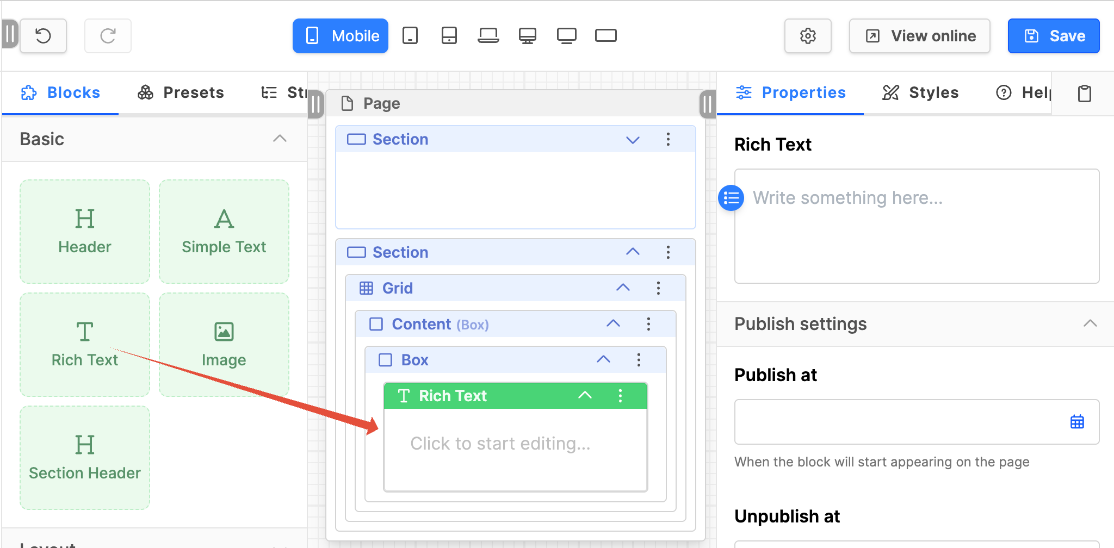
- Drag the Rich Text block onto the page in the region of the page where it is required.
- Click on the header of the block to highlight it.
- Hover over the block so it turns light blue and click to Edit the block.
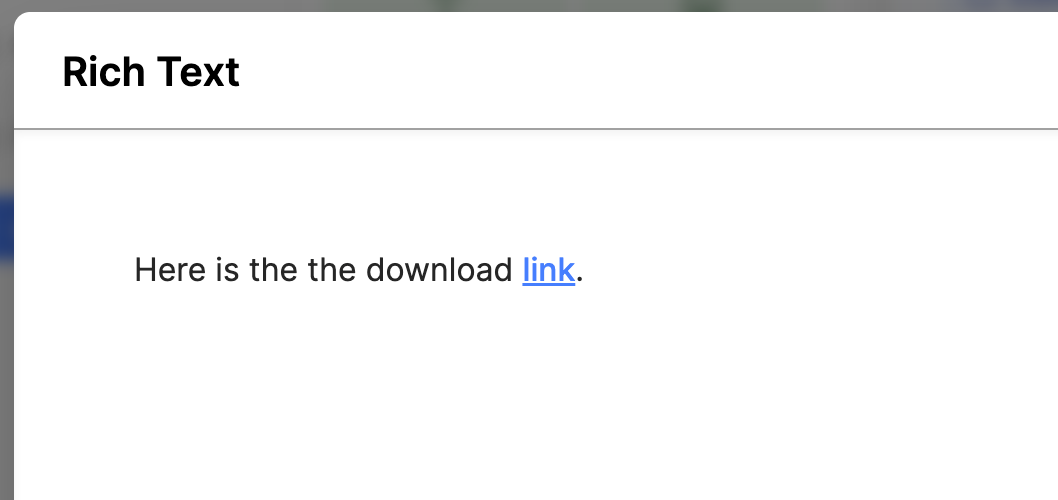
- Write your text and then select the portion of the text for the download link.
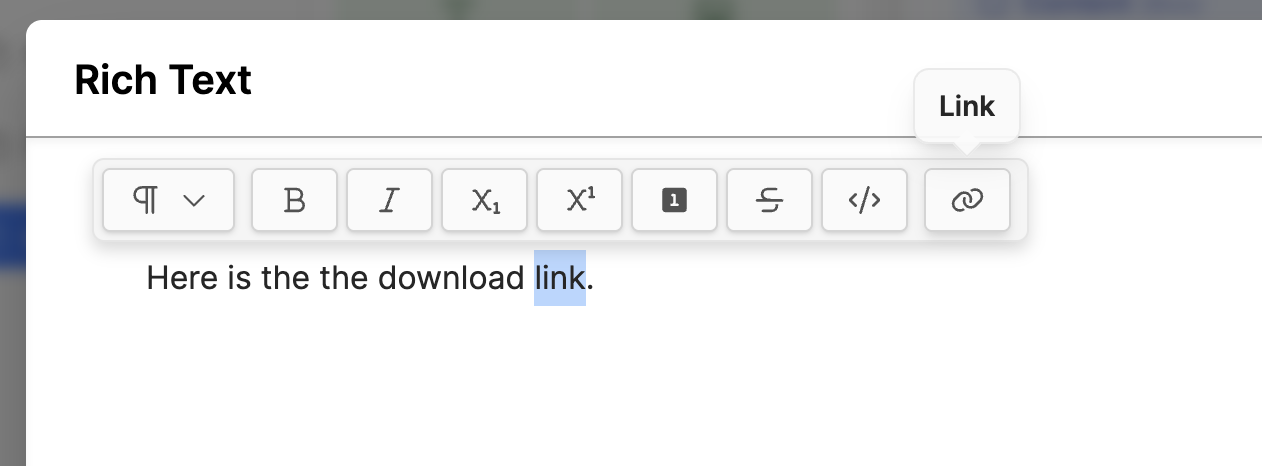
- Click the Link icon on the right of the row of tools.
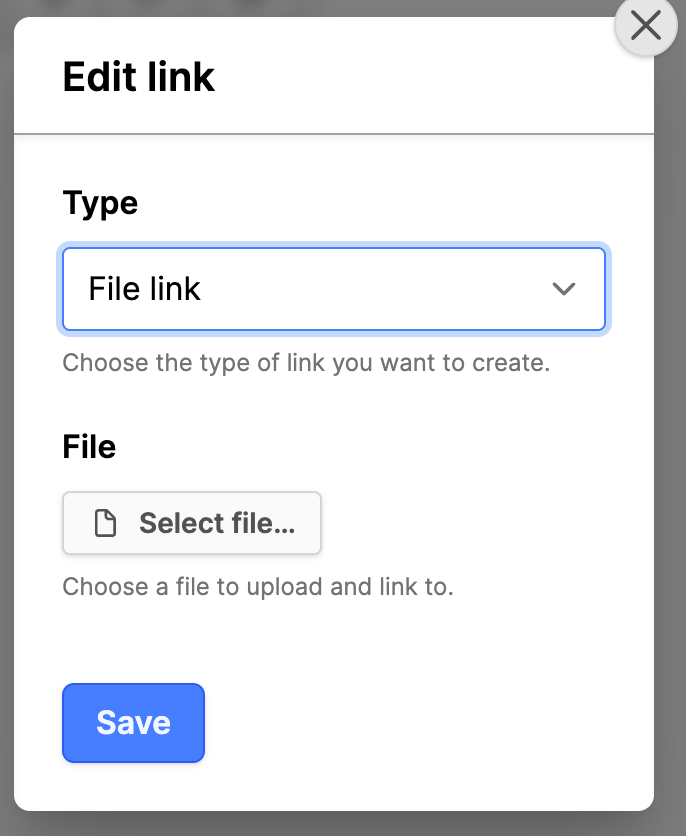
- Type: Set to File link.
- File: Click on the Select file button.
- Drag and drop the files into the popup window or use the Select File button to navigate to the file.
- Click on the Save button in the modal box.
- Click on the OK button in the Rich Text modal box.
- Click on the Save button on the upper right.
- Check your work in the frontend with the View online button.
Simple text block
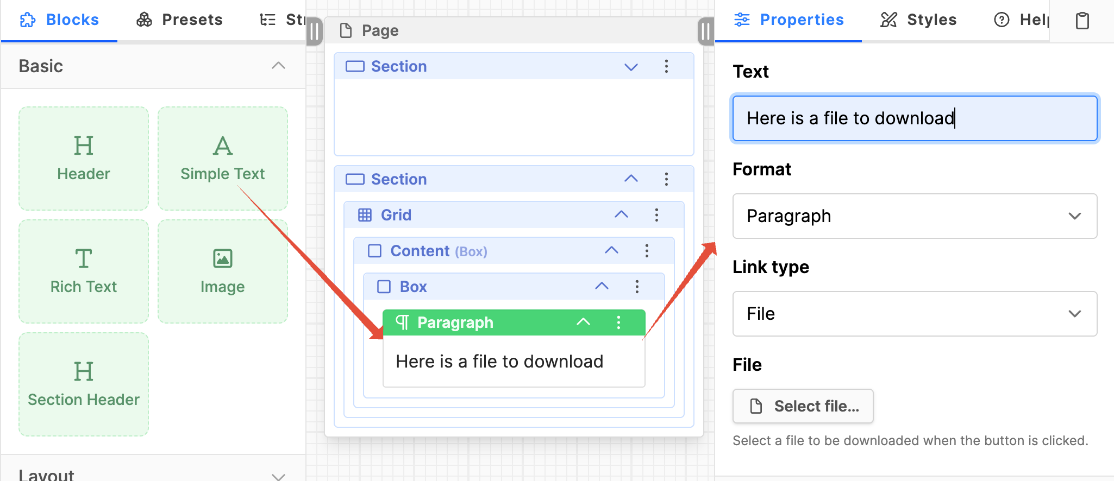
- Drag the Simple Text block onto the page in the region of the page where it is required.
- Click on the header of the Paragraph block to highlight it and make sure the Properties tab in the right column is selected.
- Text: Add text for the paragraph. Note: In this case the whole text is linked.
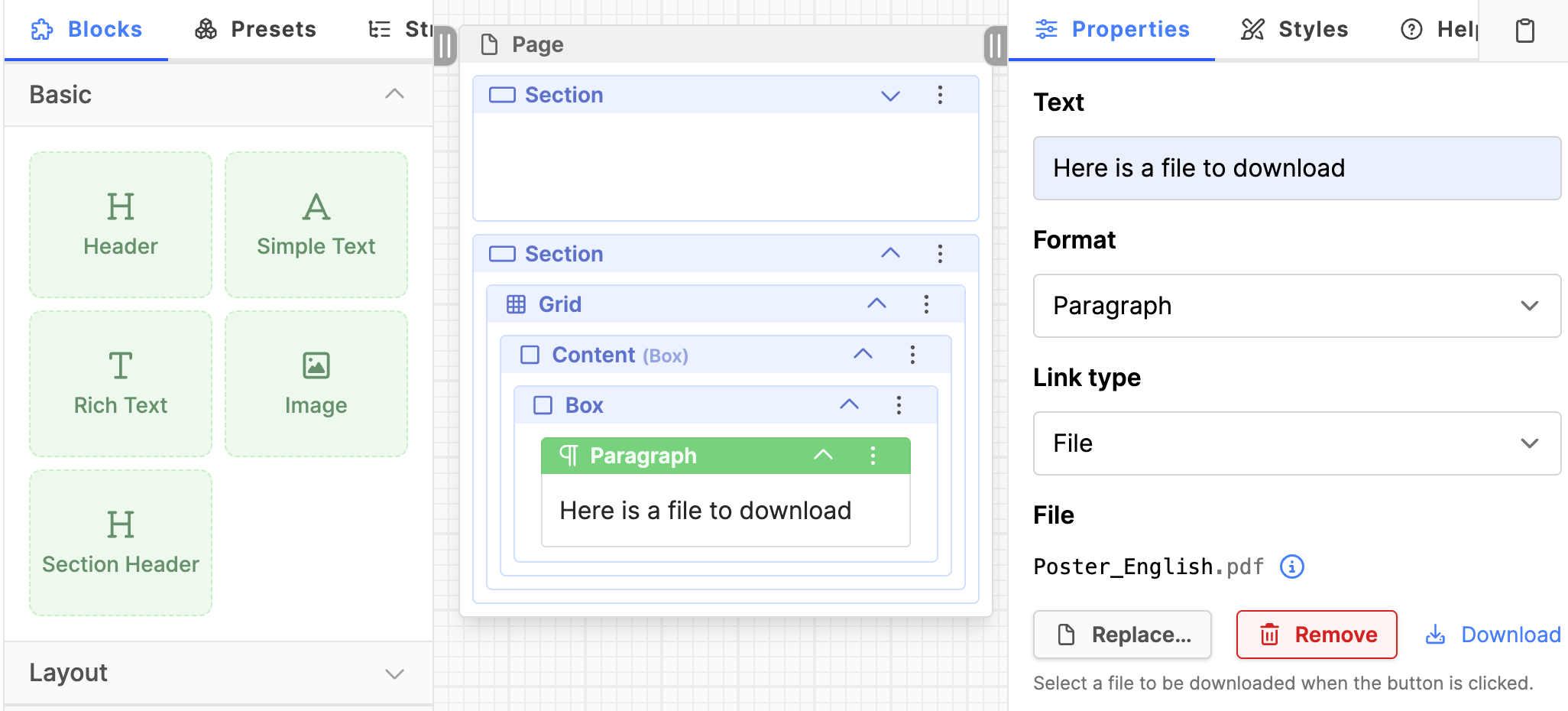
- Link type: Set to File.
- File: Click on the Select file button.
- Drag and drop the files into the modal box or use the Select file button to navigate your directory structure to the file.
- Click on the Save button on the upper right.
- Check your work in the frontend with the View online button.
Alternative path
It is not really a download option for pages directly, but any component with a URL type can be used to navigate to a download area on another platform. For example, a button, image, text or link can be used to open a tab to Google drive or another similar application, if there are resources on that platform to share with website visitors.
Additionally, if a file is uploaded using one of the methods above, its path can be added to a URL type and from that block, the file can be downloaded.