
Overview
Website Collections are a way to group together articles and/or episodes, for displaying on the website. It is the pre-filtering of articles or episodes from all the available articles or episodes of a particular show. These two types can also be combined into a mixed type Collection, for a hybrid third option.
This is an advanced topic, and for most websites, this type of functionality will not be required on a regular basis. Unless one has a large media library or a large number of articles, it would be advised to use the standard filtering available on the frontend blocks of the CMS, as the Collections functionality adds a layer of complexity most websites will not need.
Note: Collections for the website can be collections of articles or episodes. Collections for Articles are covered under a different article. See the link below.
Notes:
- A list page is required for listing all content from a collection.
- A detail page, below the list page, is required for displaying the item selected on a list page.
- It is required to have these two pages in place before creating the collection.
- Requires an ANN episode detail page. Currently not for Hope design.
How to
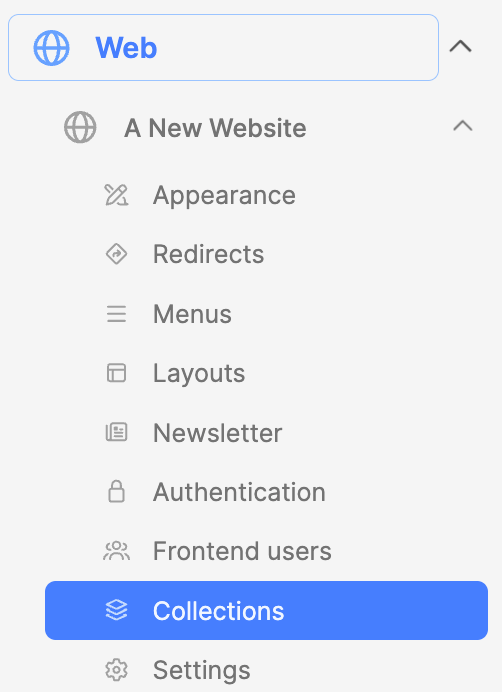
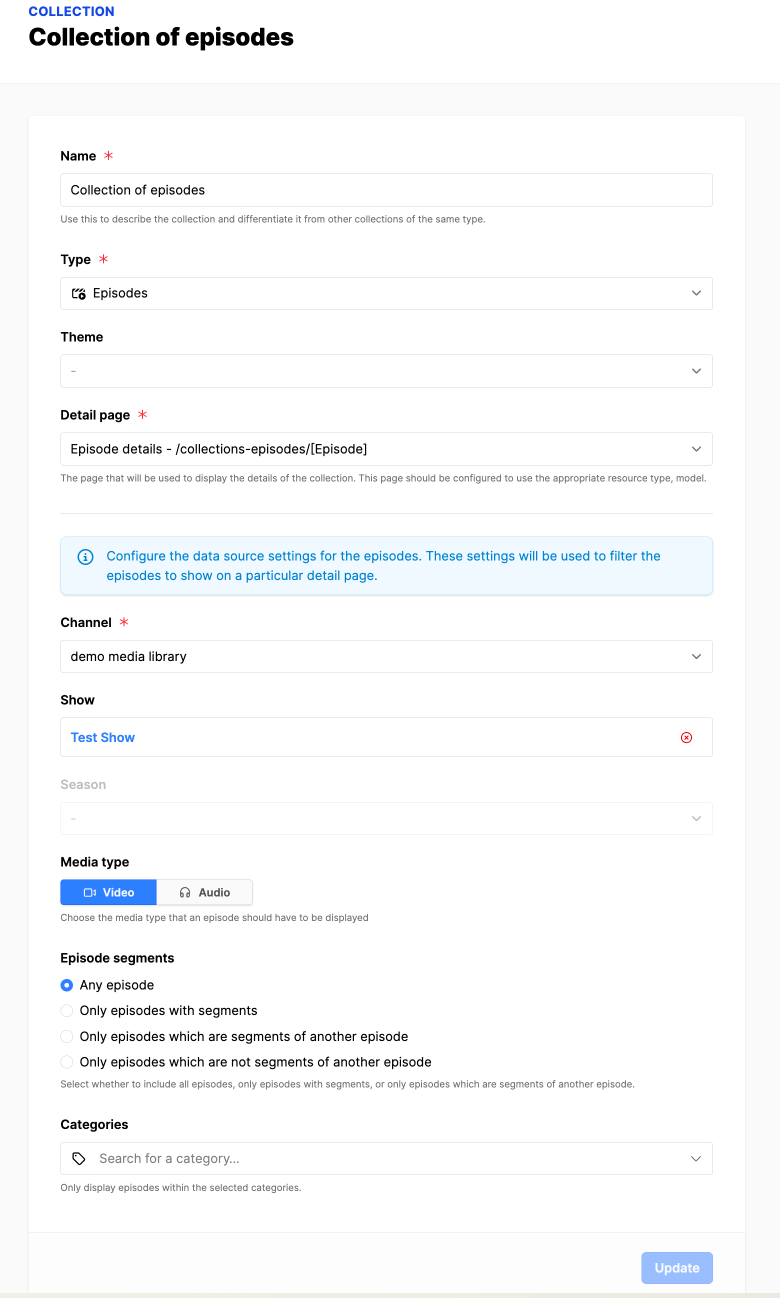
Create a Collection of Episodes
- Navigate below the website to submodule Collections.
- Click on the Add collection button.
- In the modal box, fill in the fields:
- Name: Provide a name for the collection.
- Type: Choose Episodes.
- (Additional fields will appear.)
- Detail page: Set the website detail page.
- Channel: Select the media library channel.
- Show: Select the show from the media library.
- Season: Select a season if one is available.
- Media type: Select video or audio.
- Episode segments: Select one.
- Categories: Select one or more, if needed.
- When ready, click on the Update button
- Note: Make sure the filtering selections are not removing all the results. For example, if you pick a show, but the category doesn't match that of the show, then you might not have anything in the collection.
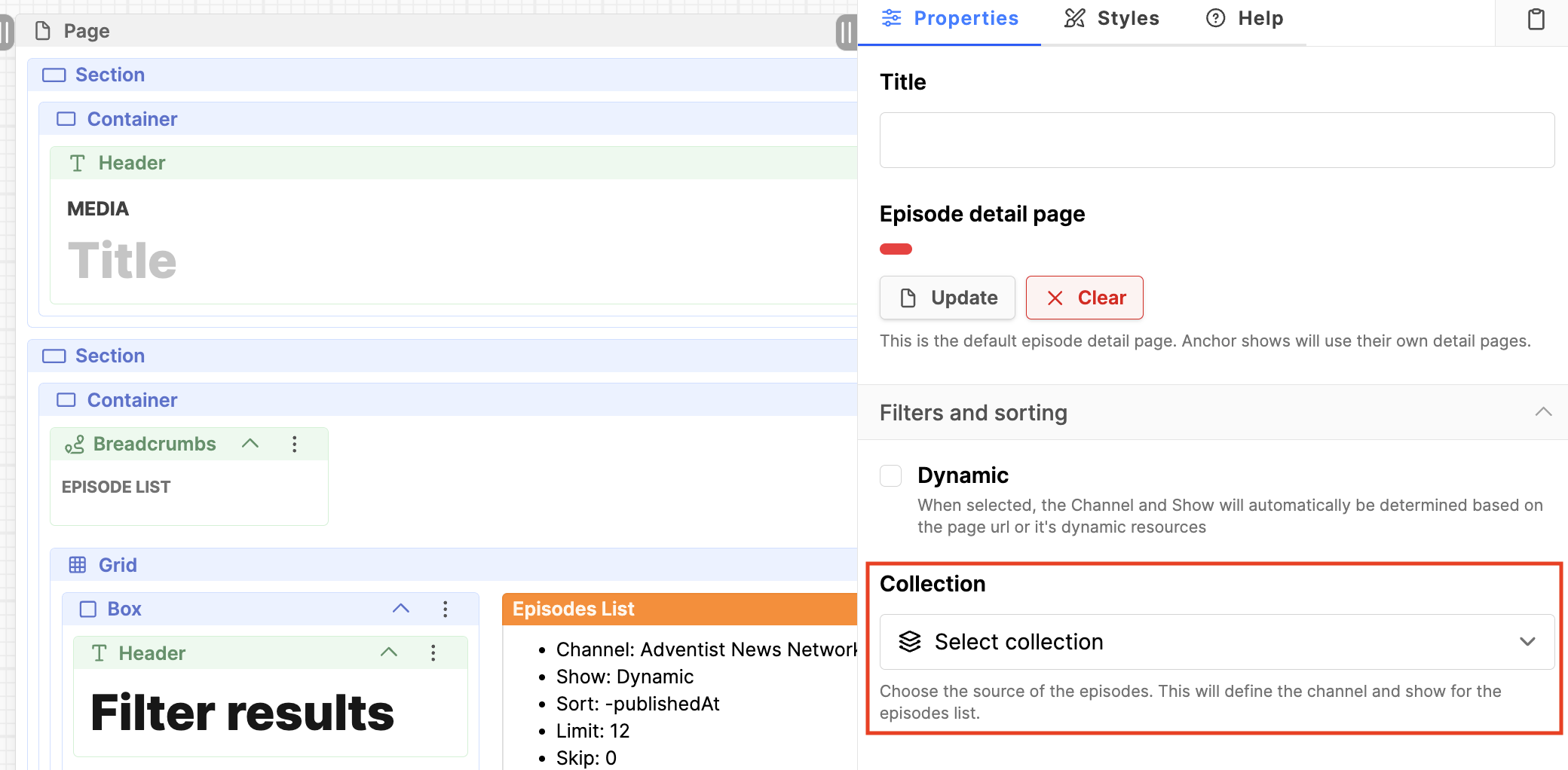
Using a Collection for episodes (Adventist design)
Notes: Requires an ANN episode detail page. Currently not for Hope design.
- Click on the website name to open the Pages manager.
- Click on the page title to edit the page content.
- Scroll down to the Episodes blocks.
- Drag and drop the Episodes list block onto the page.
- Click on the Episodes list block.
- Go to the Properties tab to the right.
- Under Collection: Select the newly created collection. If you don't see the collection field, uncheck the Dynamic field.
- Note: When a data source is used, the standard fields for Filters and sorting may not appear, as the values are already set from the data source.
- Click the blue Save button on the upper right.
- Click the View online button to check the results in the frontend to verify the desired episodes are appearing in the list.
Additional Information
- Website Collections for Articles
- Creating a Media Library Collection
- Adding Collections to the frontend