Overview
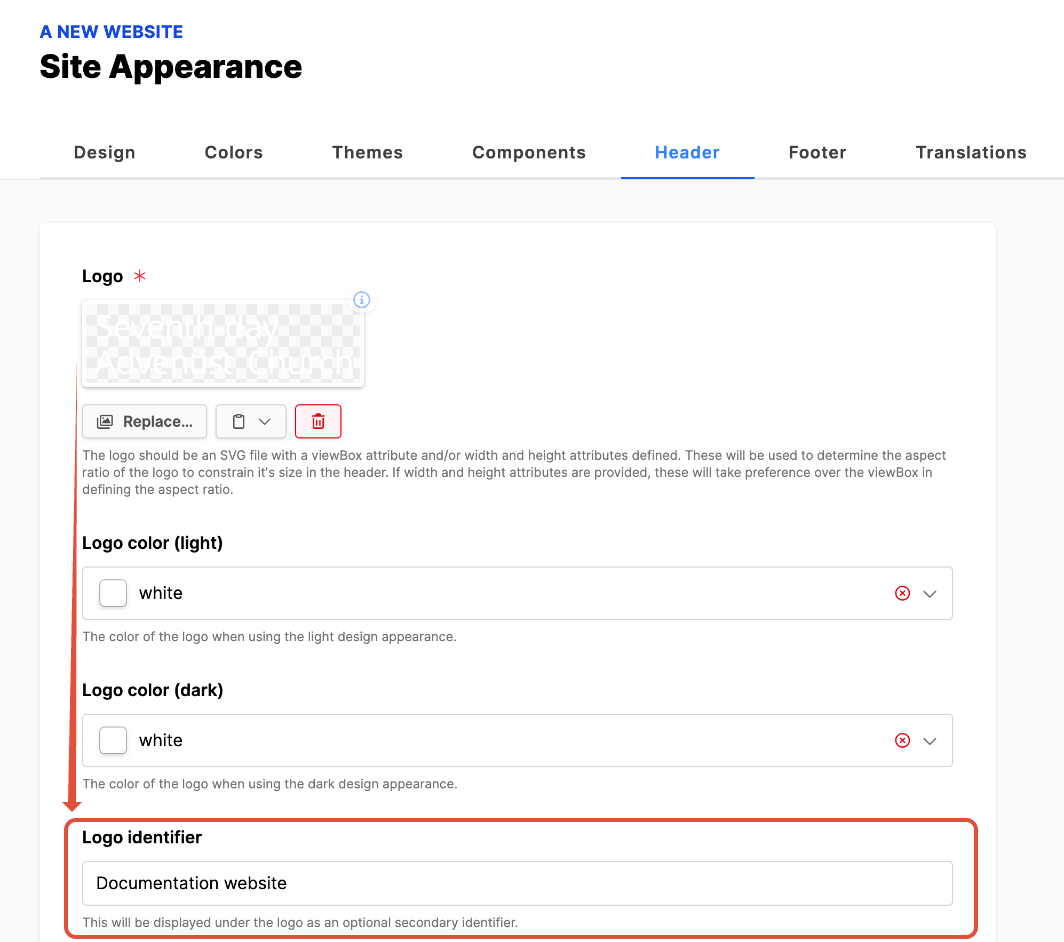
After adding the logo to the header under the Web module, Appearance submodule, Header tab, and the appropriate entity Logo identifier text that is displayed with the logo, the editor may find that the Logo identifier is not correctly aligned with the logo image file. This problem can be corrected by the use of a layout applied to the website.
How to

- Expand the Web module.
- Expand the website to expose the submodules.
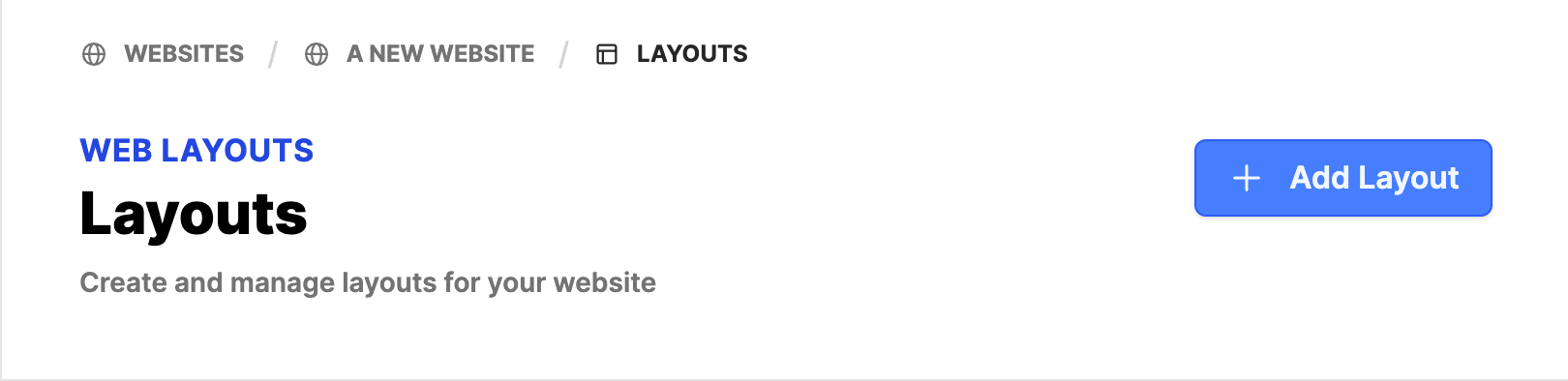
- Click on Layouts.
- If there is already a Layout applied to the website, you can make these adjustments to that layout. Please review if the existing layout is actually used on the website and if it is applied to every page on the website.
- Here we are assuming no Layout has been applied to the website.
- Click on the Add Layout button.
- Name: Add a user-friendly label for others to know what this layout does (Logo Inset adjustment).
- Description: It's optional to add description about the function or purpose of this layout.
- Click on the Create button.

- Click on the Title of the Layout ("Logo Inset adjustment").
- Scroll down and expand the block group for Layout.
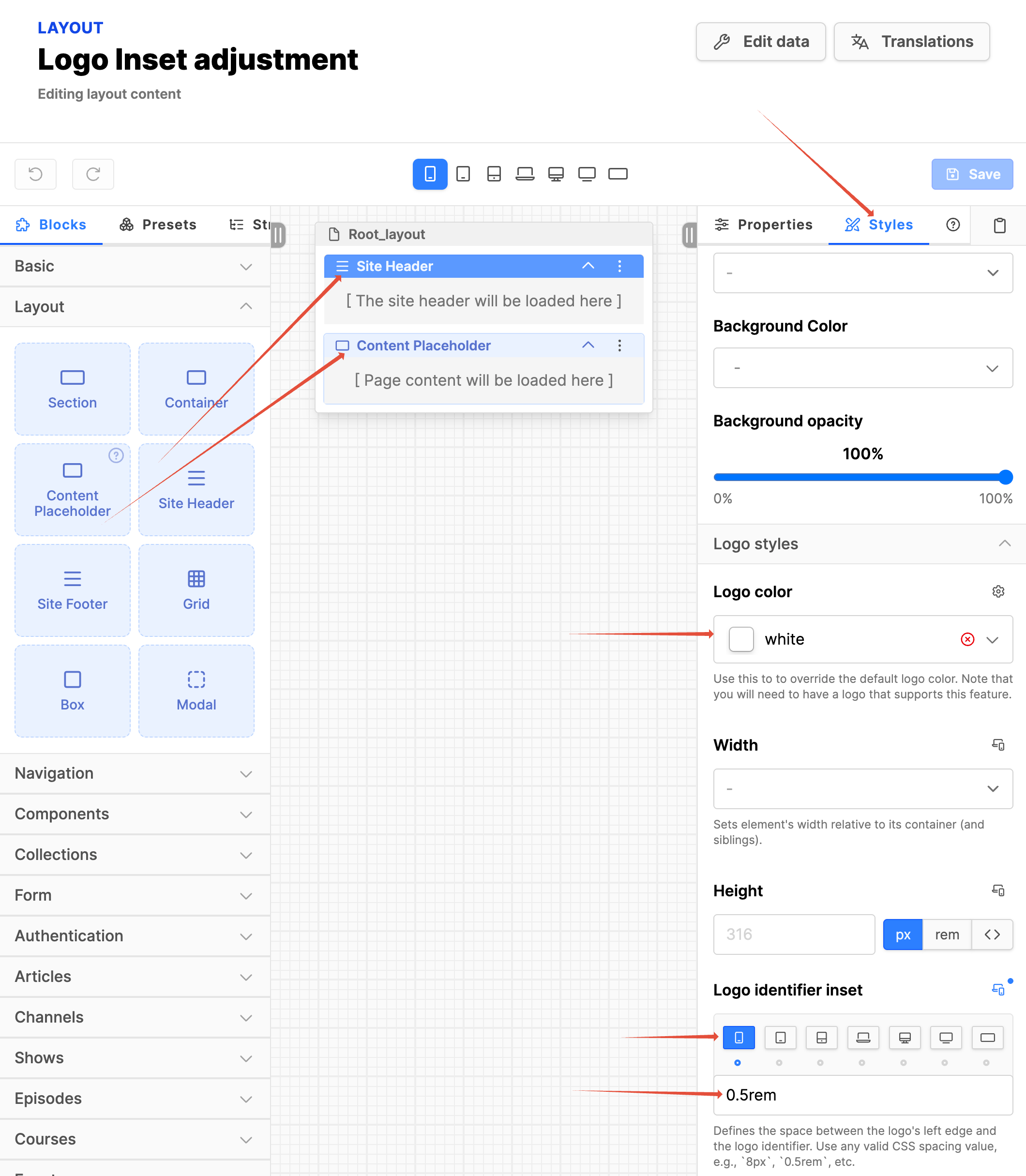
- Drag the block Site header onto the Root layout.
- Drag the block Content Placeholder onto the Root layout.
- Click on the block Site header to highlight it.
- On the right-hand side, click on the Styles tab.
- Expand Logo Styles.
- ! You may need to adjust the color of the Logo identifier. Verify the color of the logo in the frontend and if needed, set the color in the Style color field.
- Scroll down to the section Logo identifier inset and click on the device icon to the right.
- Make sure that the following adjustment is made at the Mobile device width, the first icon on the left side of the row. Also, in the top center of the content area.
- Logo identifier inset: Add 0.5rem into the field.
- Click on the Save button.
- Assuming again that there is no layout applied on the website, navigate to the Web module, expand the website, open the Appearance submodule, and click on the Design tab.
- Under the Design section, set the Default layout to your newly created layout.
- Click on the Update button.
- Verify the change in the fronted of the website. If no change appears, make sure that the cache is cleared to view in your updates.
- Note: If your website is already using a custom layout, perhaps to implement the Transparent header, then on the existing custom layout, you can simply make the changes noted above to fix the offset Logo identifier. If the Transparent header is only applied to the homepage, then you will need to create a new Layout as detailed above, and then apply it to the website, so the pages not using the transparent header will have the Logo identifier properly aligned.