
Overview
Episodes in Web Engine are the individual videos that make up the season (if used) in a show. A show will consist of "x" number of episodes that have been published. The process of adding an episode to the show is fairly simple.
For partners who are using the Jetstream platform, please note that it is possible to setup the connection between Jetstream and Web Engine, so the publishing done in Jetstream is pushed to Web Engine from Jetstream. Please ask the support team for more information if this is your workflow.
How to
Add an Episode to a Show
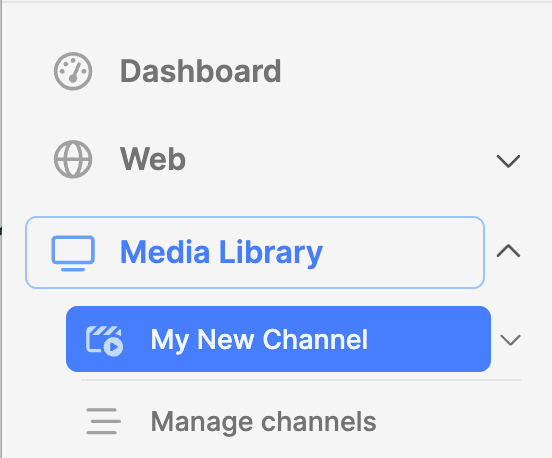
- Expand the Media Library module.
- Click on the name of the Channel where the show exists.
- The Shows index page will appear on the right.
- In the list of shows, locate the show to edit.
- Click on the show title that the episode belongs to.
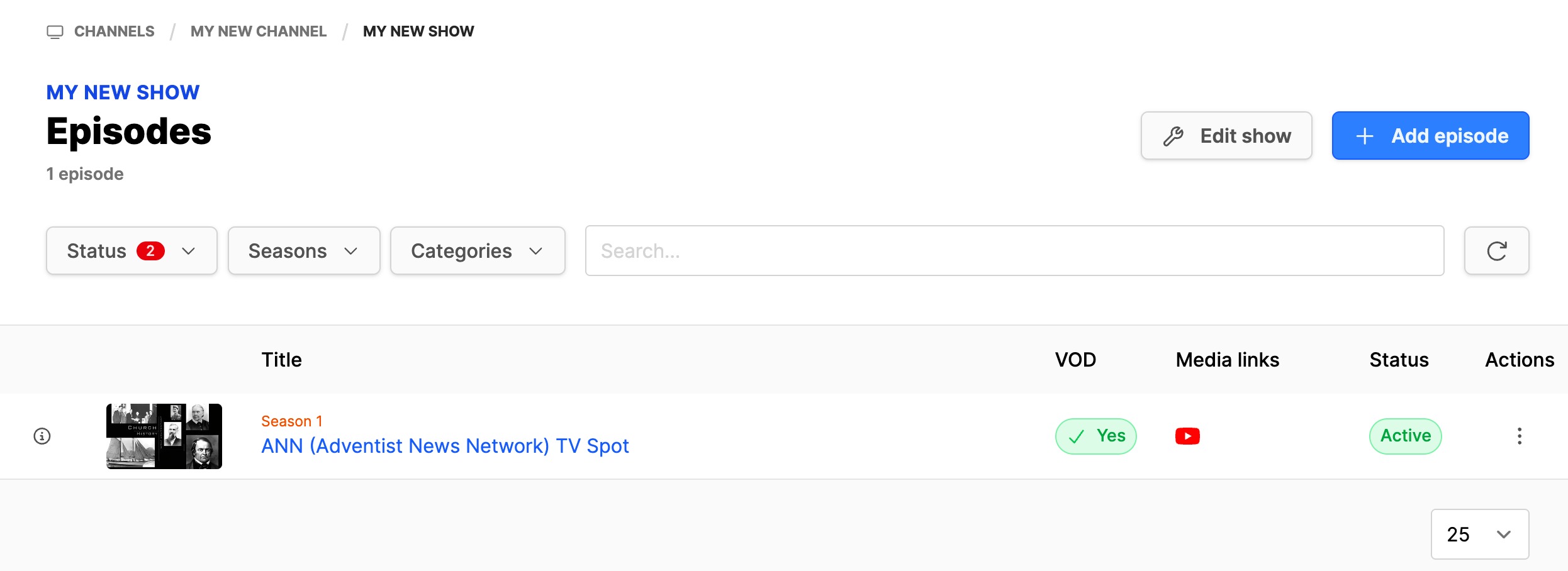
- The Episodes index page will appear.
- Click on the button Add episode in the upper right corner.
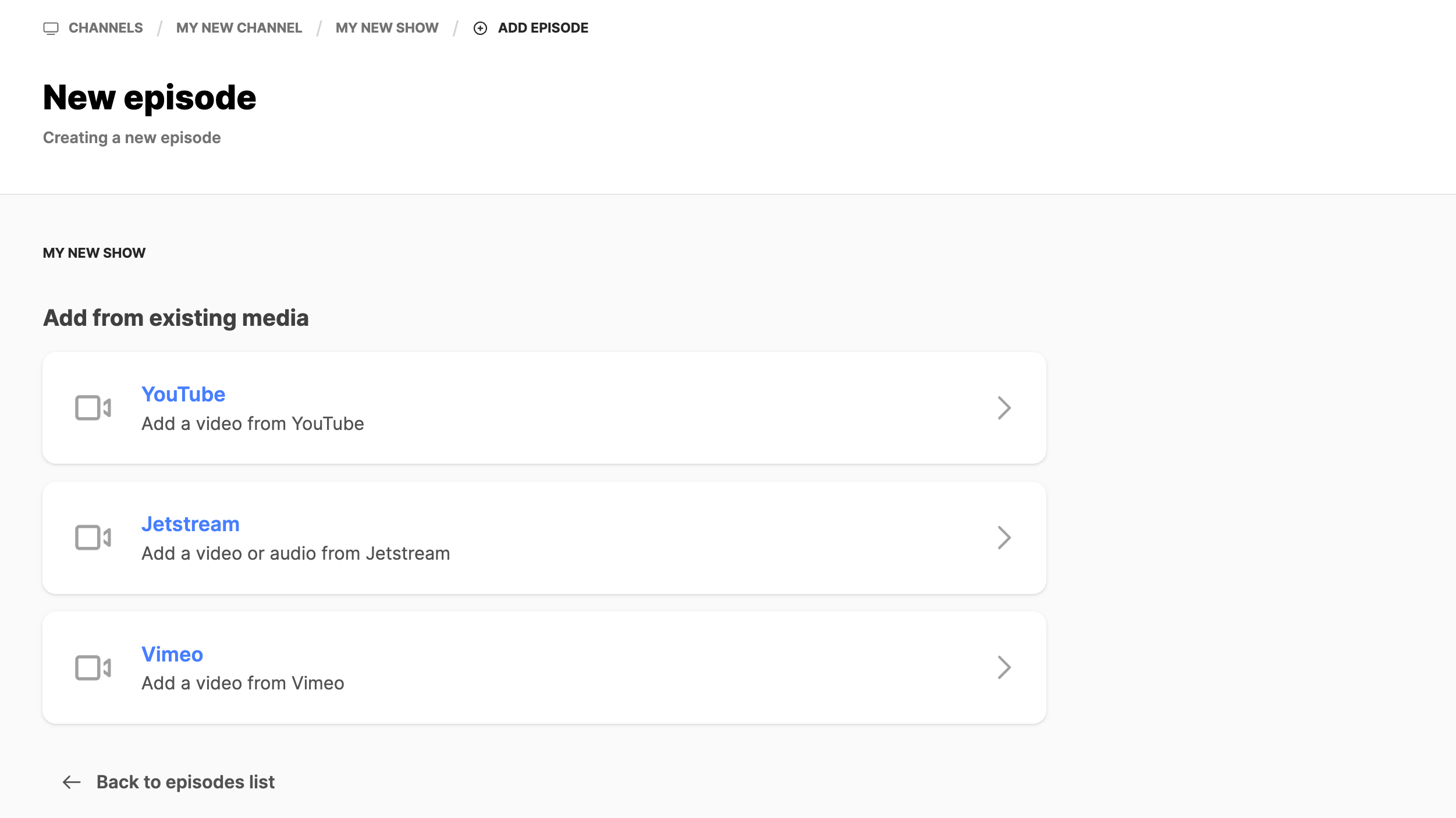
Note: If there are seasons for the show, a list of possible seasons should appear. Chose the proper season for this episode.
- On the New episode page:
- Click the option where the episode video file is being stored.
- Again, consider here, if you have a Jetstream account, you can push episodes from Jetstream to Web Engine.
- The example below is when selecting YouTube.
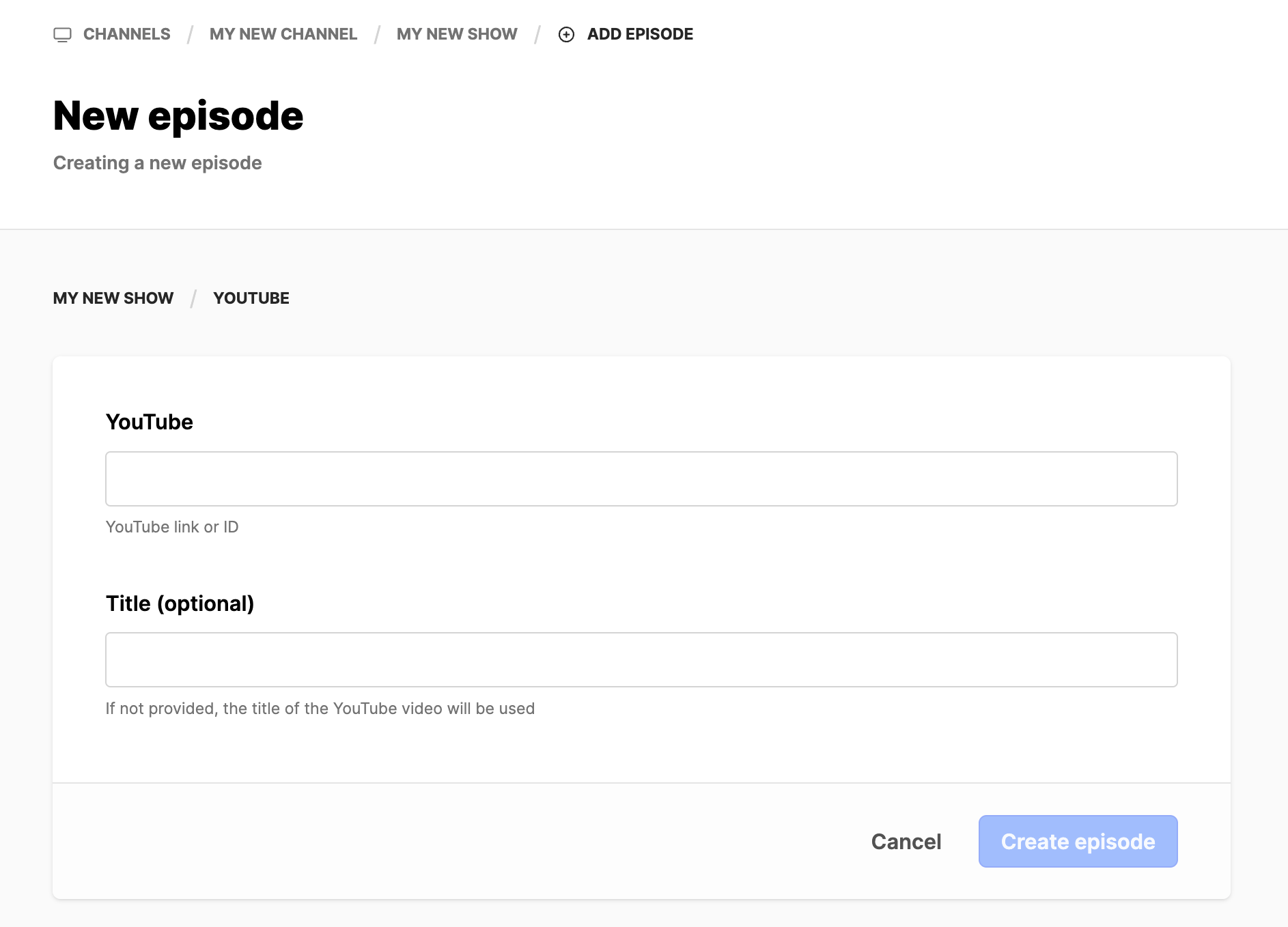
- YouTube: Add the complete URL or just the video ID.
- Note: Do not add playlist URLs in this field.
- Title: Use only if you want to overwrite the original title of the video in YouTube.
- Click on the Create episode button.
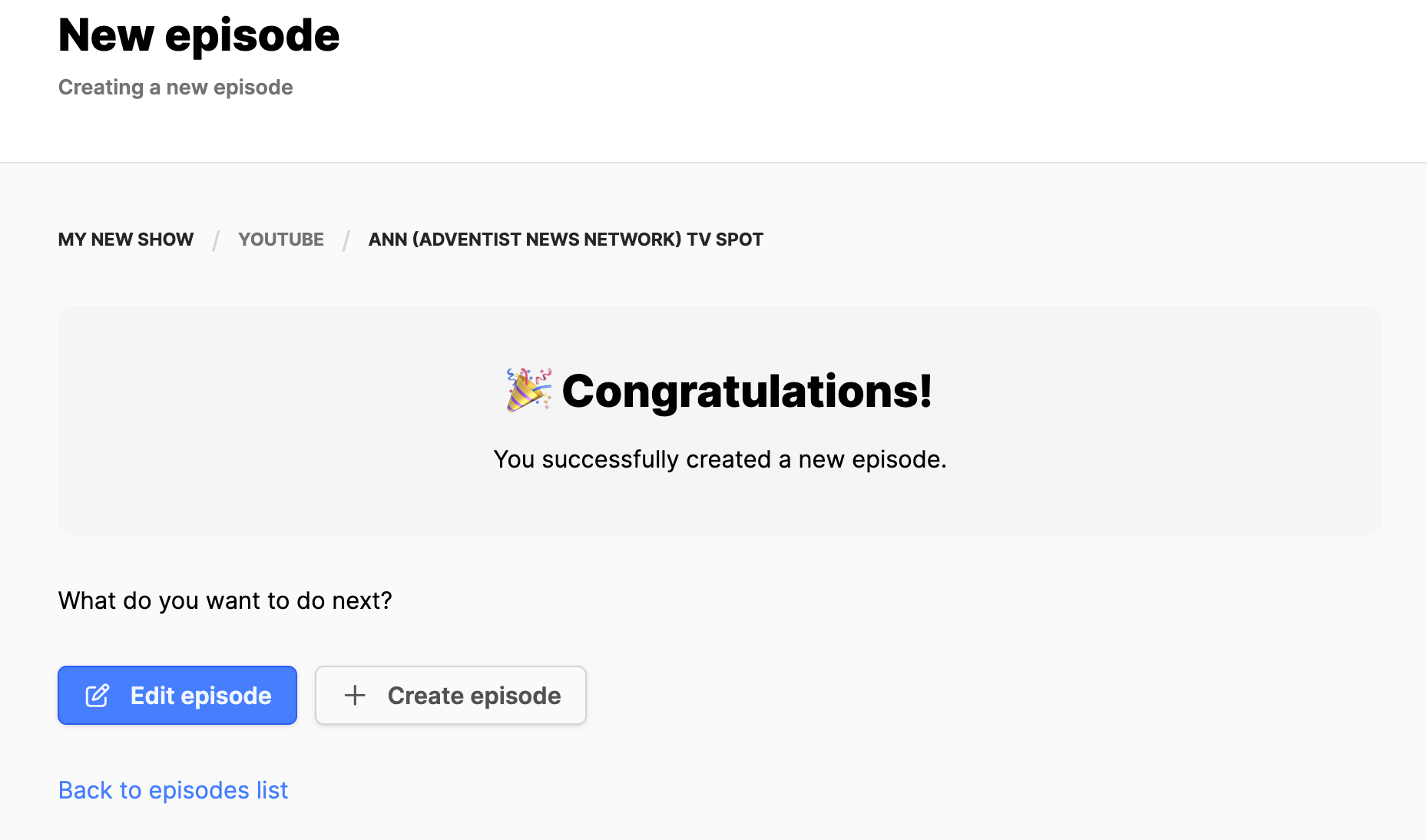
Note: On the initial creation of the episode, the following will be created:
- Episode title
- Episode image
- Episode media links
- Note: Episodes are automatically online when created. If the episode should not be available, it needs to be disabled. This can be done by editing the episode.
On the Congratulations screen, decide what to do next:
- Edit the episode just created.
- Create another episode.
- Go back to the list of episodes.
- Click on the option for your next step.
If you have the episode metadata, need to update the thumbnail or generally edit the episode, click the Edit episode button.
Edit an episode
- Expand the Media Library module.
- Click on the name of the Channel where the show exists.
- The Shows index page will appear on the right.
- In the list of shows, locate the show to edit.
- Click on the show title that the episode belongs to.
- Locate the episode in the list and click on the title of the episode.
- The episode will open to the General tab.
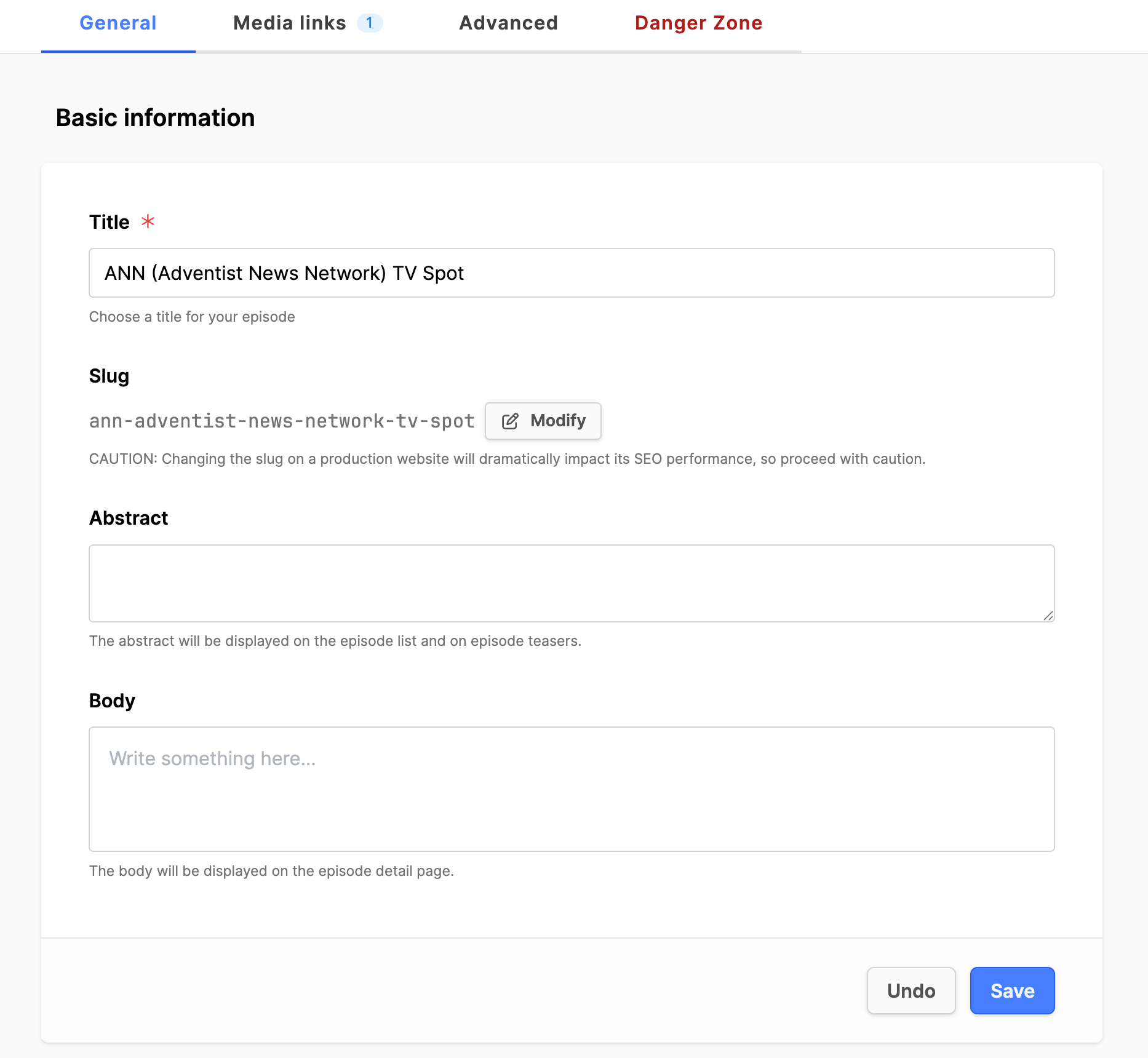
To add episode metadata
- Under the General tab, Basic information section:
- Title: Update the title of the episode, if desired.
- Note: The slug does not automatically update with changes to the title. Click the Modify button if you need to update the title, so that the slug is updated as well. Click on the Change button when the title changes are complete.
- Abstract: This is a short 150-character text describing the episode.
- Body: This is a longer full-length text used on the detail page for providing more complete details on the episode.
- When done, click on the Save button.
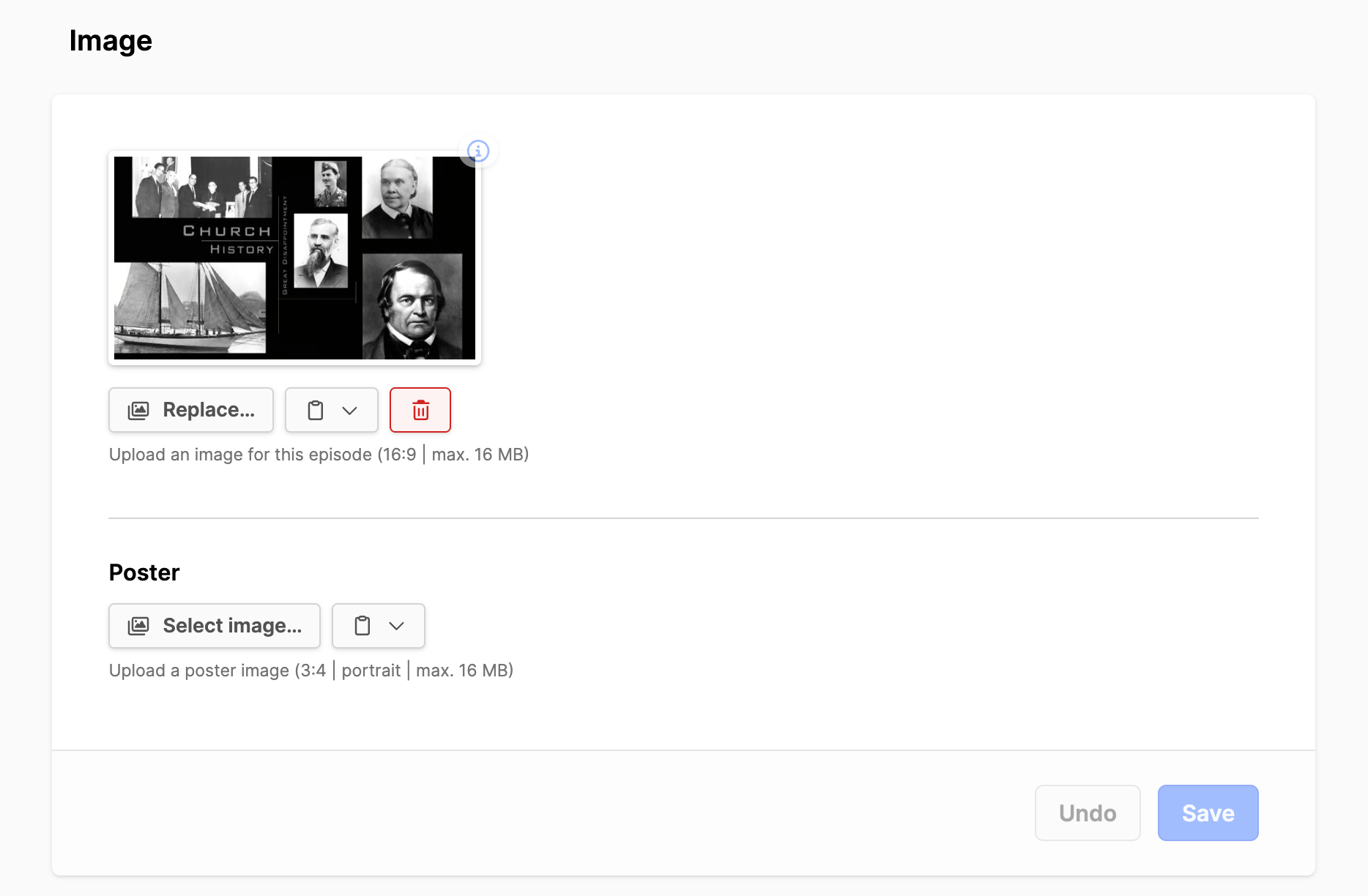
Update the episode thumbnail image
- Under the General tab. scroll down to the Image section.
- Click on the Replace button.
- Add a 16 x 9 format image (2k size recommended).
- Or, if desired, add a Poster image 3x4 portrait format.
- Click on the Save button if changes are made.
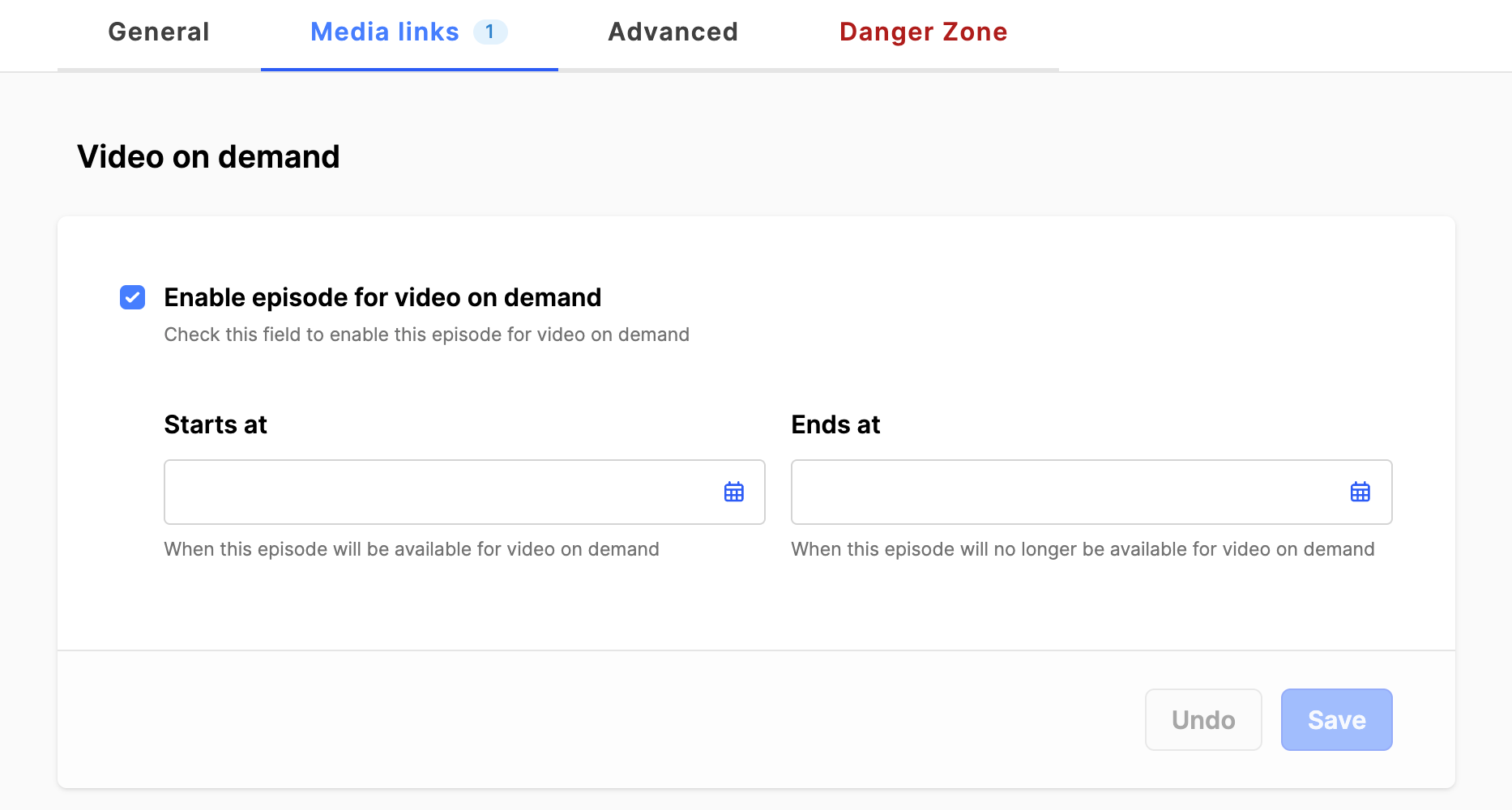
Adjust Episode availability in the Media Library (episode launch date)
- Click on the Media Links tab.
- Find the Video on demand section.
- To block an episode from the media library, remove the check mark by Enable episode for video on demand. If the checkmark is not there, the episode will not be available in the media library.
- Starts at: Add a date when the episode should appear in the media library. If empty, the episode will be added to the media library on the day it is added to the show, provided the checkmark above is in place.
- Ends at: Add a date, if the episode should expire and no longer be available in the media library. Do not add a date if the episode should always be available in the media library.
- Click on the Save button if changes are made.
Additional information
- Create a Media Library Collection
- Creating a Media Library Channel
- Creating a Media Library Show
- Adding Media Library pages to a website