
Overview
Depending on the design (Adventist, Hope) there may be options to style the elements of the menu. This could include setting the colors of the navigation links, adding a hover color, setting a link as a button, or adding a "live" indicator for a livestream page.
Note:
If you have not created a menu, please create a menu first. See the link below.
How to
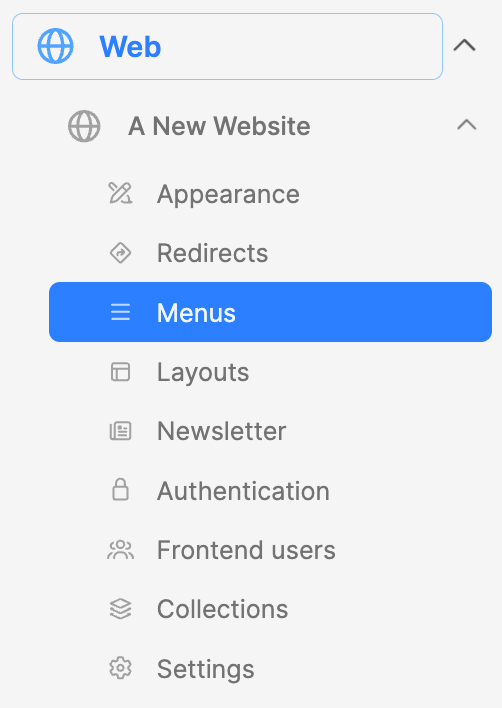
Under the website, expand the dropdowns and navigate to the Menus submodule.
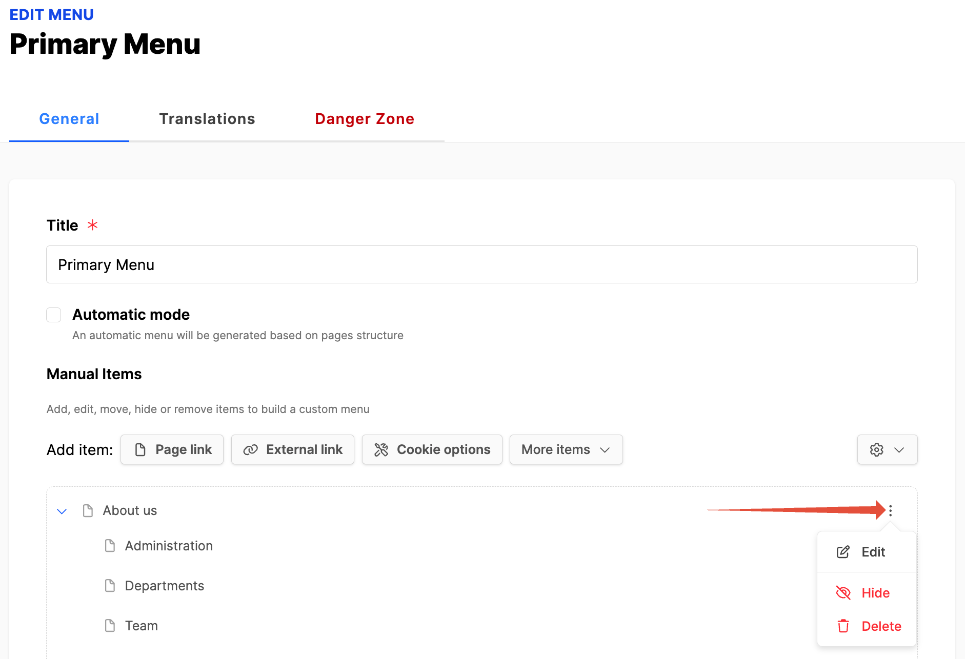
- From the list, select the menu you want to style.
- Click on the three vertical dots to the right of the navigation link to be styled.
- Then select Edit from the menu.
- When the modal box appears, scroll down to the styling options in the lower area of the modal.
Adventist design
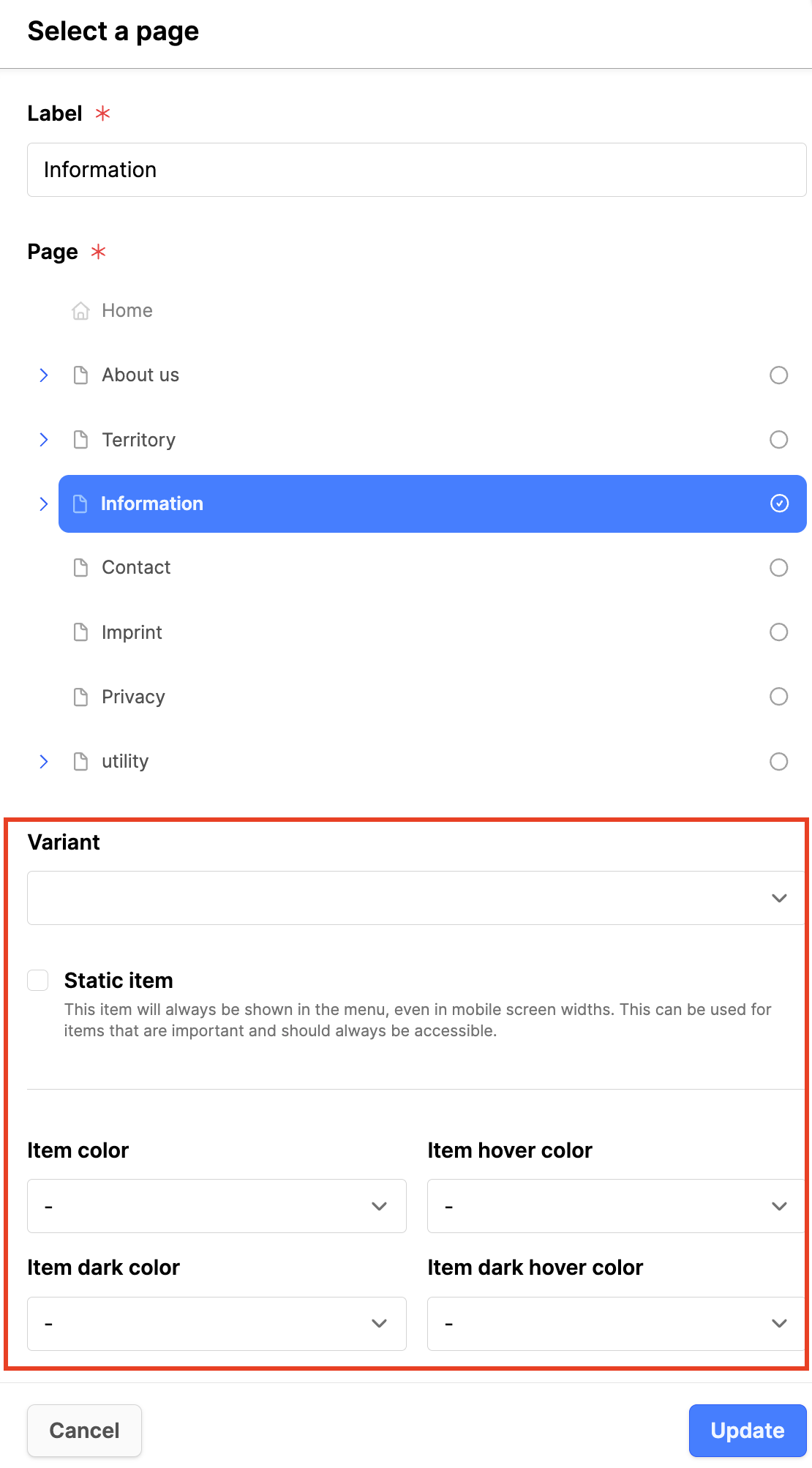
- Variant: Use to set link as a link or a button (default link appearance).
- Static item: Check if the item should always be shown in the menu.
- Item color: Set the color of the navigation element.
- Item hover color: Set the color when the mouse hovers over the element.
- Item dark color: Set the color of the navigation element for the dark mode.
- Item dark hover color: Set the color when the mouse hovers over the element for the dark mode.
- Click the Update button.
Hope design
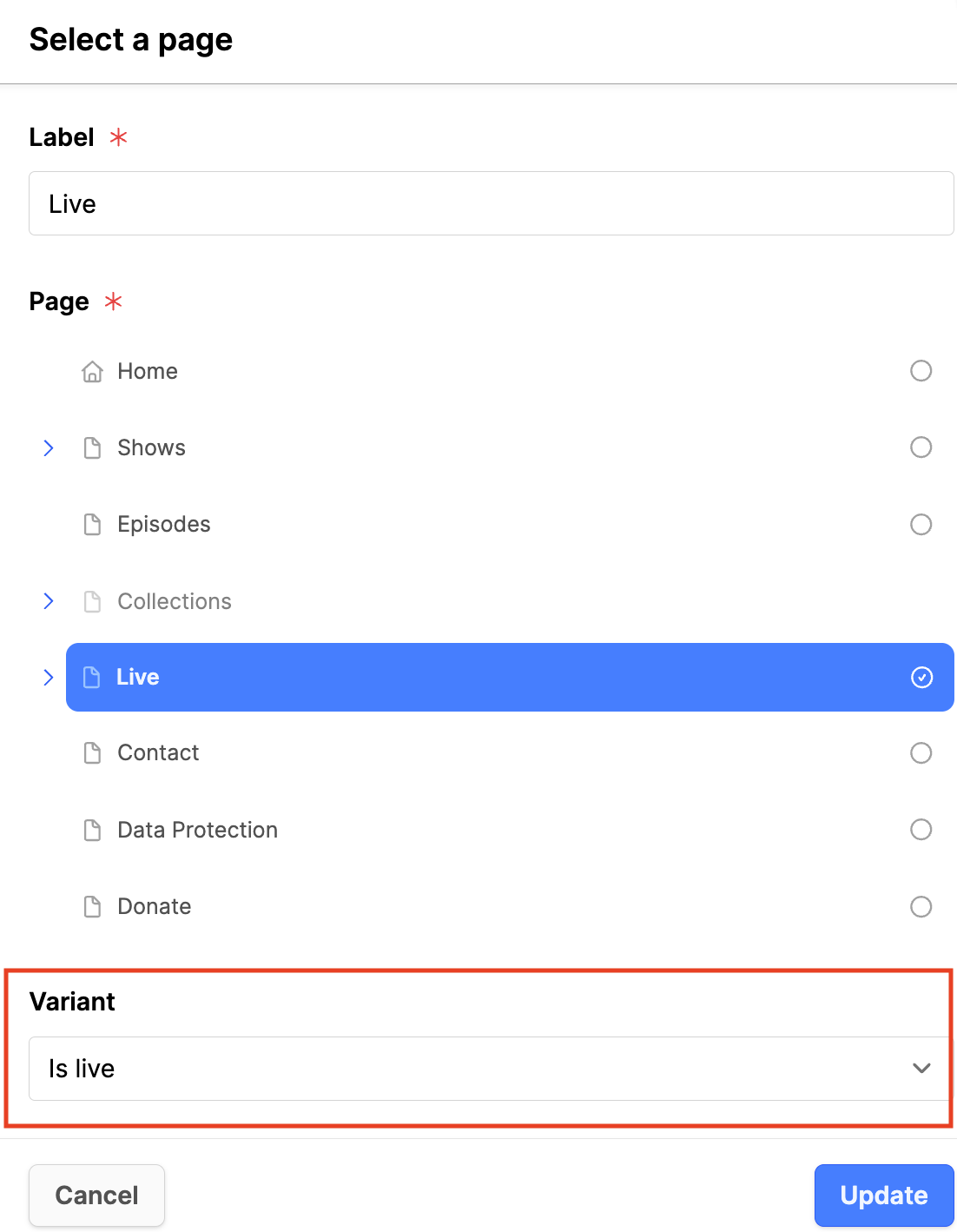
- Variant: Is live: adds a red dot to the link. Used for the Livestream page.
- Click the Update button.
Additional Information
- Create a menu in Web Engine