
Overview
There may only be one organizer for the entity events or there may be multiple organizers. It depends on the size of the entity where the events will be created. It can also depend on how many sub-entities are below the entity creating the events.
How to
Add an Organizer
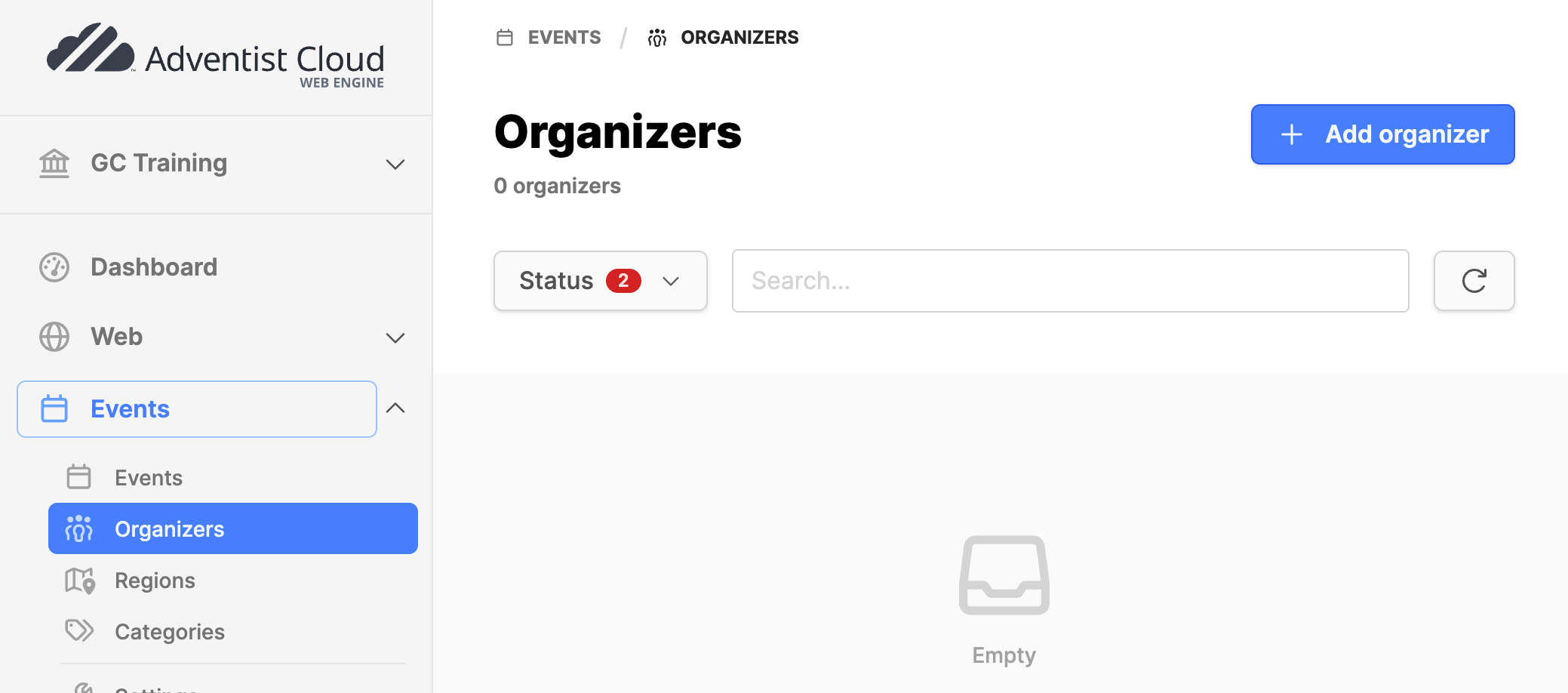
- Navigate to the Events module and expand it.
- Click on the Organizers submodule.
- Click on the Add organizer button in the upper right corner
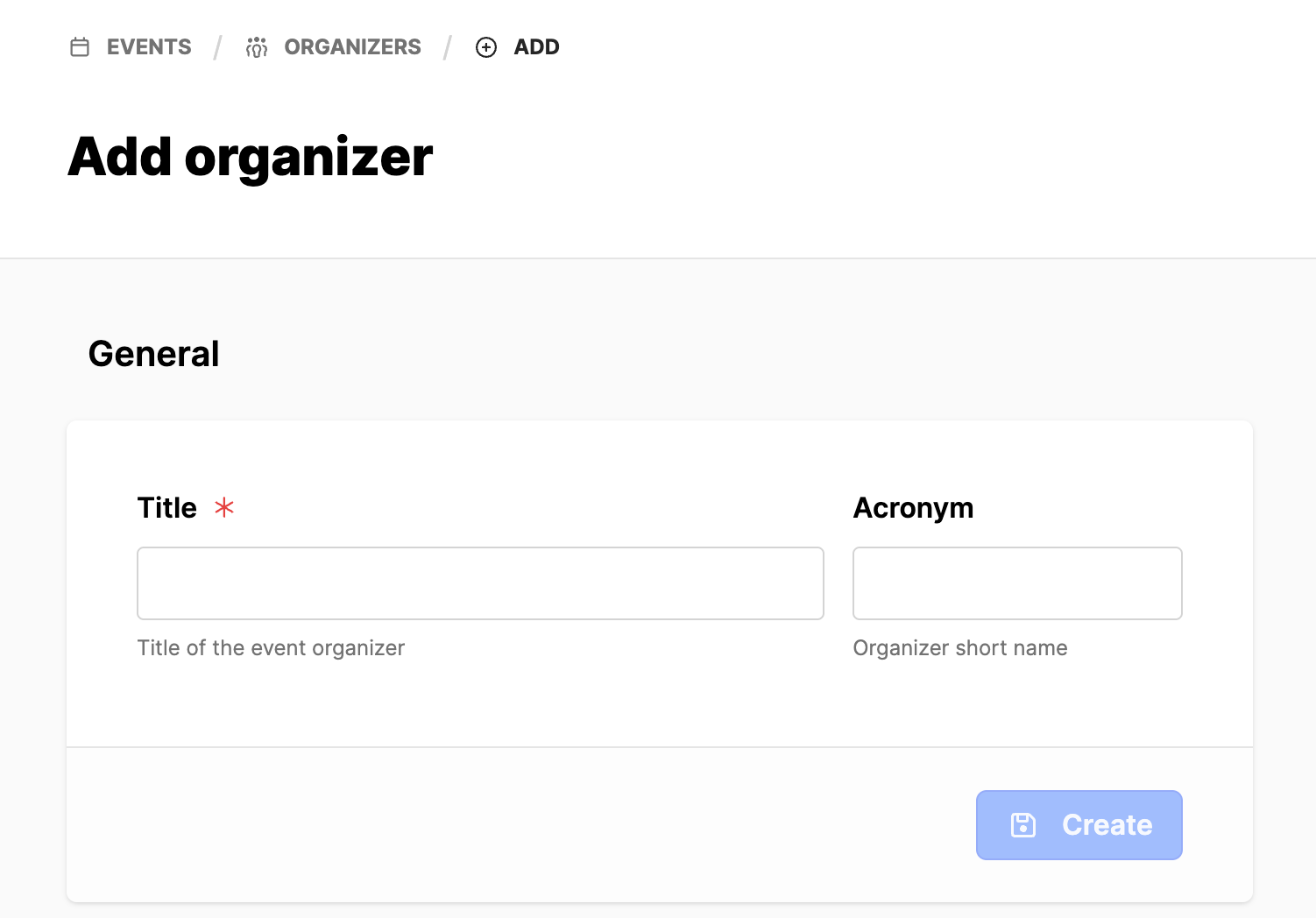
- Add a Title in the title field.
- If desired, add an Acronym for the organizer.
- Click on Create button.
- In the next screen, scroll down to the Contact Info section.
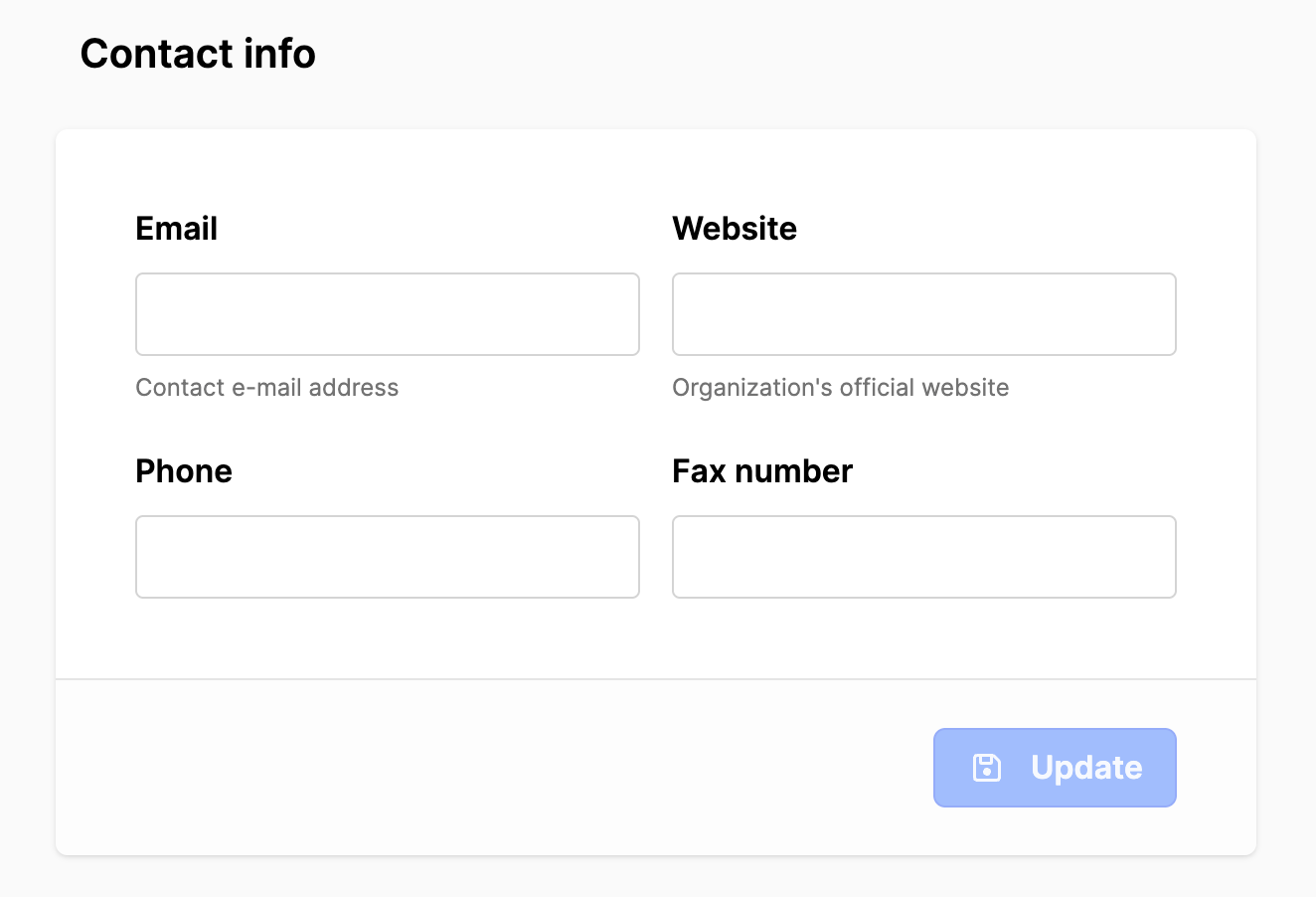
- Fill out the information fields for the organizer.
- (Note: Fax number is not displayed in frontend currently)
- Click on the Update button.
- Scroll down to the Address / Location area
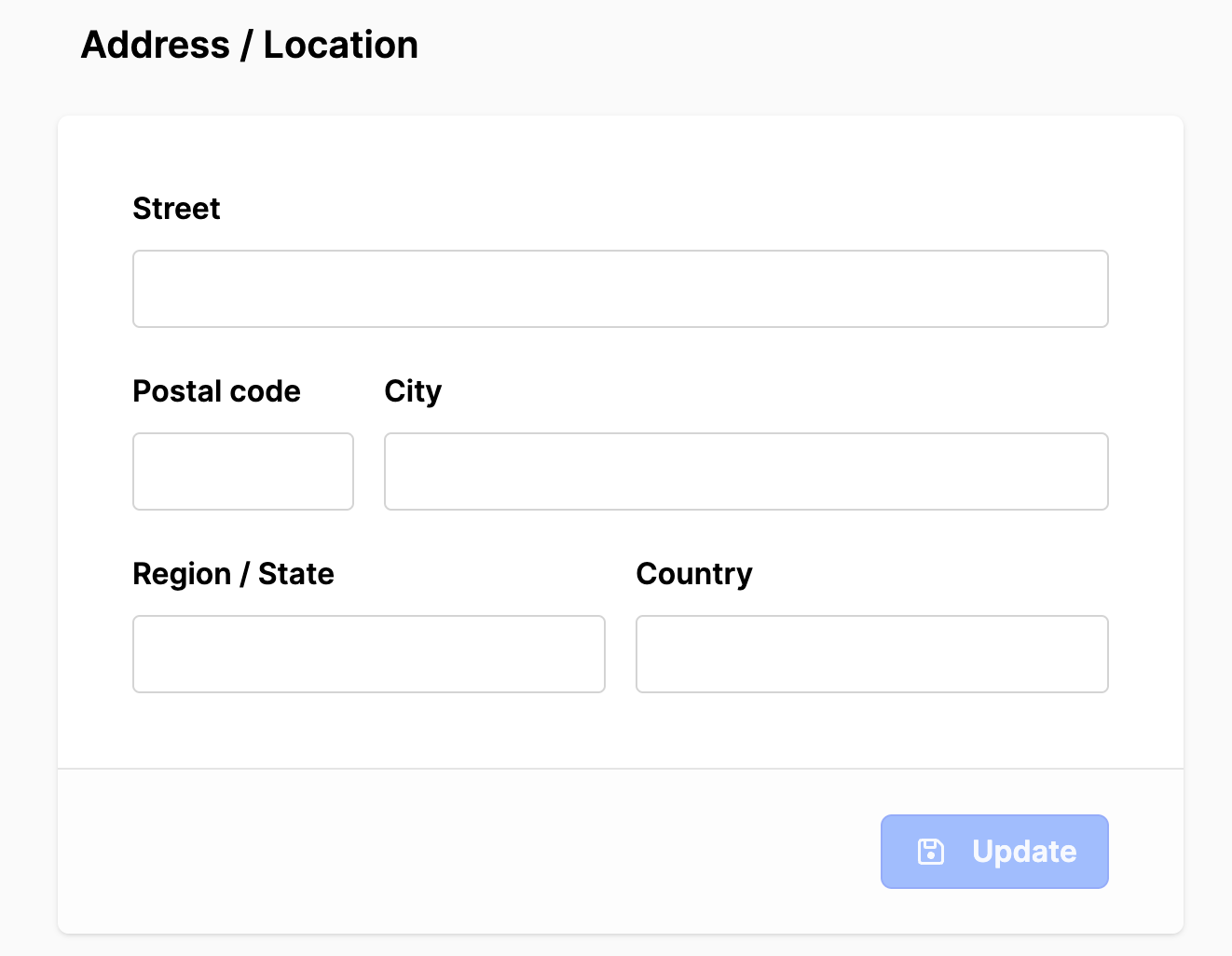
- Fill out the address / location fields for the organizer.
- Click on the Update button.
- Scroll back to the top of the screen. Click on the Terms of registration tab.
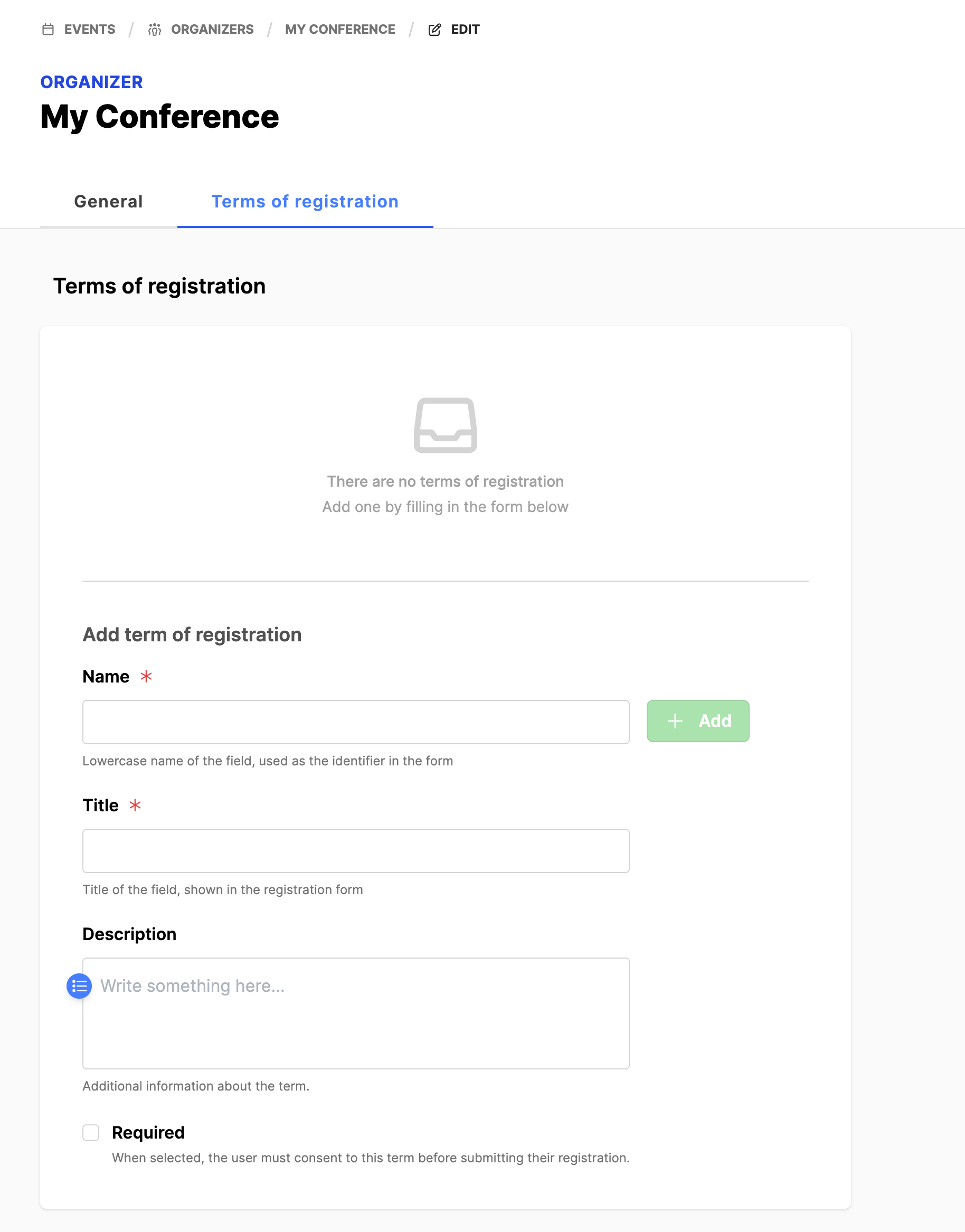
Skip for now
The Terms of registration is where you will add in the specific information that the organizer wants to share with those who will be taking part in their events.
This section may not display in the frontend.
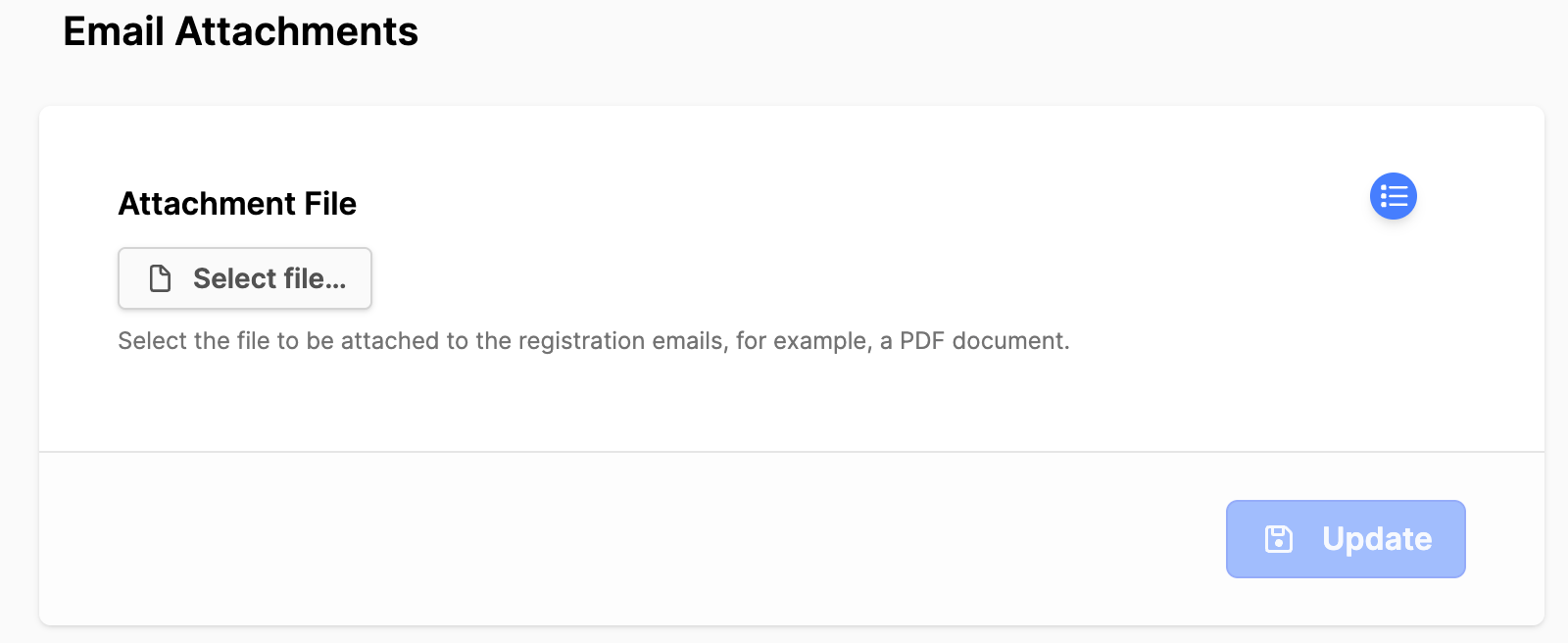
Skip for now
The Email Attachments are for online registration. These are documents that should be attached to the email that goes out to the participant as they register for the event. Click the Update button to save changes.
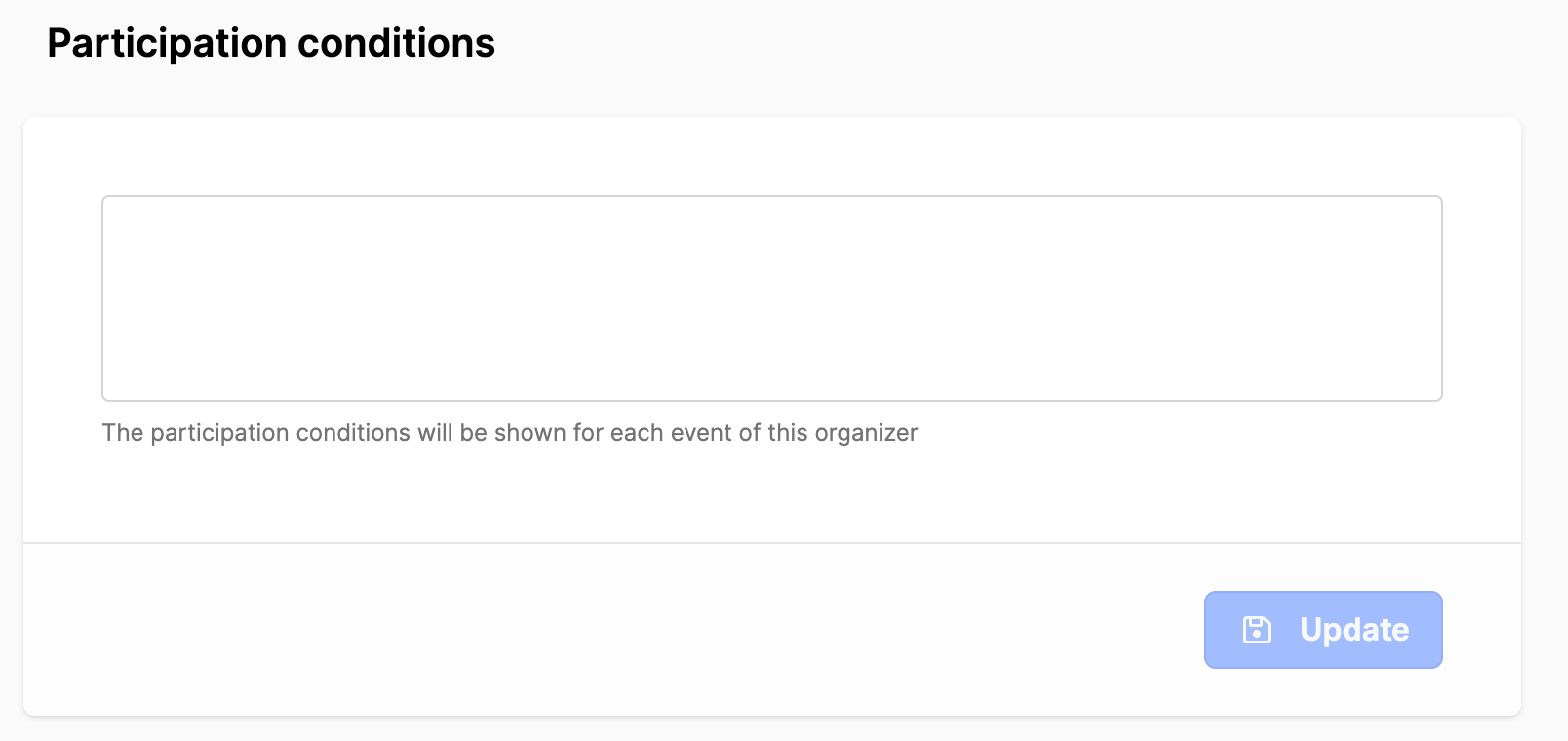
Participation conditions are standard conditions that are shown for each event. This is information that each participant should know for every event of this organizer. Click the Update button to save changes.