
Overview
A collection in the media library is a grouping of shows or episodes into a theme or topic, for displaying in the frontend of the website. The collection can be created manually, or automatically by enabling filters that will filter all shows or episodes in the media library and place only those shows or episodes which pass through the filtering setup when configuring the collection.
Collections will appear:
- In the Collections blocks on the website pages.
- Under "Featured" section of the Hope Channel app. (If a Hope Channel partner in the Hope Channel App)
- Collections appear as listed in the backend. Reorder the collections if needed.
How to
Create a media library collection
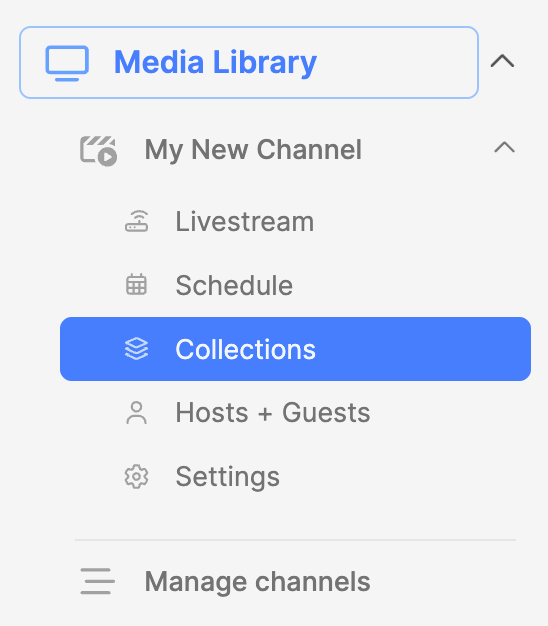
- Expand the Media Library module.
- Expand the Channel where the collection should be created.
- Click on the Collections submodule.
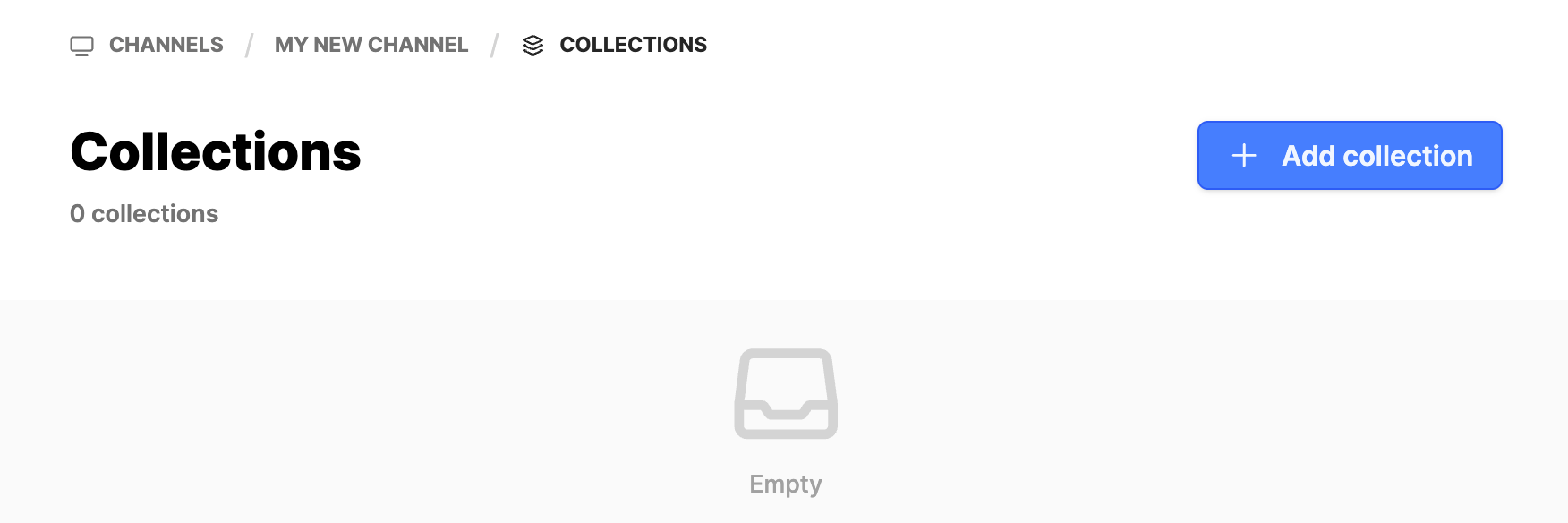
- Click on the Add collection button.
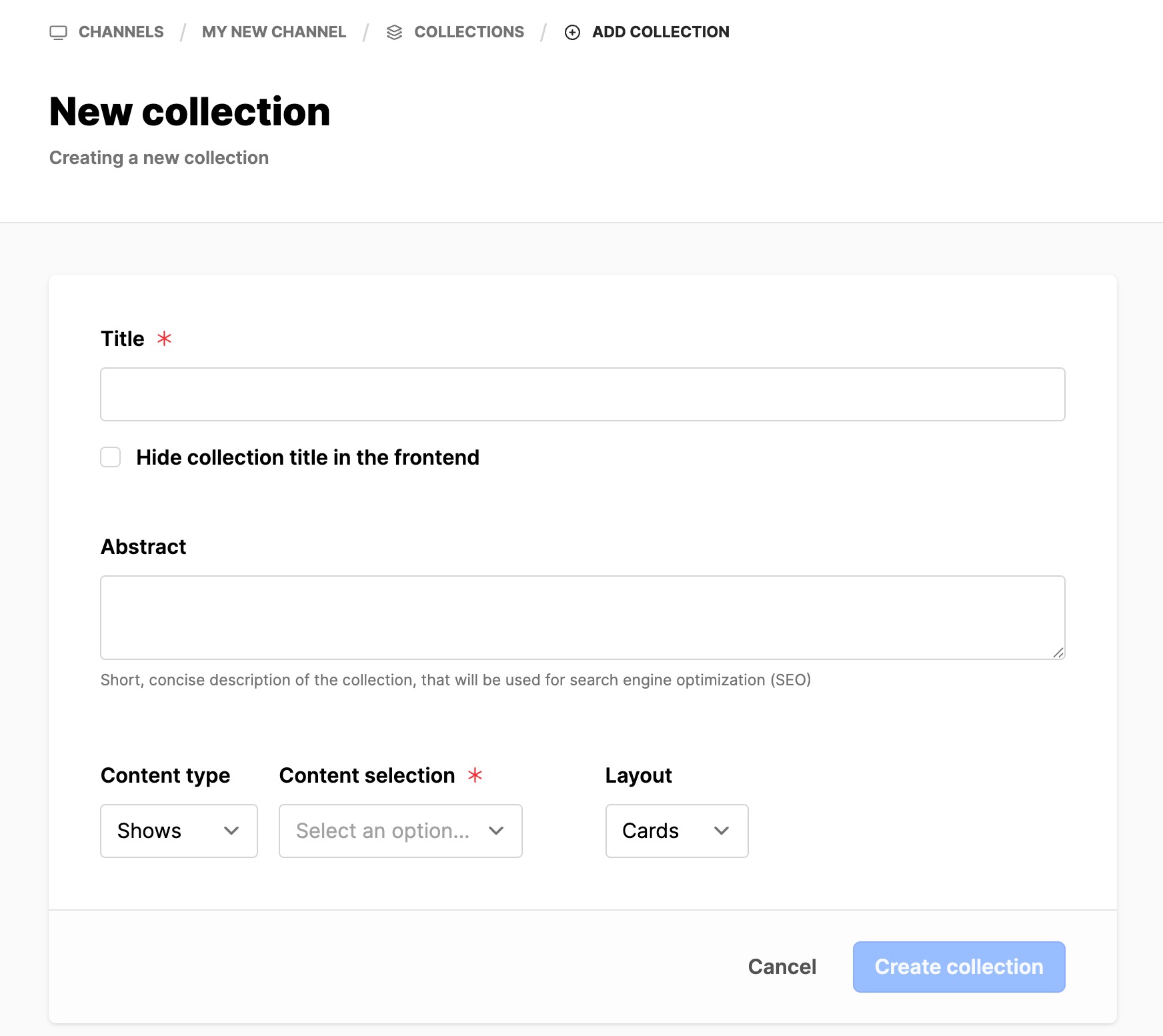
- Title: provide a title for this collection. Normally, this would be the topic or focus of the collection (health, family, etc.).
- Hide: add a checkmark here if you want to hide this title of the collection in the frontend. If this is a banner collection, then set the checkmark.
- Content type: Shows or Episodes as needed.
- Content selection:
- Manual: means you pick the elements.
- Filter: the system will use the filters you setup to produce the content in the collection.
- The next image is showing a view when Content selection is set to Filter
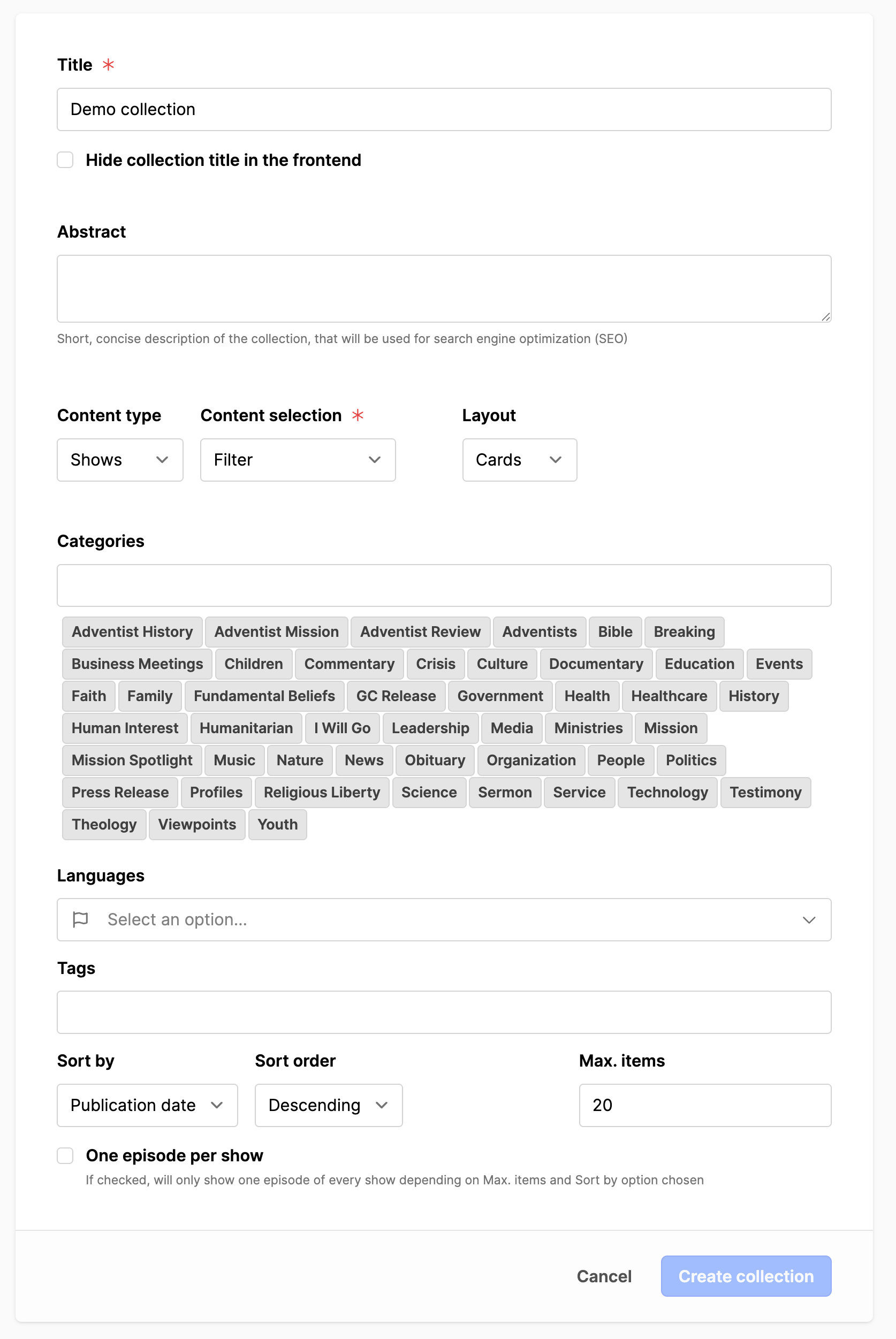
- Layout: set to Cards, Posters or Banners. The episode needs the correct images available for the layout chosen.
- Categories: select the categories the system should use locate the shows and episodes for the collection. Recommended to use 1 to 3 categories. Too many categories causes content to appear in multiple collections, perhaps blocking some of the content and giving the appearance of a small media library.
- Languages: not required unless there are multiple languages to filter by.
- Tags: use only if tags are set on the shows or episodes. Will filter by the tags used.
- Sort by: Publication date, title (alphabetical)
- Sort order: Ascending or Descending
- Max items: set to the number of items to present before displaying a link to see all.
- One episode per show: Use this if it is a collection of episodes and content is uploaded in batches. A checkmark here will cause only one episode to display in the collection. It prevents the situation where multiple episodes are uploaded at the same time and then the collection is filled with the episodes from one show.
- Click on the Create collection button.
- Create as many collections as needed
The following shows the Manual interface for selecting shows or episodes for the collection.
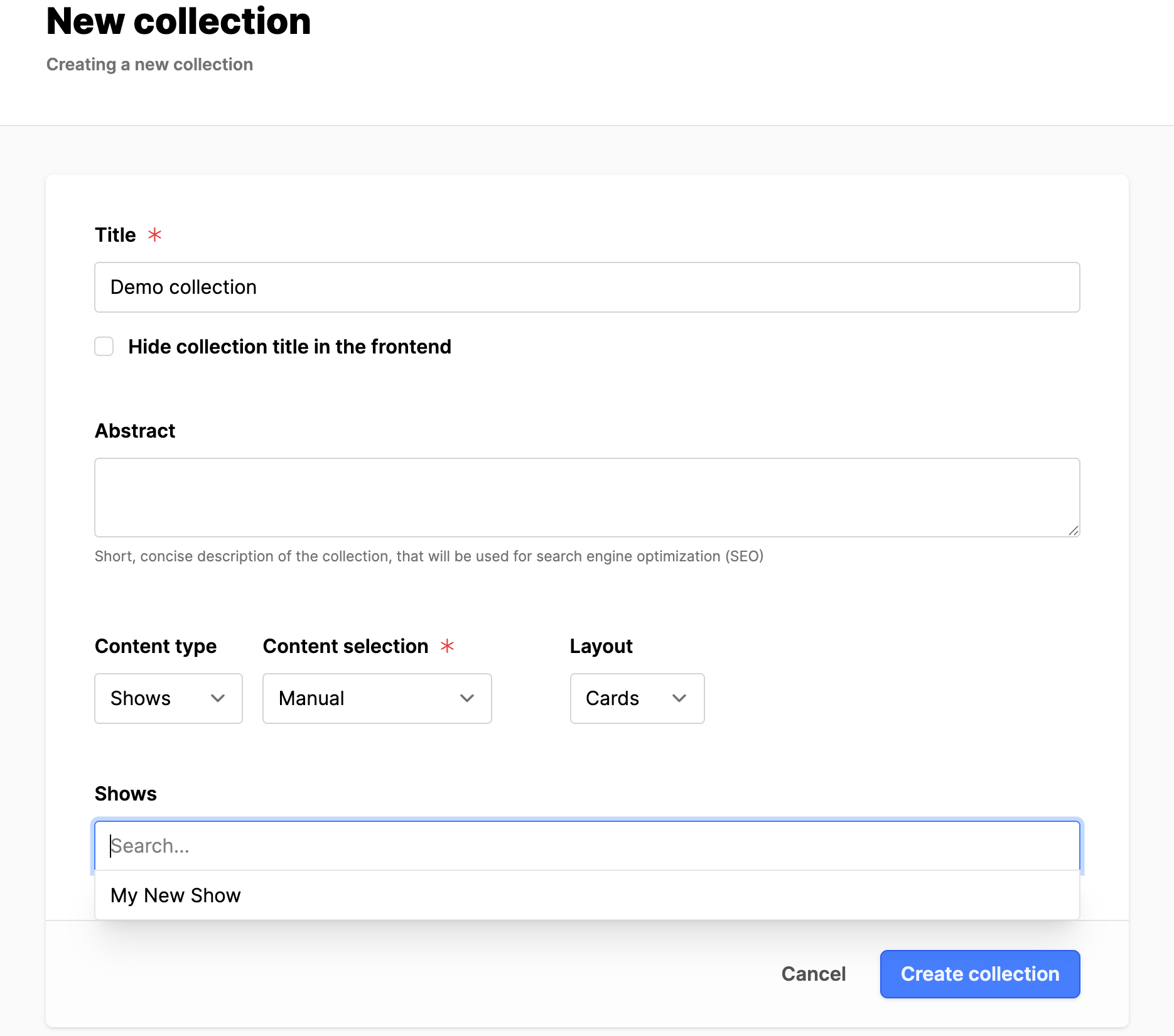
- Manually locate the show or episode in the select list.
- Click on the title to add the show or episode to the list.
- Once all shows or episodes have been selected, click on the Create collection button.
Disable or Delete a collection
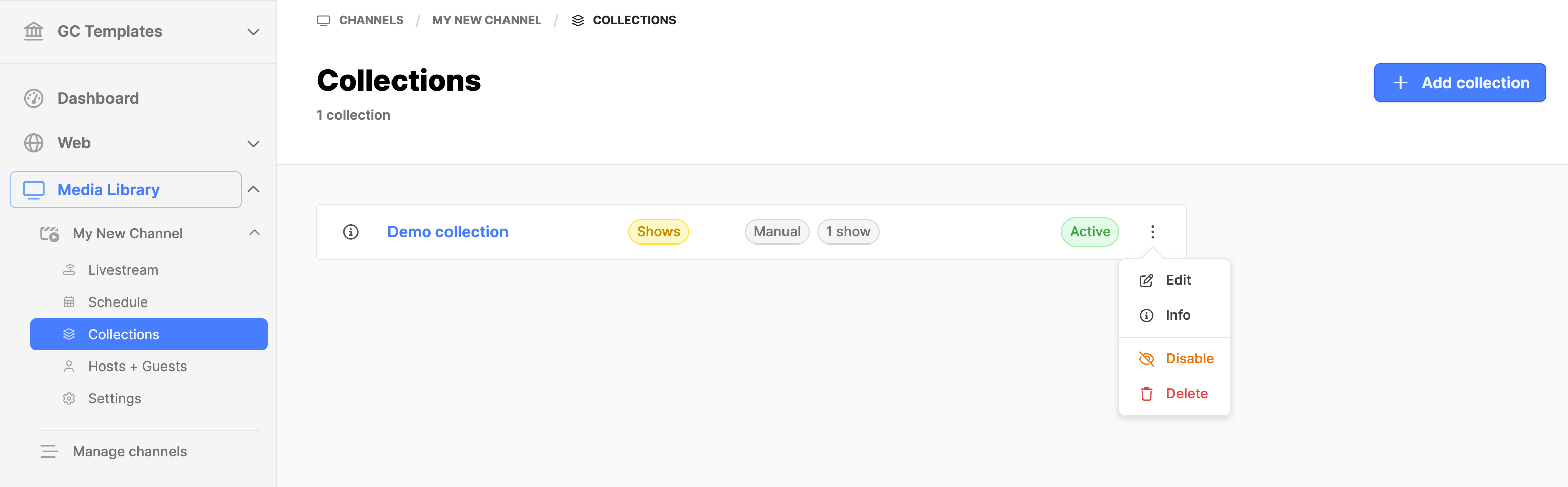
- Expand the channel in the media library.
- Click on Collections to display the list of collections.
- On the right end of the collection entry, click on the three vertical dots.
- In the action menu, click on Disable or Delete as needed.
Additional information
- Adding collections to the frontend (to be built)
to review 2026-06-18