Overview
This function is really for use by administrators at the Division, Union or Conference levels. In some cases they will have websites that are automated for the local churches, which have no backend, but allow the church to have a presence on the Internet and attract new members.
A "Template" is used to allow entities to have an internet presence without having a backend to update the website. A template website uses entity data (ex: from ACMS) and fills the website with data dynamically. There is no need for a technical team to maintain the website; it is an "automated website".
A use case could be a local church with no web master, who wants an internet presence and agrees to use a common design. Usually, a Conference would make a design for these churches to use, and then assign the template to the churches. The local church would not have any access for updates as there is no backend. They would simply keep their entity data up to date in ACMS or the conference would do this for them.
Notes:
- A template website is found by expanding the Web module, under the sub-module Manage automated sites, because it is not a full website.
- Altering the template for one entity, alters the website template for all entities that are using that template.
- A suggested approach is to build a few different templates to cover the variation of entities that will be using the templates. Use different images, texts, etc. so the template properly provides the correct context for the entity.
How to create a website template
Configure the Template
A website template is essentially a website that has been configured to accept data dynamically from the entity. Therefore, to create a template, one begins by creating a website to their design specs first.
Once a website has been fully created, it can be set as a template by the following:
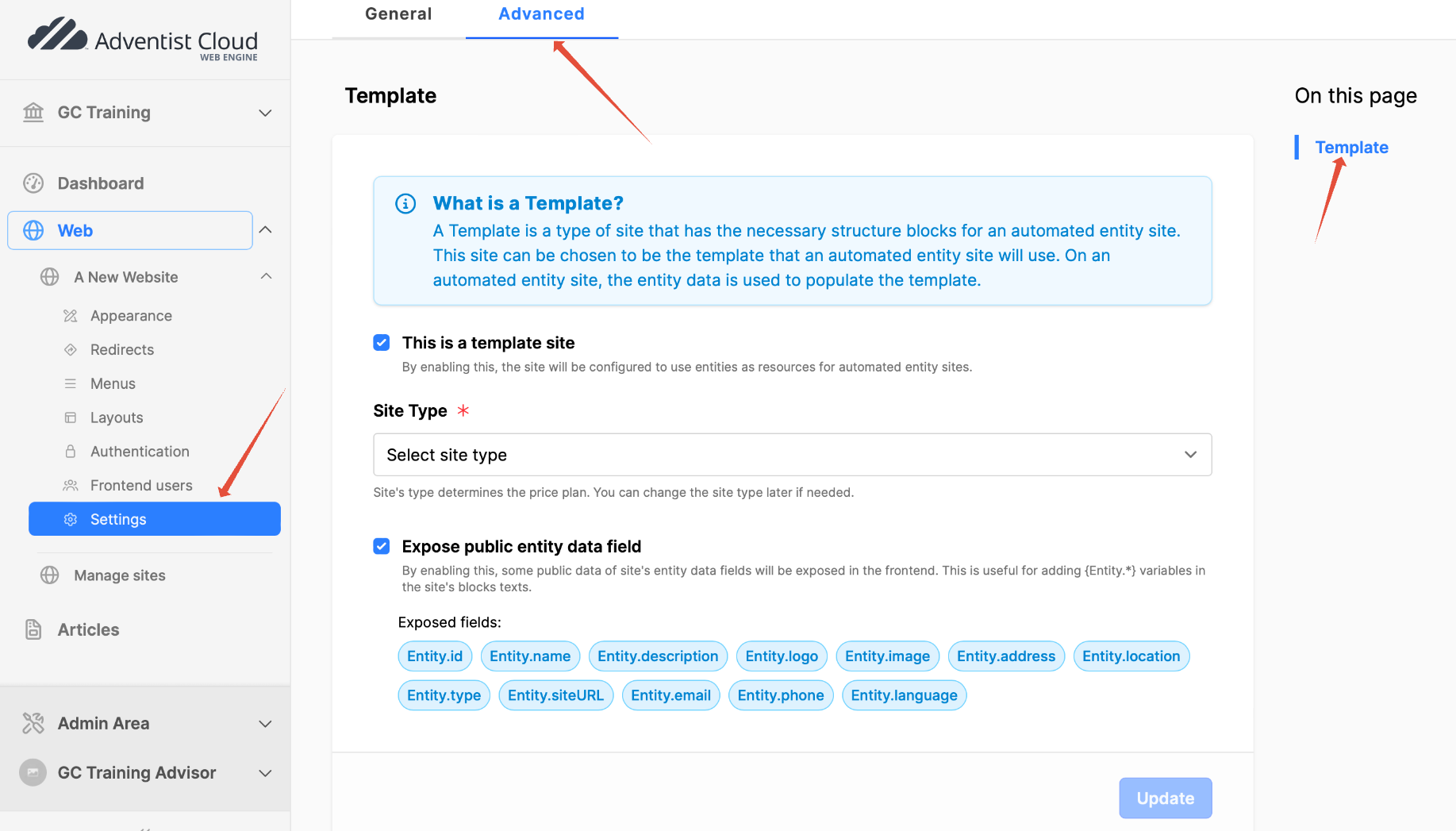
- Expand the Web module, then expand website.
- Click on website submodule Settings.
- Click on the Advanced tab.
- Click on the section Template in the menu on the right.
- This is a template site: set a checkmark.
- Site Type: Select the proper Site Type for billing. (If the list is empty, please contact your administrator.)
- Expose public entity data field: set a checkmark.
- Click the Update button.
Using entity data variables
- "Available fields" are variables that can be placed into text fields in frontend blocks or fields under the website configuration setting fields.
- For example:
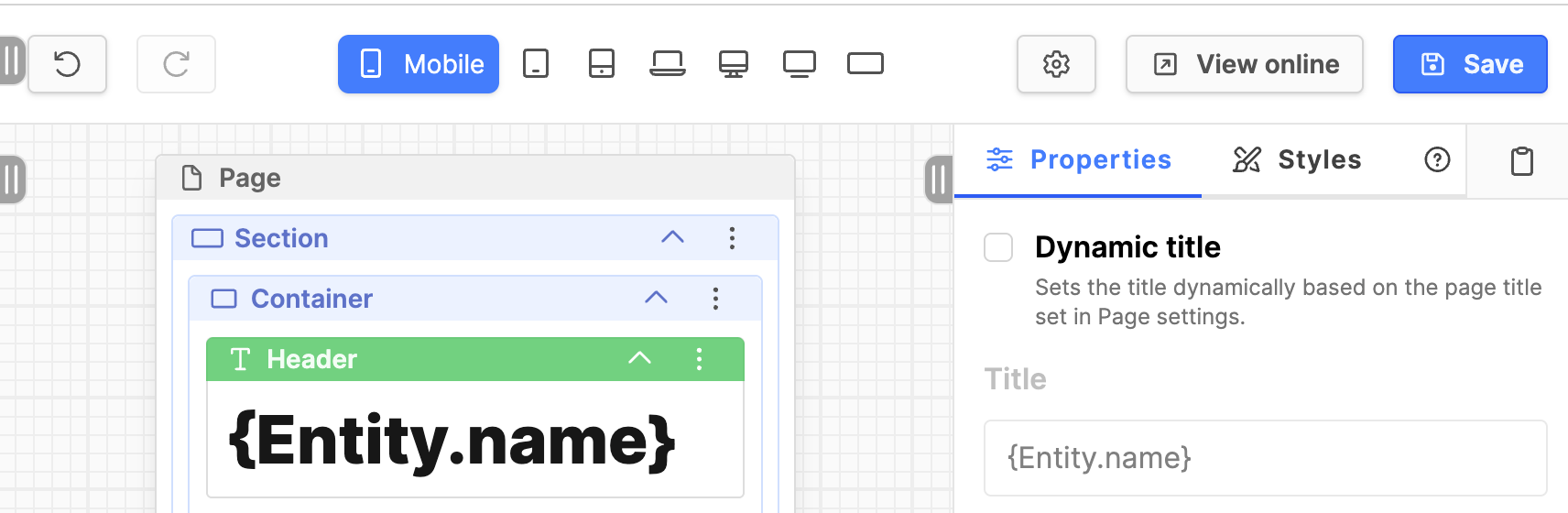
- On the homepage, there may be a Simple text block where the name of the entity should be displayed.
- One would change "Name of Local church" to {Entity.name}.
- After the template is matched with a local church, and viewed in the frontend, the real name is displayed; otherwise, the current entity name is displayed.
- When all changes are made, you can use the Manage automated sites submodule to connect the template to the entity.
- List of entity data variables; place these variables into the text field where needed:
- {Entity.name}
- {Entity.description}
- {Entity.logo}
- {Entity.image}
- {Entity.address.street}
- {Entity.address.zip}
- {Entity.address.city}
- {Entity.location}
- {Entity.type}
- {Entity.siteURL}
- {Entity.email}
- {Entity.phone}
- {Entity.language}
Using the website Template
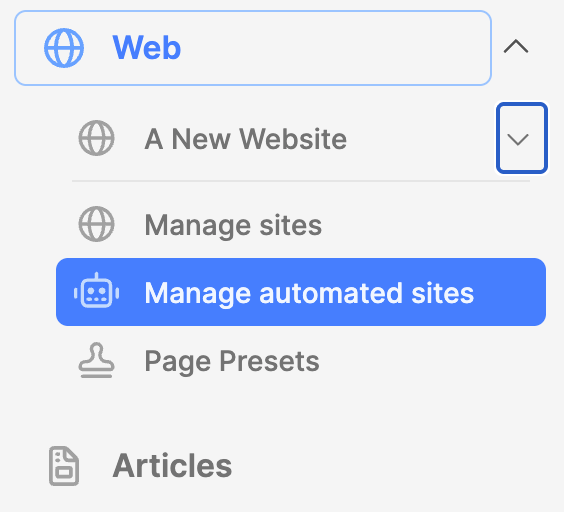
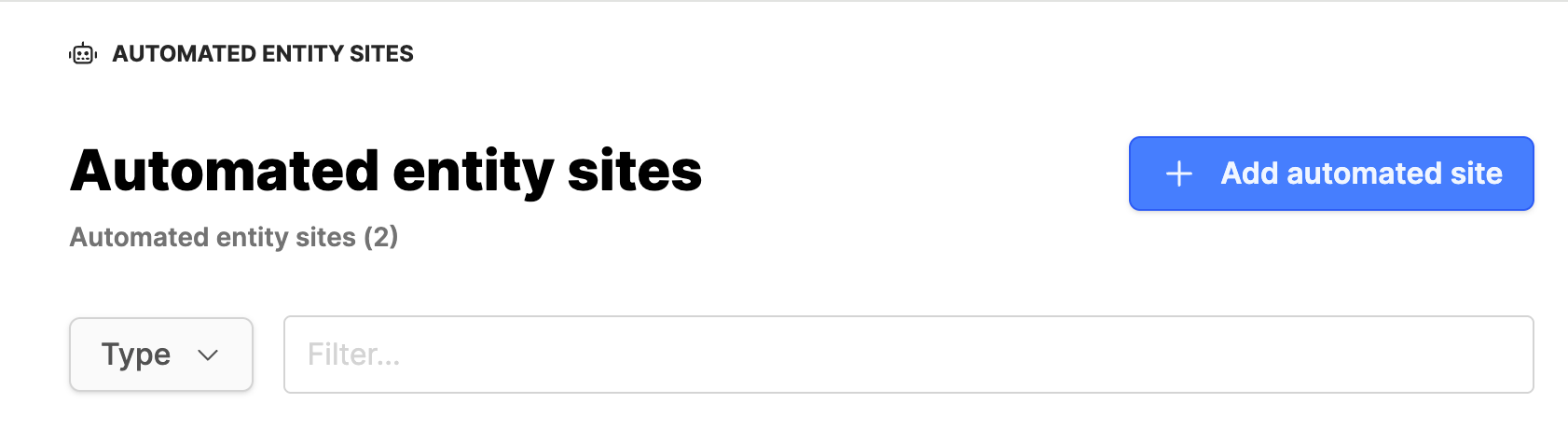
- Under the web module, click on the sub-module Manage automated sites.
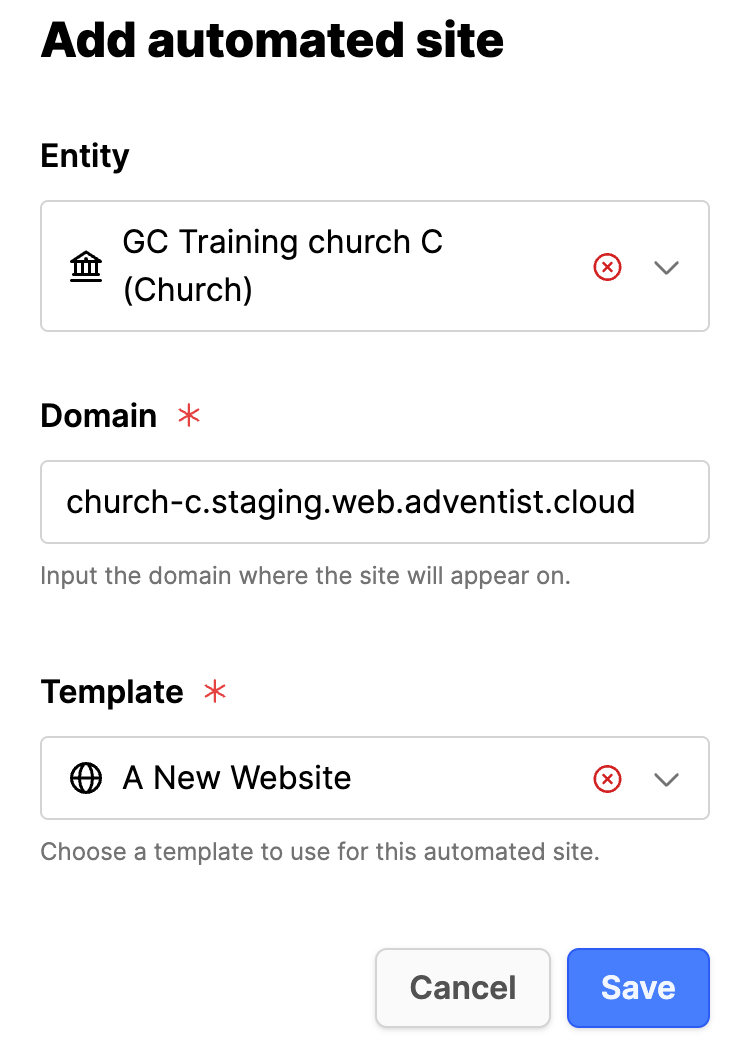
- Click on Add automated site.
- Entity: find the entity you want to match with the template.
- Domain: check the domain name is correct.
- Template: select the template to use for the entity.
- Click Save button.
- Go to the domain name for the automated website and make sure that it is working properly.