
Overview
Automated websites should be implemented using website templates. The blocks may differ, depending on design implemented, but it should be possible to update the Events Frontend Block to point to the correct source of events for displaying in the automated website template.
How to
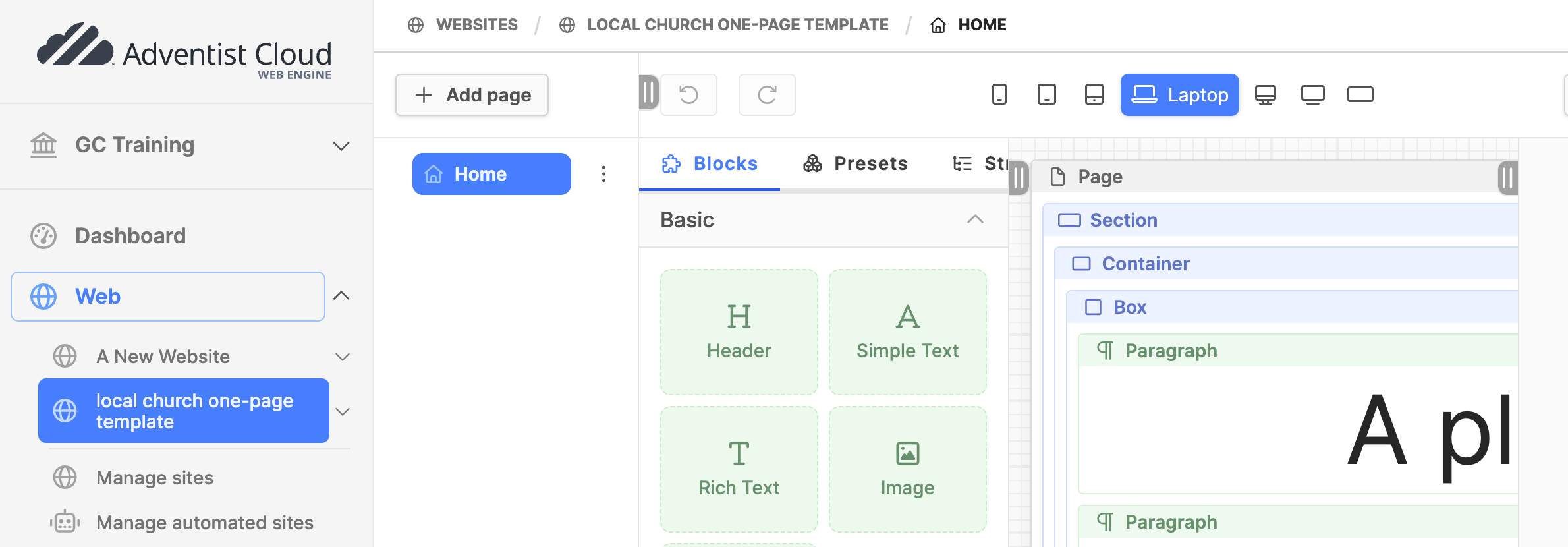
- Expand the web module.
- Click on the name of the website template. (website pagetree will open on the right)
- Click on the page name where the event block is configured (ex: Home).
- The page will appear with its layout and blocks.
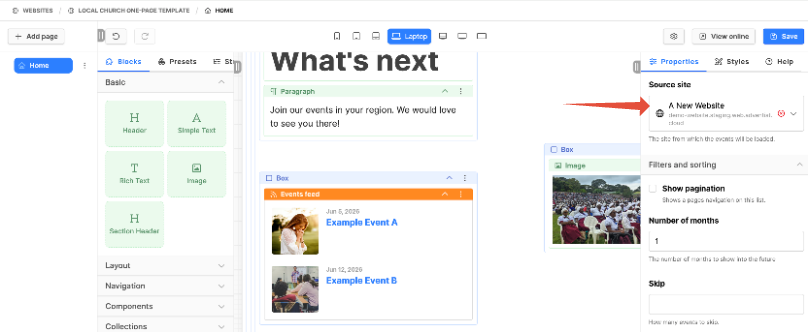
- Scroll down the page to the Events block (ex: Events feed).
- Click on the header of the Events feed block to select it.
- On the right side of the screen, look for the properties tab.
- On the properties tab, look for Source site.
- Click in the Search field.
- Type the name of the website that events will be pulled from. Click or select the website.
- Note: If the expected website does not appear in the list, please note that a detail page may not be configured for that website. In order for a website to appear in the list, it must have a configured detail page.
- Click on Save button.
Verify events block is working
- Expand the web module.
- Click on Manage automated sites.
- Find a church entity that is using the website template just updated.
- Click on the church using the updated template.
- The events should display on the website.
Additional information
- Setup Events module in backend
- Adding an event organizer
- Add an event region
- Add event categories
- Adding events
to review 2026-05-??