
Overview
This article provides the details to add a newsletter subscription form to the website, that will add contacts to a contact list that are created under your account in Brevo. Brevo is an emailing service which will be setup to send out your newsletter.
Web Engine leverages the power of the emailing service provider Brevo (Mailjet and Mailchimp are options as well), so that the concern of becoming blacklisted or emails missing can be removed. The emailing service providers keep up to date with changes for their industry and provide a professional level of service for handling the mailing of newsletters.
How to
Connect a Brevo contact form for the Newsletter
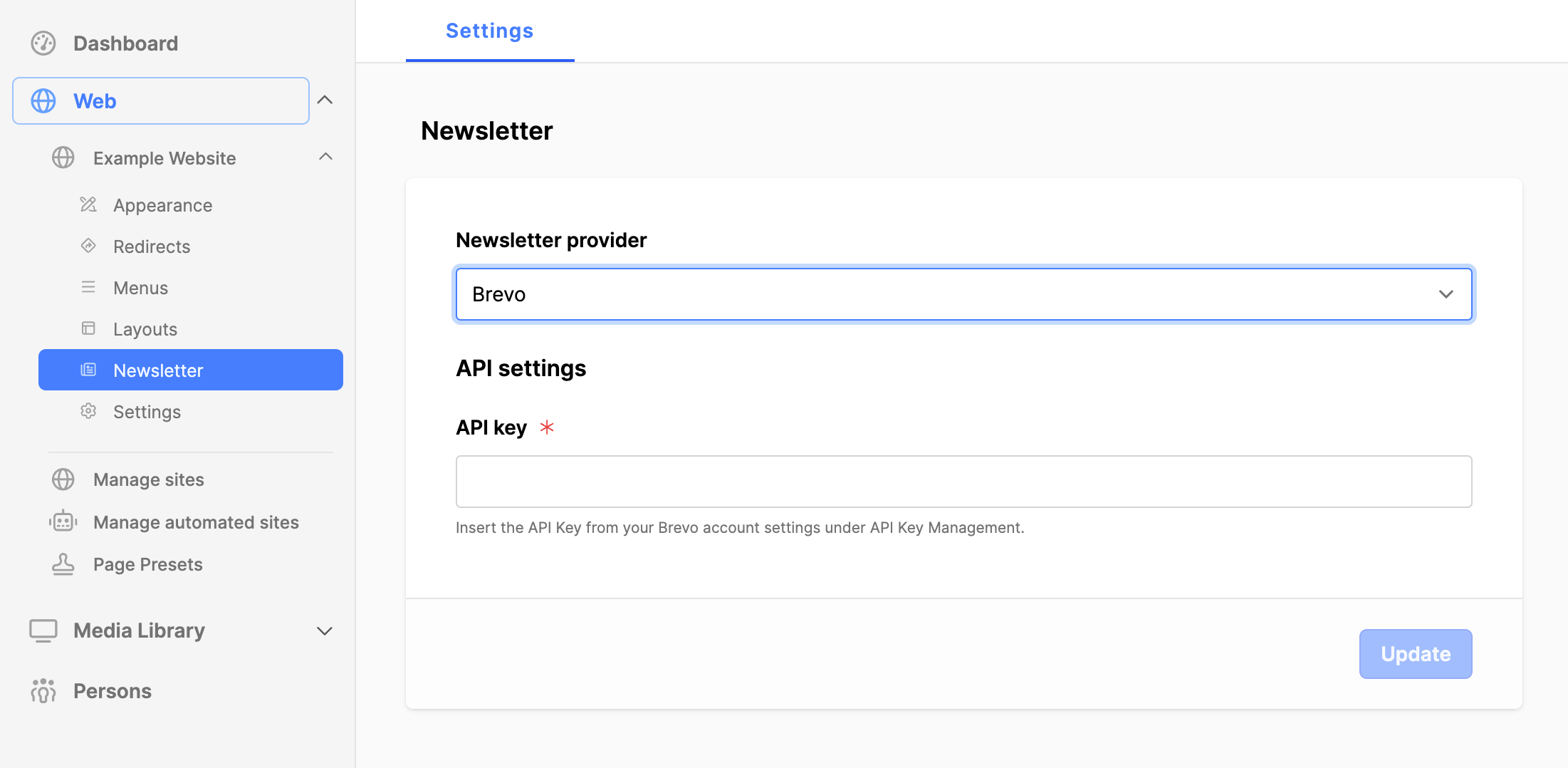
- Expand the web module.
- Expand the website.
- Click on the Newsletter submodule.
- Click in the Newsletter provider field.
- Select Brevo as the provider.
- When the API field appears, add in your Brevo API key.
- Click on the Update button. (a Settings block will appear next)
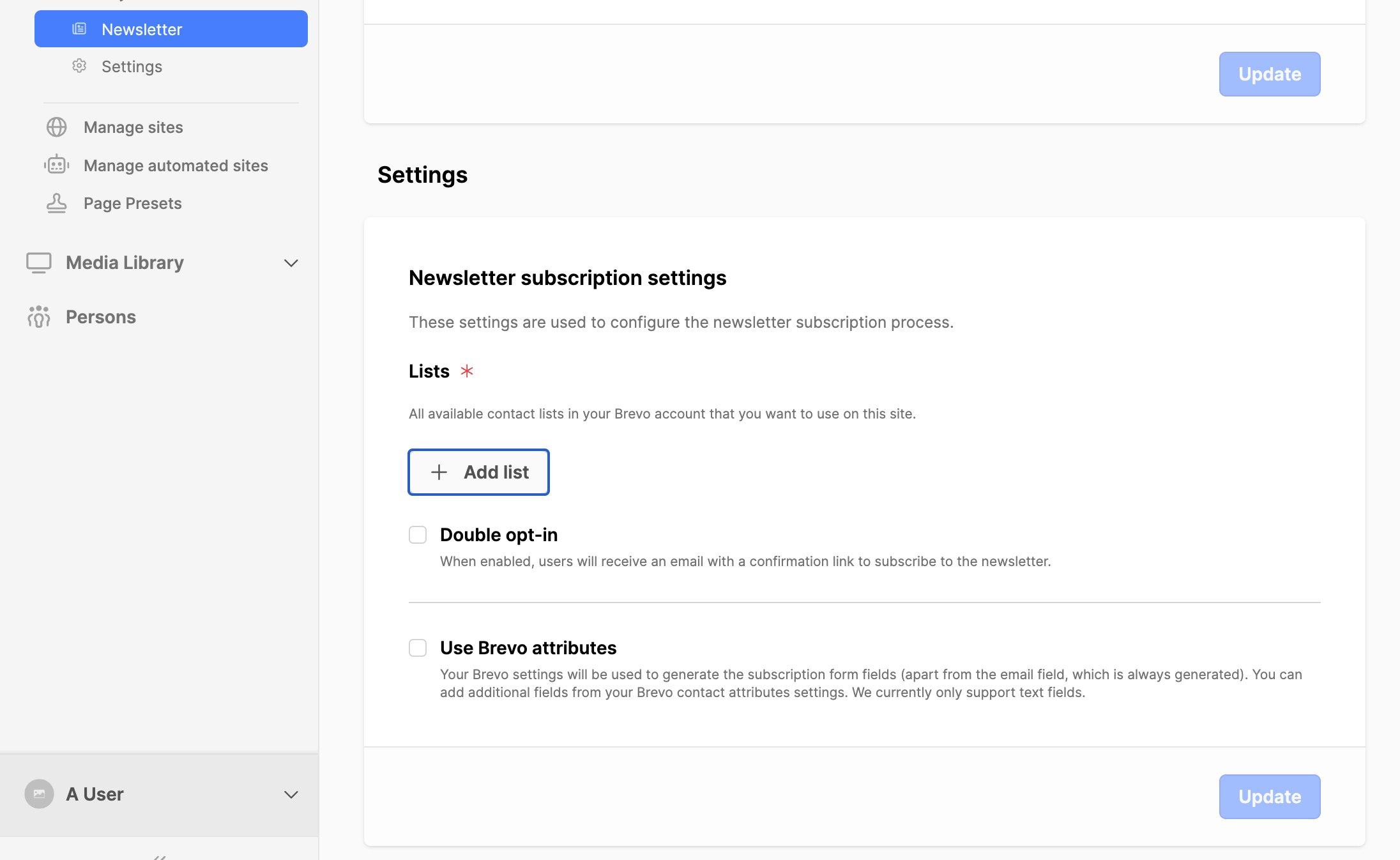
- Click on the Add list button. (To connect to your contact list in Brevo)
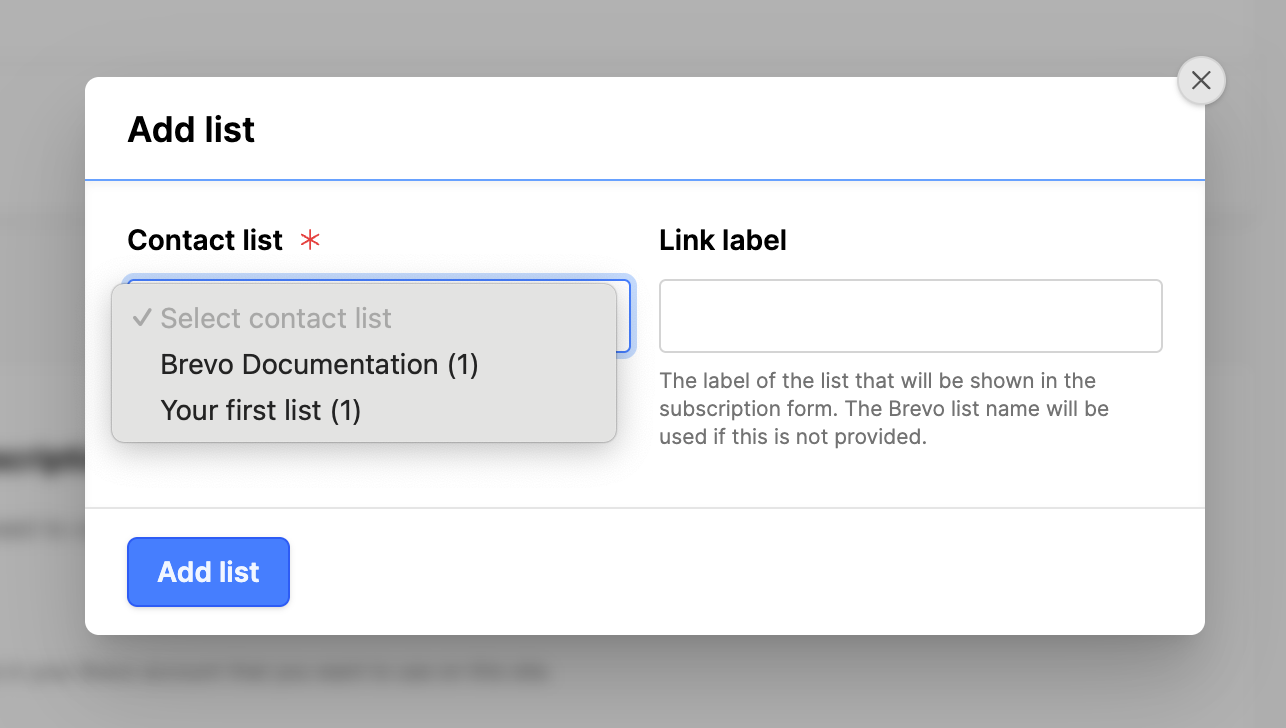
- Choose your contact list from the select list.
- Link label: add a label if you would like to customize this.
- Click on the Add list button.
- Use Brevo attributes: set a checkmark. (the Attributes area will appear)
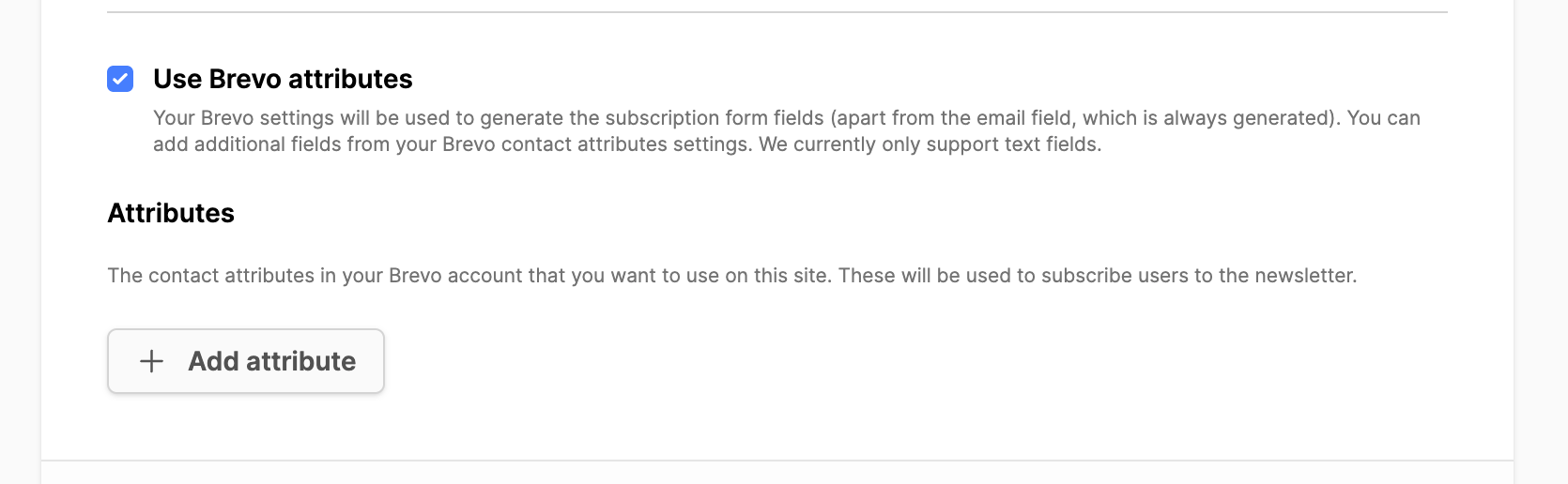
- Click on the Add attribute button.
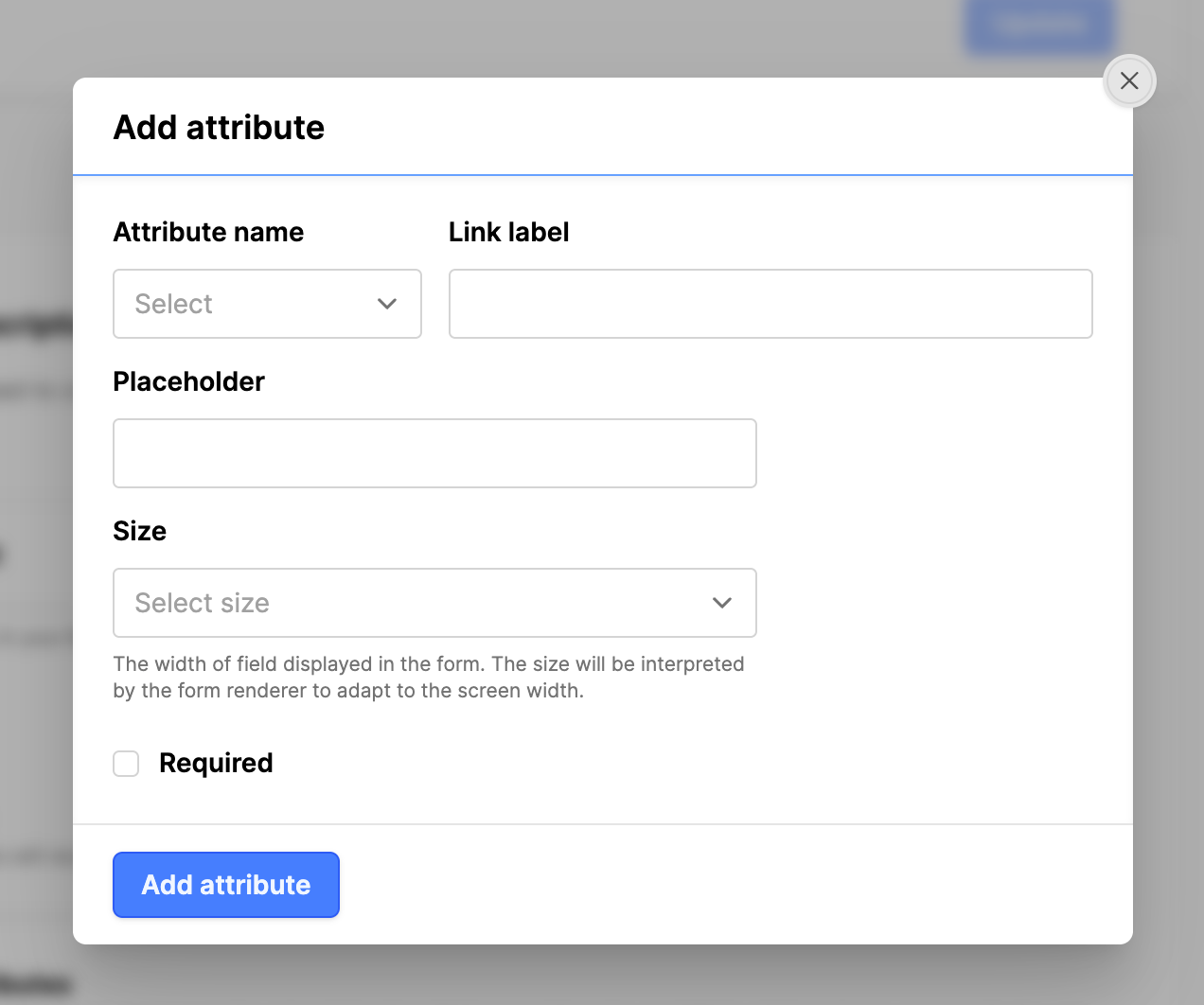
- Attribute name: find the Brevo attribute to add to the frontend form.
- Link label: Provide a label for the attribute.
- Placeholder: Provide a placeholder text. (optional)
- Required: set a checkmark. (optional)
- Click on the Add attribute button to add the attribute to the frontend form.
- Repeat for all the attributes you want to add to the form.
- When finished with adding attributes, click on the Update button.
Add the Newsletter subscription form to the frontend
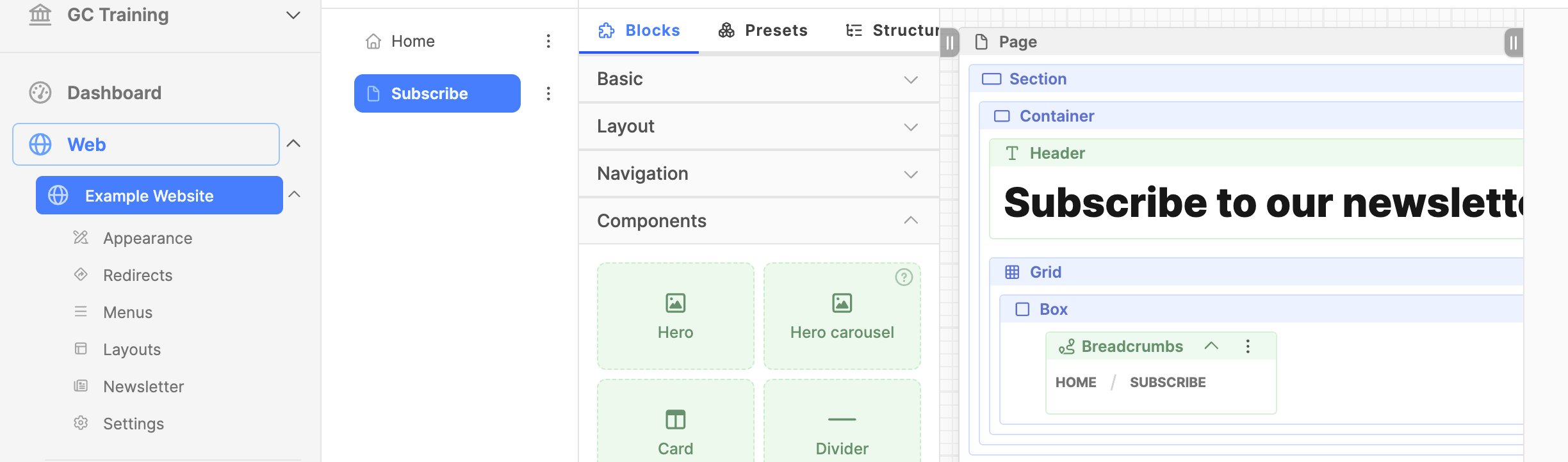
- Expand the web module.
- Click on the name of the website.
- Click on the name of the page where the subscription form should be placed.
- Under the Components block group, find the Newsletter subscription block. Drag that block into the page location where the Newsletter subscription form is needed.
- Click on the Save button.
- Then click on the header of the Newsletter subscription block to select it.
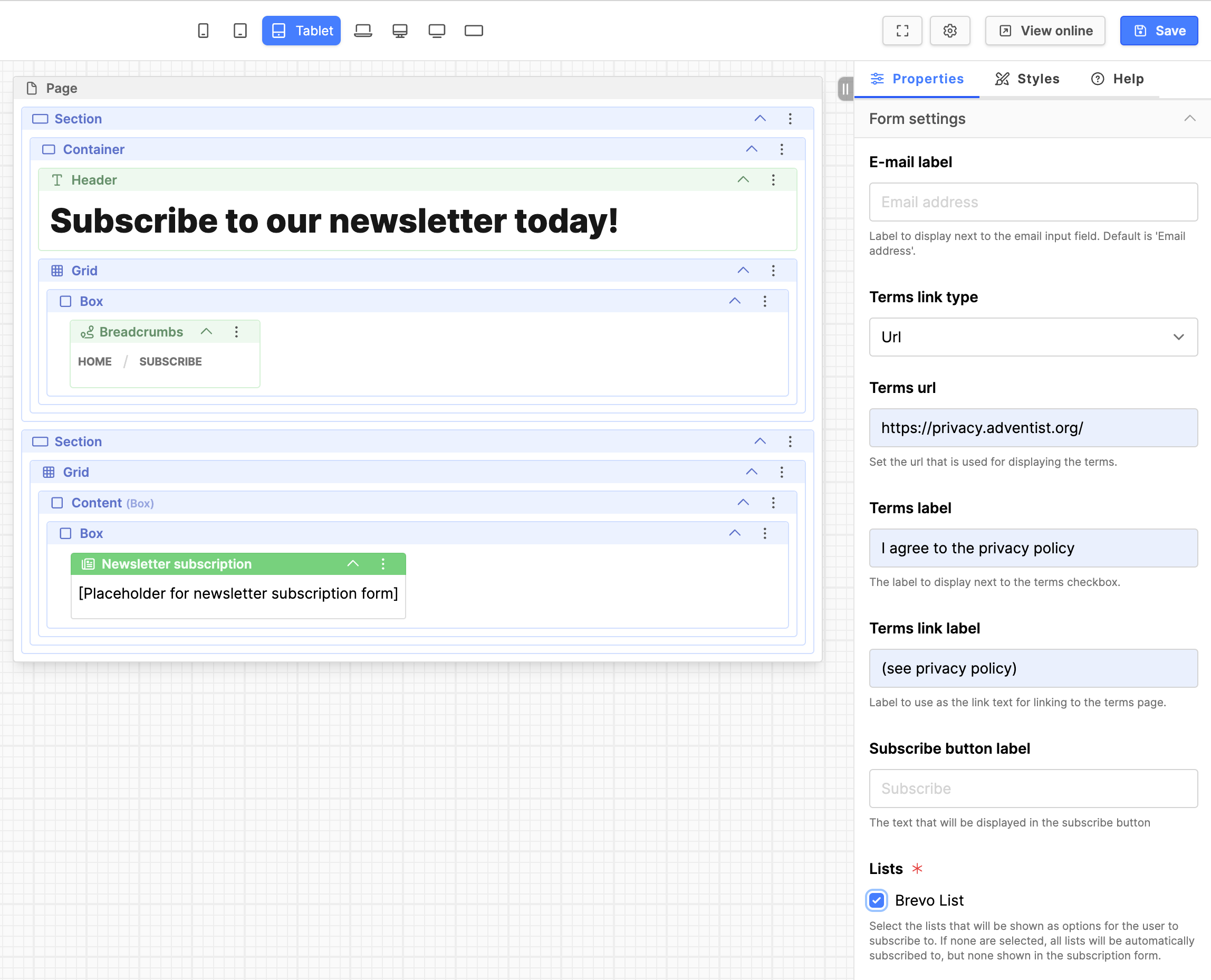
- Terms url: add in the URL to the terms page if it is off site. Otherwise, use the Page option for the Terms link type and select the page on the website where the terms are presented.
- Terms label: provide a label for the agree checkbox text.
- Terms link label: provide a label for the Terms link.
- Lists: set a checkmark for the Brevo list you added above.
- Click on the Save button.
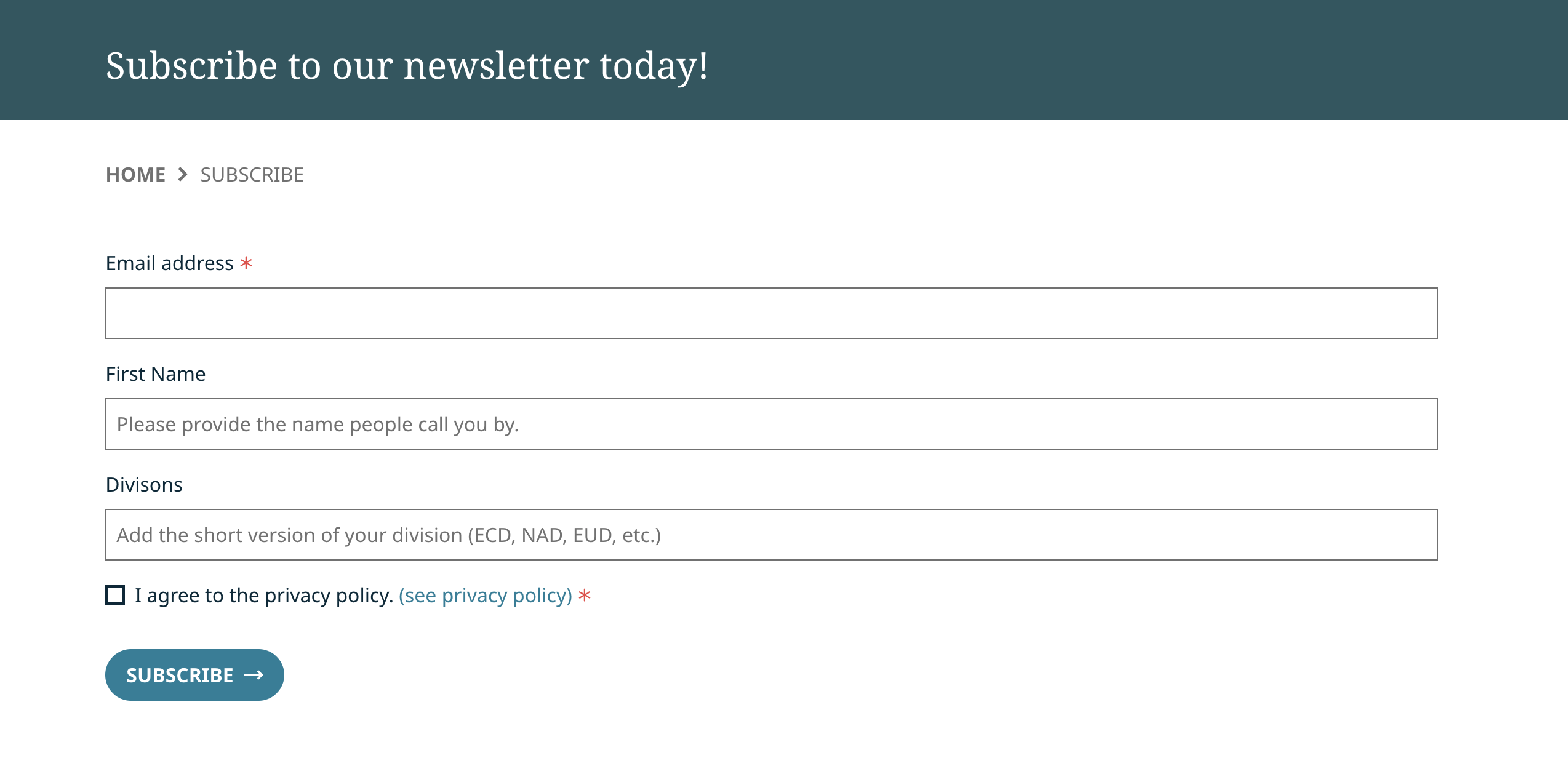
- Click on the View online button to test in the frontend.
- Review the texts for proper wording.
- Do a test of the form and submit it.
- Check that the information appears under the Brevo list you have setup. (log into Brevo)
Additional information
to review 2026-07-14